
1. Introduction
The NEDIS Zigbee Gateway WIFIZB10WT serves as a central hub for connecting your Zigbee-enabled smart home devices to the Nedis SmartLife ecosystem. This gateway facilitates communication between your Zigbee products and your Wi-Fi network, allowing for unified control through the SmartLife application.

Image 1.1: NEDIS Zigbee Gateway WIFIZB10WT with SmartLife and Zigbee compatibility logos.
2. Safety Information
- Ensure the device is placed in a dry environment, away from water or excessive humidity.
- Do not expose the device to extreme temperatures or direct sunlight.
- Use only the provided or recommended power adapter and USB cable.
- Do not attempt to open or repair the device yourself. Refer all servicing to qualified personnel.
- Keep out of reach of children.
3. Package Contents
Verify that all items are present and in good condition upon unpacking.
- NEDIS Zigbee Gateway (WIFIZB10WT)
- USB Power Cable (Micro USB)
- Instruction Manual (this document)

Image 3.1: Product packaging for the NEDIS Zigbee Gateway.

Image 3.2: The NEDIS Zigbee Gateway and its accompanying USB power cable.
4. Product Features
- Connectivity: Connects up to 40 Zigbee products to a single gateway.
- Efficiency: Zigbee technology supports instant communication with minimal battery consumption for connected devices.
- Integration: Seamlessly integrates into the Nedis SmartLife app for combined control of Zigbee and other SmartLife products.
- Compact Design: Small and unobtrusive design (6.1 x 6.1 x 1.5 cm).
5. Setup Guide
5.1. Device Overview
Familiarize yourself with the gateway's ports and indicators.

Image 5.1: Side view of the gateway, highlighting the reset button and Micro USB power input.
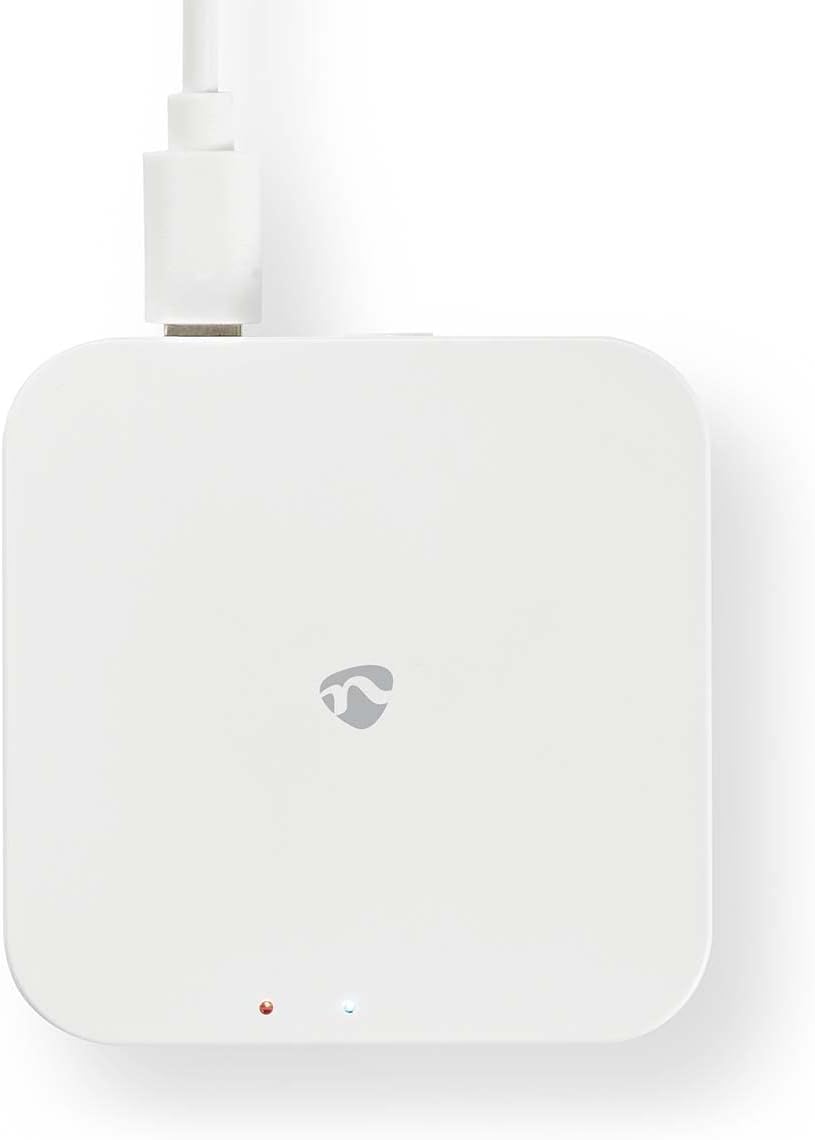
Image 5.2: Top view of the gateway, showing the status indicator lights.
5.2. Initial Setup
- Power On: Connect the provided USB cable to the Micro USB port on the gateway and plug the other end into a suitable USB power adapter (not included). The gateway will power on, and the indicator lights will activate.
- Download App: Download the Nedis SmartLife app from the App Store (iOS) or Google Play Store (Android).
- Register/Login: Open the SmartLife app and register for a new account or log in with an existing one.
- Add Device: In the SmartLife app, tap the '+' icon to add a new device. Select 'Gateway' or 'Control Hub' from the device list.
- Network Configuration: Follow the on-screen instructions in the app to connect the gateway to your 2.4 GHz Wi-Fi network. Ensure your mobile device is also connected to the same 2.4 GHz Wi-Fi network during setup.
- Pairing Mode: The app will guide you on how to put the gateway into pairing mode. This usually involves pressing and holding the reset button (refer to Image 5.1) for a few seconds until the indicator light blinks rapidly.
- Completion: Once the gateway is successfully added, you can rename it and assign it to a specific room within the app.
5.3. Adding Zigbee Devices
After the gateway is set up, you can add Zigbee devices:
- Open Gateway in App: In the SmartLife app, select your newly added Zigbee Gateway.
- Add Sub-device: Tap 'Add sub-device' or a similar option within the gateway's interface.
- Pair Zigbee Device: Put your Zigbee device into pairing mode (refer to the specific device's manual for instructions). The gateway will automatically search for and connect to nearby Zigbee devices.
- Configure Device: Once detected, you can configure the Zigbee device's settings, create automations, and integrate it with other SmartLife products.
6. Operating Instructions
The NEDIS Zigbee Gateway operates primarily through the Nedis SmartLife application. Once connected, it acts as a bridge for your Zigbee devices.
- Remote Control: Control all connected Zigbee devices from anywhere using the SmartLife app on your smartphone or tablet.
- Automation: Create smart scenes and automations within the SmartLife app. For example, turn on Zigbee lights when a SmartLife motion sensor detects movement.
- Voice Control: Integrate the SmartLife app with compatible voice assistants (e.g., Google Assistant, Amazon Alexa) for voice control of your Zigbee devices.
- Status Monitoring: Monitor the status of your Zigbee devices (e.g., on/off, sensor readings) directly from the app.
7. Maintenance
- Cleaning: Wipe the device with a soft, dry cloth. Do not use liquid cleaners or aerosols.
- Firmware Updates: Periodically check the Nedis SmartLife app for available firmware updates for the gateway to ensure optimal performance and security.
- Resetting: If the gateway experiences issues, a soft reset can be performed by unplugging and replugging the power cable. For a factory reset, press and hold the reset button (refer to Image 5.1) for approximately 5-10 seconds until the indicator lights change, then release. Note that a factory reset will remove all paired devices and network configurations.
8. Troubleshooting
- Gateway not connecting to Wi-Fi:
- Ensure your Wi-Fi network is 2.4 GHz. The gateway does not support 5 GHz Wi-Fi.
- Verify your Wi-Fi password is correct.
- Move the gateway closer to your Wi-Fi router.
- Perform a factory reset on the gateway and try the setup process again.
- Zigbee devices not pairing:
- Ensure the Zigbee device is in pairing mode (check its specific manual).
- Make sure the Zigbee device is within range of the gateway (up to 35 meters in open space).
- Check if the gateway has reached its maximum capacity of 40 connected devices.
- Try resetting the Zigbee device and attempting to pair again.
- App not responding:
- Close and restart the SmartLife app.
- Check your internet connection.
- Ensure the gateway has power and its indicator lights are normal.
9. Specifications
| Brand | NEDIS |
| Model Number | WIFIZB10WT |
| Series | Zigbee Gateway |
| Dimensions (L x W x H) | 6.1 x 6.1 x 1.5 cm |
| Weight | 56 g |
| Color | White |
| Wireless Type | Zigbee, Wi-Fi (2.4 GHz), Bluetooth (as per product specifications, may be for initial setup) |
| OS Compatibility | Android, iOS |
| Max. Connected Devices | 40 Zigbee products |
10. Warranty and Support
For warranty information and technical support, please refer to the official NEDIS website or contact your local retailer. Keep your proof of purchase for warranty claims.
For the latest information and support, visit: www.nedis.com


