
1. Introduction
This user manual provides detailed instructions for the operation and maintenance of your Lenovo Tab M10 TB-X605L Tablet. Please read this manual thoroughly before using your device to ensure proper functionality and to prevent damage. Keep this manual for future reference.
2. Package Contents
Verify that your package contains the following items:
- Lenovo Tab M10 TB-X605L Tablet
- USB Cable
- Power Adapter
- Quick Start Guide
- Warranty Card
If any items are missing or damaged, please contact your retailer or Lenovo customer support.
3. Device Layout
Familiarize yourself with the physical features and buttons of your tablet.

Figure 3.1: Front View - This image displays the front of the Lenovo Tab M10 TB-X605L tablet, featuring its 10.1-inch display. The front camera is visible at the top center, and the screen shows a digital clock and date, along with user profile icons at the bottom.
- Front Camera: Used for video calls and selfies.
- Display: 10.1-inch IPS FHD touchscreen.
- Microphone: For voice input.
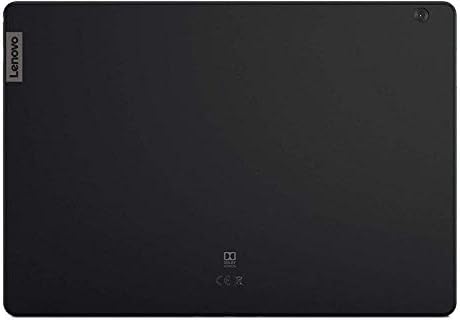
Figure 3.2: Back View - This image shows the rear of the Lenovo Tab M10 TB-X605L tablet. The Lenovo logo is positioned on the top left, and the rear camera is located in the top right corner. The back panel has a matte black finish.
- Rear Camera: For taking photos and videos.
- Speaker: For audio output.
- Power Button: To turn the device on/off or put it to sleep.
- Volume Buttons: To adjust the volume.
- USB-C Port: For charging and data transfer.
- SIM/MicroSD Card Slot: For inserting a Nano SIM card and a microSD card.
4. Setup
4.1. Charging the Battery
Before first use, fully charge the tablet battery. Connect the USB cable to the tablet's USB-C port and the power adapter, then plug the adapter into a power outlet. The charging indicator will show the charging status.
4.2. Installing SIM and MicroSD Cards
The tablet supports one Nano SIM card for 4G LTE connectivity and a microSD card for expanded storage.
- Locate the SIM/MicroSD card slot on the side of the tablet.
- Use the provided SIM ejector tool to open the tray.
- Carefully place the Nano SIM card and/or microSD card into the tray with the gold contacts facing down.
- Gently push the tray back into the slot until it clicks into place.
4.3. Initial Power On and Setup
- Press and hold the Power button until the Lenovo logo appears.
- Follow the on-screen instructions to complete the initial setup, including language selection, Wi-Fi connection, Google account setup, and security settings.
5. Operating Instructions
5.1. Power On/Off and Sleep Mode
- Power On: Press and hold the Power button until the device vibrates and the screen lights up.
- Power Off: Press and hold the Power button, then select "Power off" from the options.
- Sleep Mode: Briefly press the Power button to turn the screen off and enter sleep mode. Press it again to wake the device.
5.2. Basic Gestures
- Tap: Select an item or open an application.
- Touch and Hold: Access contextual menus or move items.
- Swipe: Navigate through screens or scroll content.
- Pinch: Zoom in or out on images and web pages.
5.3. Network Connectivity
- Wi-Fi: Go to Settings > Network & internet > Wi-Fi to connect to available Wi-Fi networks.
- 4G LTE: Ensure a Nano SIM card is installed. Go to Settings > Network & internet > Mobile network to manage mobile data settings.
- Bluetooth: Go to Settings > Connected devices > Bluetooth to pair with Bluetooth devices like headphones or speakers.
5.4. Camera Usage
Open the Camera application to take photos or record videos. Tap the screen to focus, and press the shutter button to capture. Switch between front and rear cameras as needed.
5.5. Application Management
Install new applications from the Google Play Store. To uninstall an app, touch and hold its icon on the home screen or app drawer, then drag it to the "Uninstall" option, or go to Settings > Apps & notifications > See all apps.
6. Maintenance
6.1. Cleaning the Tablet
Use a soft, lint-free cloth to clean the screen and body of the tablet. Do not use abrasive cleaners, alcohol, or solvents, as these can damage the surfaces. Avoid getting moisture into openings.
6.2. Software Updates
Regularly check for and install software updates to ensure optimal performance and security. Go to Settings > System > System update.
6.3. Battery Care
- Avoid exposing the tablet to extreme temperatures.
- Do not allow the battery to fully discharge frequently.
- Use only the original or certified compatible charger.
7. Troubleshooting
This section addresses common issues you might encounter with your tablet.
7.1. Tablet Does Not Turn On
- Ensure the battery is charged. Connect the charger and wait a few minutes before attempting to power on.
- Press and hold the Power button for at least 10-15 seconds to perform a forced restart.
7.2. Screen Is Unresponsive
- Restart the tablet by holding the Power button.
- Ensure the screen is clean and free of debris or moisture.
7.3. Cannot Connect to Wi-Fi
- Ensure Wi-Fi is enabled in Settings.
- Restart your Wi-Fi router.
- Forget the network in tablet settings and try reconnecting.
7.4. Poor 4G LTE Signal
- Check that the Nano SIM card is correctly inserted.
- Ensure mobile data is enabled in Settings.
- Move to an area with better network coverage.
8. Specifications
| Model | Lenovo Tab M10 TB-X605L |
| Operating System | Android |
| Display | 10.1-inch IPS FHD (1920 x 1200) Touchscreen |
| Processor | Octa Core, 1.8 GHz (MediaTek) |
| RAM | 3 GB |
| Storage | 32 GB (expandable via microSD) |
| Rear Camera | 5.0 MP |
| Front Camera | 2.0 MP |
| Network | 4G LTE (1 Nano SIM supported) |
| Connectivity | Wi-Fi (802.11g), Bluetooth, Cellular |
| Battery Capacity | 4850 mAh |
| Dimensions | 26.8 x 18.6 x 7.2 cm (Package) |
| Weight | 1.1 kg (Package) |
9. Safety Information
- Do not attempt to disassemble, repair, or modify the device yourself.
- Keep the device away from extreme heat, direct sunlight, and liquids.
- Use only approved accessories and chargers.
- Dispose of the device and its battery responsibly according to local regulations.
- Avoid using the device in environments that require full attention, such as while driving.
10. Warranty and Support
Your Lenovo Tab M10 TB-X605L Tablet is covered by a limited warranty. Please refer to the warranty card included in your package for detailed terms and conditions. For technical support, service, or further assistance, please visit the official Lenovo support website or contact their customer service.
Official Lenovo Support: support.lenovo.com