
Thank you for purchasing the PWAY PW-HT225PIR HDMI Extender. This manual provides detailed instructions for the proper installation, operation, and maintenance of your device. Please read this manual thoroughly before use to ensure optimal performance and safety.
Package Contents
Verify that all items are present in your package:
- 1 x PWAY PW-HT225PIR HDMI Extender Transmitter Unit
- 1 x PWAY PW-HT225PIR HDMI Extender Receiver Unit
- 1 x Power Adapter (DC 5V/1A)
- 1 x IR Blaster Cable
- 1 x IR Receiver Cable
- 1 x User Manual
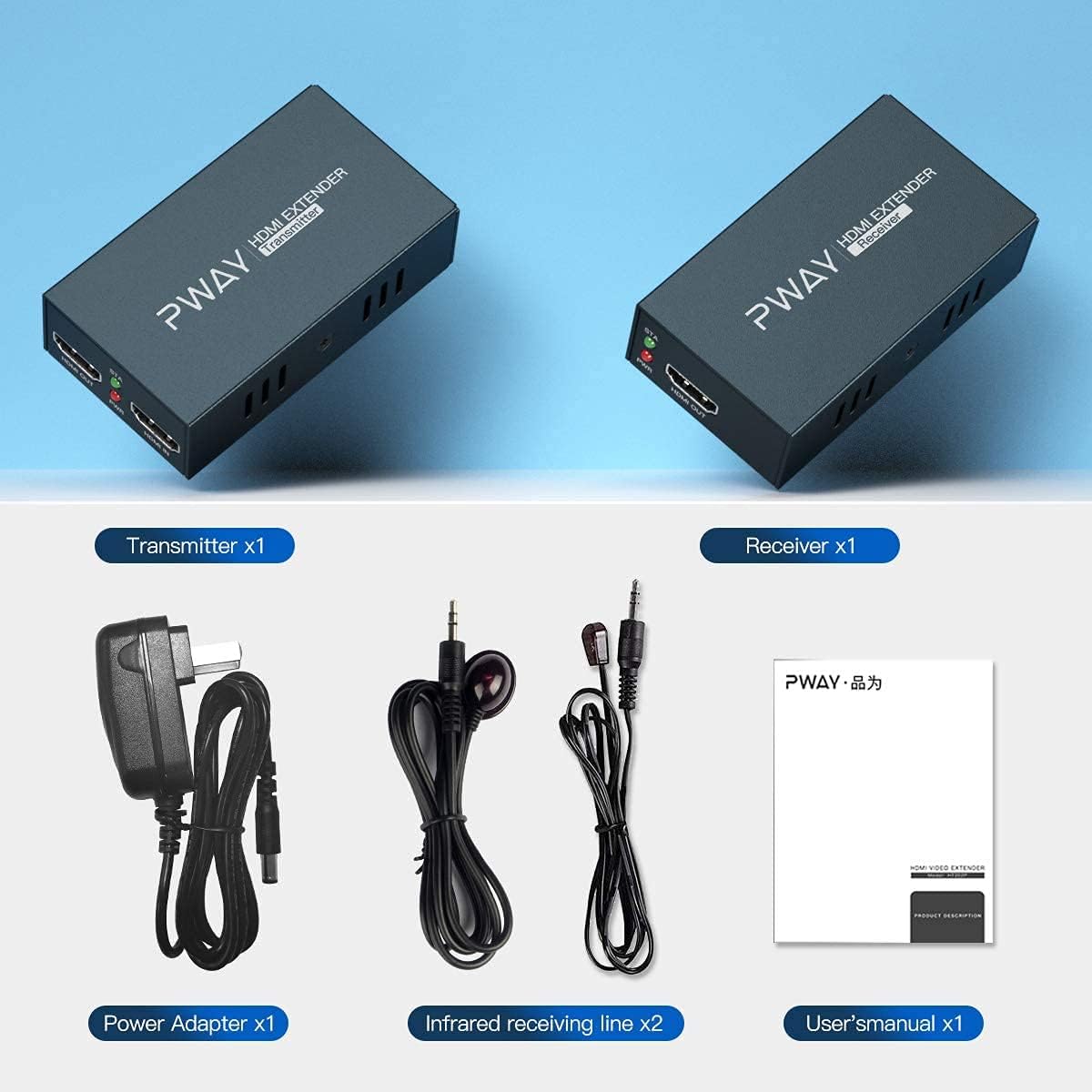
The image displays the complete package contents for the PWAY HDMI Extender, including the transmitter and receiver units, power adapter, IR blaster and receiver cables, and the user manual.
Product Overview
The PWAY PW-HT225PIR HDMI Extender allows for the transmission of HDMI audio and video signals over a single Cat5e/6/7 cable up to 60 meters (195 feet). It supports Full HD 1080P resolution, IR control, and features an HDMI loop-out on the transmitter unit, along with EDID management for enhanced compatibility.
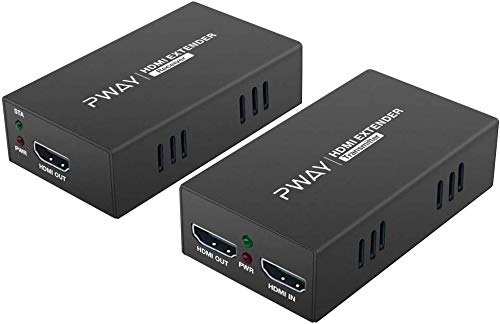
This image shows the PWAY HDMI Extender transmitter and receiver units, highlighting their compact design and port labels.
Key Features
- Extended Transmission: Transmits HDMI signals up to 60 meters (195 feet) over a single Cat5e/6/7 cable.
- High Definition Support: Supports resolutions up to 1920x1080@60Hz, compatible with 1080i, 720P, 720i, 480P, and 480i.
- Power over Cable (POC): Requires power connection only at the receiving end, simplifying installation.
- IR Control: Allows remote control of the source device from the display location (20-60KHz).
- HDMI Loop Out: Transmitter unit includes an HDMI loop-out port for a local display.
- EDID Management: Built-in EDID functionality for optimal display compatibility.
- Robust Design: Features automatic equalization and ESD electrostatic protection for stable performance.

This image illustrates the high-definition visual quality supported by the extender, showcasing the clarity of 1080P resolution.
Setup Instructions
- Connect the HDMI Source: Connect your HDMI source device (e.g., DVD player, PC, TV box, PS4) to the HDMI IN port of the Transmitter unit using an HDMI cable.
- Connect Local Display (Optional): If you wish to have a local display near the source, connect it to the HDMI OUT (Loop Out) port of the Transmitter unit using an HDMI cable.
- Connect Cat5e/6/7 Cable: Connect one end of a Cat5e/6/7 network cable to the UTP port on the Transmitter unit and the other end to the UTP port on the Receiver unit. Ensure the cable is properly terminated and meets the specified length requirements for optimal performance (Cat5-30m; Cat5e-40m; Cat6/7-60m).
- Connect Remote Display: Connect your remote display (e.g., UHDTV) to the HDMI OUT port of the Receiver unit using an HDMI cable.
- Connect IR Cables (Optional):
- Connect the IR Blaster cable to the IR OUT port on the Transmitter unit and position the IR emitter near the IR sensor of your source device.
- Connect the IR Receiver cable to the IR IN port on the Receiver unit and position the IR receiver in a location where it can receive signals from your remote control.
- Power On: Connect the provided power adapter to the DC 5V/1A port on the Receiver unit. Due to the POC function, only the Receiver unit requires external power.
- Verify Connection: Once all connections are made and power is supplied, check the status indicators on both units. The PWR indicator should be lit, and the STA indicator should show a stable connection.

This diagram illustrates the typical connection setup, showing how to connect the HDMI source, transmitter, Cat5e/6/7 cable, receiver, and displays.
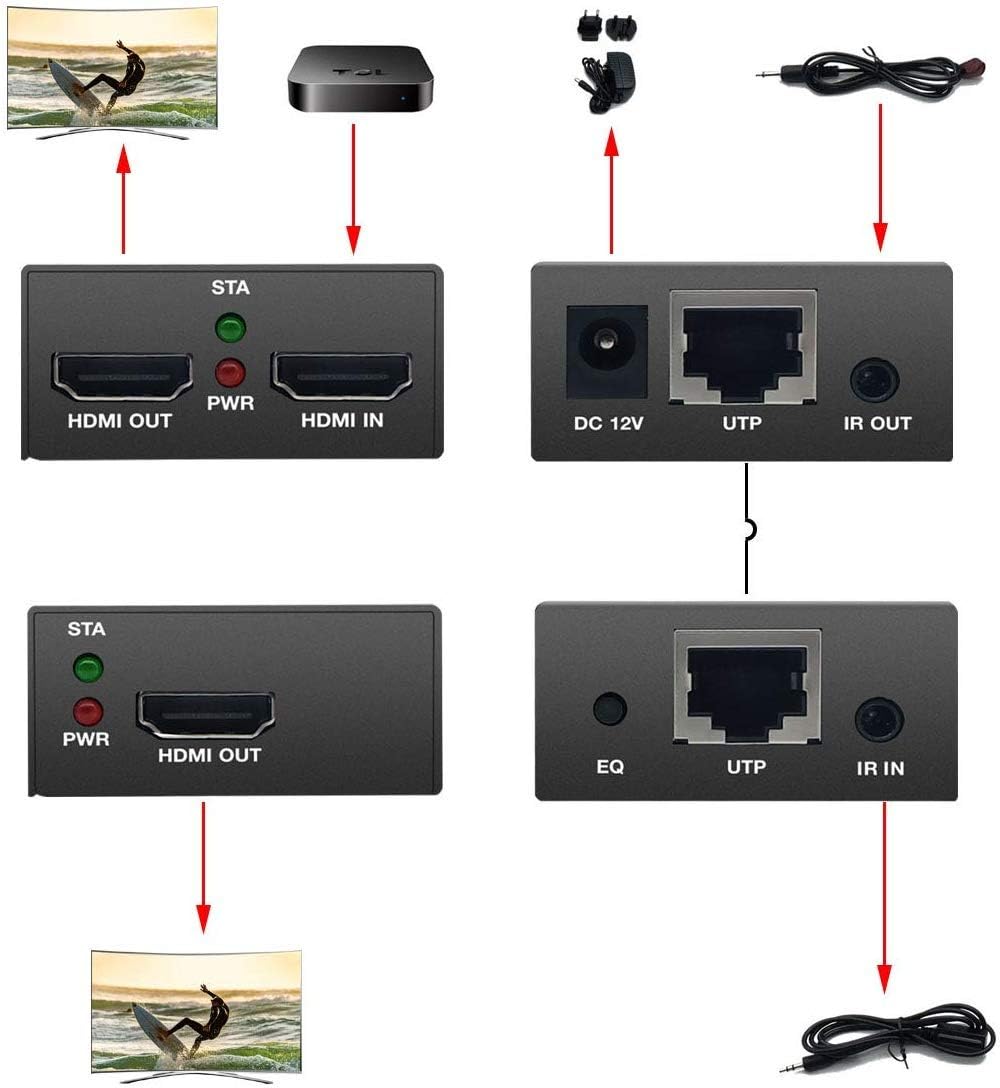
A detailed connection diagram showing the various ports and their connections, including DC 5V, UTP, HDMI, and IR IN/OUT.
Operating Instructions
EDID Management
The PWAY PW-HT225PIR HDMI Extender features EDID management to ensure compatibility with various displays. The EDID DIP switch on the transmitter unit allows you to select different EDID modes. Refer to the EDID Management Table below to choose the appropriate setting for your display configuration.
Note: Changes to the EDID DIP switch settings require a power cycle of the transmitter unit to take effect.

This image shows a DIP switch, which is used for EDID settings on the transmitter unit.
| DIP Switch ON ↓ | 1 | 2 | 3 | 4 | EDID Info |
|---|---|---|---|---|---|
| MODE 1 | ↑ | ↑ | ↑ | ↑ | Copy HDMI output1 TV's EDID |
| MODE 2 | ↓ | ↑ | ↑ | ↑ | Fixed EDID FULL HD(1080p/60Hz)-24bit 2D video 7.1ch AUDIO |
| MODE 3 | ↑ | ↓ | ↑ | ↑ | Fixed EDID FULL HD(1080p/60Hz)-24bit 2D video 2ch AUDIO |
| MODE 4 | ↓ | ↓ | ↑ | ↑ | Fixed EDID FULL HD(1080p/60Hz)-36bit 2D video 7.1ch AUDIO |
| MODE 5 | ↑ | ↑ | ↓ | ↑ | Fixed EDID FULL HD(1080p/60Hz)-36bit 2D video 2ch AUDIO |
| MODE 6 | ↓ | ↑ | ↓ | ↑ | (1080p/30Hz)[(1080i/60Hz)][(720P/60Hz)]-24bit 2D video 7.1ch AUDIO |
| MODE 7 | ↑ | ↓ | ↓ | ↑ | Fixed EDID[1080p/30Hz][(1080i/60Hz)][(720P/60Hz)]-24bit 2D video 2ch AUDIO |
| MODE 8 | ↓ | ↓ | ↓ | ↑ | Fixed EDID HD(1080p/60Hz)-24bit 3D video 2ch AUDIO |
IR Control Function
The IR control function allows you to control your HDMI source device (e.g., DVD player, set-top box) from the location of your remote display. Ensure the IR Blaster and IR Receiver cables are correctly connected as described in the Setup section.
- The IR Blaster cable transmits IR signals from the transmitter unit to your source device.
- The IR Receiver cable receives IR signals from your remote control at the receiver unit.
Point your remote control at the IR Receiver connected to the extender's receiver unit to send commands to your source device.
Maintenance
- Keep the device in a cool, dry, and well-ventilated area.
- Avoid exposing the device to direct sunlight, high temperatures, or humidity.
- Clean the device with a soft, dry cloth. Do not use liquid or aerosol cleaners.
- Ensure all cables are securely connected to prevent signal loss or damage.
- Do not attempt to open or service the device yourself. Refer all servicing to qualified personnel.
Troubleshooting
- No Picture or Intermittent Signal:
- Check all HDMI and Cat5e/6/7 cable connections. Ensure they are secure and not damaged.
- Verify that the Cat5e/6/7 cable length is within the specified limits (Cat5-30m; Cat5e-40m; Cat6/7-60m).
- Ensure the power adapter is correctly connected to the Receiver unit and the power indicator is on.
- Try a different HDMI cable or Cat5e/6/7 cable.
- Adjust the EDID DIP switch settings on the transmitter unit to match your display's capabilities. Power cycle the transmitter after changing EDID settings.
- If using a local display, try disconnecting it to see if the remote display works.
- Reset the receiving unit if experiencing flickering or signal drops.
- IR Control Not Working:
- Ensure the IR Blaster and IR Receiver cables are correctly plugged into their respective ports (IR OUT on transmitter, IR IN on receiver).
- Verify that the IR Blaster emitter is positioned directly over the IR sensor of your source device.
- Ensure the IR Receiver is positioned to receive signals from your remote control.
- Check if your remote control batteries are working.
- Note that some older satellite boxes or specific devices may not be compatible with the IR extender function.
- Poor Picture Quality:
- Ensure you are using a high-quality Cat6 or Cat7 cable for longer distances.
- Check for any kinks or damage in the Cat5e/6/7 cable.
- Verify that the source and display devices are set to compatible resolutions.
Specifications
| Feature | Detail |
|---|---|
| Model | PW-HT225PIR |
| Brand | PWAY |
| Transmission Distance | Up to 60m (195ft) over Cat5e/6/7 cable (Cat5-30m; Cat5e-40m; Cat6/7-60m) |
| Supported Resolutions | 1920x1080@60Hz, compatible with 1080i/720P/720i/480P/480i |
| IR Frequency | 20-60KHz |
| Power Supply | DC 5V/1A (POC function, power only at Receiver) |
| Compatible Devices | Monitor, Projector, Television |
| Connector Type | HDMI, RJ45 (UTP), 3.5mm (IR) |
| Dimensions (per unit) | Approximately 14 x 10.8 x 6.6 cm (Parcel Dimensions) |
| Weight | Approximately 300 g (Parcel Weight) |
| ASIN | B08398BLMN |
| UPC | 778836223923 |
Warranty and Support
For warranty information or technical support, please refer to the contact details provided with your purchase or visit the official PWAY website. Keep your purchase receipt for warranty claims.