
PETKIT pkz1b2
PETKIT COZY Smart Pet House 2 User Manual
Model: pkz1b2
1. Product Overview
The PETKIT COZY Smart Pet House 2 is designed to provide a comfortable and climate-controlled environment for your small to medium-sized pets. Featuring built-in infrared temperature control, this innovative pet house allows you to manage the internal temperature remotely via a dedicated smartphone application, ensuring your pet's comfort whether you are at home or away.

Image: The PETKIT COZY Smart Pet House 2 in use, providing a cozy space for a pet.
2. Safety Instructions
Please read all safety instructions carefully before using the PETKIT COZY Smart Pet House 2 to ensure safe operation and prevent damage.
- Always place the pet house on a stable, level surface.
- Do not expose the device to water or excessive moisture. This product is for indoor use only.
- Keep the power cord away from heat sources and sharp edges.
- Unplug the device from the power outlet before cleaning or when not in use for extended periods.
- Do not attempt to disassemble or repair the device yourself. Contact qualified service personnel for assistance.
- Ensure proper ventilation around the unit to prevent overheating.
- Supervise pets, especially during initial use, to ensure they adapt safely to the device.
3. Package Contents
Verify that all items are present in the package:
- PETKIT COZY Smart Pet House 2 Main Unit
- Power Adapter
- User Manual (this document)
4. Setup
- Unpack the Device: Carefully remove all components from the packaging. Retain packaging for future transport or storage.
- Choose a Location: Place the PETKIT COZY Smart Pet House 2 on a flat, stable, and dry surface indoors. Ensure it is away from direct sunlight, heat sources, and areas with high humidity.
- Connect Power: Insert the power adapter cable into the power port on the back of the pet house. Plug the power adapter into a standard electrical outlet. The indicator light on the front of the unit should illuminate.
- Download the PETKIT App: Scan the QR code provided in the quick start guide (if applicable) or search for "PETKIT" in your smartphone's app store (iOS App Store or Google Play Store). Download and install the app.
- Pair with App: Follow the in-app instructions to register an account and pair your PETKIT COZY Smart Pet House 2 with your smartphone. This typically involves enabling Bluetooth or Wi-Fi on your phone and following prompts to connect to the device.
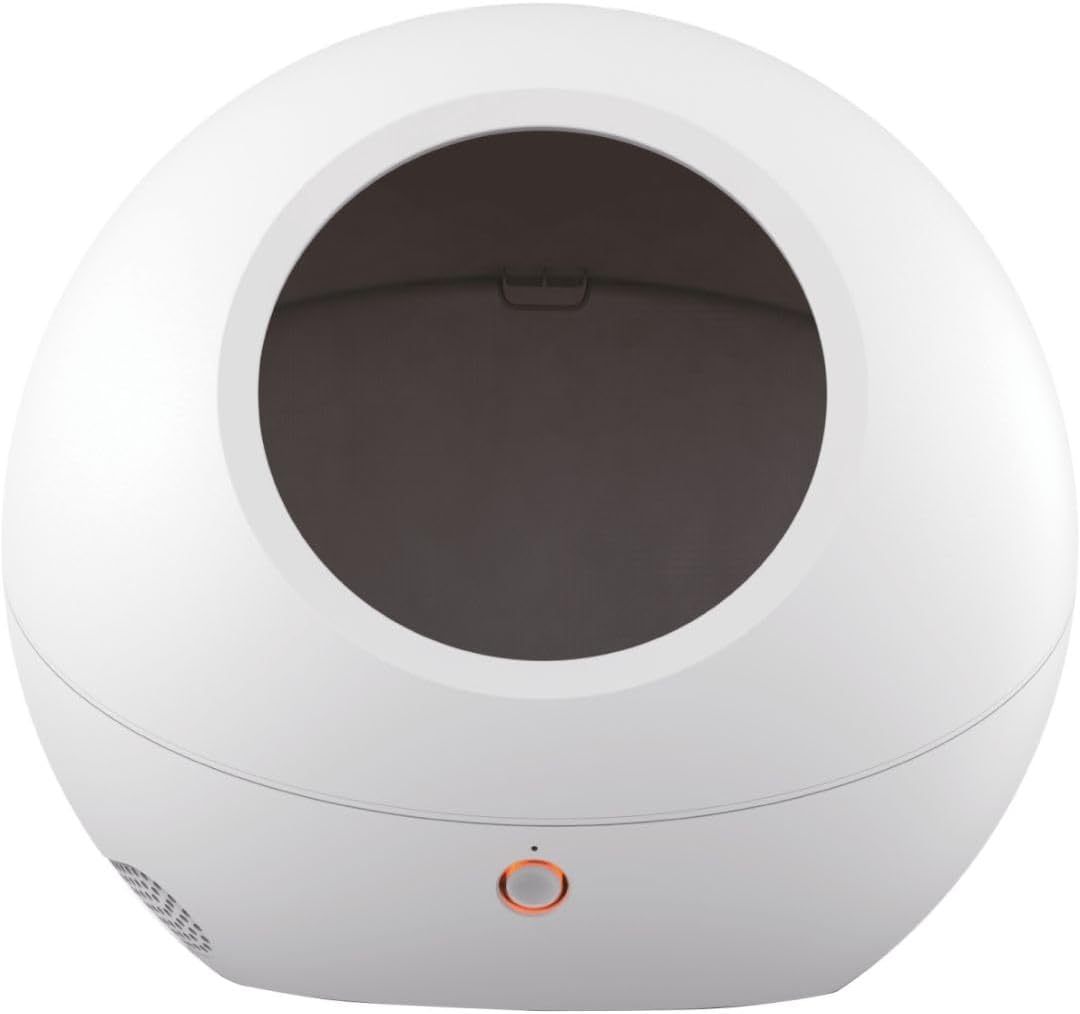
Image: The PETKIT COZY Smart Pet House 2 main unit.

Image: The PETKIT COZY Smart Pet House 2 with its power adapter connected.
5. Operating Instructions
5.1 Basic Operation
- Power Button: The single button on the front of the unit typically serves as a power toggle or mode switch. Press briefly to turn on/off or cycle through basic modes (if available). Refer to the app for detailed control.
- Indicator Light: The light indicates the device's status (e.g., power on, heating, cooling, error). Consult the app or quick start guide for specific light patterns.
5.2 App Control
The PETKIT app provides comprehensive control over the Smart Pet House 2:
- Temperature Adjustment: Use the app to set the desired temperature within the pet house. The built-in infrared temperature control system will automatically adjust to maintain the set temperature, providing both heating and cooling capabilities.
- Scheduling: Create schedules for temperature changes throughout the day or night to match your pet's needs and your daily routine.
- Monitoring: View real-time temperature readings and historical data within the app.
- Remote Control: Control the pet house from anywhere with an internet connection, allowing you to adjust settings even when you are away from home.

Image: Illustration of the internal temperature control system, showing heating and cooling capabilities.
6. Maintenance
Regular maintenance ensures the longevity and optimal performance of your PETKIT COZY Smart Pet House 2.
- Cleaning:
- Always unplug the device before cleaning.
- Wipe the exterior surfaces with a soft, damp cloth. Do not use abrasive cleaners, solvents, or harsh chemicals, as these can damage the finish.
- Ensure the interior is clean and free of pet hair or debris. A soft brush or vacuum cleaner attachment can be used for the interior.
- Allow the unit to dry completely before plugging it back in.
- Ventilation: Periodically check that the ventilation openings are not blocked by dust, pet hair, or other obstructions.
- Power Cord: Inspect the power cord and adapter regularly for any signs of damage. If damaged, discontinue use and contact customer support.
7. Troubleshooting
If you encounter issues with your PETKIT COZY Smart Pet House 2, refer to the following common problems and solutions:
| Problem | Possible Cause | Solution |
|---|---|---|
| Device not powering on. | Power adapter not connected properly; power outlet issue. | Ensure the power adapter is securely plugged into both the device and a working electrical outlet. Try a different outlet. |
| Temperature not adjusting. | Incorrect app settings; ventilation blocked; extreme ambient temperature. | Check temperature settings in the PETKIT app. Ensure ventilation openings are clear. The device may struggle to maintain set temperature in extreme room conditions. |
| Cannot connect to app. | Bluetooth/Wi-Fi off; device not in pairing mode; app issue. | Ensure Bluetooth/Wi-Fi is enabled on your phone. Restart the pet house and your phone. Re-attempt pairing in the app. |
| Unusual noises. | Internal fan obstruction; component issue. | Unplug the device and check for any visible obstructions. If the noise persists, contact customer support. |
If the problem persists after trying these solutions, please contact PETKIT customer support for further assistance.
8. Specifications
| Product Model Number | pkz1b2 |
| Brand | PETKIT |
| Color | Red (as per specifications, though product images show white) |
| Size | One Size |
| Weight | 7.5 kg |
| Pet Type | Small, Medium breeds |
| Power Source | AC Power Adapter (Batteries not required/included) |
9. Warranty and Support
For information regarding warranty coverage, terms, and conditions, please refer to the warranty card included with your product or visit the official PETKIT website. For technical support, troubleshooting assistance beyond this manual, or to inquire about replacement parts, please contact PETKIT customer service through their official channels.
Note: Warranty and support details may vary by region. Please consult your local PETKIT distributor or official website for specific information.
Related documentspkz1b2

Ask a question about this manual
Ask about setup, troubleshooting, compatibility, parts, safety, or missing instructions. Manuals+ will review the question and use this page’s manual context to help answer it.