
1. Introduction
Thank you for choosing the KLARSTEIN DryFy Connect 80 Dehumidifier. This manual provides essential information for the safe and efficient operation, maintenance, and troubleshooting of your appliance. Please read these instructions thoroughly before first use and keep them for future reference.
The DryFy Connect 80 is designed to effectively reduce humidity in indoor spaces, helping to prevent mold, mildew, and other moisture-related issues. Its advanced features include Wi-Fi connectivity for app control, adjustable humidity settings, and a continuous drainage option.
2. Safety Instructions
WARNING: Please read all safety warnings and instructions carefully before using this appliance to avoid electric shock, fire, or serious injury.
- Ensure the power supply matches the voltage specified on the rating label.
- Do not operate the dehumidifier with a damaged cord or plug. If the supply cord is damaged, it must be replaced by the manufacturer, its service agent, or similarly qualified persons to avoid a hazard.
- Always place the unit on a stable, level surface.
- Do not block the air inlet or outlet. Maintain at least 20 cm (8 inches) clearance around the unit for proper airflow.
- Do not insert objects into the air vents.
- Unplug the appliance before cleaning, moving, or performing any maintenance.
- Do not use the appliance in areas where flammable gases or liquids are stored.
- This appliance is not intended for use by persons (including children) with reduced physical, sensory or mental capabilities, or lack of experience and knowledge, unless they have been given supervision or instruction concerning use of the appliance by a person responsible for their safety.
- Children should be supervised to ensure that they do not play with the appliance.
- Do not use the appliance outdoors.
- Do not tilt the unit more than 45 degrees or turn it upside down.
3. Product Overview
The KLARSTEIN DryFy Connect 80 Dehumidifier is a powerful and efficient appliance designed for optimal humidity control. Below is an image illustrating the main unit and its key features, including the integrated control panel and the Klarstein app control interface.

Image: Front view of the KLARSTEIN DryFy Connect 80 Dehumidifier alongside a smartphone displaying the Klarstein app control interface. The dehumidifier is white with a green light indicator on top and a visible water level indicator on the front.
The unit features a robust design with integrated handles and castor wheels for easy portability. The control panel is located on the top surface, providing access to all operational settings. The water tank is located at the bottom front for easy access.
4. Setup
4.1 Unpacking
- Carefully remove the dehumidifier from its packaging.
- Remove all packing materials, including any tape or protective films.
- Inspect the unit for any signs of damage. If damaged, do not operate and contact customer support.
4.2 Placement
Proper placement is crucial for efficient dehumidification. Consider the following:
- Place the dehumidifier on a firm, level surface in the area where humidity control is needed.
- Ensure there is at least 20 cm (8 inches) of clear space around all sides of the unit to allow for adequate airflow. Do not place it against a wall or furniture that would obstruct air intake or exhaust.
- Avoid placing the unit near heat sources (e.g., heaters, ovens) or in direct sunlight, as this can reduce its efficiency.
- Do not place the unit in an area where it might be exposed to splashing water or excessive moisture (e.g., directly next to a shower).
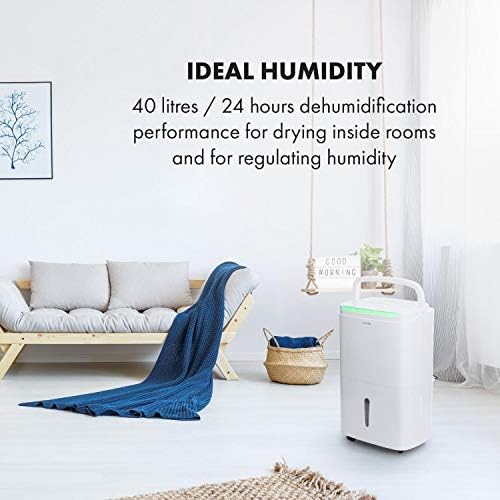
Image: The KLARSTEIN DryFy Connect 80 Dehumidifier placed in a modern living room, demonstrating appropriate placement away from furniture for optimal air circulation. Text overlay indicates "IDEAL HUMIDITY" and "40 litres / 24 hours dehumidification performance".
4.3 Power Connection
Plug the power cord into a grounded electrical outlet. Ensure the outlet meets the power requirements of the unit.
4.4 Water Drainage Options
The DryFy Connect 80 offers two drainage methods:
- Water Tank Drainage: The unit collects condensed water in its internal 7-liter water tank. When the tank is full, the unit will automatically shut off and an indicator light will illuminate. The tank must then be manually emptied.
- Continuous Drainage: For extended operation without manual emptying, you can connect a drainage hose (included) to the continuous drainage port on the back of the unit. Ensure the hose is routed downwards to a suitable drain (e.g., floor drain, sink) to allow gravity to drain the water.
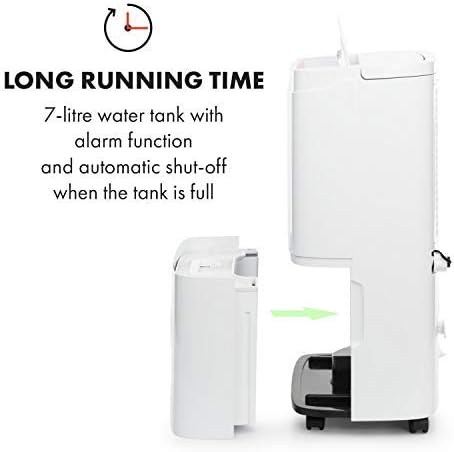
Image: A side view of the KLARSTEIN DryFy Connect 80 Dehumidifier with its 7-liter water tank being removed from the main unit. An arrow indicates the direction of removal. Text overlay highlights "LONG RUNNING TIME" and "7-litre water tank with alarm function and automatic shut-off when the tank is full".
5. Operating Instructions
5.1 Control Panel Overview
The control panel on the top of the unit allows you to manage all functions. Refer to the image below for a visual guide to the buttons and display.

Image: A detailed close-up of the KLARSTEIN DryFy Connect 80 Dehumidifier's control panel. It features a digital display showing "50%" and various touch-sensitive buttons for functions like power, mode, humidity setting, timer, and Wi-Fi. Text overlay indicates "MANY FUNCTIONS" and "With adjustable target humidity and a timer between 1 and 24 hours".
- Power Button: Turns the unit ON or OFF.
- Mode Button (M): Cycles through operating modes (e.g., Auto, Continuous, Laundry Drying).
- Humidity Setting Buttons (%): Adjusts the desired humidity level (30% - 80%).
- Timer Button: Sets the auto-on or auto-off timer (1-24 hours).
- Fan Speed Button: Adjusts fan speed (Low, High).
- Wi-Fi Indicator: Shows Wi-Fi connection status.
- Display: Shows current humidity, set humidity, or timer settings.
5.2 Powering On/Off
Press the Power Button once to turn the unit ON. Press it again to turn the unit OFF.
5.3 Setting Desired Humidity
In Auto mode, press the Humidity Setting Buttons (%) to select your desired humidity level between 30% and 80%. The unit will operate until the room humidity reaches the set level, then cycle on and off to maintain it.
5.4 Timer Function
Press the Timer Button to set an auto-on or auto-off time from 1 to 24 hours. Each press increases the time by one hour. The timer indicator will illuminate when active.
5.5 Fan Speed
Press the Fan Speed Button to toggle between Low and High fan speeds. Higher fan speed results in faster dehumidification but may produce more noise.
5.6 Continuous Dehumidification
Select the Continuous mode using the Mode Button (M). In this mode, the unit will run continuously regardless of the humidity level. This is ideal for very damp conditions or for use with continuous drainage.
5.7 App Control (Wi-Fi Setup)
The DryFy Connect 80 can be controlled remotely via the Klarstein app. Follow these steps to connect:
- Download the "Klarstein" app from your smartphone's app store (iOS or Android).
- Ensure your dehumidifier is plugged in and within range of your Wi-Fi router.
- Open the Klarstein app and follow the on-screen instructions to add a new device. You may need to put the dehumidifier into pairing mode (refer to the app or unit's specific Wi-Fi pairing instructions, usually involving holding a button for a few seconds).
- Once connected, you can control all functions of the dehumidifier from your smartphone, including setting humidity, modes, and timers.

Image: A person relaxing on a couch, using a smartphone to control the KLARSTEIN DryFy Connect 80 Dehumidifier via the Klarstein app. The phone screen shows humidity settings. Text overlay indicates "EASY TO USE" and "WiFi interface for easy control via Klarstein app".
5.8 Auto-Swing Function
The auto-swing function helps distribute dry air more evenly and can be particularly useful for drying laundry. Activate this function via the control panel or the Klarstein app. The internal louvers will oscillate to direct airflow across a wider area.
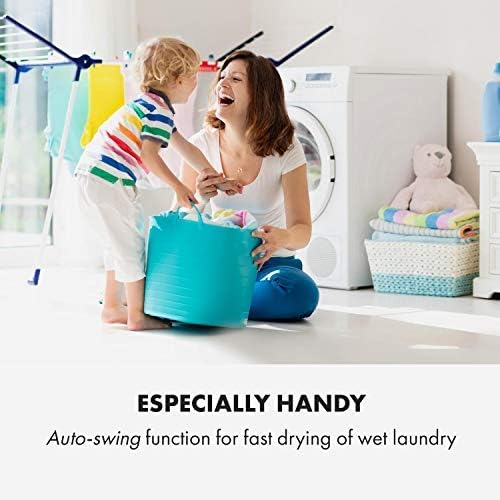
Image: The KLARSTEIN DryFy Connect 80 Dehumidifier positioned in a laundry room setting, with clothes drying on a rack in the background. A child and adult are interacting in the foreground. Text overlay states "ESPECIALLY HANDY" and "Auto-swing function for fast drying of wet laundry".
6. Maintenance
Regular maintenance ensures the longevity and efficient operation of your dehumidifier.
6.1 Cleaning the Air Filter
The air filter should be cleaned every two weeks or more frequently depending on usage and air quality.
- Turn off the dehumidifier and unplug it from the power outlet.
- Locate the air filter (usually at the back or side of the unit).
- Remove the filter.
- Clean the filter with a vacuum cleaner to remove dust and debris. For heavy dirt, wash it gently with warm, soapy water. Rinse thoroughly and allow it to air dry completely before reinserting.
- Reinsert the dry filter into the unit.
6.2 Emptying the Water Tank
When the water tank is full, the unit will stop operating and an indicator light will signal. Empty the tank as follows:
- Turn off the dehumidifier and unplug it.
- Carefully pull out the water tank from the front of the unit.
- Pour out the collected water.
- Clean the tank with mild detergent and water if necessary, then rinse thoroughly.
- Reinsert the empty tank firmly into the unit. Ensure it is properly seated to allow the unit to resume operation.
6.3 Cleaning the Unit Exterior
Wipe the exterior of the dehumidifier with a soft, damp cloth. Do not use harsh chemicals, abrasive cleaners, or solvents, as these can damage the surface.
6.4 Storage
If storing the unit for an extended period:
- Empty and clean the water tank.
- Clean the air filter.
- Unplug the unit and coil the power cord neatly.
- Cover the unit with a plastic bag or cloth to protect it from dust.
- Store in a cool, dry place.
7. Troubleshooting
Before contacting customer support, please refer to the following troubleshooting guide for common issues:
| Problem | Possible Cause | Solution |
|---|---|---|
| Unit does not turn on. | No power supply. Power cord not properly plugged in. Water tank full or not properly seated. | Check power outlet and circuit breaker. Ensure power cord is securely plugged in. Empty water tank and ensure it is correctly reinserted. |
| Unit is running but not dehumidifying. | Air filter clogged. Room temperature too low. Humidity setting too high. Air inlet/outlet blocked. | Clean the air filter. Dehumidifiers are less effective below 5°C (41°F). Lower the desired humidity setting. Ensure adequate clearance around the unit. |
| Unit is noisy. | Unit not on a level surface. Air filter clogged. Normal operating noise. | Place the unit on a flat, stable surface. Clean the air filter. Some fan noise is normal during operation, especially at high fan speed. |
| Water is leaking. | Water tank not properly seated. Continuous drainage hose improperly connected or blocked. | Ensure the water tank is fully and correctly inserted. Check the continuous drainage hose for kinks or blockages and ensure it is securely attached and sloped downwards. |
| Wi-Fi connection issues. | Incorrect Wi-Fi password. Unit too far from router. Router issues. App not updated. | Verify Wi-Fi password. Move unit closer to router or use a Wi-Fi extender. Restart your Wi-Fi router. Update the Klarstein app to the latest version. |
8. Specifications
| Feature | Specification |
|---|---|
| Model | DryFy Connect |
| Dehumidification Capacity | Up to 40 Liters / 24 hours |
| Water Tank Capacity | 7 Liters |
| Power Consumption | 2650 Watts (Note: This value seems unusually high for a dehumidifier. Please verify with product label if possible.) |
| Operation Mode | Auto, Continuous, Laundry Drying |
| Humidity Setting Range | 30% - 80% Relative Humidity |
| Timer | 1 - 24 hours |
| Dimensions (W x D x H) | 10.24 x 14.57 x 24.21 inches (26 x 37 x 61.5 cm approx.) |
| Weight | 40.7 pounds (18.5 kg) |
| Connectivity | Wi-Fi for App Control |
Note: Specifications are subject to change without notice for product improvement.
9. Warranty and Support
For warranty information, technical support, or service inquiries, please refer to the warranty card included with your product or visit the official KLARSTEIN website. Please have your model number (DryFy Connect) and purchase date ready when contacting support.
You can find more information and contact details on the KLARSTEIN Store on Amazon.


