
Introduction
The UNITEK Y3035 Storage Drive Enclosure provides a convenient solution for connecting 2.5-inch or 3.5-inch SATA I/II/III Hard Disk Drives (HDDs) or Solid State Drives (SSDs) to your computer via a high-speed USB 3.0 interface. This enclosure allows you to utilize old hard drives as external storage, facilitating data recovery, backup, or expansion of your system's storage capacity.
Product Features
- Universal Compatibility: Supports 2.5-inch and 3.5-inch SATA I/II/III HDDs and SSDs.
- High-Speed Data Transfer: USB 3.0 (USB 3.1 Gen 1) interface offers data transfer rates up to 5Gbps. Backwards compatible with USB 2.0 and USB 1.1.
- UASP Support: Implements USB Attached SCSI Protocol for enhanced read and write speeds, improving performance by up to 30% compared to traditional USB 3.0.
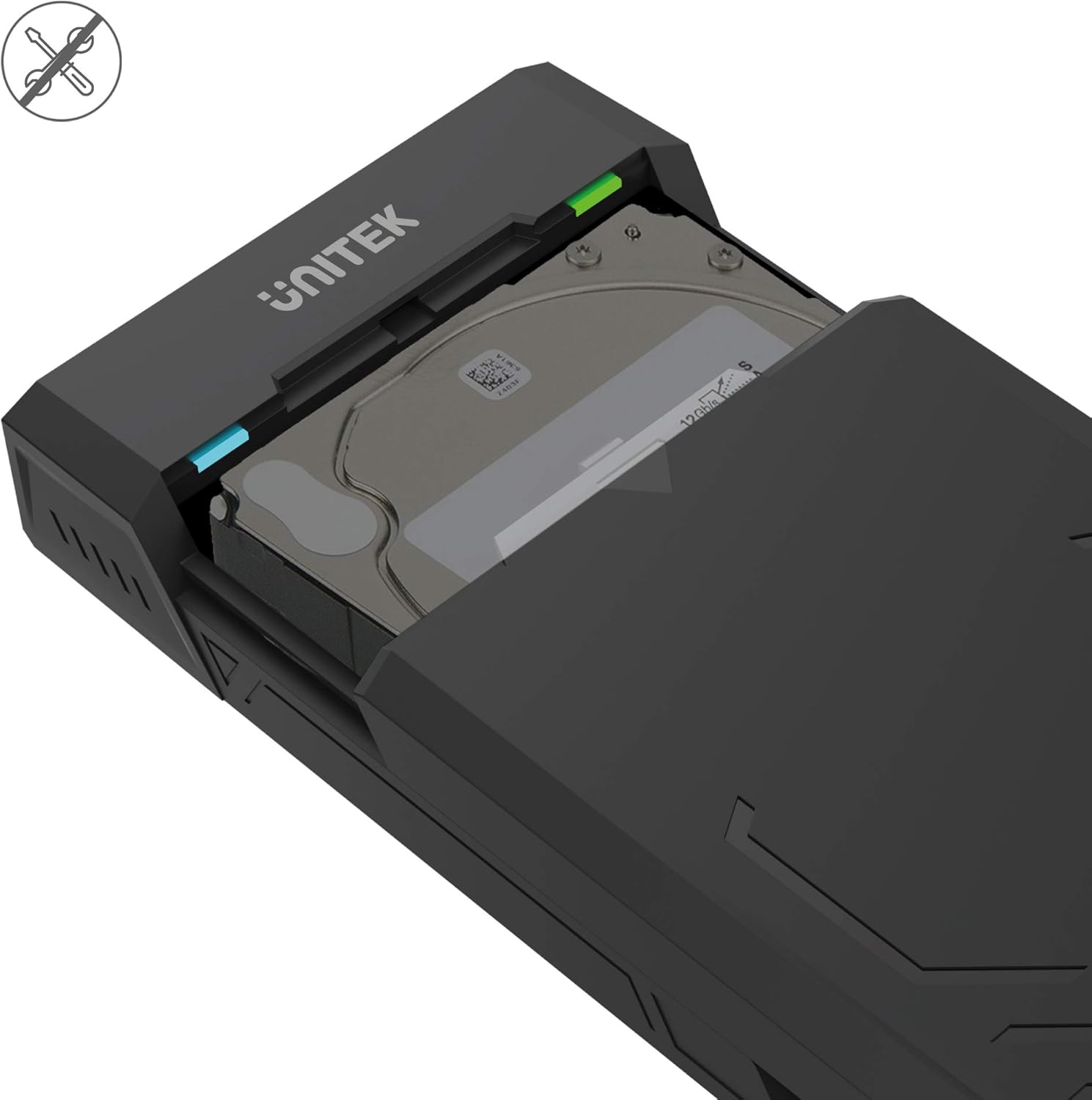
- Tool-Free Design: Allows for quick and easy installation and removal of hard drives without the need for tools.
- Automatic Sleep Mode: Enters sleep mode after 30 minutes of inactivity to conserve energy and extend drive lifespan.
- Efficient Heat Dissipation: Designed with ventilation openings to facilitate heat dissipation and maintain optimal operating temperatures.
- Plug & Play: No additional drivers are required for operation on most modern operating systems.

Package Contents
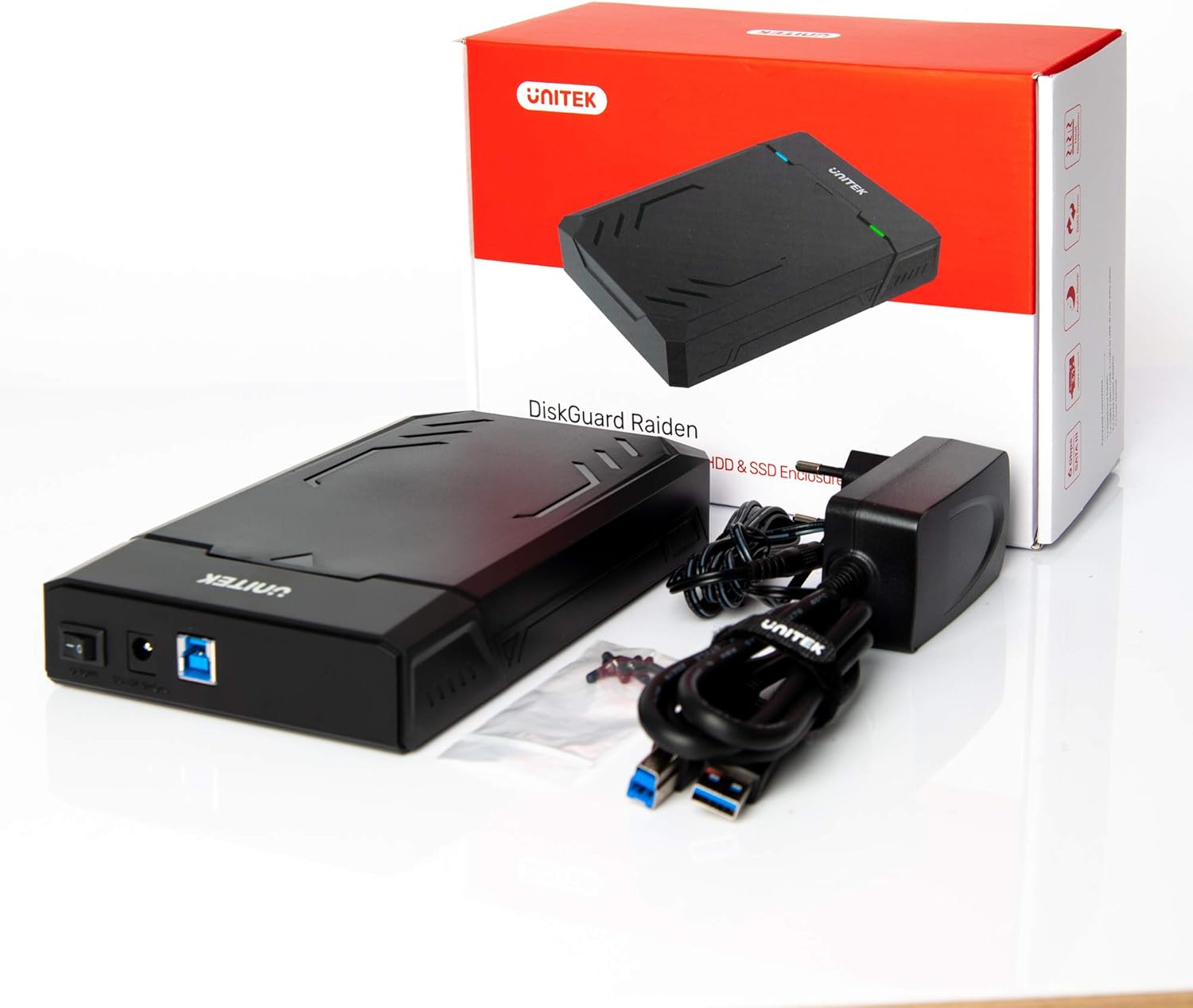
Please verify that all items are present in your package:
- UNITEK Y3035 Hard Drive Enclosure
- USB 3.0 Data Cable
- Power Adapter (for 3.5-inch HDDs or drives requiring external power)
Setup Instructions
Follow these steps to install your hard drive into the enclosure:
- Open the Enclosure: Gently slide open the top cover of the UNITEK Y3035 enclosure.
- Insert Hard Drive: Align your 2.5-inch or 3.5-inch SATA HDD/SSD with the SATA connector inside the enclosure. Carefully push the drive into the connector until it is firmly seated.
- Close the Enclosure: Slide the top cover back into place until it clicks securely.
- Connect USB Cable: Connect one end of the provided USB 3.0 data cable to the enclosure's USB port and the other end to an available USB 3.0 port on your computer.
- Connect Power Adapter (if necessary): For 3.5-inch hard drives, or if your 2.5-inch drive requires additional power, connect the provided power adapter to the enclosure's power input and then to a wall outlet. 2.5-inch drives may be bus-powered by the USB port alone.
Operating Instructions
Once connected, the UNITEK Y3035 enclosure operates as a standard external storage device.
- Automatic Detection: Your operating system should automatically detect the connected drive. If it's a new drive, you may need to initialize and format it through Disk Management (Windows) or Disk Utility (macOS) before use.
- Accessing Data: The drive will appear as a removable storage device in 'My Computer' or 'Finder'. You can drag and drop files, or use it for backups and other storage tasks.
- Safe Removal: Always safely eject the drive from your operating system before disconnecting the USB cable or power adapter to prevent data corruption.
- Sleep Mode: The enclosure will automatically enter sleep mode after approximately 30 minutes of inactivity. The drive will spin down, and the indicator light may change or turn off. It will resume operation when accessed again.


Maintenance
To ensure the longevity and optimal performance of your UNITEK Y3035 enclosure:
- Cleaning: Use a soft, dry cloth to clean the exterior of the enclosure. Avoid liquid cleaners or solvents.
- Environment: Keep the enclosure in a cool, dry place, away from direct sunlight, extreme temperatures, and high humidity.
- Handling: Handle the enclosure with care to prevent physical damage. Avoid dropping or subjecting it to strong impacts.
- Ventilation: Ensure that the ventilation openings are not obstructed to allow for proper heat dissipation.
Troubleshooting
If you encounter issues with your UNITEK Y3035 enclosure, refer to the following common solutions:
- Drive Not Detected:
- Ensure the hard drive is correctly seated within the enclosure's SATA connector.
- Verify that the USB cable is securely connected to both the enclosure and your computer.
- If using a 3.5-inch HDD, confirm the power adapter is connected and receiving power.
- Try connecting the enclosure to a different USB port on your computer.
- Test the enclosure with a different hard drive, or test the hard drive in another enclosure/system to isolate the issue.
- Check Disk Management (Windows) or Disk Utility (macOS) to see if the drive is recognized but uninitialized or unformatted.
- Slow Transfer Speeds:
- Ensure the enclosure is connected to a USB 3.0 port on your computer. USB 2.0 ports will result in slower speeds.
- Verify that your operating system and drivers support USB 3.0 and UASP.
- The actual transfer speed can be affected by the performance of the installed hard drive.
- Enclosure Disconnects Randomly:
- Ensure the power adapter is providing stable power, especially for 3.5-inch drives.
- Check for loose USB cable connections.
- Avoid connecting the enclosure through unpowered USB hubs.
Specifications
| Model | Y3035 |
| Brand | Unitek |
| Compatible Drive Types | 2.5-inch / 3.5-inch SATA I/II/III HDD/SSD |
| Hardware Interface | SATA 6.0 Gb/s, USB 3.0 (USB 3.1 Gen 1), USB 2.0, USB 1.1 |
| Data Transfer Rate | Up to 5 Gigabits Per Second (USB 3.0) |
| Supported Devices Quantity | 1 |
| Enclosure Material | Plastic |
| Color | Black |
| Item Weight | 270 Grams |
| Compatible Devices | Laptop, Desktop PC |
| Manufacturer | Allterco Robotics EOOD |

Warranty and Support
For warranty information, technical support, or further inquiries regarding your UNITEK Y3035 enclosure, please visit the official Unitek website or contact their customer service department. Details can typically be found on the product packaging or the manufacturer's website.


