
1. Product Overview
The CHACON 4-Channel Wireless Remote Control Kit allows you to wirelessly control your lighting and electrical appliances from anywhere within your home. This kit is designed for ease of installation and provides convenient remote operation for various devices.
1.1. Package Contents
- 1 x Wireless Remote Control (4 channels)
- 1 x Wireless Control Plug (FR version, 3500W maximum power)
- 1 x CR2032 - 3V Battery (pre-installed in remote control)

Image: The CHACON 4-Channel Wireless Remote Control Kit, featuring the white remote control with 'A', 'B', 'C', 'D', 'ON', and 'OFF' buttons, alongside the white wireless control plug.
2. Safety Information
- Indoor Use Only: This product is designed for indoor use in dry locations. Do not expose to moisture or extreme temperatures.
- Maximum Load: Do not exceed the maximum load of 3500W for the wireless control plug. Overloading can cause damage to the device and pose a fire hazard.
- Electrical Safety: Ensure the plug is fully inserted into the wall socket. Do not use if the plug or cable is damaged.
- Battery Safety: The remote control uses a CR2032 lithium battery. Keep batteries out of reach of children. Do not ingest, recharge, or dispose of batteries in fire.
- Cleaning: Disconnect the plug from the power outlet before cleaning. Use a dry, soft cloth. Do not use liquid cleaners.
3. Setup Instructions
3.1. Remote Control Battery Installation
The CR2032 battery is typically pre-installed. If replacement is needed, open the battery compartment on the back of the remote control and insert a new CR2032 battery with the correct polarity (+ side up).
3.2. Pairing the Wireless Control Plug with the Remote Control
Follow these steps to pair the plug with your remote control:
- Plug the wireless control plug into a standard wall socket. The indicator light on the plug will typically flash or illuminate briefly.
- Press and hold the small learning button on the side of the wireless control plug for approximately 3 seconds. The indicator light on the plug will start to flash, indicating it is in pairing mode.
- Within 5 seconds of the plug's indicator light flashing, press the desired 'ON' button (A, B, C, or D) on your remote control.
- The indicator light on the plug will stop flashing and remain solid for a moment, then turn off, confirming successful pairing.
- Test the connection by pressing the corresponding 'ON' and 'OFF' buttons on the remote control. The plug should respond by turning the connected appliance on or off.
- To pair additional plugs or assign the same plug to multiple channels, repeat steps 1-4 for each desired channel or plug.
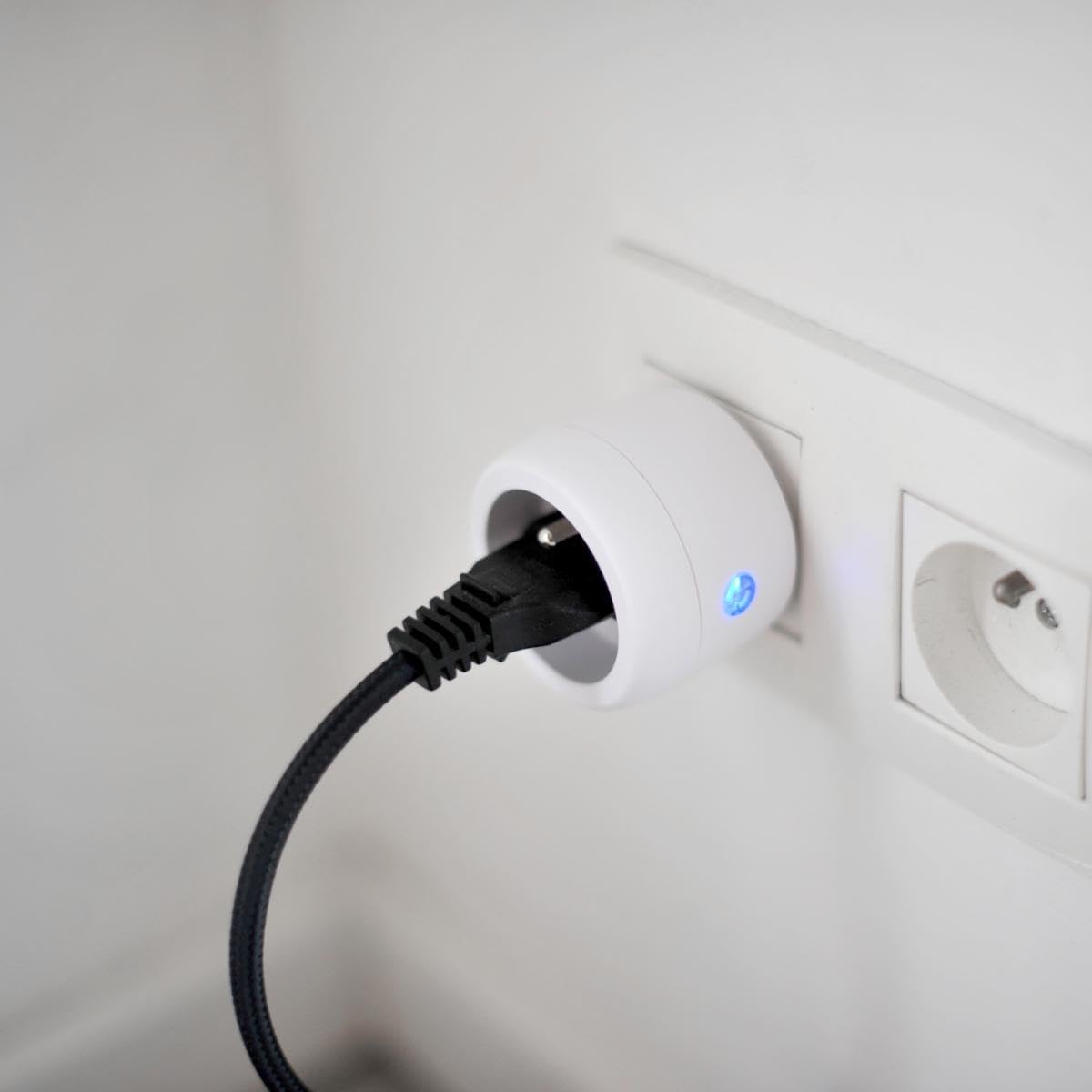
Image: A CHACON wireless control plug is shown inserted into a wall socket, with a black power cable plugged into the control plug, and a blue indicator light visible.
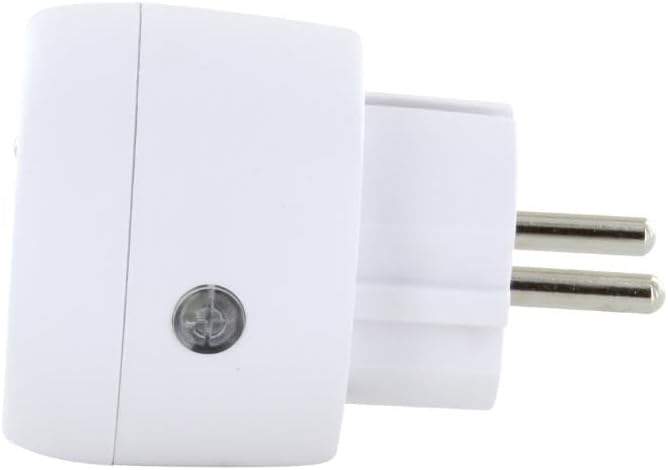
Image: A side view of the CHACON wireless control plug, highlighting a small circular button on its side, which is the learning button.
4. Operating Instructions
Once paired, operating the CHACON Wireless Remote Control Kit is straightforward:
- Individual Channel Control: Use buttons A, B, C, or D to control the specific plug(s) assigned to that channel. Press the 'ON' button for the channel to turn the appliance on, and the 'OFF' button to turn it off.
- Master Control: The remote control also features a master 'ON' button and a master 'OFF' button. Pressing the master 'ON' button will activate all paired plugs simultaneously. Pressing the master 'OFF' button will deactivate all paired plugs simultaneously.

Image: A hand holds the white CHACON remote control, with a finger pressing one of the 'ON' buttons. A green indicator light is visible on the remote.
The remote control operates using a radio frequency of 433.92 MHz, providing a transmission distance of up to 30 meters in open areas without obstructions.
5. Maintenance
- Cleaning: Clean the remote control and plug with a dry, soft cloth. Do not use abrasive cleaners or solvents.
- Battery Replacement: When the remote control's range decreases or it becomes unresponsive, replace the CR2032 battery. Ensure correct polarity.
- Storage: Store the kit in a dry place, away from direct sunlight and extreme temperatures, when not in use for extended periods.
6. Troubleshooting
| Problem | Possible Cause | Solution |
|---|---|---|
| Plug does not respond to remote control. | Low battery in remote control. Plug not paired correctly. Plug not receiving power. Out of range or obstructions. | Replace CR2032 battery. Repeat the pairing process (Section 3.2). Check if the wall socket is live. Move closer to the plug or remove obstructions. |
| Indicator light on plug flashes continuously. | Plug is in pairing mode. Interference. | Complete the pairing process by pressing a remote button. Move the plug or remote away from other electronic devices. |
| Connected appliance does not turn on/off. | Appliance is faulty. Appliance is not properly plugged into the control plug. | Test the appliance directly in a wall socket. Ensure the appliance's plug is fully inserted into the control plug. |
7. Specifications
- Brand: CHACON
- Model Number: 54664
- Product Dimensions: 8 x 24 x 20 cm; 140 grams
- Maximum Power (Plug): 3500W
- Radio Frequency: 433.92 MHz
- Transmission Distance: Up to 30 meters (unobstructed)
- Remote Control Channels: 4 (A, B, C, D) + Master ON/OFF
- Remote Control Battery: 1 x CR2032 (3V) - included
- Usage: Indoor only
- Color: White
8. Warranty and Support
For warranty information, please refer to the documentation provided with your purchase or contact your retailer. CHACON products typically come with a manufacturer's warranty covering defects in materials and workmanship.
For technical support, frequently asked questions, or to register your product, please visit the official CHACON website or contact their customer service department. Contact details can usually be found on the product packaging or the manufacturer's website.


