
1. Introduction
The Maxell Bass 13 Wireless Headphones (Model B13-WHPS) are designed to provide a versatile audio experience. These headphones feature 40mm drivers for clear sound, an integrated microphone for communication, and comfortable ear pads for extended listening. They offer both wireless Bluetooth connectivity and a traditional 3.5mm wired option.
2. What's in the Box
- Maxell Bass 13 Wireless Headphones
- USB Charging Cable
- 3.5mm Audio Cable (if applicable, not explicitly listed but common for hybrid headphones)
- User Manual
3. Product Overview
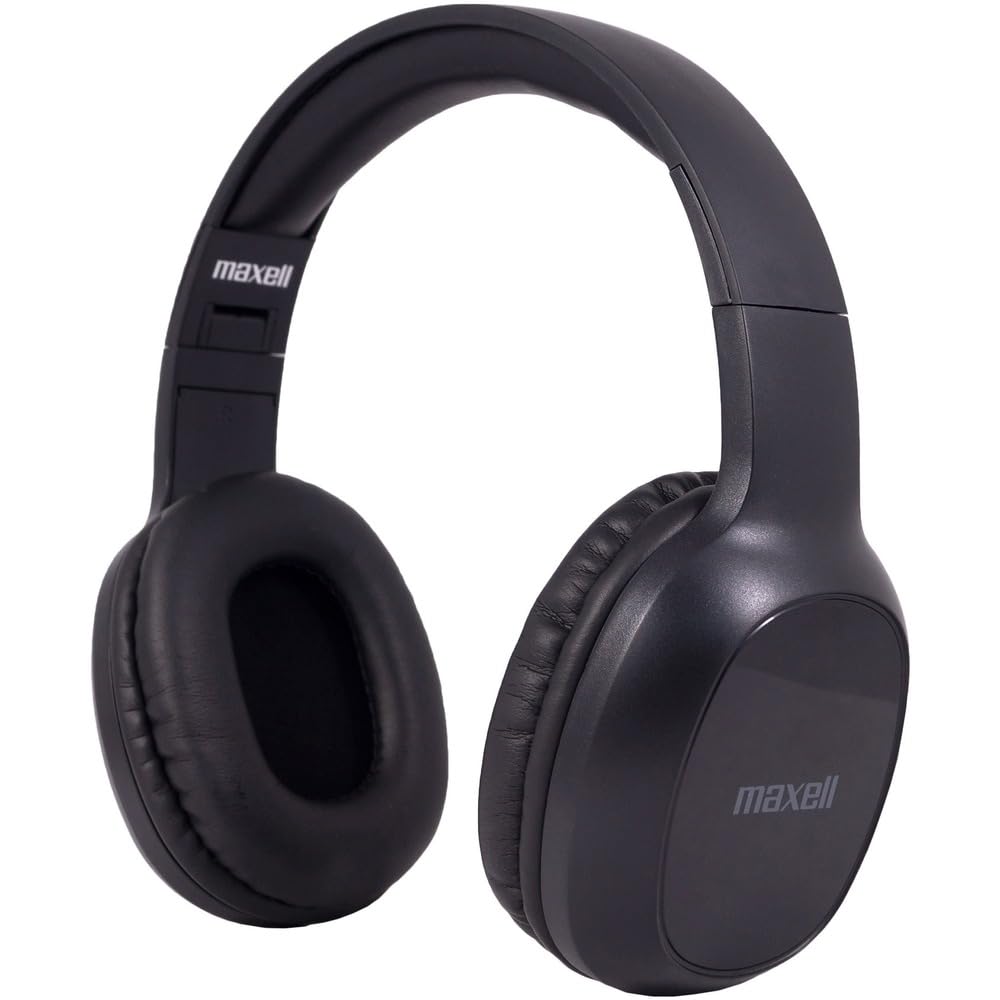
Figure 1: Maxell Bass 13 Wireless Headphones

Figure 2: Earcup Controls (Power, Volume, Play/Pause)
Key Features:
- 40mm Dynamic Drivers: Deliver clear and powerful audio performance.
- Integrated Microphone: Enables hands-free calling.
- Noise-Isolating Earpads: Provide comfort and help reduce external distractions.
- Bluetooth 5.0 Connectivity: For stable wireless connection.
- 3.5mm Audio Jack: Allows for wired connection to compatible devices.
- Adjustable Headband: Ensures a comfortable fit for various head sizes.
- Up to 8 Hours Battery Life: For extended listening and talk time.
4. Setup
4.1 Charging the Headphones

Figure 3: Connecting the USB Charging Cable
- Locate the charging port on the headphone earcup.
- Connect the small end of the provided USB charging cable to the headphone's charging port.
- Connect the larger end of the USB cable to a USB power source (e.g., computer USB port, USB wall adapter).
- The LED indicator on the headphones will illuminate to show charging status. It will typically turn off or change color when fully charged.
- A full charge provides up to 8 hours of continuous talk/play time.
4.2 Bluetooth Pairing
- Ensure the headphones are fully charged.
- Press and hold the Power button on the headphone earcup until the LED indicator flashes blue and red, indicating pairing mode.
- On your device (smartphone, tablet, computer), go to the Bluetooth settings.
- Search for available devices. Select "Maxell Bass 13" from the list.
- Once paired, the LED indicator will typically show a solid blue light or flash blue slowly.
- If prompted for a passcode, enter "0000".
4.3 Wired Connection (3.5mm Audio Jack)

Figure 4: Connecting the 3.5mm Audio Cable
For devices without Bluetooth or when battery is low, you can use the 3.5mm audio cable:
- Plug one end of the 3.5mm audio cable into the audio input jack on the headphone earcup.
- Plug the other end into the 3.5mm audio output jack of your device.
- The headphones will operate in passive mode, and Bluetooth functionality will be disabled.
5. Operating Instructions
5.1 Power On/Off
- Power On: Press and hold the Power button for approximately 3 seconds until the LED indicator lights up.
- Power Off: Press and hold the Power button for approximately 3-5 seconds until the LED indicator turns off.
5.2 Volume Control
- Increase Volume: Press the Volume Up (+) button.
- Decrease Volume: Press the Volume Down (-) button.
5.3 Music Playback
- Play/Pause: Press the Multi-function button (often the Power button or a dedicated Play/Pause button) once.
- Next Track: Press and hold the Volume Up (+) button (or double-press, refer to specific product button layout).
- Previous Track: Press and hold the Volume Down (-) button (or double-press, refer to specific product button layout).
5.4 Call Management
- Answer/End Call: Press the Multi-function button once.
- Reject Call: Press and hold the Multi-function button for approximately 2 seconds.
- Redial Last Number: Double-press the Multi-function button.
6. Maintenance
6.1 Cleaning
- Wipe the headphones with a soft, dry, lint-free cloth.
- Do not use abrasive cleaners, solvents, or aerosol sprays.
- Avoid getting moisture into any openings.
6.2 Storage

Figure 5: Headphones Folded for Storage
- Store the headphones in a cool, dry place away from extreme temperatures.
- When not in use for extended periods, ensure the headphones are fully charged before storage to preserve battery health.
- The headphones feature a foldable design for compact storage and portability.
6.3 Battery Care
- Avoid fully discharging the battery frequently.
- Charge the headphones regularly, even if not used often.
- Do not expose the battery to excessive heat or direct sunlight.
7. Troubleshooting
| Problem | Possible Cause | Solution |
|---|---|---|
| Headphones do not power on | Low battery | Charge the headphones fully. |
| Cannot pair via Bluetooth | Headphones not in pairing mode; Device Bluetooth off; Too far from device | Ensure headphones are in pairing mode (flashing blue/red). Turn on device Bluetooth. Move headphones closer to device. |
| No sound | Volume too low; Incorrect audio source; Headphones not connected | Increase headphone and device volume. Check if headphones are properly paired/connected. Verify audio output settings on your device. |
| Poor call quality | Weak Bluetooth signal; Microphone obstructed | Move closer to your device. Ensure microphone is not covered. |
8. Specifications
| Feature | Detail |
|---|---|
| Model Number | B13-WHPS |
| Brand | Maxell |
| Connectivity Technology | Bluetooth 5.0 |
| Audio Driver Size | 40 mm |
| Battery Life | Up to 8 Hours (continuous talk/play time) |
| Headphones Jack | 3.5 mm Jack |
| Noise Control Features | Sound Isolation, Noise Cancelling |
| Impedance | 32 Ohms |
| Sensitivity | 100 dB |
| Frequency Response | 20 Hz |
| Ear Placement | On Ear |
| Form Factor | Over Ear |
| Product Dimensions | 7.25 x 3 x 9 inches |
| Item Weight | 8.4 ounces |
| Material | Electronic Components, Foam, Plastic, Wire |
| Compatible Devices | Tablets, Laptops, Desktops, Portable Devices with 3.5mm Audio Jack |
9. Official Product Video
Video 1: Maxell Bass 13 Bluetooth Headphones Overview. This video provides a visual demonstration of the headphones' features and design.
10. Warranty and Support
Maxell products are designed for reliability and performance. For specific warranty information, please refer to the warranty card included with your purchase or visit the official Maxell website. For technical support or customer service inquiries, please contact Maxell customer support through their official channels.


