

Overview
The KanDao Meeting 360 Video Conference Camera is an all-in-one solution designed to enhance remote meeting experiences. It captures comprehensive 360-degree panoramic views at 8K resolution, delivering clear 1080P output. Equipped with advanced AI technology, it features smart auto speaker tracking, ensuring that the active speaker is always in focus. The device integrates powerful audio capabilities with 8 omnidirectional microphones for wide voice pickup and dual 10W speakers for clear sound output, effectively minimizing background noise and echo. Its plug-and-play functionality ensures easy setup and broad compatibility with popular video conferencing platforms.
What's in the Box
- KanDao Meeting 360 Device
- Power Adapter
- USB-C Cable
- Instruction Manual
- Warranty Card
Setup
Initial Connection
The KanDao Meeting 360 camera is designed for simple plug-and-play operation. To begin, connect the device to a power source using the provided adapter. Then, connect the camera to your PC or Mac using the supplied USB-C cable. No complex driver installations are typically required. Once connected, the camera is ready for use with your preferred video conferencing software.

Image: A visual guide demonstrating the simple plug-and-play setup, showing the camera connected to a laptop and ready for a meeting.
Video Demonstration: Setup and Features
Video: An official product video demonstrating the setup process and key features of the KanDao Meeting 360 camera, including its ease of use and various functionalities.
Operating Your KanDao Meeting 360 Camera
360-Degree Panoramic View and Dynamic Focus
The KanDao Meeting 360 captures the entire meeting room, ensuring all participants are visible. Its 8K capturing capability provides high-definition video, which is then outputted at 1080P for clear streaming. The camera dynamically adjusts to keep everyone engaged and in view.

Image: A graphic illustrating the 360-degree panoramic capture capability of the KanDao Meeting 360 camera, highlighting its 8K capture and 1080P output.
AI Smart Auto Speaker Tracking
Leveraging advanced AI technology, the camera automatically identifies and focuses on the active speaker in the room. This intelligent tracking ensures a natural and intuitive meeting experience, making remote participants feel more connected.

Image: An overhead view of a meeting room with the KanDao Meeting 360 camera at the center, showing a blue circle representing the audio pickup range and a highlighted image of an active speaker, demonstrating the AI auto-tracking feature.
Audio Features: Microphones and Speakers
The KanDao Meeting 360 is equipped with 8 omnidirectional microphones capable of picking up voices from up to 18 feet away. These microphones work in conjunction with noise-cancelling and echo-cancellation technology to ensure clear audio input. Dual 10W full-duplex speakers provide crisp and powerful sound output, allowing all participants to hear clearly.
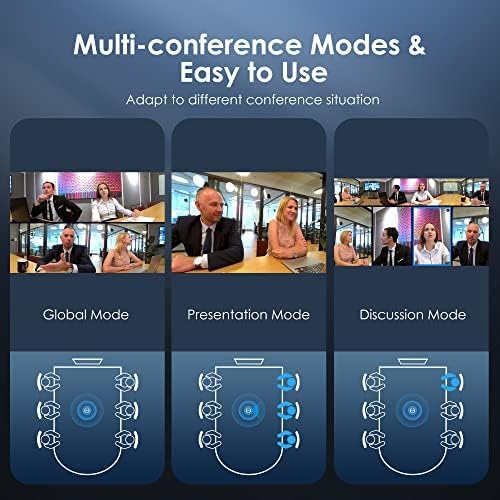
Image: A cutaway view of the KanDao Meeting 360 camera highlighting its 8-microphone array and dual 10W speakers, emphasizing noise reduction and echo cancellation capabilities.
Multi-Conference Modes
The camera offers various display modes to suit different meeting scenarios:
- Global Mode: Displays two panoramic videos to show all attendees, providing a comprehensive view of the room.
- Presentation Mode: The camera focuses on and delivers an exclusive shot of whoever is speaking, ideal for presentations.
- Discussion Mode: Highlights speakers in turn, with a 360-degree view on top to show the entire room context.

Image: Three panels illustrating the different multi-conference modes (Global, Presentation, Discussion) available on the KanDao Meeting 360 camera, showing how the view adapts to different meeting dynamics.
Compatibility
The KanDao Meeting 360 camera is widely compatible with most major video conferencing software and platforms, including but not limited to:
- Zoom
- Google Meet
- GoToMeeting
- Skype
- Microsoft Teams
- BlueJeans
- Slack
- Polycom
Maintenance
To ensure optimal performance and longevity of your KanDao Meeting 360 camera, follow these general maintenance guidelines:
- Cleaning: Use a soft, dry cloth to wipe the exterior of the device. For the camera lenses, use a lens cleaning cloth and solution specifically designed for optical surfaces. Avoid abrasive materials or harsh chemicals.
- Storage: When not in use, store the camera in a cool, dry place away from direct sunlight and extreme temperatures.
- Handling: Handle the device with care to prevent drops or impacts that could damage internal components or the pop-up camera mechanism.
- Privacy Shield: Utilize the pop-up design to shield the camera lenses when not in use for privacy and to protect the lenses from dust.
Troubleshooting
Common Issues and Solutions
- No Video Output / Camera Not Detected:
- Ensure the USB cable is securely connected to both the camera and your computer.
- Try connecting to a different USB port on your computer.
- Restart your computer and the conferencing software.
- Verify that the camera is selected as the video input device within your conferencing software settings.
- Ensure the camera's pop-up mechanism is fully extended and the lenses are not shielded.
- Microphone/Sound Input Issues (e.g., feedback, no sound):
- Check that the KanDao Meeting 360 is selected as the audio input device in your conferencing software and operating system settings.
- Adjust microphone sensitivity settings within your software.
- Ensure there are no physical obstructions blocking the microphones on the device.
- Minimize other audio sources or devices that might cause interference or feedback.
- Speaker Output Issues (e.g., low volume, no sound):
- Verify that the KanDao Meeting 360 is selected as the audio output device in your conferencing software and operating system settings.
- Increase the volume on the device itself (if applicable) and within your computer's sound settings.
- Ensure the speakers are not muted.
- Firmware Update Issues:
- Refer to the official KanDao website for the latest firmware and detailed update instructions.
- Ensure a stable power supply and internet connection during updates.
Technical Specifications
| Brand Name | KanDao |
| Item Model Number | WL0308 |
| Item Weight | 4.84 pounds |
| Product Dimensions | 4.96 x 4.96 x 11.2 inches |
| Color Name | Black |
| Connectivity Technology | USB |
| Video Capture Resolution | 1080p, 8K |
| Photo Sensor Technology | CMOS |
| Supported Audio Format | PCM (16bit/Mono Audio/16KHz) |
| Special Features | AI-Powered Framing & Speaker Tracking, 360 Degree Wide-Angle Full Room Coverage, Wide Compatibility, Plug and Play |
Warranty and Support
The KanDao Meeting 360 Video Conference Camera comes with a 1-year (12-month) warranty. For any technical assistance, product inquiries, or warranty claims, please contact the KanDao Official Store or visit their support channels. Purchasing from the official store ensures swift support from their professional global customer service team.
For additional information and resources, you may refer to the official User Guide PDF: KanDao Meeting 360 User Guide (PDF)

Image: An icon representing quick response customer support, indicating available assistance.


