
1. Introduction
The Tesvor Robot Vacuum Cleaner X500 Pro is a versatile 2-in-1 cleaning device designed for both vacuuming and mopping. It features strong suction, smart navigation, and can be controlled via Wi-Fi, a dedicated app, or voice commands through Alexa and Google Assistant. This manual provides essential information for setting up, operating, and maintaining your robot vacuum to ensure optimal performance and longevity.

Image: The Tesvor Robot Vacuum Cleaner X500 Pro in white, shown alongside a smartphone displaying its floor mapping and control interface.
2. Product Overview
The Tesvor X500 Pro is engineered for efficient cleaning across various floor types. Its slim design allows it to navigate under furniture, while advanced sensors prevent collisions and falls. The device integrates both vacuuming and mopping capabilities for a comprehensive clean.
Key Features:
- Hybrid 2-in-1 Functionality: Sweeps and mops, suitable for multi-surfaces and hard floors.
- Strong Suction: 1800Pa suction power for effective removal of pet hair, dirt, and dust.
- Smart Navigation: Maps your home and follows an intelligent S-shape cleaning path.
- Anti-Collision & Anti-Falling Sensors: Protects the robot, furniture, and prevents falls down stairs.
- App & Voice Control: Compatible with Tesvor Smart App, Alexa, and Google Assistant for scheduling, mode selection, and real-time monitoring.
- Self-Charging: Automatically returns to its charging base when battery is low.

Image: The Tesvor X500 Pro's slim profile allows it to clean effectively under low-clearance furniture.

Image: Anti-falling sensors detect edges and prevent the robot from falling down stairs.

Image: Anti-collision sensors help the robot avoid obstacles and protect furniture.
3. Setup
3.1 Initial Charging
Before first use, ensure the robot vacuum is fully charged. Place the charging base against a wall in an open, uncluttered area. Connect the power adapter to the charging base and a wall outlet. Place the robot vacuum onto the charging base, ensuring the charging contacts align. The indicator lights will show charging status.
3.2 App Connection
Download the Tesvor Smart App from your device's app store. Follow the in-app instructions to connect your robot vacuum to your home Wi-Fi network. This will enable advanced features such as scheduling, cleaning mode selection, real-time monitoring, and direction control.

Image: The Tesvor Smart App provides comprehensive control over the robot vacuum's functions.
4. Operating Instructions
4.1 Cleaning Modes
The Tesvor X500 Pro offers multiple cleaning modes:
- Auto Cleaning: The robot intelligently navigates and cleans your home in an S-shape path.
- Spot Cleaning: Focuses on a specific dirty area.
- Edge Cleaning: Cleans along walls and furniture edges.
- Mopping Mode: Attach the water tank and mop pad for wet cleaning hard floors.
4.2 App and Voice Control
Use the Tesvor Smart App to start/stop cleaning, change modes, set schedules, and view cleaning maps. For voice control, link your Tesvor account with Alexa or Google Assistant and use commands like "Alexa, turn on Robot."
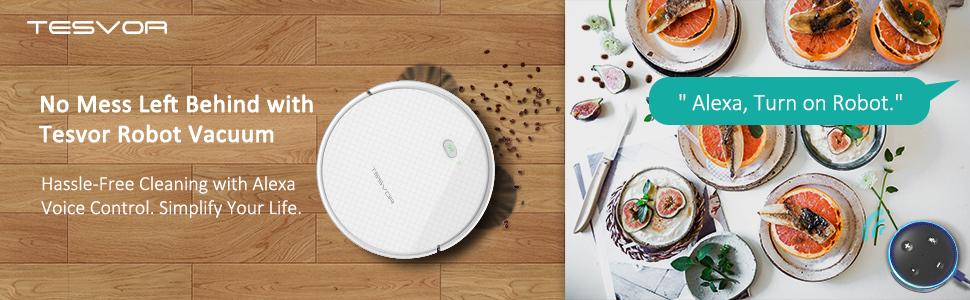
Image: The robot vacuum is compatible with Amazon Alexa and Google Home for convenient voice control.
4.3 Anti-Falling Function (for homes with stairs)
The robot is equipped with anti-falling sensors to prevent it from falling down stairs. If you need to temporarily disable this function (e.g., for cleaning a raised area where the sensors might misinterpret a drop), follow the instructions in the video below. Ensure your software is updated to version V3.7.7 or newer.
Video: Instructions on how to temporarily turn off the anti-falling function for the Tesvor robot vacuum, useful for specific cleaning scenarios in homes with stairs.
5. Maintenance
Regular maintenance is crucial for keeping your Tesvor X500 Pro in optimal working condition. Always power off the robot before performing any maintenance.
5.1 Cleaning the Dust Box
The dust box should be emptied after each cleaning cycle, especially if you have pets. Remove the dust box, open it, and discard the collected debris. Clean the pre-filter and HEPA filters as shown in the video.
Video: Detailed guide on how to properly clean the dust box and filters of your Tesvor robot vacuum.
5.2 Installing the Water Tank and Mop Pad
For mopping functionality, attach the water tank and mop pad. Ensure the water tank is filled with clean water (do not use cleaning solutions unless specified by the manufacturer). Remove the water tank and mop pad when using only vacuum mode to prevent debris from sticking to the pad.
Video: Step-by-step instructions on how to correctly install the water tank for mopping operations.

Image: The robot vacuum offers both vacuuming and mopping functions for versatile floor care.
6. Troubleshooting
If you encounter issues with your Tesvor X500 Pro, refer to the following common solutions:
- Robot not charging: Ensure the charging contacts on both the robot and the base are clean and properly aligned. Check if the power adapter is securely plugged in.
- Robot getting stuck: Clear obstacles like loose cables, small toys, or thick rugs from the cleaning path. The robot is designed to handle low-pile carpets but may struggle with high-pile or dark carpets.
- Poor cleaning performance: Empty the dust box, clean or replace filters, and check if the main brush and side brushes are free from tangled hair or debris.
- Mopping not effective: Ensure the water tank is filled and correctly installed. Check if the mop pad is clean and properly attached.
- App connectivity issues: Ensure your Wi-Fi network is 2.4GHz and the robot is within range. Restart the robot and your router, then attempt to reconnect via the app.
7. Specifications
| Brand | Tesvor |
| Model Name | X500 Pro |
| Special Feature | 1500 Pa Max Suction; S-Shape Cleaning Route; Alexa & Google Home Voice Control; Remote Control; Auto Recharge; Anti-Falling Sensor; Anti-Collision Design; Extra Mopping Function; Water Tank; Powerful App Functions; Real-Time Map; Schedule Cleaning. |
| Color | White |
| Included Components | Battery |
| Filter Type | Disk |
| Battery Life | 100 minutes |
| Voltage | 14.4 Volts |
| Capacity | 600 Milliliters |
| Power Source | Battery Powered |
| Are Batteries Included | Yes |
| Control Method | Voice |
| Lithium Battery Voltage | 25 Volts |
| Compatible Devices | Amazon Echo, Google Home |
| Form Factor | Robotic |
| UPC | 793610098795 |
| Product Dimensions | 12.9 x 12.9 x 2.9 inches |
| Item Weight | 6.6 pounds |
| Manufacturer | Tesvor |
| ASIN | B07VGJMB9B |
| Item model number | X500 PRO |
| Date First Available | July 17, 2019 |
8. Warranty and Support
For any assistance, technical support, or warranty inquiries, please contact Tesvor customer service directly.
Customer Service Email: service@tesvor.com


