
1. Introduction
This manual provides instructions for the Macally BTDYNAMOUSE Wireless Bluetooth Mouse. This device is designed for comfortable and quiet operation across various platforms.
The Macally BTDYNAMOUSE is a slim, ambidextrous Bluetooth mouse featuring silent click buttons and adjustable DPI settings. It connects wirelessly to compatible devices, offering a clutter-free workspace.
2. What's in the Box
- Macally BTDYNAMOUSE Wireless Bluetooth Mouse
- 2 x AAA Batteries
3. Product Features
- Adjustable DPI: Switch between 800, 1200, and 1600 DPI for precise cursor control.
- Silent Click Buttons: Designed for quiet operation, reducing click noise by 90% compared to traditional mice.
- Slim and Ambidextrous Design: Comfortable for both left and right-handed users, with a low-profile form factor.
- Bluetooth Wireless Connectivity: Connects wirelessly up to 10 meters (30 feet).
- Long Battery Life: Two AAA batteries provide up to 3 months of use (based on 8 hours daily use). Battery life may vary.
- Compatibility: Works with Windows and macOS operating systems.
4. Setup Instructions
4.1. Install Batteries
1. Locate the battery compartment on the underside of the mouse.
2. Open the battery compartment cover.
3. Insert two AAA batteries, ensuring correct polarity (+/-).
4. Close the battery compartment cover.

Figure 1: Battery Installation
4.2. Bluetooth Pairing
1. Turn on the mouse using the ON/OFF switch located on the underside.
2. Press and hold the Bluetooth pairing button (usually a small button near the ON/OFF switch or sensor) for 2-3 seconds until the LED indicator starts blinking, indicating it's in pairing mode.
3. On your computer or device (Mac, Windows, iPad, Tablet):
- Go to Bluetooth settings.
- Search for new devices.
- Select "Macally BTDYNAMOUSE" from the list of available devices.
- Follow any on-screen prompts to complete the pairing process.
Once successfully paired, the LED indicator on the mouse will stop blinking and remain solid or turn off, depending on the mouse model.

Figure 2: Mouse with Laptop, indicating multi-device compatibility
5. Operating Instructions
The Macally BTDYNAMOUSE features a standard 3-button layout with a scroll wheel for intuitive navigation.
- Left Click: Primary action, typically used for selecting items or opening links.
- Right Click: Secondary action, typically used to open context menus.
- Scroll Wheel: Used for vertical scrolling through documents and web pages. The scroll wheel can also be pressed for a middle-click action, depending on software configuration.

Figure 3: Ergonomic Design for Comfortable Use

Figure 4: Quiet Click Buttons in Action
6. DPI Adjustment
The mouse features a DPI switch button to adjust cursor sensitivity. This allows you to fine-tune the mouse's responsiveness to your preference.
To change the DPI setting, press the small button located behind the scroll wheel. Each press cycles through the available DPI levels: 800, 1200, and 1600.
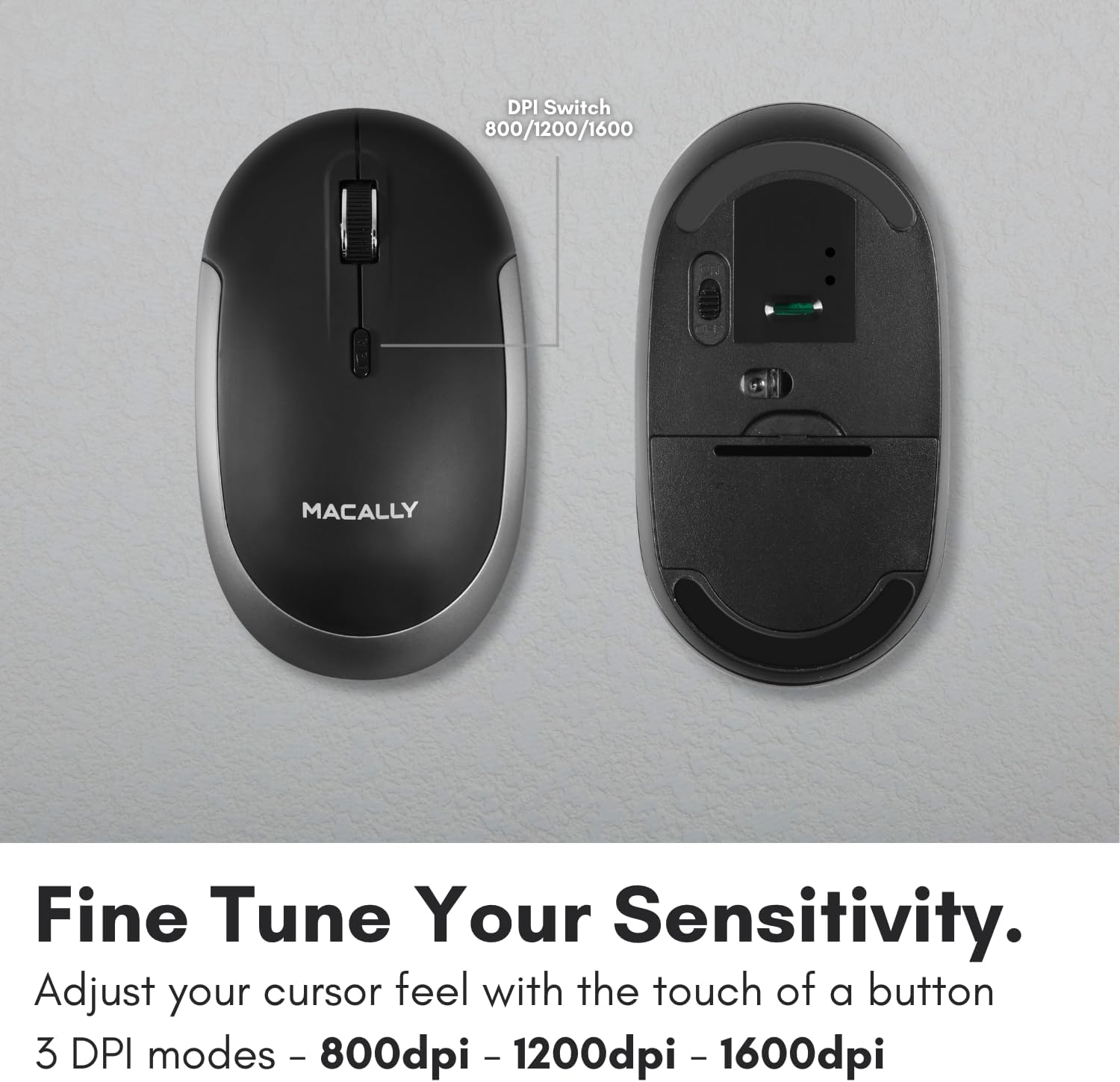
Figure 5: DPI Switch Location
7. Battery Information
The Macally BTDYNAMOUSE uses two AAA batteries. For optimal performance and battery life, it is recommended to use high-quality alkaline batteries.
- Battery Type: 2 x AAA
- Estimated Battery Life: Up to 3 months (based on 8 hours of daily use). Actual battery life may vary based on usage patterns and computing conditions.
When the battery level is low, the mouse's LED indicator may flash or change color to alert you. Replace batteries promptly to ensure uninterrupted use.
8. Maintenance
To ensure the longevity and optimal performance of your Macally BTDYNAMOUSE, follow these maintenance guidelines:
- Cleaning: Use a soft, dry cloth to clean the mouse. For stubborn dirt, a slightly damp cloth can be used, but ensure no moisture enters the device.
- Avoid Liquids: Do not expose the mouse to liquids or excessive moisture.
- Storage: Store the mouse in a cool, dry place when not in use for extended periods.
- Battery Replacement: Replace batteries as needed. Dispose of old batteries according to local regulations.
9. Troubleshooting
| Problem | Possible Cause | Solution |
|---|---|---|
| Mouse not connecting via Bluetooth | Mouse is off or batteries are low. Not in pairing mode. Device's Bluetooth is off. | Ensure mouse is on and batteries are fresh. Put mouse in pairing mode. Check device's Bluetooth settings. Try re-pairing. |
| Cursor is erratic or unresponsive | Dirty optical sensor. Mouse used on unsuitable surface. Low battery. | Clean the optical sensor. Use a mouse pad or a smooth, non-reflective surface. Replace batteries. |
| Mouse clicks are not silent | This mouse is designed for 90% noise reduction, not complete silence. | The mouse provides a significantly quieter click than standard mice, but a faint sound may still be audible. |
| Short battery life | Frequent usage. Low-quality batteries. | Use high-quality alkaline batteries. Turn off the mouse when not in use for extended periods. |
10. Specifications
| Feature | Detail |
|---|---|
| Brand | Macally |
| Model Name | BTDYNAMOUSE |
| Connectivity Technology | Bluetooth, Wireless |
| Movement Detection Technology | Optical |
| DPI Settings | 800 / 1200 / 1600 |
| Buttons | 4 (Left, Right, Scroll Click, DPI Switch) |
| Hand Orientation | Ambidextrous |
| Compatible Devices | Laptop, Personal Computer (Windows, macOS) |
| Wireless Range | Up to 10 m (30 ft) |
| Battery Type | 2 x AAA (included) |
| Battery Life | Up to 3 months (estimated) |
| Item Weight | 73 Grams |
| Material | Silicone (Enclosure) |
| Color | Black |
11. Official Product Videos
11.1. Bluetooth Optical Silent Click Mouse - White
This video provides an overview of the Macally BTDYNAMOUSE, highlighting its slim design, ambidextrous body, simple 3-button layout, 90% noise reduction, and easy DPI adjustability (800/1200/1600).
11.2. Macally Wireless Bluetooth Mouse for Windows PC and Mac
This video demonstrates the Macally BTDYNAMOUSE's features, including its Bluetooth wireless technology, comfortable ambidextrous design, simple 3-button/scroll wheel layout, silent click buttons, and easy DPI adjustability.
12. Warranty and Support
For warranty information and technical support, please refer to the official Macally website or contact their customer service. Keep your purchase receipt for warranty claims.


