
1. Introduction
This manual provides detailed instructions for the installation, operation, and maintenance of your Lorex 2K Wi-Fi Smart Lightbulb Camera. Please read this manual thoroughly before using the product to ensure proper functionality and safety. This camera is designed for both indoor and outdoor use, offering 2K resolution, pan-tilt functionality, color night vision, and smart detection features.
2. Safety Information
- Electrical Safety: Ensure the power is off at the circuit breaker before installing or removing the camera from any light socket.
- Installation Location: Install the camera in a standard E26 or E27 light socket. For outdoor use, ensure the socket is covered and protected from direct weather exposure.
- Operating Temperature: The camera is rated for outdoor conditions from approximately -4°F to 122°F (-20°C to 50°C).
- Water Resistance: The camera has an IP65 rating, indicating it is weatherproof and protected against dust and low-pressure water jets. However, it is not submersible.
- Power Source: Use only the specified power source (110-220Vac / 0.06A).
- Children and Pets: Keep the device out of reach of children and pets to prevent accidental damage or injury.
3. What's in the Box
The package includes the following components:
- 1 x Lorex 2K Wi-Fi Smart Lightbulb Camera
- 1 x Light Socket Adapter (for initial setup/testing)
- 1 x Quick Start Guide
4. Product Overview
The Lorex 2K Wi-Fi Smart Lightbulb Camera integrates a security camera into a standard lightbulb form factor, allowing for discreet and easy installation. It features a pan-tilt lens for wide coverage and an integrated LED light.
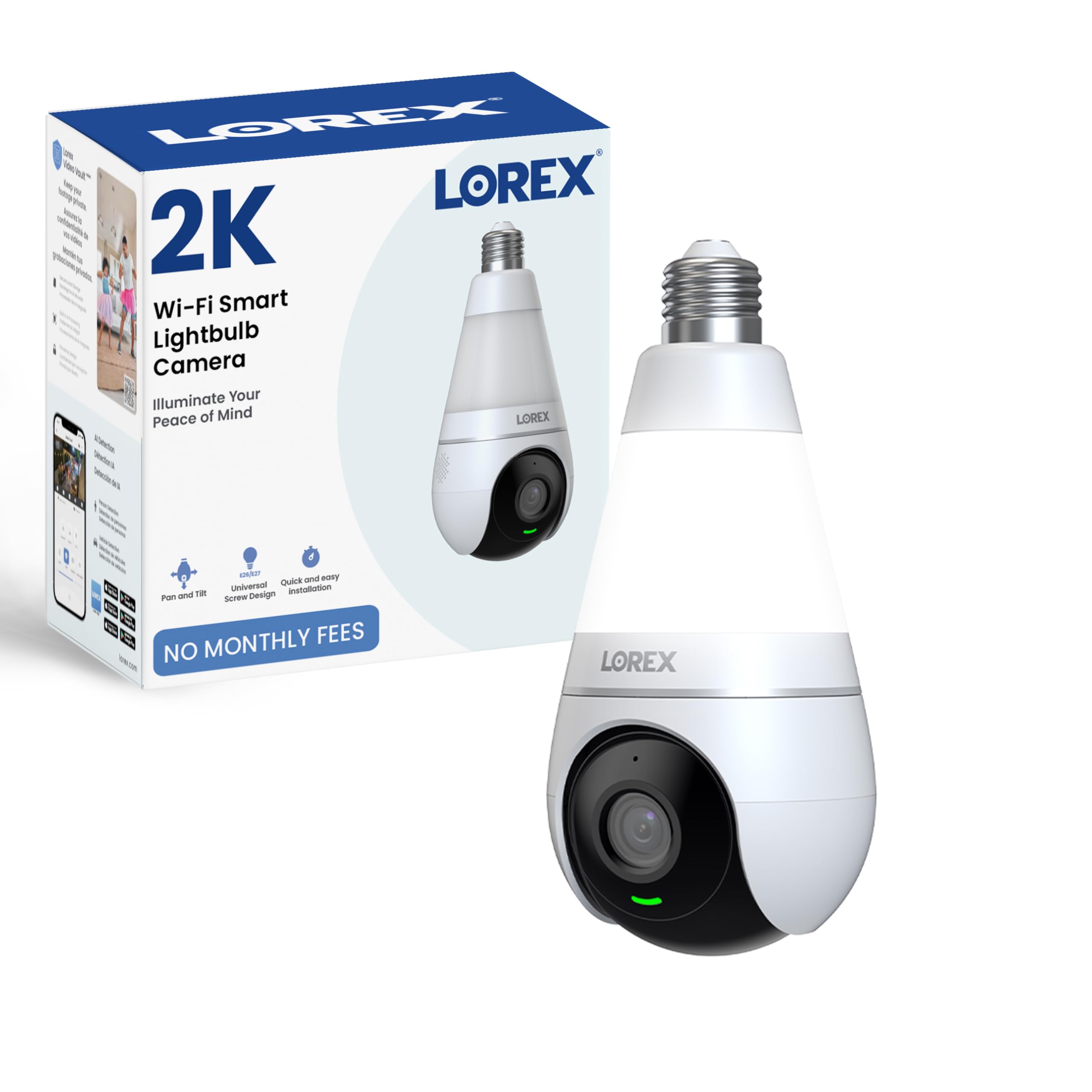
Figure 4.1: Lorex 2K Wi-Fi Smart Lightbulb Camera (Front View)

Figure 4.2: Back view of the camera showing model number and specifications.
5. Setup
Setting up your Lorex Lightbulb Camera is a straightforward process. Follow these steps for quick installation and configuration.
5.1. Physical Installation
- Power Off: Before installation, ensure the power to the light socket is turned off at the circuit breaker to prevent electrical shock.
- Screw In: Carefully screw the Lorex Lightbulb Camera into a standard E26 or E27 light socket. Ensure it is securely fastened but do not overtighten. If the socket is recessed or requires more clearance, use the provided light socket adapter.
- Power On: Restore power to the light socket from the circuit breaker. The camera's LED indicator will light up, indicating it is powering on.

Figure 5.1: The camera screws directly into a standard lightbulb socket for easy installation.
5.2. App Download and Wi-Fi Connection
- Download the App: Download the 'Lorex Home' app from your smartphone's app store (available for Android and iOS).
- Create Account: Open the app and follow the on-screen instructions to create a new Lorex account or log in if you already have one.
- Add Device: Tap the '+' icon in the app to add a new device. Select the 'Lightbulb Camera' from the list of devices.
- Connect to Wi-Fi: Follow the app's prompts to connect the camera to your home Wi-Fi network. Ensure your phone is connected to a 2.4GHz Wi-Fi network during the setup process, as the camera supports both 2.4GHz and 5GHz bands but initial setup often requires 2.4GHz.
- Pairing: The app will guide you through the pairing process, which may involve scanning a QR code or listening for an audible prompt from the camera.
Video 5.1: Official Lorex video demonstrating the setup process for the 2K Wi-Fi Smart Lightbulb Camera, including app pairing and initial configuration.
6. Operating Instructions
Once installed and connected, you can access and control your Lorex Lightbulb Camera through the Lorex Home app.
6.1. Live View and Pan-Tilt Control
- Open the Lorex Home app and select your camera to view the live feed.
- Use the on-screen controls to pan (horizontal) and tilt (vertical) the camera lens, providing 360° coverage of the area.

Figure 6.1: The camera offers 360-degree pan and tilt functionality for comprehensive area coverage.
6.2. Video Quality and Night Vision
- The camera records in 2K resolution (2560 x 1440 pixels) for clear video. You can adjust the resolution settings within the app.
- Color Night Vision: The camera features enhanced color night vision, providing full-color footage even in low-light conditions.
- Infrared Night Vision: For complete darkness, the camera utilizes infrared light, which is invisible to the human eye, to provide clear black and white video.

Figure 6.2: The camera delivers crisp 2K resolution video.

Figure 6.3: Example of Color Night Vision in action.
6.3. Smart Motion Detection
- The camera is equipped with smart motion detection, capable of distinguishing between people and vehicles.
- Configure detection zones and sensitivity settings within the app to minimize false alerts.
- Receive real-time notifications on your smartphone when motion is detected.

Figure 6.4: The app interface showing options for Person and Vehicle Detection.
6.4. Two-Way Talk and Quick Replies
- Utilize the built-in microphone and speaker for two-way audio communication through the app.
- Send pre-recorded quick replies to visitors or deter intruders remotely.

Figure 6.5: Interacting with visitors using the two-way talk feature.
6.5. Integrated LED Light Functions
The camera features a dimmable 400 Lumen LED light (6500K Cool White) with multiple operating modes:
- Manual Mode: Turn the light on or off directly from the Lorex app.
- Motion-Activated: The light automatically turns on when motion is detected.
- Smart Scheduling: Set custom schedules for the light to turn on/off at specific times or based on sunrise/sunset.
- Vacation Mode: Simulate occupancy by having the light turn on and off at randomized intervals.

Figure 6.6: Overview of the four unique light modes.
6.6. Storage Options
Your camera offers flexible storage solutions for recorded footage:
- Local Storage: Insert a microSD card (up to 256GB, sold separately) into the camera for continuous 24/7 recording.
- Cloud Storage: Optional cloud storage plans are available for remote backup of your recordings.
- Lorex Fusion Recorders: The camera can be integrated with compatible Lorex Fusion recorders for expanded storage and system management.

Figure 6.7: Visual representation of local (microSD) and cloud storage options.
6.7. Privacy Mode
- Activate Privacy Mode via the app to physically hide the camera lens, ensuring privacy when needed.

Figure 6.8: Privacy Mode physically conceals the camera lens.
7. Maintenance
- Cleaning: Gently wipe the camera lens and body with a soft, dry cloth. Do not use harsh chemicals or abrasive cleaners.
- Firmware Updates: Regularly check the Lorex Home app for available firmware updates to ensure optimal performance and security.
- MicroSD Card: If using local storage, periodically check the microSD card for errors or fill status. Replace if necessary.
8. Troubleshooting
| Problem | Possible Cause | Solution |
|---|---|---|
| Camera not connecting to Wi-Fi | Incorrect Wi-Fi password; Camera too far from router; 5GHz network selected during initial setup. | Verify Wi-Fi password. Move camera closer to router. Ensure your phone is connected to a 2.4GHz network during initial setup. Reset camera and try again. |
| Poor video quality | Weak Wi-Fi signal; App resolution settings too low; Dirty lens. | Improve Wi-Fi signal strength. Adjust video resolution to 2K in app settings. Clean the camera lens. |
| Frequent false motion alerts | High motion sensitivity; Wide detection zones. | Adjust motion sensitivity in the app. Configure specific detection zones to exclude irrelevant areas (e.g., moving trees). |
| Two-way audio unclear | Weak network connection; Environmental noise. | Ensure a stable Wi-Fi connection. Reduce background noise if possible. |
| Light not turning on/off as expected | Incorrect light mode settings; Scheduling conflicts. | Check the light mode settings (Manual, Motion-activated, Smart Scheduling, Vacation Mode) in the app and adjust as needed. |
9. Specifications
| Feature | Detail |
|---|---|
| Video Capture Resolution | 2K (2560 x 1440) |
| Connectivity Protocol | Wi-Fi (2.4GHz & 5GHz compatible) |
| Power Source | Light Socket (E26/E27) |
| Mounting Type | Light Socket |
| Viewing Angle | 360 Degrees (Pan-Tilt) |
| Night Vision Range | Up to 33 Feet (10 meters) |
| Low Light Technology | Color Night Vision |
| Special Features | 2-Way Audio, Local Recording, Motion Sensor, PTZ Technology, Person & Vehicle Detection |
| Integrated Light | Dimmable LED, 6500K Cool White, 400 Lumens |
| Storage Options | MicroSD (up to 256GB), Cloud Storage, Lorex Fusion Recorders |
| Water Resistance Level | IP65 Weatherproof |
| Dimensions (L x W x H) | 9.84 x 3.94 x 3.94 inches |
| Item Weight | 12.3 ounces |
| Model Number | Lightbulb Camera |
10. Warranty and Support
Lorex products are designed for reliability and performance. For warranty information, technical support, and additional resources, please visit the official Lorex website or contact their customer service. Keep your purchase receipt as proof of purchase for warranty claims.
Online Support: www.lorex.com/support


