1. Introduction
Thank you for choosing the NADAMOO Wireless 1D Barcode Scanner. This device is designed for efficient and reliable barcode scanning, featuring a long-range wireless connection and a convenient charging base. It is ideal for various applications including retail, warehousing, and inventory management. This manual provides detailed instructions for setup, operation, and maintenance to ensure optimal performance.

Image 1.1: NADAMOO Wireless 1D Barcode Scanner with its charging base.
This wireless laser barcode scanner is capable of reading linear 1D barcodes. It features a multifunctional 3-in-1 design, serving as a stand for hands-free operation, a charging station, and a communication hub. The scanner communicates with the base via radio frequency connectivity, which then transmits data to your device. Please note that this laser scanner relies on the reflection of laser light for accurate scanning. Due to the nature of laser light, it can only read linear 1D barcodes. 1D barcodes are linear barcodes with vertical lines of varying widths and spaces. This laser scanner cannot scan barcodes from screens or silver foil, as these surfaces do not reflect laser light correctly.
2. Key Features
- Long-Distance Wireless Connectivity: Utilizes advanced radio frequency technology for reliable signal transmission.
- Up to 400 meters (1312 feet) in barrier-free environments.
- Up to 100 meters (328 feet) in environments with obstacles.
- Actual transmission distance may vary based on building materials, physical objects, and obstructions.
- Convenient Charging Station: The base provides power to the scanner when it is placed in the station, ensuring it is always ready for use.
- Two Pairing Modes:
- One-to-One Mode: A single scanner transmits barcode data to one USB receiver.
- Multiple-to-One Mode: Multiple scanners can transmit barcode data to a single USB receiver, ideal for environments like warehouses where several users scan simultaneously.
- Two Operating Modes:
- Instant Upload Mode: Barcode data is transmitted immediately to your device upon scanning.
- Storage Mode: The scanner's internal memory can store up to 100,000 barcodes when out of range. Data can be uploaded in batches once the scanner re-enters the wireless transmission range.
- Two Interface Modes:
- USB-HID Mode: No drivers required. Scanned barcodes appear at the cursor position on your computer.
- Virtual COM Mode: Requires a virtual port driver and serial software. Scanned barcodes are displayed in the serial software window, even if it's not the active application.
3. Setup Guide
3.1 Package Contents
Before proceeding, please ensure all components are present:
- NADAMOO Wireless 1D Barcode Scanner
- Charging Base with USB Receiver
- USB Cable
- User Manual (this document)
3.2 Initial Connection
- Connect the USB cable to the charging base and then to an available USB port on your computer.
- Place the barcode scanner into the charging base. The scanner will begin charging and establish a connection with the base.
- Your computer should automatically recognize the device in USB-HID mode. No additional drivers are typically required for basic operation.
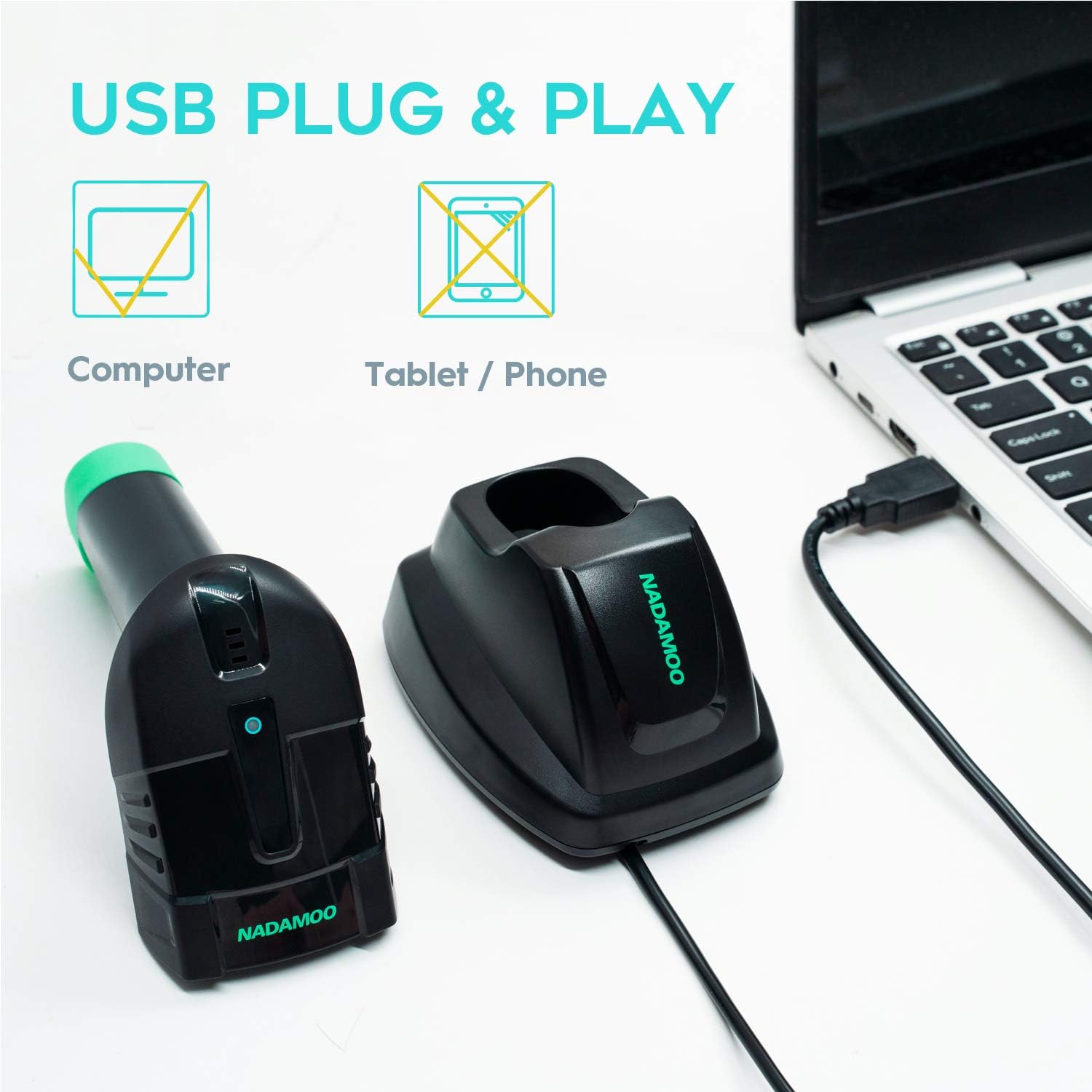
Image 3.1: Connecting the charging base to a computer via USB. Note that tablets and phones are not supported for direct connection.

Image 3.2: The scanner placed in its charging station, indicating a 1400mAh battery capacity.
4. Operating Modes
The scanner supports two primary operating modes:
4.1 Instant Upload Mode
In this mode, barcode data is transmitted to your computer immediately after each scan. This is the default mode and is suitable for real-time data entry.
- Ensure the scanner is within wireless range of the charging base.
- Open a text editor, spreadsheet, or POS application on your computer.
- Scan a barcode. The data will appear at the cursor's current position.
4.2 Storage Mode
Storage mode allows you to scan and store barcodes in the scanner's internal memory when you are outside the wireless transmission range. The scanner can store up to 100,000 barcodes.
- To activate storage mode, scan the specific barcode provided in the full programming guide (usually found in the product packaging or manufacturer's website).
- Scan barcodes as needed. The scanner will beep to confirm storage.
- To upload stored data, bring the scanner back within range of the charging base and scan the "Upload Data" barcode from the programming guide. The stored data will then be transmitted to your computer.
- To clear stored data, scan the "Clear Data" barcode from the programming guide.

Image 4.1: Illustration of the two upload modes: Instant Upload (data appears immediately on screen) and Storage Mode (data stored in scanner memory for later batch upload).
5. Pairing Methods
The NADAMOO scanner supports two pairing configurations:
5.1 One-to-One Pairing
In this default mode, one scanner is paired exclusively with one USB receiver (integrated into the charging base). This ensures that data from a specific scanner is sent only to its designated receiver.
- Typically, the scanner and base are pre-paired from the factory.
- If re-pairing is needed, scan the "One-to-One Pairing" barcode from the programming guide, then place the scanner in the base.
5.2 Multiple-to-One Pairing
This mode allows multiple scanners to transmit data to a single USB receiver. This is beneficial in environments where several users need to scan items and send data to a central computer.
- To enable this mode, scan the "Multiple-to-One Pairing" barcode from the programming guide with each scanner you wish to connect.
- Ensure all scanners are within range of the single USB receiver.

Image 5.1: Visual representation of One-to-One pairing (one scanner to one receiver) and Multiple-to-One pairing (multiple scanners to one receiver).
6. Specifications
| Feature | Detail |
|---|---|
| Brand | NADAMOO |
| Model Number | 8541732728 (Part No: Bur3104) |
| Connectivity Technology | Wireless (Radio Frequency), USB Cable |
| Compatible Devices | Desktop Computer |
| Power Source | Battery |
| Battery Type | 1 Lithium Ion (included) |
| Battery Capacity | 1400 mAh (as indicated in images) |
| Wireless Transmission Range | Up to 400m (barrier-free), 100m (with obstacles) |
| Storage Capacity | Up to 100,000 barcodes (in storage mode) |
| Product Dimensions | 21.59 x 14.73 x 8.64 cm; 499 g (8.5 x 5.8 x 3.4 inches; 1.1 lbs) |
| Barcode Type Supported | 1D Linear Barcodes |

Image 6.1: Illustration of the long wireless range capabilities: 100 meters indoors with obstacles and up to 400 meters outdoors in a barrier-free environment.
7. Maintenance
Proper maintenance ensures the longevity and optimal performance of your barcode scanner.
- Cleaning: Use a soft, dry, lint-free cloth to clean the scanner's exterior and the scanning window. Avoid abrasive cleaners, solvents, or excessive moisture.
- Storage: When not in use, store the scanner in its charging base or a safe, dry place away from extreme temperatures, direct sunlight, and corrosive materials.
- Battery Care: For best battery life, avoid fully discharging the battery frequently. Charge the scanner regularly, especially if it will be stored for an extended period.
- Handle with Care: Avoid dropping the scanner or subjecting it to strong impacts, which can damage internal components.
8. Troubleshooting
If you encounter issues with your NADAMOO barcode scanner, refer to the following common problems and solutions:
| Problem | Possible Cause / Solution |
|---|---|
| Scanner not transmitting data |
|
| Scanner not waking up from sleep mode |
|
| Scanned data appears incorrectly or not at all |
|
| Scanner not charging |
|
9. Warranty and Support
For warranty information, technical support, or further assistance, please refer to the documentation included with your purchase or visit the official NADAMOO website. Contact details for customer service are typically available on the product packaging or the manufacturer's support page.


