Introduction
The ECOVACS DEEBOT 901 Robotic Vacuum Cleaner is designed to provide efficient and intelligent floor cleaning. Equipped with Smart Navi 3.0 technology, it maps your home for systematic cleaning, ensuring comprehensive coverage. This manual provides essential information for setting up, operating, and maintaining your DEEBOT 901.

Image: The Ecovacs Deebot 901 Robotic Vacuum Cleaner, a circular black device with a central navigation sensor, shown alongside a smartphone displaying the ECOVACS Home app interface.
Safety Information
Before operating your DEEBOT 901, please read and understand all safety instructions. Failure to follow these instructions may result in electric shock, fire, or serious injury.
- Do not allow children to play with the robot. Supervise children and pets when the robot is operating.
- Ensure the robot is used indoors only and on dry surfaces.
- Keep the robot away from open flames, heat sources, and flammable materials.
- Do not operate the robot if any part is damaged. Contact customer support for repairs.
- Before cleaning, remove loose items like cables, small objects, and curtains that could entangle the robot.
- Use only the original charging dock and power adapter provided by ECOVACS.
Package Contents
Verify that all components are present in your package:
- DEEBOT 901 Robotic Vacuum Cleaner
- Charging Dock
- Charging Adapter
- (4) Side Brushes
- Direct Suction Option
- Main Brush Option
- Sponge Filter & High-efficiency Filter
- Instruction Guide (this manual)
- Cleaning Solution (if applicable for specific models)

Image: A diagram illustrating the various accessories included with the DEEBOT 901, such as the robot itself, charging dock, side brushes, filters, and different suction options.
Setup
- Charging Dock Placement: Place the charging dock against a wall in an open, uncluttered area. Ensure there is at least 0.5 meters (1.6 feet) of clear space on both sides of the dock and 1.5 meters (4.9 feet) in front. Connect the power adapter to the dock and plug it into a wall outlet.
- Install Side Brushes: Attach the side brushes to the bottom of the DEEBOT by pressing them into the corresponding slots until they click.
- Initial Charge: Place the DEEBOT on the charging dock. Ensure the charging pins align. The indicator light on the DEEBOT will show charging status. Fully charge the robot before first use (approximately 4-5 hours).
- Download ECOVACS Home App: Search for "ECOVACS Home" in your mobile app store (iOS or Android) and download the application.
- Connect to Wi-Fi: Open the ECOVACS Home app and follow the on-screen instructions to connect your DEEBOT to your home Wi-Fi network. Note: The DEEBOT 901 requires a 2.4GHz Wi-Fi connection. Ensure your router is configured for 2.4GHz or that you are connecting to the 2.4GHz band.
- Initial Mapping: For optimal performance, allow the DEEBOT to complete an initial full cleaning cycle to create a map of your home. It is recommended to start with a smaller area first to ensure successful mapping.

Image: A visual representation showing the ECOVACS Home app interface on a smartphone, a hand pressing the auto-start button on the DEEBOT, and an Amazon Alexa device, illustrating various control methods.

Image: The DEEBOT 901 in a room, with blue glowing lines illustrating its Smart Navi 3.0 laser mapping technology creating a floor plan outline as it navigates.
Operating
The DEEBOT 901 offers various cleaning modes and smart features for customized cleaning.
- Auto Cleaning: Press the Auto Mode button on the robot or in the app to start a full cleaning cycle. The DEEBOT will systematically clean your floor plan.
- Spot Cleaning: For concentrated cleaning of a small, heavily soiled area, place the DEEBOT in the center of the area and select Spot Cleaning mode in the app. The robot will clean in a spiral pattern.
- Edge Cleaning: Select Edge Cleaning mode in the app for the DEEBOT to clean along the edges of your rooms.
- Smart Navi 3.0 Mapping: The DEEBOT uses laser navigation to create and store a map of your home. This map is interactive within the ECOVACS Home app, allowing you to customize cleaning areas.
- Virtual Boundary: Use the ECOVACS Home app to draw virtual boundaries on the map, preventing the DEEBOT from entering specific areas.
- Targeted Cleaning: In the app, you can select specific rooms or areas on the map for the DEEBOT to clean.
- Voice Control: The DEEBOT 901 is compatible with Amazon Alexa and Google Assistant. Link your DEEBOT account in the respective voice assistant app to control your robot with voice commands (e.g., "Alexa, ask DEEBOT to start cleaning").
- Over-the-Air (OTA) Updates: The DEEBOT will automatically install software updates via Wi-Fi, ensuring your robot always has the latest features and improvements.

Image: An overhead view of the DEEBOT 901 cleaning a room, with white lines illustrating its systematic, back-and-forth cleaning pattern across the floor.
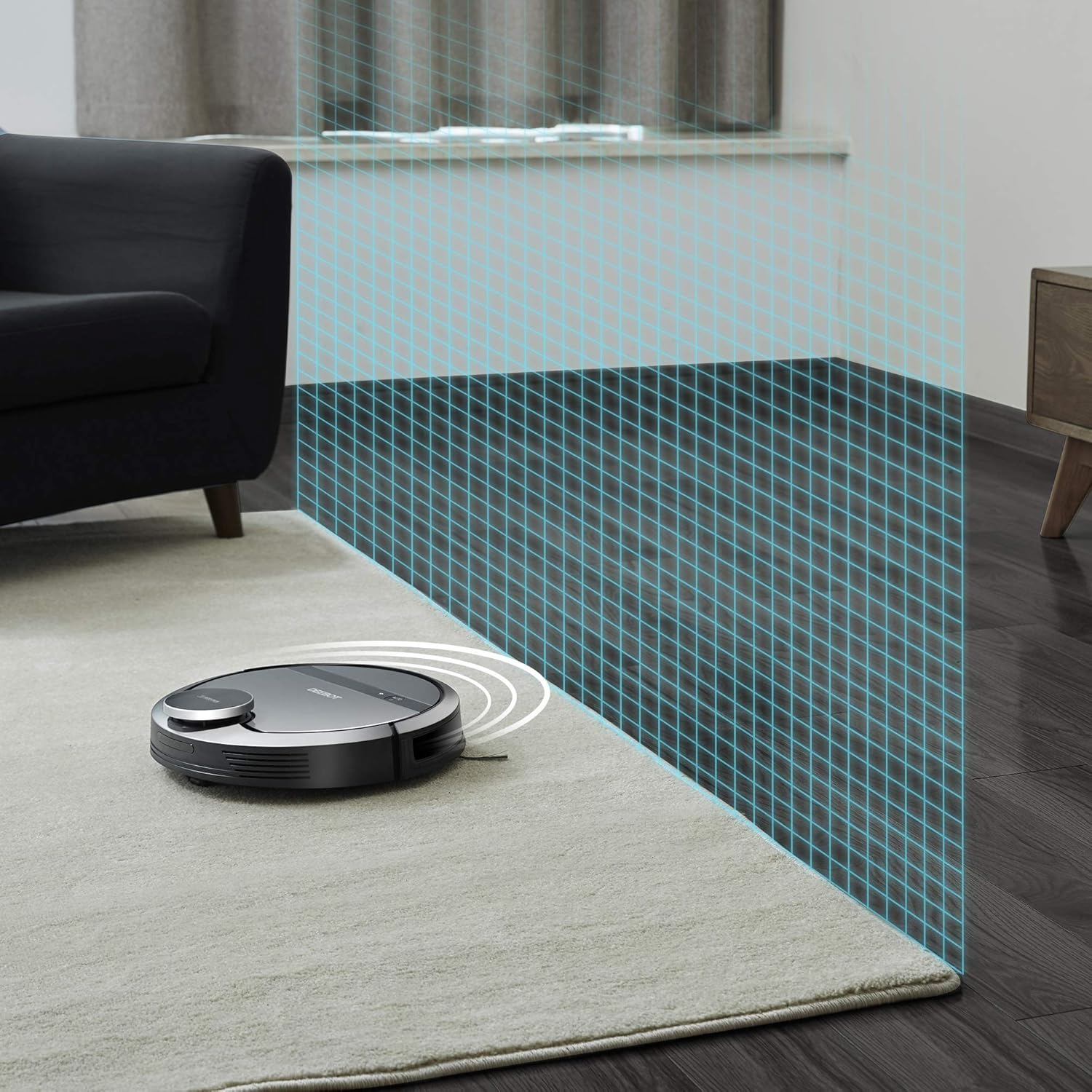
Image: The DEEBOT 901 approaching a virtual wall, depicted by a blue grid, demonstrating its ability to recognize and avoid designated areas.

Image: The DEEBOT 901 navigating towards a specific point in a room, indicated by markers 'A' and 'B', illustrating its targeted cleaning capability.
Maintenance
Regular maintenance ensures your DEEBOT 901 operates efficiently and prolongs its lifespan. Always power off the robot before performing any maintenance.
- Dust Bin and Filters: Empty the dust bin after each cleaning cycle. Clean the high-efficiency filter and sponge filter regularly by tapping them against a trash can or using a cleaning brush. Washable filters should be air-dried completely before reinstallation.
- Main Brush: Remove the main brush and use the cleaning tool to cut and remove any hair or debris wrapped around it.
- Side Brushes: Check side brushes for wear or damage. Replace them if necessary. Remove any tangled hair or debris.
- Sensors: Wipe the anti-drop sensors, anti-collision sensors, and charging contacts with a clean, dry cloth.
- Driving Wheels: Check the driving wheels for any trapped hair or debris and clean as needed.
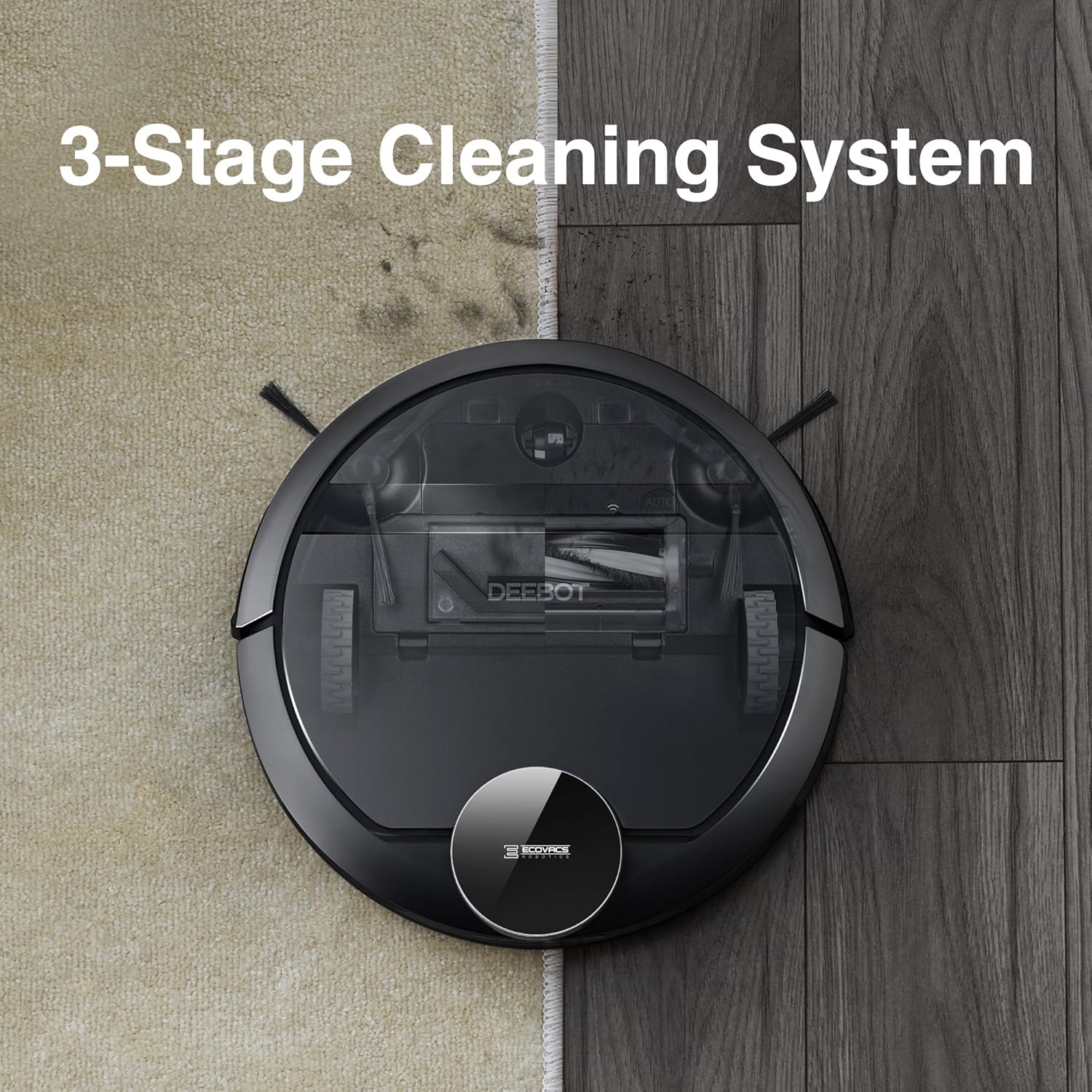
Image: An overhead view of the DEEBOT 901, split to show its effectiveness on both carpet and hard floor, highlighting its 3-Stage Cleaning System components visible through its transparent top cover.
Troubleshooting
If your DEEBOT 901 encounters an issue, refer to the following common solutions:
| Problem | Possible Cause | Solution |
|---|---|---|
| DEEBOT does not turn on. | Low battery or not properly charged. | Place DEEBOT on the charging dock and ensure it is fully charged. Check power connection to the dock. |
| Cannot connect to Wi-Fi. | Incorrect Wi-Fi band (not 2.4GHz) or weak signal. | Ensure your Wi-Fi network is 2.4GHz. Move the DEEBOT closer to the router. Re-enter Wi-Fi password in the app. |
| DEEBOT gets stuck frequently. | Obstacles, loose cables, or dark carpets. | Clear the cleaning area of obstacles. Use virtual boundaries for problem areas. Dark carpets may interfere with cliff sensors. |
| Mapping issues. | Initial mapping incomplete or environment changes. | Ensure the DEEBOT completes its first full cleaning cycle without interruption. Try mapping a smaller area first. Avoid moving the charging dock. |
| Poor cleaning performance. | Full dust bin, dirty filters, or tangled brushes. | Empty the dust bin. Clean or replace filters. Clean the main brush and side brushes. |

Image: A composite image showing the DEEBOT 901 detecting obstacles with its sensors (top left) and avoiding stairs using its cliff sensors (top right), as well as navigating around furniture (bottom).
Specifications
| Feature | Detail |
|---|---|
| Brand | ECOVACS |
| Model Number | DEEBOT 901 Re |
| Special Feature | Smart Navigation (Smart Navi 3.0) |
| Color | Black |
| Filter Type | Cartridge (Sponge Filter & High-efficiency Filter) |
| Dust Bin Capacity | 350 Milliliters |
| Power Source | Battery Powered (Lithium Metal) |
| Control Method | Voice (Amazon Alexa, Google Home), Mobile App, On-device Button |
| Form Factor | Robotic |
| Product Dimensions | 13.9 x 13.9 x 3.27 inches |
| Item Weight | 9.7 pounds |
| Use Surface | Carpet, Hard Floor |
Warranty and Support
ECOVACS provides a limited warranty for the DEEBOT 901. Please refer to the official ECOVACS website or the warranty card included in your package for detailed terms and conditions.
For technical support, troubleshooting assistance, or to order replacement parts, please contact ECOVACS customer service. You can also refer to the official User Manual PDF for more detailed information: Download User Manual (PDF).