
1. Introduction
The Apple TV 4K (1st Generation) is a digital media player designed to deliver high-quality streaming content to your television. Featuring 4K High Dynamic Range (Dolby Vision and HDR10) for stunning picture quality and Dolby Digital Plus 7.1 surround sound, it provides an immersive entertainment experience. The device is powered by the A10X Fusion chip, ensuring smooth performance and graphics. It comes with a Siri Remote for intuitive navigation and voice search capabilities.

Image 1.1: The Apple TV 4K unit (left) and its accompanying Siri Remote (right).
2. What's in the Box
Verify that all components are present in the packaging:
- Apple TV 4K unit (Model MQD22LL/A)
- Siri Remote
- Power cord
- Lightning to USB cable (for charging Siri Remote)
- Documentation
Note: An HDMI cable (for connecting to your television) is sold separately.

Image 2.1: An angled view of the compact Apple TV 4K unit.
3. Setup
Follow these steps to set up your Apple TV 4K:
- Connect to Power: Plug one end of the power cord into the power port on the back of your Apple TV 4K and the other end into a wall outlet.
- Connect to TV: Use an HDMI cable (not included) to connect the HDMI OUT port on your Apple TV 4K to an available HDMI input on your television. For 4K HDR content, ensure your TV supports 4K HDR and use a high-speed HDMI cable.
- Connect to Network (Optional): For a wired internet connection, connect an Ethernet cable from your router to the Ethernet port on the back of your Apple TV 4K. If using Wi-Fi, you will configure this during the on-screen setup.
- Power On: Turn on your television and select the correct HDMI input. Your Apple TV 4K should power on automatically.
- Siri Remote Pairing: If your Siri Remote does not automatically pair, press and hold the Menu and Volume Up buttons simultaneously for 5 seconds.
- On-Screen Setup: Follow the on-screen instructions to select your language, region, and connect to a Wi-Fi network if you are not using Ethernet. You may also be prompted to sign in with your Apple ID.

Image 3.1: Rear view of the Apple TV 4K unit, showing power, HDMI, and Ethernet ports.
4. Operating Instructions
4.1 Navigating the Interface
Use the touch surface on the Siri Remote to swipe through menus and select items. Press the touch surface to click. The Menu button returns you to the previous screen, while the TV button (with a TV icon) takes you to the Home screen or the TV app.
4.2 App Store
Access the App Store to download and install various streaming services, games, and utility applications. Navigate to the App Store icon on the Home screen and browse or search for desired apps.
4.3 Content Playback
Once an app is launched, select your desired content. Use the Siri Remote's touch surface for playback controls (play, pause, fast forward, rewind). The Play/Pause button also controls media playback.
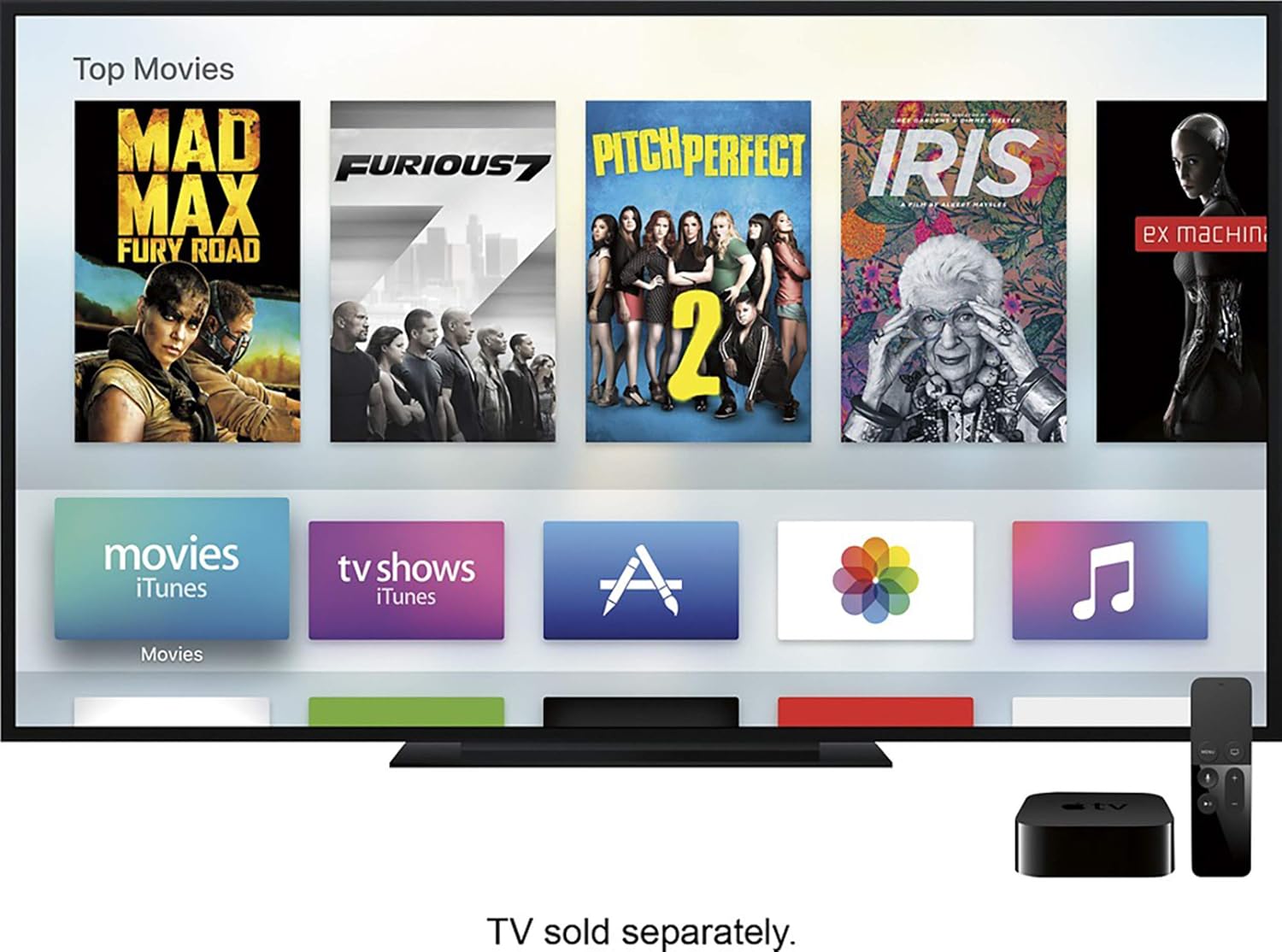
Image 4.1: The Apple TV interface displaying various movie titles available for streaming.

Image 4.2: The Apple TV interface displaying a music library with options for shuffle, recently added, artists, albums, and more.
5. Siri Remote Usage
The Siri Remote is your primary interface for the Apple TV 4K. It features a glass touch surface, buttons for navigation, volume control, and a dedicated Siri button.
- Touch Surface: Swipe to navigate, click to select.
- Siri Button: Press and hold to activate Siri for voice commands and search.
- Menu Button: Go back to the previous screen.
- TV Button: Return to the Home screen or switch to the TV app.
- Volume Buttons: Control the volume of your television or connected audio system.
- Play/Pause Button: Control media playback.
5.1 Charging the Siri Remote
The Siri Remote has a built-in rechargeable battery. Connect the remote to a USB power adapter (not included) or a computer's USB port using the included Lightning to USB cable to charge it.

Image 5.1: The Apple TV interface demonstrating Siri voice search, with a user asking to find funny TV shows.
6. Troubleshooting
| Issue | Possible Solution |
|---|---|
| No Power / No Indicator Light | Ensure the power cord is securely connected to both the Apple TV 4K and a working power outlet. Try a different outlet. |
| No Picture on TV |
|
| Siri Remote Not Responding |
|
| Network Connection Issues |
|
| App Not Working / Freezing |
|
7. Maintenance
- Cleaning: Use a soft, lint-free cloth to clean the Apple TV 4K unit and Siri Remote. Avoid using abrasive materials or chemical cleaners.
- Software Updates: Regularly check for and install software updates to ensure optimal performance and access to the latest features. Go to Settings > System > Software Updates.
- Ventilation: Ensure the Apple TV 4K unit is placed in a well-ventilated area and its vents are not obstructed to prevent overheating.
8. Specifications
| Brand | Apple |
| Model Name | Apple TV 4K (1st Generation) |
| Model Number | MQD22LL/A |
| Storage Capacity | 32GB |
| Processor | A10X Fusion chip |
| Resolution | 4K HDR (Dolby Vision and HDR10) |
| Audio Support | Dolby Digital Plus 7.1 surround sound |
| Connectivity | HDMI, Gigabit Ethernet, 802.11ac Wi‑Fi with MIMO, Bluetooth 5.0 |
| Ports | HDMI 2.0a, Gigabit Ethernet, Power input |
| Dimensions | 3.9 inches (98 mm) x 3.9 inches (98 mm) x 1.4 inches (35 mm) (approximate, based on typical Apple TV 4K dimensions) |
| Weight | 0.94 pounds (425 g) (approximate, based on typical Apple TV 4K weight) |
| Siri Remote Battery | Rechargeable lithium-ion battery |
Note: Specifications are subject to change without notice.
9. Warranty and Support
For information regarding product warranty, technical support, and service options, please refer to the official Apple support website or the documentation included with your product. You can visit support.apple.com/apple-tv for comprehensive assistance.


