
Ipega PG-9087
IPEGA PG-9087 Smart Wireless Gamepad Controller User Manual
Model: PG-9087
1. Introduction
The IPEGA PG-9087 is a versatile wireless gamepad designed for an enhanced gaming experience across multiple platforms. This controller features a telescopic phone stand, allowing for comfortable mobile gaming. It supports Bluetooth-enabled Android tablets and smartphones, Android smart TVs, iOS systems (up to 13.3), TV boxes, and Windows 7/8/10 PCs.
Key Features:
- Wide compatibility with Android, iOS (up to 13.3), and Windows devices.
- Integrated telescopic phone stand for devices up to 6.2 inches.
- Turbo acceleration function for rapid input.
- Wireless transmission range of 6 to 8 meters.
Note: This gamepad does not support mobile phones based on MediaTek chips.
2. Package Contents
- IPEGA PG-9087 Wireless Gamepad
- USB Charging Cable
- User Manual
3. Setup and Connection
3.1 Charging the Gamepad
Before first use, fully charge the gamepad. Connect the supplied USB charging cable to the charging port on the gamepad and the other end to a USB power source (e.g., computer USB port, USB wall adapter). The indicator light will show charging status and turn off when fully charged.
3.2 Powering On/Off
- To Power On: Press and hold the HOME button for approximately 3 seconds until the indicator light flashes.
- To Power Off: Press and hold the HOME button for approximately 3 seconds until the indicator light turns off. The gamepad will automatically power off if disconnected or inactive for a period.
3.3 Bluetooth Pairing
Ensure the gamepad is sufficiently charged before attempting to pair.

Image: The IPEGA PG-9087 gamepad displaying connection methods for Android and iOS devices, along with the location of the OFF/NO switch.

Image: The IPEGA PG-9087 Wireless Gamepad highlighting the connection methods for Android (A+HOME KEY) and iOS (Y+HOME KEY).
- For Android Devices: Press and hold the HOME + A keys simultaneously until the indicator light flashes rapidly. On your Android device, go to Bluetooth settings, search for available devices, and select "PG-9087" to pair.
- For iOS Devices (up to 13.3): Press and hold the HOME + Y keys simultaneously until the indicator light flashes rapidly. On your iOS device, go to Bluetooth settings, search for available devices, and select "PG-9087" to pair.
- For PC (Windows 7/8/10): Connect the gamepad to your PC using the USB cable. The gamepad should be recognized automatically. For wireless connection, ensure your PC has Bluetooth capability. Press and hold the HOME + A keys (for Android mode, which often works for PC) or refer to specific PC pairing instructions if provided with your PC's Bluetooth adapter.
4. Operating the Gamepad
4.1 Button Layout and Functions
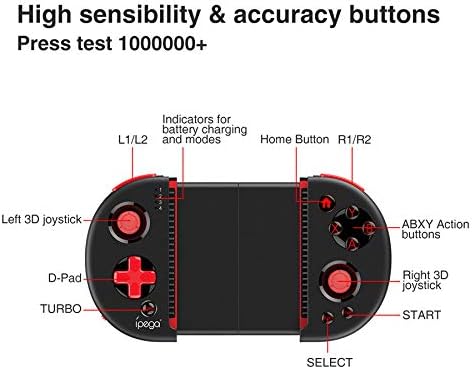
Image: A detailed diagram of the IPEGA PG-9087 gamepad, labeling its various buttons and indicators including the Left 3D joystick, D-Pad, TURBO button, L1/L2, Home Button, R1/R2, ABXY Action buttons, Right 3D joystick, START, and SELECT buttons, along with indicators for battery charging and modes.
- Left 3D Joystick: Analog input for movement and camera control.
- D-Pad: Directional input for menu navigation or specific game actions.
- TURBO Button: Activates the turbo function for rapid, continuous input of a selected action button.
- L1/L2 & R1/R2: Shoulder and trigger buttons for various in-game actions.
- ABXY Action Buttons: Standard action buttons for gameplay.
- Right 3D Joystick: Analog input, typically for camera control or aiming.
- START/SELECT: Menu and selection buttons.
- HOME Button: Power on/off, mode switching.
- Indicators: Display battery status and current operating mode.
4.2 Using the Telescopic Phone Stand

Image: The IPEGA PG-9087 gamepad demonstrating its ergonomic design and support for playing games on a tablet or smartphone in both horizontal and vertical screen orientations.
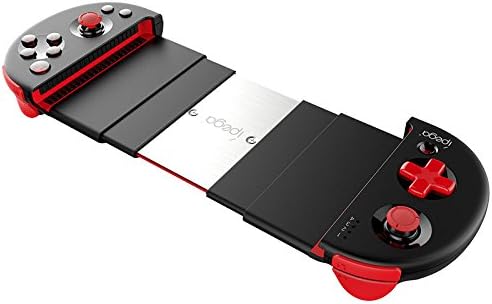
Image: A top-down perspective of the IPEGA PG-9087 gamepad fully extended, showcasing its telescopic mechanism.
The gamepad features an adjustable telescopic stand that can securely hold smartphones up to 6.2 inches. Gently pull the two halves of the gamepad apart to extend the stand. Place your phone securely within the grips. The ergonomic design allows for comfortable use over extended periods.
4.3 Turbo Function

Image: The IPEGA PG-9087 gamepad highlighting the precise 0.1cm adjustment of its rocker for accurate positioning and the dedicated TURBO function key for accelerated continuous hits in games.
The Turbo function allows for rapid, continuous pressing of a button without repeatedly pressing it manually. To activate:
- Press and hold the TURBO button.
- While holding TURBO, press the action button (e.g., A, B, X, Y, L1, R1) you wish to apply the turbo function to.
- Release both buttons. The selected action button will now continuously register input when held down.
To deactivate the Turbo function for a specific button, repeat the process.
4.4 Button Mapping and Customization

Image: A screenshot illustrating an in-game interface for button mapping and custom function assignment, allowing users to personalize control keys for various gaming needs.
Many games and emulators allow for custom button mapping. Refer to the specific game or emulator settings to configure the gamepad buttons according to your personal preferences and gaming style. This allows for a tailored control experience.
5. Maintenance
- Cleaning: Use a soft, dry cloth to clean the gamepad. Do not use abrasive cleaners or solvents.
- Storage: Store the gamepad in a cool, dry place away from direct sunlight and extreme temperatures.
- Battery Care: To prolong battery life, avoid fully discharging the battery frequently. Charge the gamepad regularly, even if not in use for extended periods.
- Avoid Drops: Do not drop or subject the gamepad to strong impacts, as this can damage internal components.
6. Troubleshooting
- Gamepad not connecting/pairing:
- Ensure the gamepad is charged.
- Verify you are using the correct pairing mode (HOME+A for Android/PC, HOME+Y for iOS).
- Make sure Bluetooth is enabled on your device.
- Try forgetting the device in your device's Bluetooth settings and re-pairing.
- Restart both the gamepad and your device.
- Buttons unresponsive or delayed:
- Ensure the gamepad is fully charged.
- Check for interference from other wireless devices.
- Ensure you are within the effective wireless range (6-8 meters).
- Some games may require specific controller configurations or may not fully support third-party gamepads.
- Phone not fitting in stand:
- The stand supports phones up to 6.2 inches. Larger phones may not fit.
- Ensure the phone is inserted correctly and the stand is fully extended.
- Gamepad not working with MediaTek chip phones:
- As stated in the introduction, this gamepad is not compatible with phones using MediaTek processors. There is no workaround for this limitation.
7. Specifications
| Feature | Specification |
|---|---|
| Model | PG-9087 |
| Brand | Ipega |
| Connectivity | Wireless (Bluetooth) |
| Compatible OS | Android, iOS (up to 13.3), Windows |
| Compatible Devices | Smartphones, Tablets, Smart TVs, TV Boxes, PCs |
| Wireless Range | 6-8 meters |
| Product Dimensions | 19 x 5 x 12 cm (approx.) |
| Item Weight | 31.8 g (approx.) |
| Special Features | Telescopic Phone Stand, Turbo Function |
8. Warranty and Support
For warranty information and technical support, please refer to the documentation provided with your purchase or contact the retailer/manufacturer directly. Specific warranty terms may vary by region and seller.
Related documentsPG-9087


Ask a question about this manual
Ask about setup, troubleshooting, compatibility, parts, safety, or missing instructions. Manuals+ will review the question and use this page’s manual context to help answer it.