
Introduction
This manual provides instructions for the setup, operation, maintenance, and troubleshooting of your Rampage KM-RX9 CYPHER Gaming Keyboard and Mouse Set. This set includes a USB wired keyboard with rainbow ground illumination and a wired gaming mouse. Please read this manual thoroughly before using the product to ensure proper functionality and longevity.
Safety Information
- Keep the device away from liquids and excessive moisture.
- Do not expose the device to extreme temperatures.
- Avoid dropping or subjecting the device to strong impacts.
- Do not attempt to disassemble or repair the device yourself. Refer to qualified service personnel.
- Use only with compatible USB ports.
Package Contents
Please check the package contents upon unboxing. The standard package should include:
- Rampage KM-RX9 CYPHER Gaming Keyboard
- Rampage KM-RX9 CYPHER Gaming Mouse
- User Manual (this document)
Setup
Follow these steps to set up your Rampage KM-RX9 CYPHER Gaming Keyboard and Mouse Set:
- Connect the Keyboard: Locate an available USB port on your computer. Plug the USB connector of the Rampage KM-RX9 keyboard into the USB port.
- Connect the Mouse: Locate another available USB port on your computer. Plug the USB connector of the Rampage KM-RX9 mouse into the USB port.
- Driver Installation: The keyboard and mouse are typically plug-and-play devices. Your operating system (Windows, macOS, Linux) should automatically detect and install the necessary drivers. This process may take a few moments.
- Verification: Once drivers are installed, the keyboard and mouse should be ready for use. Test by typing on the keyboard and moving/clicking the mouse. The keyboard's rainbow illumination should activate automatically.
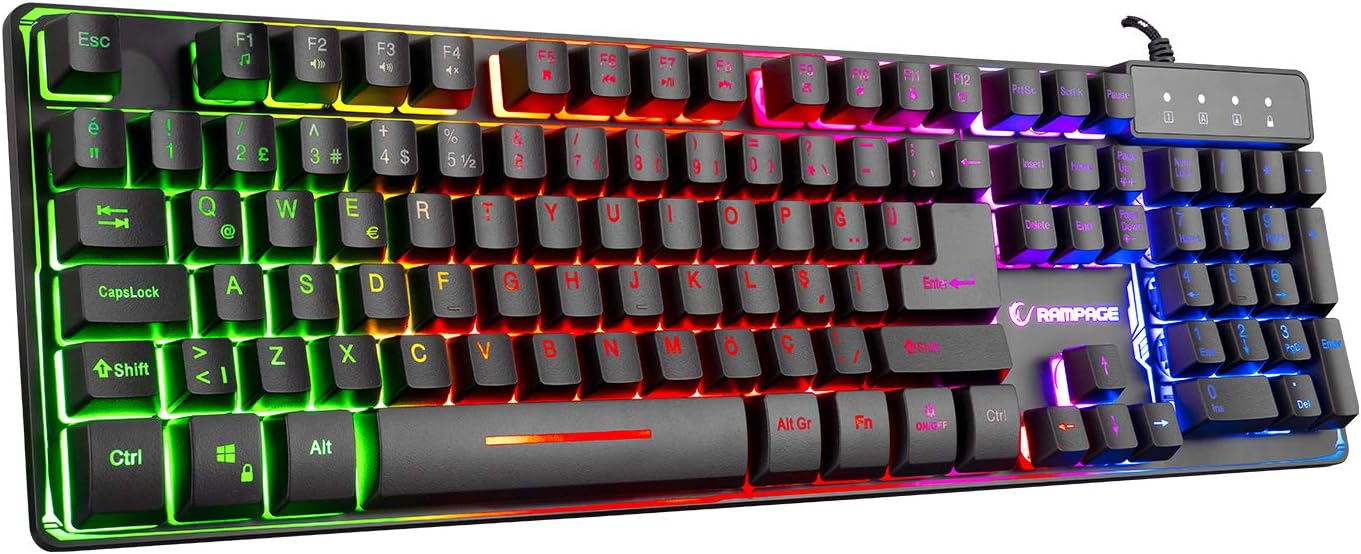
Figure 1: Top view of the Rampage KM-RX9 CYPHER Gaming Keyboard, showcasing its full QWERTY layout and vibrant rainbow backlighting.
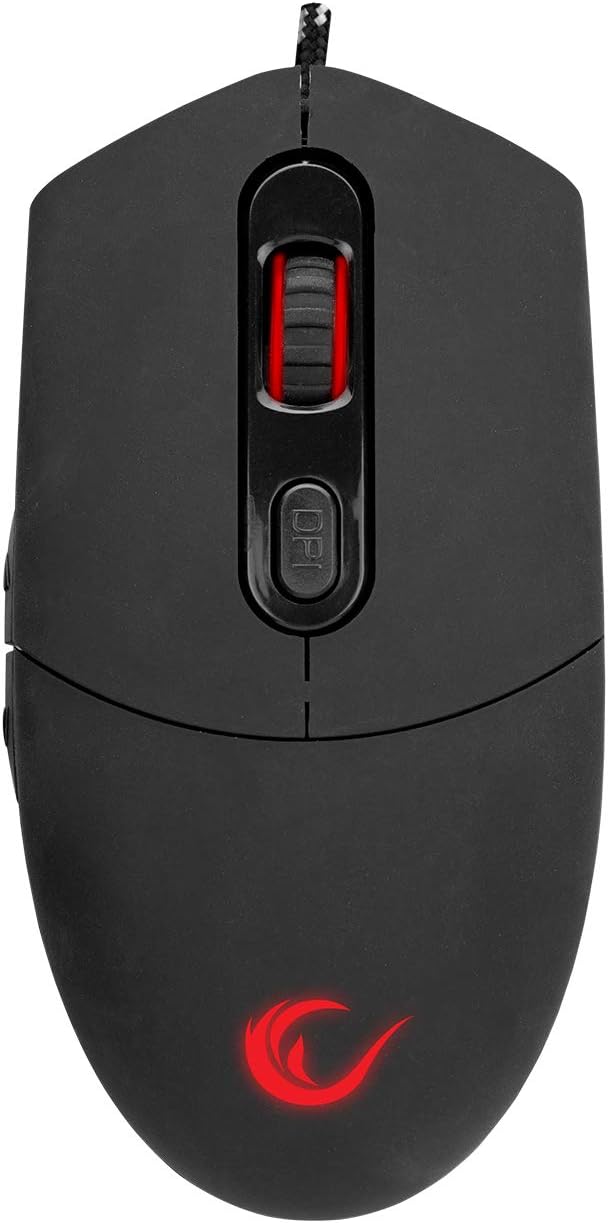
Figure 2: Top view of the Rampage KM-RX9 CYPHER Gaming Mouse, featuring the scroll wheel and DPI adjustment button.
Operating the Keyboard
Basic Functions
- Typing: The keyboard features a standard QWERTY layout for general typing and gaming.
- Function Keys (F1-F12): These keys may have secondary multimedia or system functions when pressed in combination with the Fn key. Refer to the keycap legends for specific functions (e.g., volume control, media playback).
Illumination Control
The KM-RX9 keyboard features rainbow ground illumination. Specific controls for lighting modes or brightness are typically managed via dedicated keys or key combinations:
- Look for keys with light bulb icons or specific 'Fn' key combinations (e.g., Fn + Scroll Lock or Fn + Page Up/Down) to cycle through lighting effects or adjust brightness.
- The illumination is designed to provide a consistent rainbow effect across the keyboard's base.
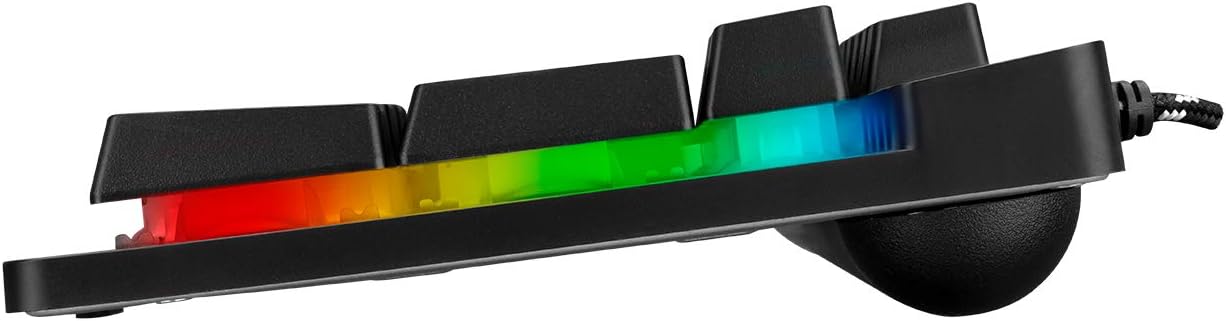
Figure 3: Side profile of the Rampage KM-RX9 keyboard, illustrating the distinct rainbow ground illumination effect.
Operating the Mouse
Basic Functions
- Left Click: Primary action button.
- Right Click: Secondary action button, typically for context menus.
- Scroll Wheel: Used for scrolling through documents and web pages. Can also function as a middle click button.
- Side Buttons: The mouse features additional side buttons, commonly used for forward/backward navigation in web browsers or programmable for in-game actions.
DPI Adjustment
The mouse includes a DPI (Dots Per Inch) adjustment button, usually located near the scroll wheel. Pressing this button cycles through different sensitivity levels, allowing you to adjust cursor speed on the fly to suit your preferences or game requirements.
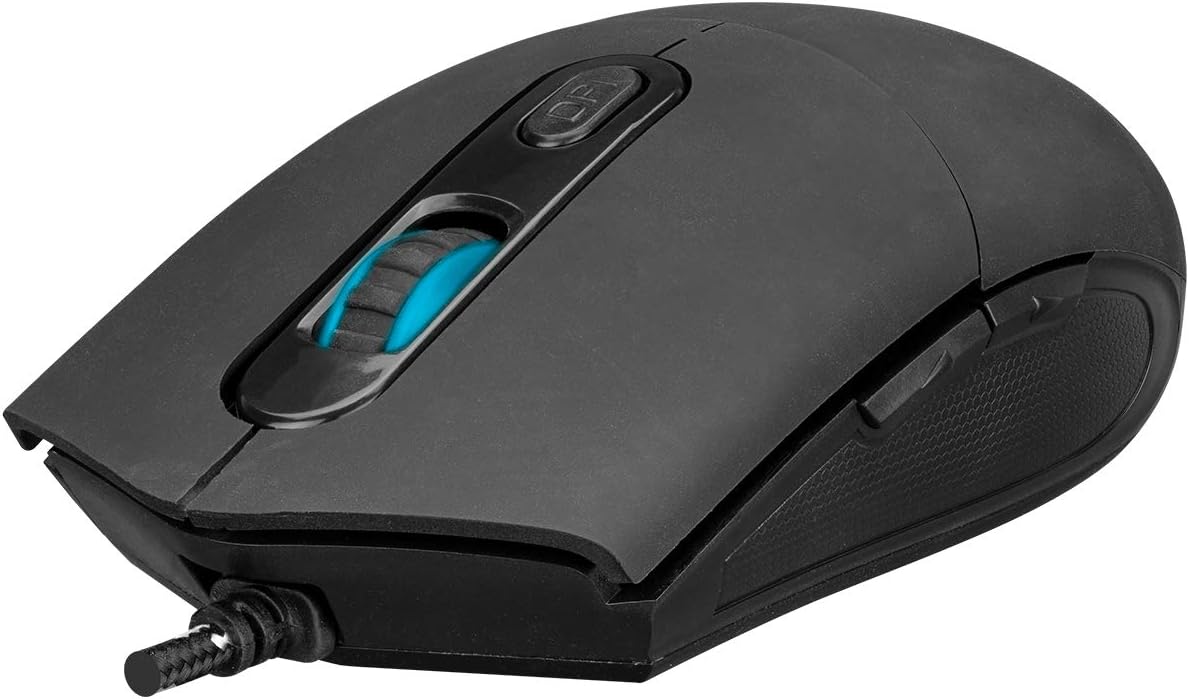
Figure 4: Angled view of the Rampage KM-RX9 mouse, highlighting the scroll wheel and the DPI adjustment button.

Figure 5: Side view of the Rampage KM-RX9 mouse, showcasing its ergonomic design and textured grip for enhanced control.
Maintenance
Proper maintenance ensures the longevity and performance of your gaming set:
- Cleaning the Keyboard: Use a soft, dry cloth to wipe down the keyboard surface. For dust between keys, use compressed air. Do not use harsh chemicals or abrasive cleaners.
- Cleaning the Mouse: Wipe the mouse surface with a soft, slightly damp cloth. Ensure no moisture enters the device. Clean the optical sensor area on the bottom of the mouse with a cotton swab if tracking issues occur.
- Storage: When not in use for extended periods, store the keyboard and mouse in a clean, dry environment, away from direct sunlight and extreme temperatures.
Troubleshooting
If you encounter issues with your Rampage KM-RX9 set, try the following solutions:
- Keyboard/Mouse Not Responding:
- Ensure the USB cables are securely plugged into your computer's USB ports.
- Try plugging the devices into different USB ports.
- Restart your computer.
- Check your computer's Device Manager (Windows) or System Information (macOS/Linux) to see if the devices are recognized.
- Illumination Not Working (Keyboard):
- Verify that the keyboard is properly connected.
- Press the dedicated lighting control keys or Fn key combinations to ensure illumination is not turned off or set to a very dim mode.
- Mouse Tracking Issues:
- Clean the optical sensor on the bottom of the mouse.
- Ensure you are using the mouse on a suitable surface (e.g., a mouse pad, not a reflective or transparent surface).
- Adjust the DPI settings using the DPI button.
Specifications
| Product Model | KM-RX9 |
| Brand | Rampage (Everest Rampage) |
| Connectivity Technology | USB Wired |
| Keyboard Layout | QWERTY |
| Special Features | Rainbow Ground Illuminated Keyboard, DPI Adjustable Mouse |
| Compatible Devices | Desktop, Laptop, Tablet |
| Operating System Compatibility | Windows, macOS, Linux |
| Product Dimensions | Keyboard: 54 x 17 x 4.2 cm; 830 g |
| Power Source | Electric Corded (USB) |
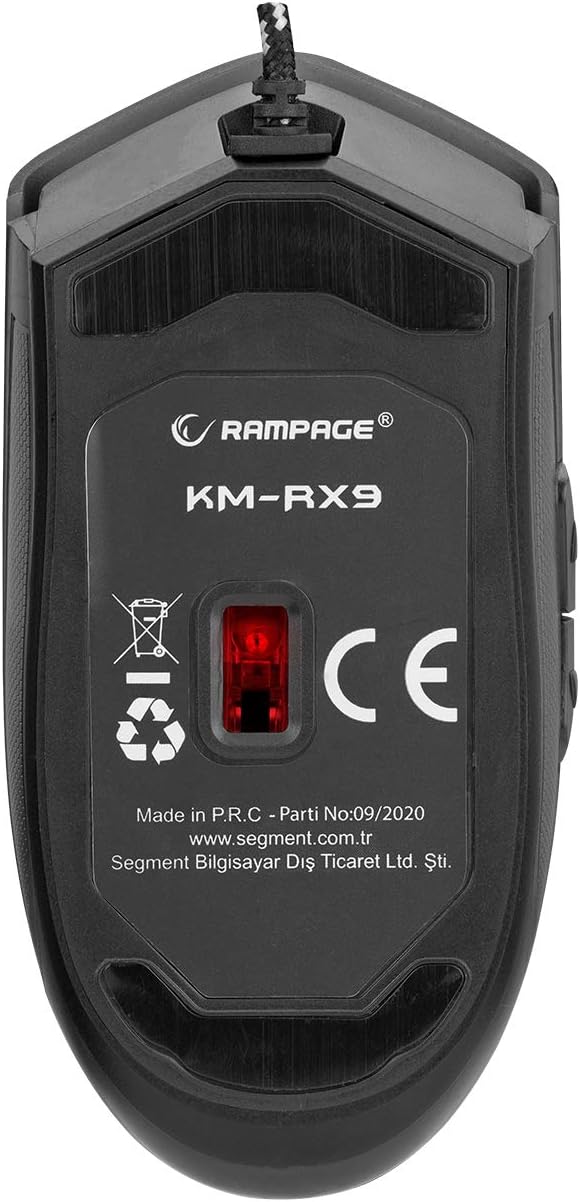
Figure 6: Bottom view of the Rampage KM-RX9 mouse, displaying the model number and optical sensor.
Warranty and Support
For warranty information and customer support, please refer to the documentation provided at the time of purchase or contact your retailer. You may also visit the official Rampage website for further assistance.


