
LevelOne FVT-2202
LevelOne FVT-2202 Fast Ethernet Media Converter User Manual
Model: FVT-2202 | Brand: LevelOne
1. Introduction
This manual provides detailed instructions for the installation, operation, and maintenance of the LevelOne FVT-2202 Fast Ethernet Media Converter. The FVT-2202 is designed to convert 10/100Base-TX Fast Ethernet signals to 100Base-FX fiber optic signals, extending network reach over fiber optic cable. It supports both 10Mbps and 100Mbps network speeds, making it suitable for various network environments.
Please read this manual thoroughly before operating the device to ensure proper functionality and to prevent damage.
2. Package Contents
Verify that your package contains the following items:
- LevelOne FVT-2202 Fast Ethernet Media Converter
- Power Adapter (5VDC)
- User Manual (this document)
If any items are missing or damaged, please contact your vendor immediately.
3. Physical Description
The LevelOne FVT-2202 is a compact media converter designed for reliable performance. It features standard RJ45 and fiber optic (SC) ports, along with LED indicators for status monitoring.
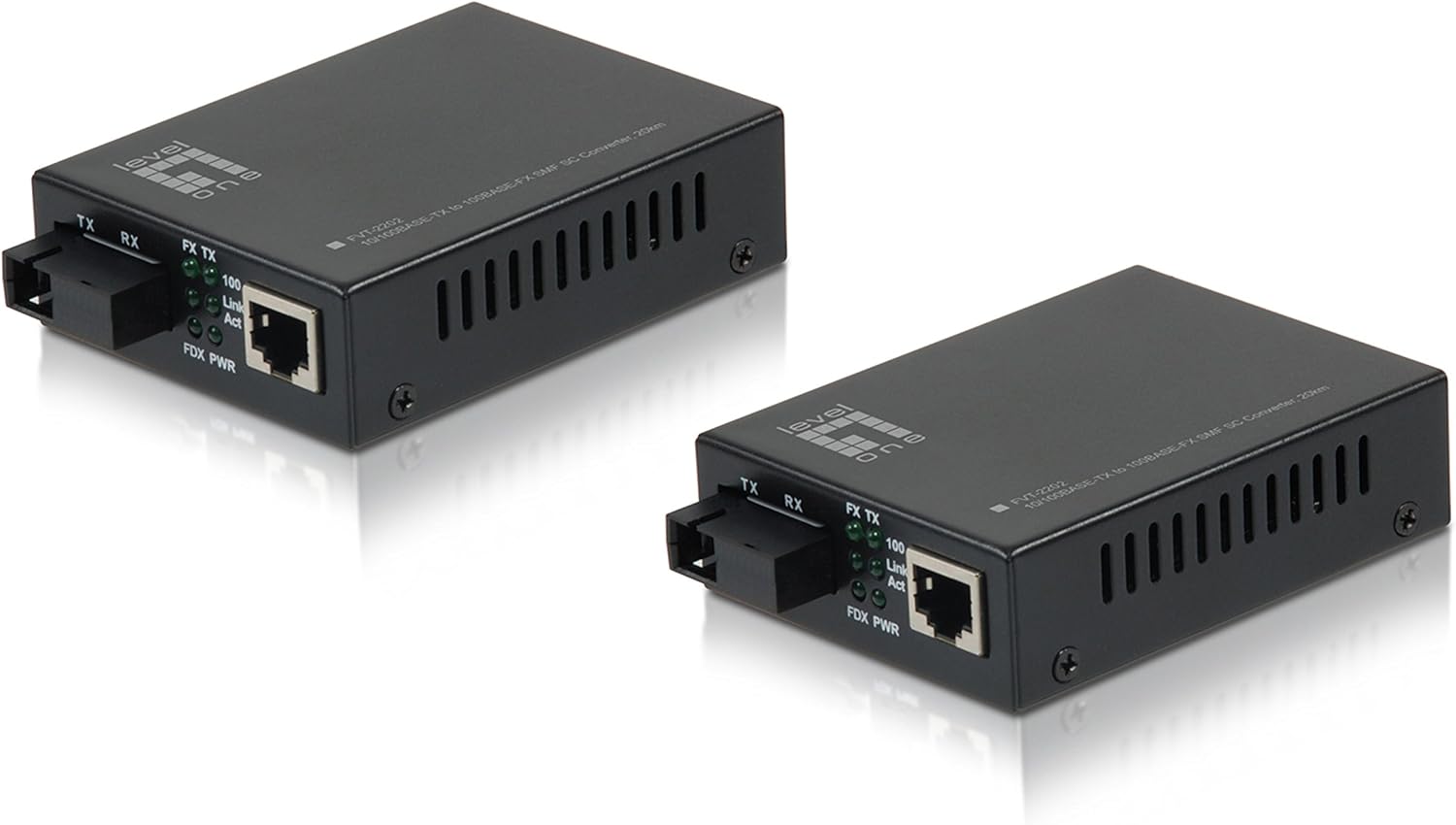
Figure 3.1: Front view of the LevelOne FVT-2202 Media Converter, showing the RJ45 Ethernet port, SC fiber optic port, and LED indicators for TX, RX, Link/Act, and Power.

Figure 3.2: Rear view of the LevelOne FVT-2202 Media Converter, highlighting the 5VDC power input and DIP switches for configuration.
3.1. LED Indicators
| LED | Status | Description |
|---|---|---|
| PWR | Green (On) | The device is receiving power. |
| FX Link/Act | Green (On) | Fiber optic link is established. |
| FX Link/Act | Green (Blinking) | Data is being transmitted or received over the fiber optic link. |
| TX Link/Act | Green (On) | Ethernet link is established. |
| TX Link/Act | Green (Blinking) | Data is being transmitted or received over the Ethernet link. |
3.2. DIP Switches
The FVT-2202 features DIP switches for advanced configuration. Refer to the markings on the device for specific switch functions, which typically include settings for LFP (Link Fault Pass-through), speed, and duplex mode.
- Switch 1: LFP (Link Fault Pass-through) Enable/Disable
- Switch 2: Auto-Negotiation Enable/Disable
- Switch 3: 100Mbps/10Mbps Speed Selection (when Auto-Negotiation is disabled)
- Switch 4: Full-Duplex/Half-Duplex Selection (when Auto-Negotiation is disabled)
Caution:
Ensure the device is powered off before changing DIP switch settings to prevent potential damage or incorrect configuration.
4. Setup and Installation
Follow these steps to properly install and connect your LevelOne FVT-2202 Media Converter:
- Prepare the Environment: Ensure the installation location is clean, dry, and has adequate ventilation. Avoid areas with extreme temperatures or humidity.
- Power Off Devices: Before making any connections, ensure that all network devices (switches, routers, computers) that will connect to the media converter are powered off.
- Configure DIP Switches (if necessary): If specific network settings are required (e.g., fixed speed/duplex, LFP), adjust the DIP switches on the rear of the converter according to your network requirements. Refer to Section 3.2 for details.
- Connect Fiber Optic Cable: Connect one end of the fiber optic cable (SC connector) to the FX port on the FVT-2202. Connect the other end to your fiber optic network device (e.g., fiber switch, another media converter). Ensure the transmit (TX) and receive (RX) fibers are correctly matched.
- Connect Ethernet Cable: Connect a standard RJ45 Ethernet cable from your copper-based network device (e.g., Ethernet switch, computer) to the TX port on the FVT-2202.
- Connect Power Adapter: Plug the provided 5VDC power adapter into the power input jack on the FVT-2202. Then, plug the power adapter into a suitable electrical outlet.
- Power On Devices: Power on the FVT-2202. The PWR LED should illuminate green. Then, power on your connected network devices.
- Verify Connections: Check the Link/Act LEDs for both the FX (fiber) and TX (Ethernet) ports. A solid green light indicates a successful link. Blinking lights indicate data activity.
Important:
Always handle fiber optic cables with care. Avoid bending them sharply or exposing the connectors to dust and dirt, which can degrade performance.
5. Operation
Once the LevelOne FVT-2202 is properly installed and powered on, it operates automatically as a transparent media converter. It translates Ethernet signals between copper and fiber optic mediums without requiring any software configuration.
5.1. Basic Functionality
- The converter transparently passes Ethernet frames between the RJ45 (copper) and SC (fiber) interfaces.
- It supports both 10Mbps and 100Mbps Fast Ethernet speeds.
- Auto-negotiation is typically enabled by default on the RJ45 port to automatically detect the speed and duplex mode of the connected device.
- The fiber optic port operates at 100Mbps full-duplex.
5.2. Monitoring Status
The LED indicators provide a quick visual status of the converter's operation:
- PWR LED: Confirms the device is powered.
- FX Link/Act LED: Indicates the status of the fiber optic link and data activity.
- TX Link/Act LED: Indicates the status of the Ethernet link and data activity.
Refer to Section 3.1 for a detailed explanation of LED behaviors.
6. Maintenance
The LevelOne FVT-2202 Media Converter is designed for minimal maintenance. However, following these guidelines can help ensure its longevity and reliable performance:
- Cleaning: Keep the device clean and free from dust. Use a soft, dry cloth for cleaning the exterior. Do not use liquid or aerosol cleaners.
- Fiber Optic Connectors: Ensure fiber optic connectors are clean. Dust or dirt on the fiber end-faces can significantly degrade signal quality. Use appropriate fiber optic cleaning tools if necessary.
- Ventilation: Ensure that the ventilation holes on the device are not blocked to prevent overheating.
- Power Supply: Use only the power adapter provided with the device. Using an incorrect power adapter can damage the converter.
- Environmental Conditions: Operate the device within its specified environmental conditions (temperature, humidity) to prevent malfunction.
7. Troubleshooting
If you encounter issues with your LevelOne FVT-2202 Media Converter, refer to the following troubleshooting steps:
| Problem | Possible Cause | Solution |
|---|---|---|
| No Power (PWR LED Off) | Power adapter not connected or faulty. | Check power adapter connection to the device and wall outlet. Ensure the outlet is functional. Try a different power adapter if available and compatible. |
| No Fiber Link (FX Link/Act LED Off) | Fiber cable disconnected, damaged, or incorrect TX/RX connection. | Verify fiber cable connections at both ends. Ensure TX/RX are correctly matched. Inspect cable for damage. Clean fiber connectors. Check the remote fiber device. |
| No Ethernet Link (TX Link/Act LED Off) | Ethernet cable disconnected, damaged, or incorrect speed/duplex settings. | Verify Ethernet cable connection. Inspect cable for damage. Ensure the connected device is powered on and functioning. Check DIP switch settings for speed/duplex if auto-negotiation is disabled. |
| Poor Network Performance | Cable issues, duplex mismatch, or excessive network traffic. | Check cable quality and length. Ensure duplex settings are consistent across connected devices (auto-negotiation recommended). Monitor network traffic. |
If the problem persists after trying these solutions, please contact LevelOne technical support for further assistance.
8. Specifications
| Model Name | FVT-2202 |
| Brand | LevelOne |
| Network Standard | 10/100Base-TX, 100Base-FX |
| Data Transfer Rate | 100 Megabits Per Second (10/100Mbps) |
| Connector Type (Copper) | RJ45 |
| Connector Type (Fiber) | SC (Single-Mode Fiber, 20km range) |
| Cable Type | Ethernet, Fiber Optic |
| Special Feature | Data Transfer, Link Fault Pass-through (LFP) via DIP switch |
| Color | Black |
| Indoor/Outdoor Usage | Outdoor |
| Compliance | RoHS, FCC Part 15 |
| Item Weight | 11.3 ounces |
| Product Dimensions (LxWxH) | 2.8 x 3.7 x 1.02 inches |
| Power Input | 5VDC |
9. Warranty and Support
LevelOne products are backed by a manufacturer's warranty. For specific warranty terms and conditions, please refer to the warranty card included with your product or visit the official LevelOne website. Keep your purchase receipt as proof of purchase.
For technical support, product registration, or to download the latest drivers and firmware, please visit the LevelOne support portal or contact their customer service department. Contact information can typically be found on the LevelOne website: www.level1.com
Related documentsFVT-2202


Ask a question about this manual
Ask about setup, troubleshooting, compatibility, parts, safety, or missing instructions. Manuals+ will review the question and use this page’s manual context to help answer it.