1. Introduction
This manual provides comprehensive instructions for the installation, operation, and maintenance of your Scosche 1080P HD DVR Dash Cam, model DDVR28G-ST2. Please read this manual thoroughly before using the device to ensure proper functionality and safety.
2. Package Contents
- Scosche 1080P HD DVR Dash Cam (DDVR28G-ST2)
- Suction Mount
- Car Power Adapter
- USB Cable
- Instruction Manual
- Memory Card (as per specifications, though typically sold separately or as an optional accessory)
3. Product Overview
The Scosche DDVR28G-ST2 is a compact dash camera designed to record your driving in high definition. It features a wide-angle lens, night vision capabilities, and loop recording for continuous operation.

Figure 3.1: Front View of Dash Cam. This image shows the front of the dash camera, highlighting the main lens, infrared (IR) LEDs for night vision, and the Scosche logo. The model number "DDVR2ST" is visible on the lower right.
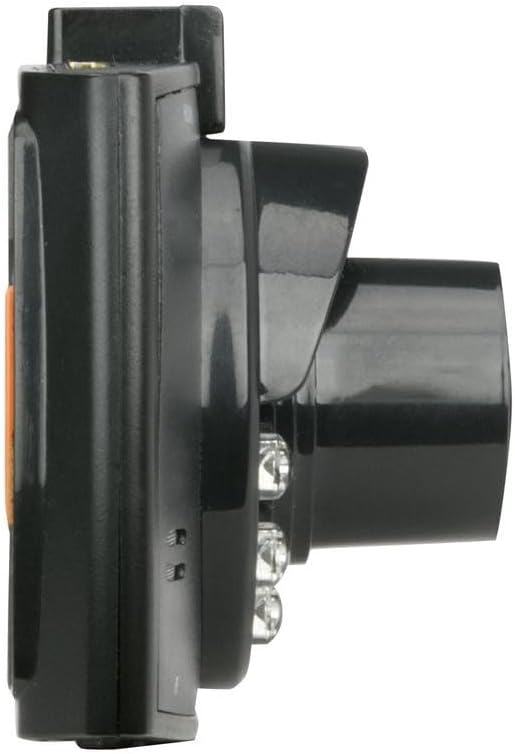
Figure 3.2: Side View of Dash Cam. This image displays the side profile of the dash camera, showing its compact design and the placement of potential ports or buttons along the side.

Figure 3.3: Rear View of Dash Cam. This image presents the rear of the dash camera, featuring the 2.4-inch TFT LCD screen and an orange control button on the right side.
Key Features:
- 2.4" TFT LCD Screen
- 1080p HD Video Recording (24fps) or 720p HD (30fps)
- AVI Video Format
- 6x IR LED Night Vision Lights
- 100° Wide-Angle Lens
- Seamless Loop Recording
- Hands-Free Auto ON/OFF
- Supports Micro SD Card (up to 32GB, not included unless specified)
4. Setup
4.1 Inserting a Micro SD Card
- Locate the Micro SD card slot on the side of the dash cam.
- Gently insert a compatible Micro SD card (Class 10 or higher recommended, up to 32GB) into the slot until it clicks into place. Ensure the card is inserted with the correct orientation.
- To remove, gently push the card in until it clicks, then release, and it will eject.
Note: The dash cam requires a Micro SD card to record video. Format the card within the device settings before first use.
4.2 Mounting the Dash Cam
- Clean the desired area on your windshield thoroughly.
- Attach the suction mount to the dash cam.
- Press the suction cup firmly against the windshield and flip the lever to secure it.
- Adjust the camera angle to ensure a clear view of the road ahead, avoiding obstruction of your driving view.
4.3 Power Connection
- Connect the car power adapter to the dash cam's power input port.
- Plug the other end of the car power adapter into your vehicle's 12V power outlet (cigarette lighter socket).
- The dash cam is designed for "Hands-Free Auto ON/OFF," meaning it will power on and begin recording automatically when your vehicle starts and power off when the vehicle is turned off.
5. Operating Instructions
5.1 Basic Operation
- Power On/Off: The device powers on automatically with vehicle ignition and powers off when the vehicle is turned off. Manual power buttons may also be present for temporary control.
- Recording: Once powered on, the dash cam will automatically begin loop recording. A recording indicator (e.g., a flashing red dot) will appear on the screen.
- Loop Recording: The dash cam records video in segments (e.g., 1, 3, or 5 minutes). When the Micro SD card is full, the oldest unlocked files will be overwritten by new recordings.
- Emergency Recording (G-Sensor): In the event of a sudden impact or collision, the built-in G-sensor will automatically detect the event and lock the current video segment, preventing it from being overwritten by loop recording.
5.2 Menu Navigation and Settings
Use the physical buttons on the dash cam (refer to your device for exact button layout) to navigate through the menu and adjust settings.
- Video Resolution: Select between 1080p HD (24fps) or 720p HD (30fps).
- Loop Recording Duration: Set the length of each video segment (e.g., 1, 3, 5 minutes).
- G-Sensor Sensitivity: Adjust the sensitivity of the G-sensor. A higher sensitivity will trigger emergency recording more easily.
- Date/Time Stamp: Enable or disable the display of date and time on recorded videos.
- Night Vision: The 6x IR LED lights provide enhanced recording in low-light conditions. This feature is typically automatic.
- Format SD Card: Regularly format your Micro SD card to ensure optimal performance and prevent data corruption.
5.3 Playback
- On Device: Enter playback mode via the menu. Use navigation buttons to select and play recorded videos on the 2.4" TFT screen.
- On Computer: Remove the Micro SD card from the dash cam and insert it into a computer's card reader. The video files (AVI format) can then be viewed using standard media players. Alternatively, connect the dash cam directly to a computer via USB cable (if supported for data transfer).
6. Maintenance
- Cleaning the Lens: Use a soft, lint-free cloth to gently wipe the camera lens. Avoid abrasive materials or harsh chemicals.
- Cleaning the Screen: Use a soft, dry cloth to clean the display screen.
- SD Card Maintenance: Regularly format the Micro SD card (at least once a month) to maintain optimal recording performance and prevent file errors. Back up important recordings before formatting.
- Storage: When not in use for extended periods, store the dash cam in a cool, dry place away from direct sunlight and extreme temperatures.
7. Troubleshooting
| Problem | Possible Cause | Solution |
|---|---|---|
| Dash cam does not power on. | No power from vehicle's 12V outlet; faulty power adapter; loose connection. | Check vehicle's 12V outlet for power (e.g., by plugging in another device). Ensure power adapter is securely connected to both the dash cam and the vehicle outlet. Try a different power adapter if available. |
| Dash cam stops recording or shows "Card Full" error. | Micro SD card is full; card error; card speed is too slow. | Format the Micro SD card within the dash cam's settings. Ensure you are using a Class 10 or higher Micro SD card. Replace the card if errors persist. |
| Video quality is poor or blurry. | Protective film on lens; dirty lens; incorrect resolution setting. | Remove any protective film from the lens. Clean the lens with a soft cloth. Check video resolution settings and ensure it's set to 1080p HD for best quality. |
| Suction mount does not hold. | Windshield surface is dirty; suction cup is dirty or damaged. | Clean the windshield and the suction cup thoroughly. Ensure the lever is fully engaged. If damaged, replace the suction mount. |
| Date and time are incorrect. | Settings not saved; internal battery (if present) is low. | Adjust the date and time in the dash cam's settings menu and ensure they are saved. Keep the dash cam powered for a few minutes to allow the internal battery to charge (if applicable). |
8. Specifications
| Feature | Detail |
|---|---|
| Brand | Scosche |
| Model | DDVR28G-ST2 |
| Display Screen | 2.4 Inches TFT LCD |
| Video Resolution | 1080p HD @ 24fps, 720p HD @ 30fps |
| Video Format | AVI |
| Lens Angle | 100 Degrees Wide-Angle |
| Night Vision | 6x IR LED Lights |
| Special Features | Loop Recording, Night Vision, G-Sensor (Emergency Recording), Hands-Free Auto ON/OFF |
| Memory Card Support | Micro SD (SD, microSD) - Class 10 or higher recommended, up to 32GB |
| Mounting Type | Suction Mount |
| Power Input | 12 Volts (via car power adapter) |
| Compatible Devices | Car, Truck, Motorcycle |
| Product Dimensions | 5.72 x 11.43 x 20.96 cm |
| Weight | 220 g |
| Color | Black Or Dark Gray |
| Connectivity Technology | Wi-Fi (Note: This feature is listed in specifications but may vary by specific product version or region.) |
9. Warranty and Support
For warranty information and technical support, please refer to the official Scosche website or contact their customer service directly. Keep your purchase receipt as proof of purchase for warranty claims.
Scosche Website: www.scosche.com
(Specific warranty terms and contact details are typically provided in a separate warranty card or on the manufacturer's official website.)


