
Introduction
This manual provides instructions for the proper use and maintenance of your Ipega Tomahawk PG-9068 Bluetooth 3.0 Joystick Controller. Please read this manual carefully before use to ensure optimal performance and longevity of the device. This controller is designed for use with Android and iPhone smartphones and tablets.
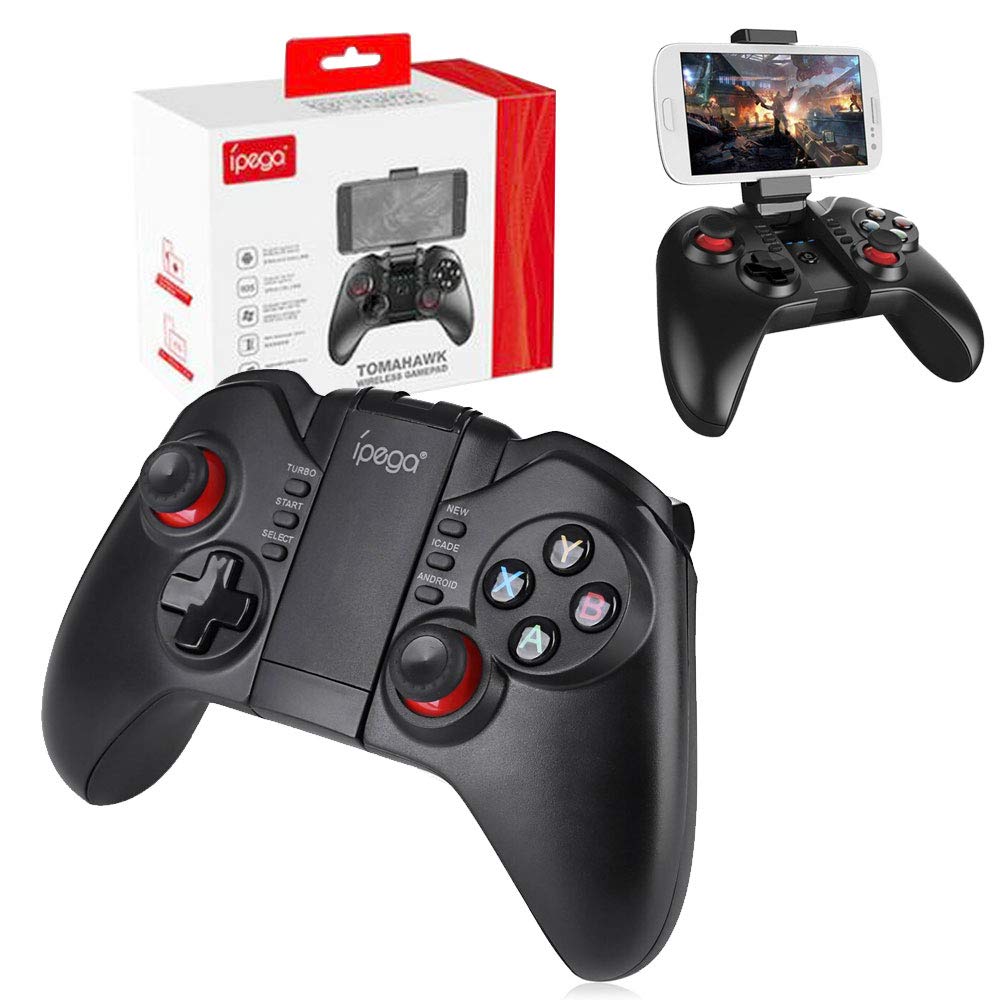
Image: The Ipega PG-9068 Bluetooth Joystick Controller shown with its retail packaging. The controller is black with red accents on the joysticks and face buttons (Y, X, B, A).
Setup
Follow these steps to connect your Ipega PG-9068 controller to your device via Bluetooth.
Charging the Controller
Before initial use, ensure the controller is fully charged. Connect the provided USB charging cable to the micro-USB port on the controller and to a USB power source (e.g., computer, USB wall adapter). The LED indicator will show charging status and turn off when fully charged.
Bluetooth Pairing
- Power On and Enter Pairing Mode: Press and hold the appropriate mode button (e.g., 'Y' for Android Standard, 'X' for Android Direct Play, 'B' for iCade, 'A' for iOS Direct Play) along with the HOME button simultaneously for 2 seconds. Release the buttons when the LED indicator lights flash rapidly.
- Activate Bluetooth on Your Device: On your smartphone or tablet, navigate to the Bluetooth settings and ensure Bluetooth is enabled.
- Search for Devices: Your device will begin searching for available Bluetooth devices.
- Select the Controller: From the list of available devices, select "ipega media gamepad" or a similar name.
- Confirm Connection: Once connected, the corresponding LED indicator on the controller will remain solid, indicating a successful pairing.
Note: Specific pairing modes (e.g., Android Standard, Android Direct Play, iCade, iOS Direct Play) may vary depending on your device and the game you intend to play. Refer to the game's instructions for controller compatibility.

Image: The Ipega PG-9068 controller, a USB charging cable, and a small instruction leaflet detailing pairing procedures and button functions.

Image: The Ipega PG-9068 controller with a smartphone securely mounted in its adjustable holder, ready for gameplay. The holder can be adjusted for optimal viewing angles.
Operating Instructions
The Ipega PG-9068 controller offers various modes for compatibility with different operating systems and games.
Controller Layout
- Left Analog Stick: For movement and navigation.
- D-Pad: Directional input.
- Right Analog Stick: For camera control or secondary actions.
- Face Buttons (Y, X, B, A): Action buttons, typically mapped to in-game functions.
- Shoulder Buttons (L1, R1) and Triggers (L2, R2): Additional action buttons.
- START / SELECT / TURBO / NEW / ICADE / ANDROID Buttons: System and mode-specific functions.
- HOME Button: Power on/off and pairing mode activation.
Mode Selection
The controller supports different modes to ensure compatibility. To switch modes, power off the controller, then press and hold the desired mode button along with the HOME button to power on in that specific mode.
- Android Standard Mode: Typically activated by pressing Y + HOME. Suitable for most Android games that support standard gamepad input.
- Android Direct Play Mode: Activated by pressing X + HOME. Designed for specific Android games that require direct input mapping.
- iCade Mode (iOS): Activated by pressing B + HOME. For iOS games that support the iCade protocol.
- iOS Direct Play Mode: Activated by pressing A + HOME. For specific iOS games that require direct input mapping.
Always refer to the game's settings or documentation to confirm controller compatibility and recommended mode.

Image: The Ipega PG-9068 controller with a smartphone attached, showing a game being played. This illustrates the controller's primary use for mobile gaming.
Maintenance
Proper care will extend the life of your Ipega PG-9068 controller.
- Cleaning: Use a soft, dry cloth to clean the controller. For stubborn dirt, a slightly damp cloth can be used, but ensure no moisture enters the device. Do not use harsh chemicals or abrasive cleaners.
- Storage: Store the controller in a cool, dry place away from direct sunlight and extreme temperatures. Avoid placing heavy objects on the controller.
- Battery Care: To maintain battery health, avoid fully discharging the controller frequently. If storing for an extended period, charge the battery to approximately 50% every few months.
- Avoid Drops: Protect the controller from drops and impacts, which can damage internal components.
Troubleshooting
If you encounter issues with your Ipega PG-9068 controller, refer to the following common solutions.
- Controller Not Connecting:
- Ensure the controller is charged.
- Verify Bluetooth is enabled on your device.
- Make sure the controller is in the correct pairing mode for your device (Android or iOS).
- Forget the device from your phone's Bluetooth settings and attempt to pair again.
- Restart both the controller and your device.
- Buttons Not Responding / Incorrect Input:
- Confirm the controller is in the correct operating mode for the game you are playing.
- Check the game's settings for controller support and button mapping.
- Some games may require specific applications or configurations for optimal controller support.
- Lag or Input Delay:
- Ensure there are no obstructions between the controller and your device.
- Minimize other active Bluetooth devices or wireless interference.
- Close unnecessary background applications on your device.
- Controller Not Powering On:
- Charge the controller for at least 30 minutes.
- Attempt to reset the controller (if a reset button is available, typically a small pinhole).
Specifications
| Feature | Detail |
|---|---|
| Brand | Ipega |
| Model | PG-9068 |
| Compatible Devices | Android Smartphones and iPhone, Tablets |
| Controller Type | Joystick |
| Connectivity Technology | Bluetooth 3.0 |
| Special Features | Wireless |
| Number of Buttons | 9 (excluding analog sticks and D-pad) |
| Hardware Platform | Smartphone, Tablet |
| Power Source | Battery Powered |
| Item Dimensions (L x W x H) | 6.8 x 18.2 x 14 centimeters |
Warranty Information
Specific warranty details for the Ipega Tomahawk PG-9068 controller are not available in the provided product data. Please refer to the product packaging or contact your retailer for warranty terms and conditions.
Support
For technical support or further assistance with your Ipega PG-9068 controller, please consult the manufacturer's official website or contact their customer service department. Contact information is typically found on the product packaging or within the included documentation.


