
1. Product Overview
The Arris SURFboard SBG6700AC is an all-in-one DOCSIS 3.0 Cable Modem, 802.11AC Wi-Fi, and 2-Port Gigabit Ethernet Router. This device is designed to enhance your home internet experience by combining essential networking functions into a single unit. It is compatible with major cable internet service providers such as Comcast/Xfinity, Time Warner Cable, and Cox.
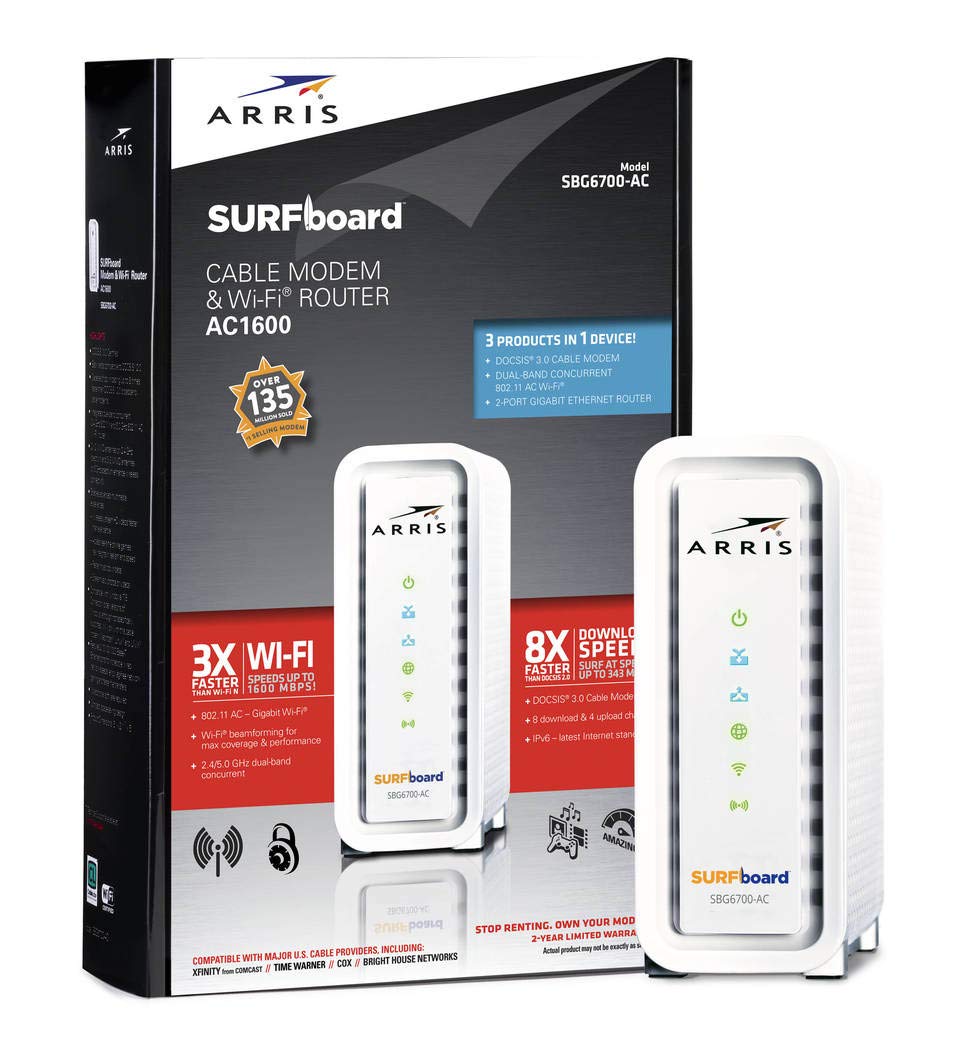
Figure 1: Arris SURFboard SBG6700AC Cable Modem/Wi-Fi Router (Note: Product is available in white, image shows black variant).
Key Features:
- DOCSIS 3.0 Cable Modem: Supports high-speed cable internet services.
- 802.11AC Wi-Fi Router: Provides wireless speeds up to 1600 Mbps with dual-band concurrent 2.4GHz and 5GHz operation.
- 2-Port Gigabit Ethernet Router: Enables flexible, high-speed wired connectivity for devices.
- High Internet Speeds: Capable of internet download speeds up to 343 Mbps and upload speeds up to 131 Mbps (actual speeds depend on your service plan).
- WPS Feature: For easy and secure wireless connection setup.
2. What's in the Box
Your Arris SURFboard SBG6700AC package includes the following components:
- Arris SURFboard SBG6700AC Cable Modem/Wi-Fi Router
- Power Adapter
- Ethernet Cable
- Quick Start Guide
3. Setup Instructions
Follow these steps to set up your Arris SURFboard SBG6700AC:
- Connect the Coaxial Cable: Connect one end of the coaxial cable to the cable wall outlet and the other end to the Cable connector on the back of your SBG6700AC. Ensure the connection is finger-tight.
- Connect the Power Adapter: Plug the power adapter into the Power port on the back of the SBG6700AC and then into an electrical wall outlet. The device will begin its startup sequence.
- Observe LED Indicators: Wait for the front panel LEDs to stabilize. The Power, Receive, Send, and Online LEDs should be solid blue or green, indicating a successful connection to your cable network. The Wi-Fi LEDs should also be lit.
- Connect Devices (Optional):
- Wired Connection: Connect an Ethernet cable from one of the LAN ports on the back of the SBG6700AC to the Ethernet port on your computer or other network device.
- Wireless Connection: Locate the Wi-Fi Network Name (SSID) and Password printed on the label on the bottom of your SBG6700AC. Connect your wireless devices to this network. You can also use the WPS button on the front for quick connection with WPS-compatible devices.
- Activate Your Internet Service: Contact your cable internet service provider to activate your new modem. You will typically need to provide the MAC address (HFC MAC ID) and Serial Number (SN) found on the label of your SBG6700AC.
Video 1: Product Overview. This video provides a visual guide to the physical features and connectivity options of the Arris SURFboard SBG6700AC.
4. Operating Your Device
LED Indicators:
The front panel LEDs provide status information about your modem/router:
- Power: Solid green indicates power is on.
- Receive: Solid blue indicates a successful downstream connection.
- Send: Solid blue indicates a successful upstream connection.
- Online: Solid blue indicates the modem is online and connected to the internet.
- Wi-Fi (2.4 GHz & 5 GHz): Solid blue indicates Wi-Fi is enabled and active for the respective band.
- USB: Solid blue indicates a USB device is connected.
Basic Usage:
Once the device is set up and activated, it will automatically provide internet access to connected wired and wireless devices. You can manage your Wi-Fi settings, including network name and password, through the web interface by typing 192.168.0.1 into your web browser's address bar and logging in with the credentials found on the device label.
5. Maintenance
To ensure optimal performance and longevity of your Arris SURFboard SBG6700AC, consider the following maintenance tips:
- Placement: Place the device in an open area to allow for proper ventilation. Avoid enclosed spaces or stacking other electronics on top of it.
- Firmware Updates: Firmware updates are typically managed by your internet service provider. Ensure your device is always connected to receive these updates, which improve performance and security.
- Periodic Reboot: Occasionally rebooting your modem/router (unplugging the power for 30 seconds and plugging it back in) can resolve minor connectivity issues and improve performance.
- Cleaning: Keep the device clean and free of dust. Use a soft, dry cloth to wipe the exterior.
6. Troubleshooting
If you encounter issues with your Arris SURFboard SBG6700AC, refer to the following common troubleshooting steps:
- No Internet Connection: Check all cable connections (coaxial, Ethernet, power). Ensure all front panel LEDs (Power, Receive, Send, Online) are solid. If not, try rebooting the device. If the issue persists, contact your internet service provider.
- Slow Internet Speed: Ensure your device is placed in an optimal location for Wi-Fi coverage. Check for interference from other electronic devices. Consider rebooting the modem/router. If speeds remain low, contact your internet service provider to verify your service plan and signal strength.
- Wi-Fi Not Connecting: Verify the Wi-Fi network name (SSID) and password. Ensure the Wi-Fi LEDs on the front panel are lit. Try restarting your wireless device and then the modem/router.
- Intermittent Connection: This can often be resolved by a simple reboot. Check for loose cable connections. If the problem continues, it may indicate an issue with your internet service line, and you should contact your provider.
7. Specifications
| Feature | Detail |
|---|---|
| Product Dimensions | 2.6 x 2.68 x 0.75 inches |
| Item Weight | 1.8 pounds |
| Item Model Number | SBG6700AC |
| Manufacturer | Arris |
| Model Name | Arris Surfboard SBG6700AC |
| Special Feature | WPS |
| Frequency Band Class | Dual-Band |
| Wireless Communication Standard | 802.11ac |
| Compatible Devices | Personal Computer |
| Recommended Uses For Product | Home |
| Included Components | 2-Port Gigabit Ethernet Router, 802.11AC Wi-Fi Router |
| Connectivity Technology | Ethernet, Wi-Fi |
| Color | White |
8. Warranty and Support
For warranty information and technical support, please refer to the documentation included with your product or visit the official Arris support website. Keep your purchase receipt and product serial number handy for any warranty claims or support inquiries.


