1. Introduction
This manual provides detailed instructions for the installation, operation, and maintenance of your Hiseeu A1004NS-US and A1008NS-US 5-in-1 Digital Video Recorders (DVRs). These DVRs are designed for comprehensive security surveillance systems, supporting multiple video input formats including TVI, CVI, AHD, Analog, and IP cameras. Please read this manual thoroughly before using the product to ensure proper setup and functionality.
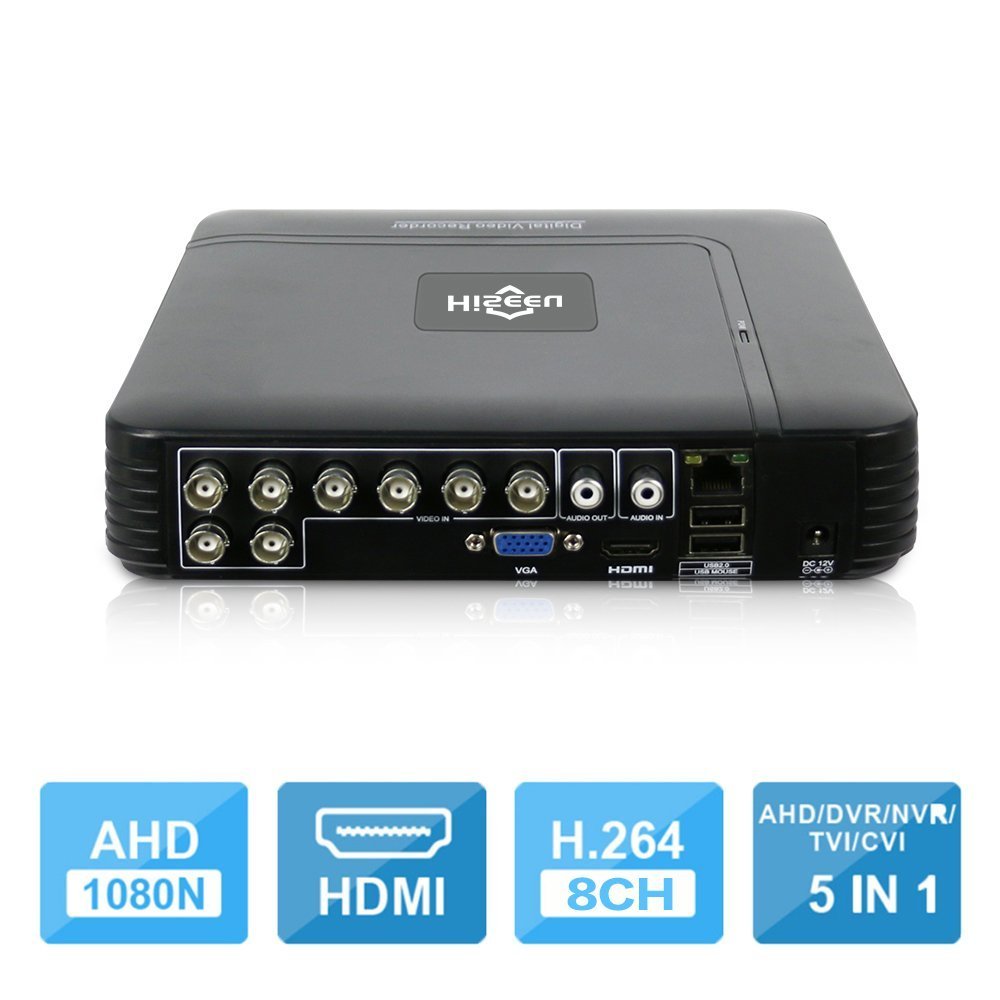
Image 1.1: The Hiseeu 5-in-1 DVR unit, showcasing its compact design and connectivity ports.
2. Safety Information
To prevent injury to yourself or others, and to avoid damage to your device, read all safety information before using the product. Keep this manual for future reference.
- Power Source: Use only the provided power adapter. Using unauthorized adapters may cause fire, electric shock, or damage to the device.
- Ventilation: Ensure the DVR is placed in a well-ventilated area. Do not block ventilation openings.
- Moisture: Do not expose the device to rain, moisture, or any liquids.
- Temperature: Operate the device within the specified temperature range. Avoid extreme heat or cold.
- Cleaning: Disconnect the power before cleaning. Use a dry, soft cloth. Do not use liquid or aerosol cleaners.
- Servicing: Do not attempt to service this product yourself. Refer all servicing to qualified service personnel.
3. Package Contents
Verify that all items are present in your package. If any item is missing or damaged, contact your retailer.
- 1 x Mini 4-channel or 8-channel DVR (Model A1004NS-US or A1008NS-US)
- 1 x USB Mouse
- 1 x DC12V Power Adapter
- 1 x User Manual (this document)

Image 3.1: Included accessories: USB mouse and DC12V power adapter.
4. Setup
Follow these steps to set up your Hiseeu DVR system.
4.1 Hard Drive Installation (HDD not included)
The DVR requires a 3.5-inch SATA hard drive for video recording. A hard drive is not included in the package. Please select an appropriate HDD (up to 6TB) based on your camera count and desired recording duration.
- Unscrew the top cover of the DVR.
- Connect the SATA data cable and power cable from the DVR to the HDD.
- Secure the HDD to the DVR chassis using the provided screws.
- Replace the top cover and secure it with screws.

Image 4.1: Illustration of connecting the SATA data and power cables to the hard drive.
4.2 Connecting Cameras
Connect your security cameras to the BNC video input ports on the back of the DVR. This DVR supports 5-in-1 camera types: TVI, CVI, AHD, Analog, and IP cameras. For IP cameras, ensure they support ONVIF 2.0 for compatibility.
4.3 Connecting a Monitor
Connect a monitor to the DVR using either the HDMI or VGA port. The DVR supports 1080P resolution output.
4.4 Network Connection
Connect an Ethernet cable from the DVR's LAN port to your router or network switch for remote access and online features.
4.5 Power On
Connect the DC12V power adapter to the DVR's power input and then plug it into a power outlet. The DVR will power on automatically.
5. Operating Instructions
This section covers the basic operation of your Hiseeu DVR.
5.1 Initial Setup and Main Menu
Upon first power-on, the DVR will guide you through an initial setup wizard. Use the connected USB mouse to navigate the on-screen menus. The main menu provides access to live view, playback, recording settings, network configuration, and system settings.
5.2 Remote Monitoring (P2P Cloud)
The DVR supports P2P (Cloud) functionality, eliminating the need for port forwarding for remote access. You can monitor your system remotely using a smartphone or PC.
- Smartphone App: Download the "XMEye" app from your device's app store.
- Add Device: Open the app, register an account, and add your DVR by scanning the QR code displayed on the DVR's monitor (usually found in the network settings) or by manually entering the device ID.
- Live View: Once added, you can view live feeds from your cameras and access recorded footage.

Image 5.1: Example screenshot of the XMEye mobile application for remote viewing.
5.3 Motion Detection and Email Alerts
Configure motion detection settings for each camera to trigger recording and send email notifications or mobile push alerts when motion is detected.
- Navigate to Main Menu > Alarm > Motion Detect.
- Enable motion detection for desired channels.
- Adjust sensitivity and detection areas.
- Configure email settings under Main Menu > Network > Email to receive alerts.
5.4 Video Playback
The DVR supports synchronous 8-channel playback. You can review recorded footage from multiple cameras simultaneously.
- From the live view, right-click and select Playback.
- Select the date and time range for the footage you wish to review.
- Choose the cameras for playback.
- Use the playback controls (play, pause, fast forward, rewind) to navigate through the recording.
5.5 Two-Way Audio
If your cameras and audio setup support it, the DVR allows for two-way audio communication. Connect a microphone to the audio input and a speaker to the audio output port on the DVR.
6. Maintenance
Regular maintenance ensures the longevity and optimal performance of your DVR system.
- Cleaning: Periodically clean the DVR's exterior with a soft, dry cloth. Ensure ventilation openings are free from dust and debris.
- Firmware Updates: Check the Hiseeu official website for any available firmware updates. Updating firmware can improve performance and add new features. Follow the instructions provided with the update carefully.
- Data Backup: Regularly back up important video footage to an external USB drive. This can be done via the DVR's menu system.
- Hard Drive Health: Monitor the health of your hard drive through the DVR's system information. Replace the HDD if any errors or warnings are reported.
7. Troubleshooting
This section addresses common issues you might encounter with your DVR.
- No Video Output on Monitor:
- Check HDMI/VGA cable connections.
- Ensure the monitor is powered on and set to the correct input source.
- Try a different monitor or cable.
- No Camera Image:
- Verify camera power supply and video cable connections.
- For IP cameras, ensure they support ONVIF 2.0 and are correctly configured on the network.
- Check camera settings within the DVR interface.
- No Recording:
- Ensure a hard drive is installed and properly formatted. (Note: Hard drive unit is not included.)
- Check recording schedules and motion detection settings.
- Verify the hard drive status in system settings.
- Remote Access Not Working:
- Ensure the DVR is connected to the internet.
- Verify the P2P status in network settings.
- Check your smartphone's internet connection.
- Ensure the correct device ID or QR code was used to add the DVR to the XMEye app.
8. Specifications
| Feature | Description |
|---|---|
| Manufacturer | HisEEu |
| Model Number | DVR17823 |
| Dimensions | 28.6 x 25.6 x 7.9 cm; 767 g |
| Connectivity Technology | HDMI, VGA, BNC, Ethernet, USB |
| Compatible Devices | Desktop Computer, Smartphone, CCTV Cameras (TVI/CVI/AHD/Analog/IP ONVIF) |
| Number of Channels | 4 or 8 (depending on model) |
| Video Compression | H.264, H.265 |
| Video Input Modes | 5-in-1 (AHD, TVI, CVI, Analog, IP) |
| Video Output | HDMI, VGA (1080P) |
| Audio Input/Output | 1 CH Audio In / 1 CH Audio Out |
| Storage | 1 SATA Port (Max 6TB HDD, HDD not included) |
| Remote Access App | XMEye |
9. Warranty and Support
Your Hiseeu DVR comes with a standard manufacturer's warranty. Please refer to the warranty card included in your package or visit the official Hiseeu website for detailed warranty terms and conditions.
For technical support, troubleshooting assistance, or warranty claims, please contact Hiseeu customer service through their official website or the contact information provided with your purchase. When contacting support, please have your model number (DVR17823) and purchase details ready.


