Product Overview
The ICY DOCK flexiDOCK MB522SP-B is a dual 2.5-inch SSD/HDD mobile rack enclosure designed to fit into a standard external 3.5-inch drive bay. It supports two 2.5-inch SAS or SATA hard drives or solid-state drives with a thickness ranging from 5mm to 9.5mm. This device features a tool-less, tray-less, and door-less design for quick hot-swapping of drives. It supports SATA 3.0 (6Gbps) and SAS 3.0 (12Gbps) single channel interfaces. Individual large drive eject buttons include built-in LED indicators for drive activity. Active Power Technology (APT) ensures that individual LEDs illuminate only when a drive is installed.

Front view of the ICY DOCK flexiDOCK MB522SP-B dual 2.5-inch drive mobile rack, showing two drive slots and eject buttons.
Setup and Installation
Follow these steps to install your flexiDOCK MB522SP-B into your computer system:
- Prepare Your System: Ensure your computer is powered off and unplugged from the wall outlet. Open your computer case to access the internal drive bays.
- Install the Enclosure: Slide the MB522SP-B into an available external 3.5-inch drive bay. Secure the enclosure using the provided screws through the side mounting holes.
- Connect Cables: Connect the two 7-pin SATA data cables from the MB522SP-B to available SATA ports on your motherboard. Connect the single 15-pin SATA power connector from your power supply unit to the MB522SP-B. Ensure all connections are firm.
- BIOS Configuration (Optional but Recommended for Hot-Swap): After installation, power on your computer and enter the BIOS/UEFI settings. Locate your SATA controller settings and enable 'Hot Swap' or 'Hot Plug' for the SATA ports connected to the MB522SP-B. This allows drives to be inserted and removed while the system is running without requiring a reboot. Save changes and exit BIOS.
- Close Case: Once all connections are made and verified, close your computer case.

Rear view of the MB522SP-B, highlighting the two 7-pin SATA data connectors and the single 15-pin SATA power connector.

Illustration of a 2.5-inch SSD being inserted into one of the drive bays of the MB522SP-B.
Installation Video Guide
Official product video demonstrating the features, installation, and operation of the ICY DOCK flexiDOCK MB522SP-B. This video covers inserting the unit into a 3.5-inch bay and hot-swapping drives.
Operating Instructions
Inserting a 2.5" Drive
- Gently slide your 2.5-inch SAS/SATA SSD or HDD into an empty drive bay of the MB522SP-B.
- Push the drive firmly until it clicks into place and the blue LED indicator on the eject button illuminates. This indicates the drive is properly seated and powered.
- Your operating system should detect the new drive. If it's a new drive, you may need to initialize and format it through Disk Management (Windows) or Disk Utility (macOS).

The MB522SP-B with a 2.5-inch SSD partially inserted into the top bay, showing the blue LED indicator.
Ejecting a 2.5" Drive
- Before ejecting, ensure no data transfer is active to or from the drive. Safely eject the drive through your operating system (e.g., 'Safely Remove Hardware' in Windows).
- Press the large eject button corresponding to the drive you wish to remove. The drive will partially eject, and the blue LED will turn off.
- Gently pull the drive out of the bay.

Illustration of a 2.5-inch SSD being ejected from the MB522SP-B after pressing the eject button.
LED Indicators
- Solid Blue: A drive is installed and powered on.
- Flashing Blue: The drive is actively being accessed (reading or writing data).
- Off: No drive is installed or the drive is not powered.
Maintenance
To ensure optimal performance and longevity of your MB522SP-B:
- Cleaning: Periodically clean the exterior of the unit with a soft, dry cloth. Avoid using liquid cleaners directly on the device. Ensure the ventilation holes are free from dust to maintain proper airflow.
- Environment: Operate the device in a well-ventilated area to prevent overheating. Avoid exposing it to extreme temperatures, humidity, or direct sunlight.
- Drive Handling: Always handle 2.5-inch drives carefully when inserting or ejecting them to prevent damage to the drive or the enclosure's connectors.

Diagram showing multi-flow air routing through the ventilation holes for efficient passive thermal cooling.

The metal chassis body of the MB522SP-B contributes to heat dissipation.
Troubleshooting
- Drive Not Detected:
- Ensure the SATA data and power cables are securely connected to both the MB522SP-B and your motherboard/power supply.
- Verify that the drive is fully inserted into the bay until it clicks and the blue LED illuminates.
- Check your computer's BIOS/UEFI settings to confirm the SATA ports are enabled and 'Hot Swap' is activated if you intend to use hot-swapping functionality.
- Test the drive directly connected to the motherboard to rule out drive failure.
- LED Indicator Not Lighting Up:
- Confirm the drive is correctly inserted and receiving power.
- If the drive is detected by the system but the LED is off, ensure the power cable is properly connected to the MB522SP-B.
- Difficulty Inserting/Ejecting Drives:
- Ensure you are using a 2.5-inch drive with a thickness between 5mm and 9.5mm. Thicker drives (e.g., 15mm) are not compatible.
- Apply firm, but not excessive, pressure when inserting until the drive clicks.
- When ejecting, press the button completely. If the drive is an older, heavier HDD, be prepared to catch it to prevent it from dropping.
- Slow Data Transfer Speeds:
- Ensure your SATA cables are rated for SATA 6Gbps (SATA III) for optimal performance.
- Check your motherboard manual to ensure the MB522SP-B is connected to SATA ports that offer full bandwidth and are not shared with other PCI slots or devices that might reduce performance.
Specifications
| Model Number | MB522SP-B |
| Supported Drive Type | 2 x 2.5" SAS / SATA HDD / SSD |
| Drive Height Support | 5mm - 9.5mm |
| Interface | SATA 6.0 Gb/s (SATA 3.0) or SAS 12Gbps (SAS 3.0, single channel) |
| Host Interface | 2 x 7 Pin SATA Data, 1 x 15 Pin SATA Power |
| Drive Bay Compatibility | External 3.5" Drive Bay |
| Material | Metal Chassis, Partial ABS-plastic |
| Product Dimensions (L x W x H) | 5.08" x 4.02" x 0.98" (129mm x 102mm x 25mm) |
| Item Weight | 240.5 Grams |
| Hot-Swap Support | Yes |
| LED Indicators | Drive Activity (Blue) |
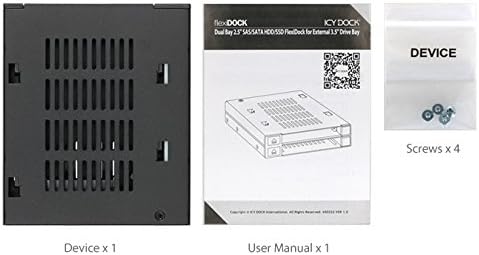
Package contents: The MB522SP-B device, user manual, and mounting screws.
Warranty Information
The ICY DOCK flexiDOCK MB522SP-B comes with a 3-Year Manufacturer Warranty. For detailed warranty terms and conditions, please refer to the official ICY DOCK website or the warranty card included with your product.
Support
For technical support, product registration, driver downloads, or frequently asked questions, please visit the official ICY DOCK website:
You may also contact ICY DOCK customer service directly through the contact information provided on their website.