Introduction
This user manual provides comprehensive instructions for the Redragon K551 Rainbow LED Backlit Mechanical Wired Gaming Keyboard. It covers essential information regarding setup, operation, maintenance, troubleshooting, and product specifications to ensure optimal performance and longevity of your device.

Figure 1: Redragon K551 Rainbow LED Backlit Mechanical Gaming Keyboard.
Product Overview
The Redragon K551 is a full-sized mechanical gaming keyboard designed for durability and performance. It features a 104-key layout with dust-proof mechanical switches, vibrant rainbow LED backlighting, and a robust construction.
- Mechanical Switches: Equipped with 104 keys featuring dust-proof mechanical switches, equivalent to Cherry MX Red linear switches. These provide a quiet click sound and fast action with minimal resistance, without a tactile bump.
- Rainbow LED Backlighting: Offers 9 different lighting effects and game modes, along with 2 user-defined modes. Choose from 6 colors with multiple brightness levels and breathing speeds. Precision-engineered keycaps ensure crystal clear, uniform backlighting.
- Durable Construction: Features an ergonomic design with high-quality, durable metal-ABS construction. Plate-mounted mechanical keys and switches are built to withstand intense gaming sessions.
- Anti-Ghosting & N-Key Rollover: All 87 keys are conflict-free, supporting N-key rollover for accurate input during fast-paced gaming.
- Multimedia Keys: Includes 12 multimedia keyboard keys for convenient control.
- Connectivity: Comes with a gold-plated, high-speed, corrosion-free USB connector for a reliable wired connection.
- Compatibility: Compatible with Windows 10, Windows 8, Windows 7, Windows Vista, or Windows XP. Limited Mac OS keyboard support is available. Works well with all major computer brands and gaming PCs.
What's in the Box:
- Redragon K551 Keyboard
- User Manual
- Keycap Puller
Setup Guide
- Unpacking: Carefully remove the keyboard and all accessories from the packaging. Ensure all components listed in the "What's in the Box" section are present.
- Connecting the Keyboard: Locate an available USB port on your computer. Insert the gold-plated USB connector of the Redragon K551 keyboard firmly into the USB port. The keyboard is plug-and-play, and your operating system should automatically detect and install the necessary drivers.
- Initial Power-On: Once connected, the keyboard's rainbow LED backlighting should illuminate, indicating it is powered on and ready for use.
- Software Installation (Optional): For advanced customization of lighting effects and macros, visit the official Redragon website to download the dedicated software for your K551 model. Follow the on-screen instructions for installation.
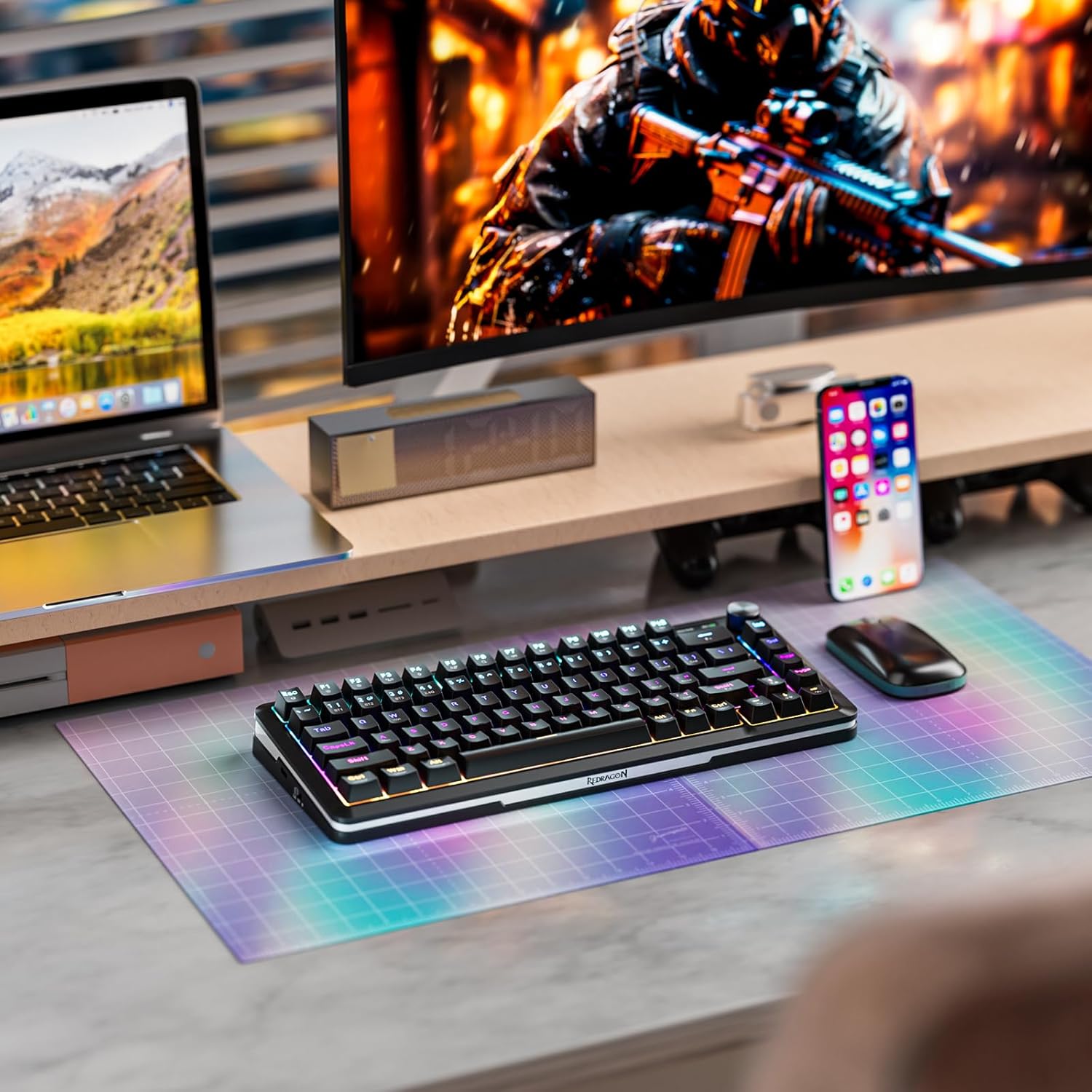
Figure 2: Redragon K551 keyboard integrated into a gaming setup.
Operating Instructions
Basic Key Functions:
The Redragon K551 features a standard 104-key layout, including a full numeric keypad for efficient data entry and calculations.
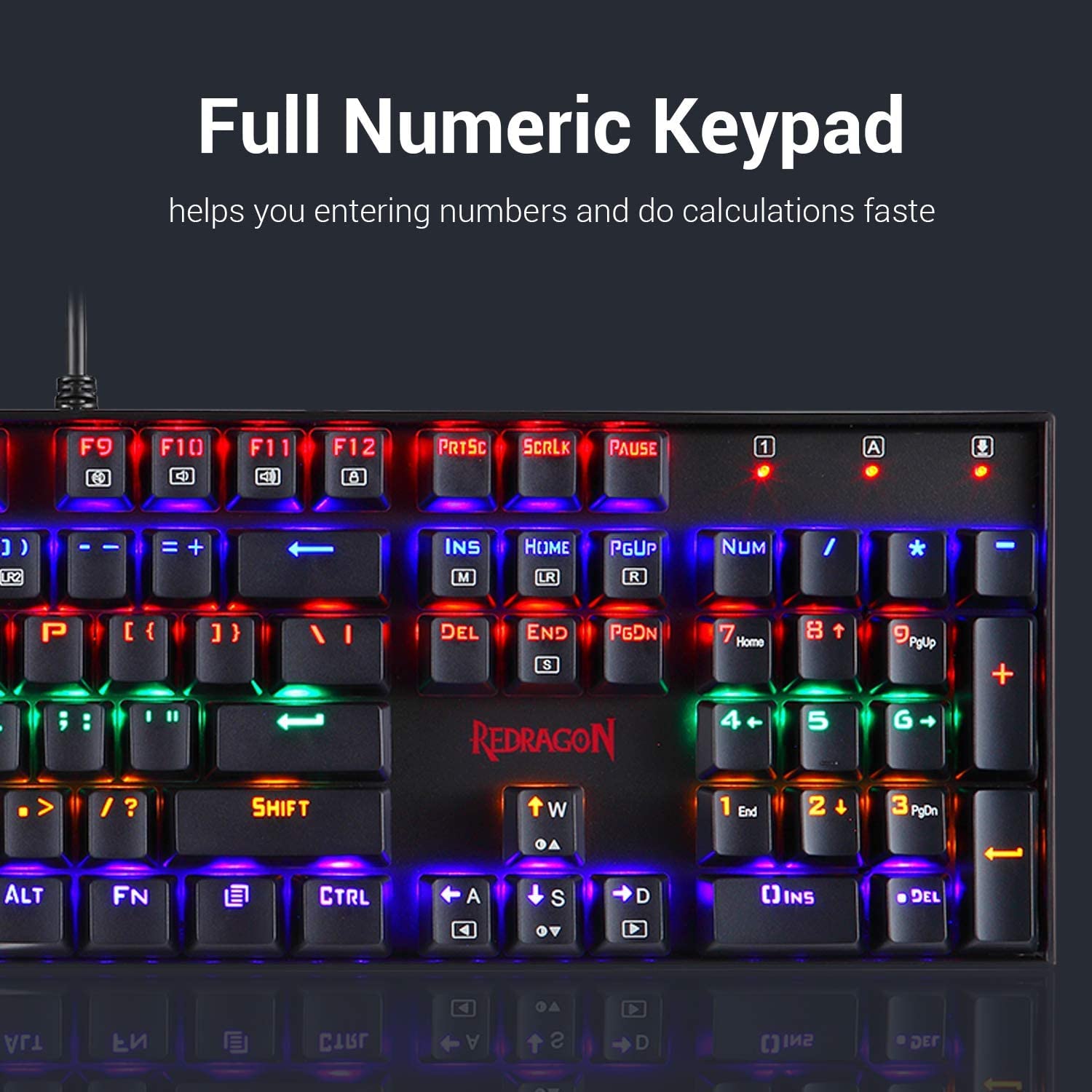
Figure 3: Full Numeric Keypad for quick data entry.
Backlighting Control:
The keyboard offers extensive backlighting customization. Use the dedicated function keys (Fn) combined with other keys to cycle through effects, adjust brightness, and set breathing speeds.
- Changing Lighting Effects: Press Fn + [Key] to cycle through 9 different lighting effects and game modes. Refer to the included user manual for specific key combinations for each effect.
- Adjusting Brightness: Use Fn + Up/Down Arrow keys to increase or decrease the brightness of the backlighting.
- Breathing Speed: Adjust the breathing speed of certain lighting modes using specific Fn key combinations (refer to manual).
- User-Defined Modes: The keyboard supports 2 user-defined lighting modes, allowing you to customize individual key lighting. Instructions for setting these modes are detailed in the full user manual.

Figure 4: Precision engineered keycaps for clear and uniform backlighting.
Multimedia Controls:
Access multimedia functions quickly using the Fn key in combination with the F-keys (F1-F12). These include controls for volume, media playback, and more.
Anti-Ghosting and N-Key Rollover:
The K551 features full N-key rollover on all 87 keys, ensuring that every keystroke is registered accurately, even when multiple keys are pressed simultaneously. This is crucial for competitive gaming where precision is paramount.

Figure 5: Full Anti-Ghosting for ultimate gaming performance.

Figure 6: Mechanical key switches providing quiet click sound and fast action.
Maintenance
- Cleaning: Regularly clean the keyboard to prevent dust and debris buildup. Use a soft brush or compressed air to remove particles from between the keys. For the keycaps, a damp cloth with mild soap can be used, ensuring no liquid enters the switches. The dust-proof mechanical switches help in reducing maintenance frequency.
- Keycap Removal: Use the provided keycap puller to carefully remove keycaps for deeper cleaning or replacement. Gently pull straight up to avoid damaging the switch stem.
- Liquid Spills: While the keyboard features a splash-proof design, it is not fully waterproof. In case of a liquid spill, immediately disconnect the keyboard from your computer, wipe off excess liquid, and allow it to air dry completely before reconnecting.
- Storage: When not in use for extended periods, store the keyboard in a dry, cool place away from direct sunlight and extreme temperatures.

Figure 7: Durable metal-ABS construction for long-lasting use.
Troubleshooting
- Keyboard Not Responding:
- Ensure the USB cable is securely connected to both the keyboard and the computer.
- Try connecting the keyboard to a different USB port on your computer.
- Restart your computer.
- Test the keyboard on another computer to rule out a computer-specific issue.
- Backlighting Not Working/Incorrect:
- Check the brightness level using the Fn + Up/Down Arrow keys.
- Cycle through different lighting effects to see if any work.
- If using the Redragon software, ensure it is running and correctly configured.
- Keys Not Registering (Ghosting/N-Key Rollover):
- The K551 features N-key rollover, so ghosting should not be an issue. If specific keys are not registering, ensure they are clean and free of debris.
- If a key is stuck or unresponsive, carefully remove the keycap and inspect the switch for any obstructions.
- Compatibility Issues with Mac OS:
- While the keyboard has limited Mac OS support, some advanced features or specific key functions might not work as intended.
- Generic keyboard functionality (typing) should work. For specific issues, check online forums or Redragon support for Mac-specific drivers or workarounds.
Specifications
| Brand | Redragon |
| Model | MITRA K551 |
| Color | Rainbow |
| Item Dimensions (LxWxH) | 42 x 11 x 35 cm |
| Item Weight | 1 kg 80 g |
| Hardware Platform | PC |
| Operating System | Windows (10, 8, 7, Vista, XP), Limited Mac OS |
| Connectivity Technology | Wired |
| Keyboard Description | Gaming |
| Key Switches | Dust Proof Mechanical Switches (Cherry MX Red equivalent Linear) |
| Backlight | Rainbow LED (9 effects, 2 user-defined, 6 colors) |
| Anti-Ghosting | All 87 keys N-key rollover |
| Multimedia Keys | 12 |
| Connector | Gold-plated USB |
Warranty and Support
The Redragon K551 keyboard comes with a 1-year warranty from the date of purchase. For warranty claims, product registration, or technical support, please visit the official Redragon website at redragon.in.
It is recommended to register your product to facilitate any future support needs.
Product Videos
Video 1: Overview of the Redragon K551 Mechanical Gaming Keyboard, highlighting its Rainbow LED Backlight and Red Switches.
Video 2: Detailed look at the Redragon K551 Rainbow LED Backlit Mechanical Wired Gaming Keyboard features and performance.


