
D-Link M30
D-Link AQUILA PRO AI AX3000 Wi-Fi 6 Mesh Router (M30) User Manual
Model: M30
Introduction
This manual provides comprehensive instructions for setting up, operating, maintaining, and troubleshooting your D-Link AQUILA PRO AI AX3000 Wi-Fi 6 Mesh Router (M30). The M30 is designed to deliver high-performance Wi-Fi 6 connectivity, offering enhanced speed, capacity, and coverage for your home network. Please read this manual thoroughly to ensure optimal performance and a seamless online experience.

Figure 1: D-Link AQUILA PRO AI AX3000 Wi-Fi 6 Mesh Router (M30).
Setup Guide
Follow these steps to set up your D-Link M30 router and establish your home network.
1. Package Contents
Ensure all items are present in the box:
- D-Link M30 Router
- Power Adapter
- Ethernet Cable
- Quick Install Guide
2. Physical Connection
- Connect the Router: Plug the power adapter into the M30 router's DC IN port and then into a power outlet.
- Connect to Internet Source: Connect one end of the provided Ethernet cable to your modem's LAN port and the other end to the M30 router's yellow Internet port.
- Power On: Press the Power button on the router. Wait for the status LED to flash orange, indicating it's ready for configuration.

Figure 2: Rear ports of the D-Link M30 Router.
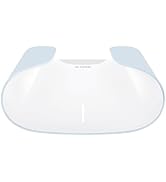
Figure 3: Quick and Easy App Setup Steps.
3. Initial Configuration (Using AQUILA PRO AI App)
The recommended method for setup is using the AQUILA PRO AI mobile application.
- Download the App: Search for "AQUILA PRO AI" in your device's app store (App Store for iOS or Google Play for Android) and download it.
- Launch and Follow On-Screen Guide: Open the app and follow the simple on-screen instructions to configure your router. This typically involves scanning a QR code on the router or its packaging.
- Create Wi-Fi Network: The app will guide you through setting up your Wi-Fi network name (SSID) and password.
Video 1: Animation demonstrating the app setup process for the D-Link M30 router.
Alternatively, you can access the router's web-based setup page by connecting a computer directly to one of the router's Gigabit LAN ports and navigating to the default IP address (usually 192.168.0.1 or 192.168.1.1) in a web browser.
Operating Your Router
The D-Link M30 router offers a range of features to optimize your network performance and security.
Wi-Fi 6 Advantage
The M30 leverages Wi-Fi 6 technology for superior performance:
- Faster Speeds: Enjoy speeds up to 3 Gbps, with the 5 GHz band being significantly faster than previous Wi-Fi generations.
- More Efficient: Improved data transmission for multiple devices simultaneously.
- Greater Stability: Enhanced reliability for all connected devices.
- Higher Capacity: Handles more connected devices without performance degradation.

Figure 4: Wi-Fi 6 provides faster speeds and greater stability for demanding applications.
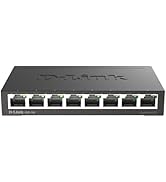
Figure 5: OFDMA technology in Wi-Fi 6 allows for more efficient simultaneous device connections.
Scalable Mesh Wi-Fi
The M30 supports a scalable mesh network, allowing you to expand coverage by adding more AQUILA PRO AI devices. This creates a single, seamless Wi-Fi network throughout your home, ensuring you're always connected to the strongest signal.
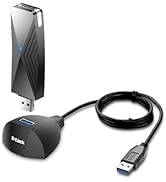
Figure 6: Seamless Roaming with a single Wi-Fi network name.
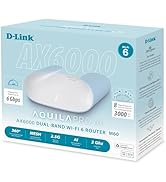
Figure 7: Expand your Wi-Fi coverage with additional AQUILA PRO AI devices.
Video 2: Animation illustrating the seamless mesh network functionality.
AI-Powered Intelligent Wi-Fi
The M30 incorporates AI features to optimize your network:
- AI Wi-Fi Optimizer: Scans your environment to select the cleanest Wi-Fi channel.
- AI Mesh Optimizer: Coordinates mesh nodes for optimal network traffic flow.
- AI Traffic Optimizer: Prioritizes traffic to ensure uninterrupted gaming, streaming, and video calls.
- AI Assistant: Provides network performance monitoring and optimization recommendations via the app.
Figure 8: Experience reliable Wi-Fi everywhere with AI-Powered optimization.
Video 3: Animation showing the AI Assistant providing network reports and updates.
Parental Controls and Security
Manage and secure your network with built-in features:
- Advanced Parental Controls: Set profiles, restrict website access, and schedule internet usage for family members.
- Guest Wi-Fi Network: Easily create a separate network for guests.
- Enhanced Security: Features ETSI EN 303 645 cybersecurity certification and WPA3 encryption for robust protection.
Figure 9: Manage internet access with AI Parental Controls.
Video 4: Animation demonstrating the parental control features within the app.
Voice Control
The D-Link M30 router is compatible with Amazon Alexa and Google Assistant, allowing for convenient voice control of certain network functions.
Figure 10: Voice control compatibility with popular smart home assistants.
Maintenance
To ensure the longevity and optimal performance of your D-Link M30 router, consider the following maintenance tips:
- Firmware Updates: Regularly check for and install firmware updates through the AQUILA PRO AI app or the router's web interface. Updates often include performance improvements and security patches.
- Physical Cleaning: Keep the router in a clean, dust-free environment. Gently wipe the exterior with a soft, dry cloth. Avoid using liquid cleaners.
- Proper Ventilation: Ensure the router's ventilation openings are not blocked to prevent overheating.
- Restart Periodically: A periodic restart (power cycling) of the router can help clear temporary issues and refresh network performance.
Troubleshooting
If you encounter issues with your D-Link M30 router, try the following common troubleshooting steps:
- No Internet Connection:
- Check all cable connections (power, Ethernet from modem to router).
- Restart your modem and then your router.
- Verify your Internet Service Provider (ISP) connection is active.
- Slow Wi-Fi Speed:
- Ensure the router is placed in a central location, away from obstructions and interference sources (e.g., microwaves, cordless phones).
- Check for active firmware updates.
- Use the AI Wi-Fi Optimizer in the app to find the best channel.
- Cannot Connect to Wi-Fi:
- Verify you are entering the correct Wi-Fi password.
- Ensure your device's Wi-Fi is enabled.
- Restart both your device and the router.
- Router Not Responding:
- Unplug the power adapter from the router, wait 10 seconds, and plug it back in.
- If issues persist, perform a factory reset by pressing and holding the Reset button on the back of the router for 10 seconds (this will erase all custom settings).
For more detailed troubleshooting or persistent issues, refer to the official D-Link support website or the full User Guide PDF.
Specifications
| Feature | Detail |
|---|---|
| Model Name | D-Link Aquila Pro AI AX3000 Mesh Wi-Fi 6 Router |
| Item Model Number | M30 |
| Product Dimensions | 7.15 x 5.09 x 2.6 inches |
| Item Weight | 11.8 ounces |
| Connectivity Technology | Ethernet, Wi-Fi |
| Wireless Communication Standard | 802.11ac, 802.11ax (Wi-Fi 6), 802.11b, 802.11g, 802.11n |
| Frequency Band Class | Dual-Band (2.4 GHz, 5 GHz) |
| Special Features | Guest Mode, Parental Control, QoS, Remote Access, WPS |
| Compatible Devices | Gaming Console, Personal Computer, Smart Television, Smartphone, Tablet |
| Included Components | M30 Router, Adapter, Ethernet Cable, Quick Install Guide |
Warranty and Support
For warranty information, technical support, and additional resources, please visit the official D-Link website or refer to the full User Guide PDF.
- Official User Guide (PDF): Download PDF
- D-Link Support: Visit www.dlink.com for FAQs, drivers, and contact information.
Related documentsM30


Ask a question about this manual
Ask about setup, troubleshooting, compatibility, parts, safety, or missing instructions. Manuals+ will review the question and use this page’s manual context to help answer it.