
Introduction
This manual provides detailed instructions for the installation, configuration, and operation of your ZyXEL NWA3160-N IEEE 802.11n 300 Mbps Wireless Access Point. Please read this manual thoroughly before using the device to ensure proper setup and optimal performance. Keep this manual for future reference.
Product Overview
The ZyXEL NWA3160-N is a high-performance wireless access point designed to provide reliable 802.11n wireless connectivity. It supports Power over Ethernet (PoE) for flexible deployment and offers a wireless transmission speed of up to 300 Mbps across dual-band frequencies (2.4 GHz and 5 GHz).
Package Contents
- ZyXEL NWA3160-N Wireless Access Point
- Power Adapter (if not using PoE)
- Ethernet Cable
- Quick Start Guide
- Wall Mount Kit (if applicable)
Device Layout
Familiarize yourself with the ports and indicators on your NWA3160-N device.
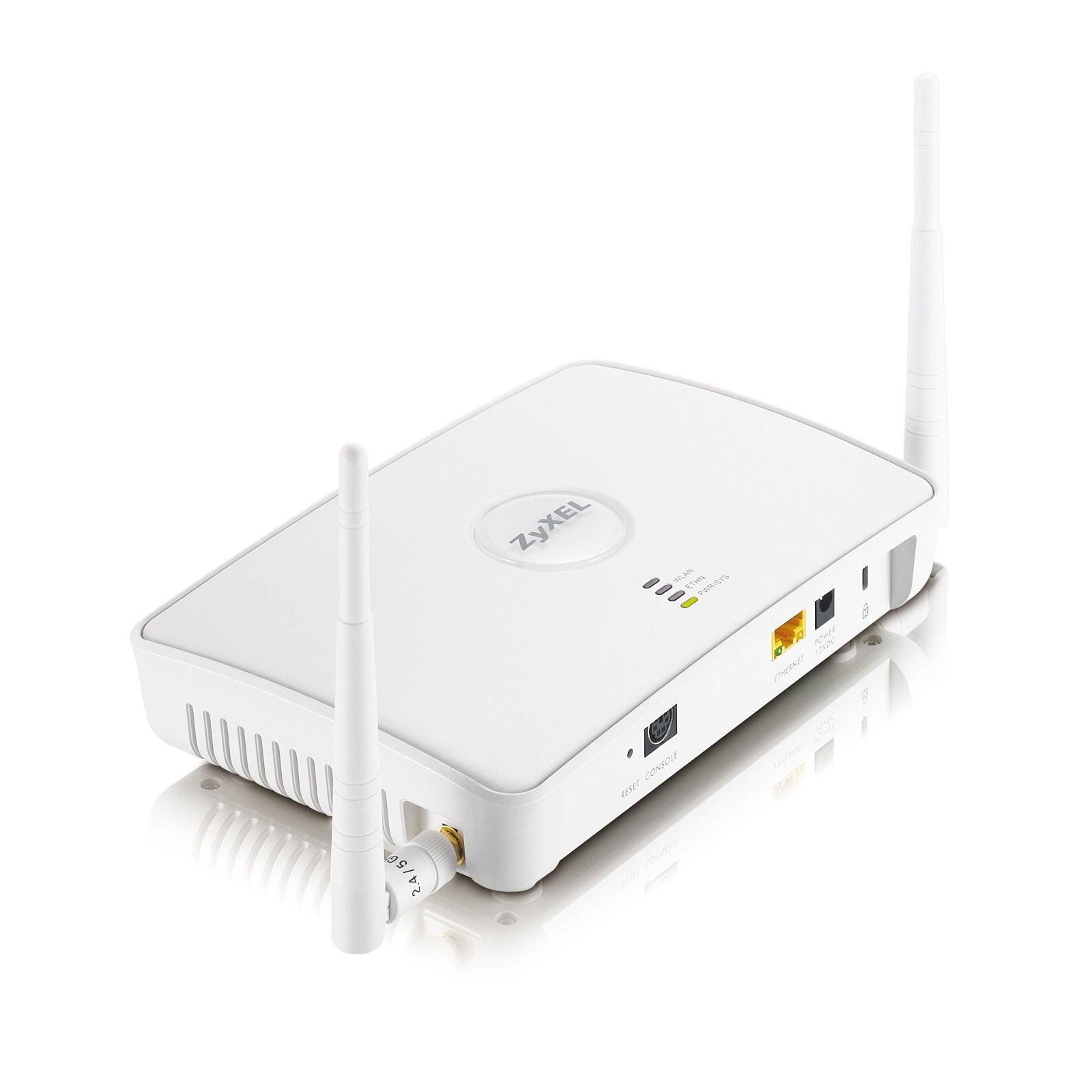
Figure 1: Front view of the ZyXEL NWA3160-N Wireless Access Point, showing LED indicators for power, WLAN, and LAN status. The device features a compact design suitable for desktop or wall mounting.
Key components typically include:
- Power LED: Indicates power status.
- WLAN LED: Indicates wireless activity.
- LAN LED: Indicates Ethernet port activity.
- Ethernet Port (RJ-45): For network connection and PoE input.
- Reset Button: For factory reset.
- Antennas: Two dipole antennas for wireless signal transmission.
Setup
1. Physical Installation
The NWA3160-N can be placed on a desktop or mounted on a wall. Choose a central location for optimal wireless coverage, away from obstructions and sources of interference.
- Desktop Placement: Place the device on a flat, stable surface.
- Wall Mounting: Use the provided wall mount kit. Mark the desired positions for screws, drill pilot holes, insert anchors, and secure the device.
2. Power Connection
The NWA3160-N supports Power over Ethernet (PoE).
- Using PoE: Connect an Ethernet cable from a PoE-enabled switch or injector to the Ethernet port on the NWA3160-N. The device will power on automatically.
- Using Power Adapter (Optional): If PoE is not available, connect the included power adapter to the device's power input and then to a power outlet.
3. Network Connection
Connect an Ethernet cable from your network router or switch to the Ethernet port on the NWA3160-N. This provides network access to the access point.
4. Initial Configuration
To configure the NWA3160-N, you will typically access its web-based management interface.
- Connect a computer to the same network as the NWA3160-N.
- Open a web browser and enter the default IP address of the access point (refer to the Quick Start Guide or manufacturer's website for the default IP and login credentials).
- Log in using the default username and password.
- Follow the on-screen wizard or navigate to the wireless settings to configure your Wi-Fi network.
Operating Instructions
Wireless Network Configuration
Once logged into the web interface, navigate to the wireless settings section to configure your Wi-Fi network.
- SSID (Network Name): Set a unique name for your wireless network.
- Security Mode: Select a strong security protocol, such as WPA2-PSK or WPA3-PSK, and set a strong password.
- Frequency Band: Configure settings for both 2.4 GHz and 5 GHz bands if desired.
- Channel: For optimal performance, select a less congested wireless channel.
Access Point Mode
The NWA3160-N primarily functions as an Access Point, extending your existing wired network wirelessly. Ensure it is connected to your main router or switch.
WPS (Wi-Fi Protected Setup)
WPS allows for easy connection of WPS-compatible devices to your wireless network without manually entering the password. Refer to the device's web interface for WPS activation and instructions.
- Press the WPS button on the NWA3160-N (if available, or activate via software).
- Within two minutes, press the WPS button on your client device.
- The devices will automatically establish a secure connection.
Maintenance
Firmware Updates
Regularly check the ZyXEL support website for firmware updates. Firmware updates can improve performance, add new features, and address security vulnerabilities. Follow the instructions provided with the firmware update package carefully.
Cleaning
Clean the device with a soft, dry cloth. Do not use liquid or aerosol cleaners, as they may damage the device.
Troubleshooting
If you encounter issues with your NWA3160-N, refer to the following common troubleshooting steps:
- No Power: Ensure the power adapter is securely connected or that the PoE source is active and providing power. Check the Power LED.
- No Network Connection: Verify that the Ethernet cable is properly connected to both the NWA3160-N and your network device (router/switch). Check the LAN LED.
- No Wi-Fi Signal: Ensure the WLAN LED is active. Check wireless settings in the web interface (SSID broadcast, security).
- Cannot Access Web Interface: Confirm your computer is on the same network segment as the NWA3160-N. Verify the IP address. Try clearing your browser's cache.
- Slow Wireless Speed: Check for interference from other devices (cordless phones, microwaves). Try changing the wireless channel. Ensure client devices support 802.11n.
- Factory Reset: If all else fails, use a paperclip to press and hold the Reset button for 5-10 seconds while the device is powered on. This will restore default settings.
Specifications
| Model | NWA3160-N |
| Wi-Fi Standard | IEEE 802.11n |
| Wireless Transmission Speed | 300 Mbps (Maximum Upstream Data Transfer Rate) |
| Frequency Bands | 2.4 GHz (2.41 GHz - 2.46 GHz), 5 GHz (5.15 GHz - 5.85 GHz) |
| Number of Antennas | 2 |
| Antenna Type | Dipole Antenna (2 dBi Gain) |
| Ethernet Ports | 1 x Network (RJ-45) Port (Fast Ethernet, PoE capable) |
| Form Factor | Desktop, Wall Mountable |
| Dimensions (H x W x D) | 1.8" x 7.8" x 5.4" (Approximate) |
| Weight | 15.49 oz (Approximate) / 0.3 kg |
| Green Compliant | Yes (RoHS, WEEE) |
| Security Protocol | WPS |
Warranty Information
The ZyXEL NWA3160-N Wireless Access Point comes with a Limited 2-Year Warranty. Please retain your proof of purchase for warranty claims. For full warranty terms and conditions, refer to the official ZyXEL website or the documentation included with your product.
Support
For technical support, additional documentation, or frequently asked questions, please visit the official ZyXEL support website:
When contacting support, please have your product model (NWA3160-N) and serial number ready.


