
Idatalink ADS-USB
Idatalink ADS-USB Weblink Updater Interface User Manual
Model: ADS-USB
1. Product Overview
The Idatalink ADS-USB Weblink Updater Interface is a specialized USB cable and hardware device designed to facilitate firmware programming and software updates for various automotive modules. It connects your computer (PC or Mac) to compatible iDatalink, iDatastart, and iDatalink Maestro products, enabling online firmware flashing via the Weblink Desktop application.
This interface is essential for configuring and updating bypass modules and remote start systems, ensuring they operate with the latest software and vehicle-specific settings. It also supports products from FlashLogic, Auto Page, PAC, and Prestige Code Alarm.
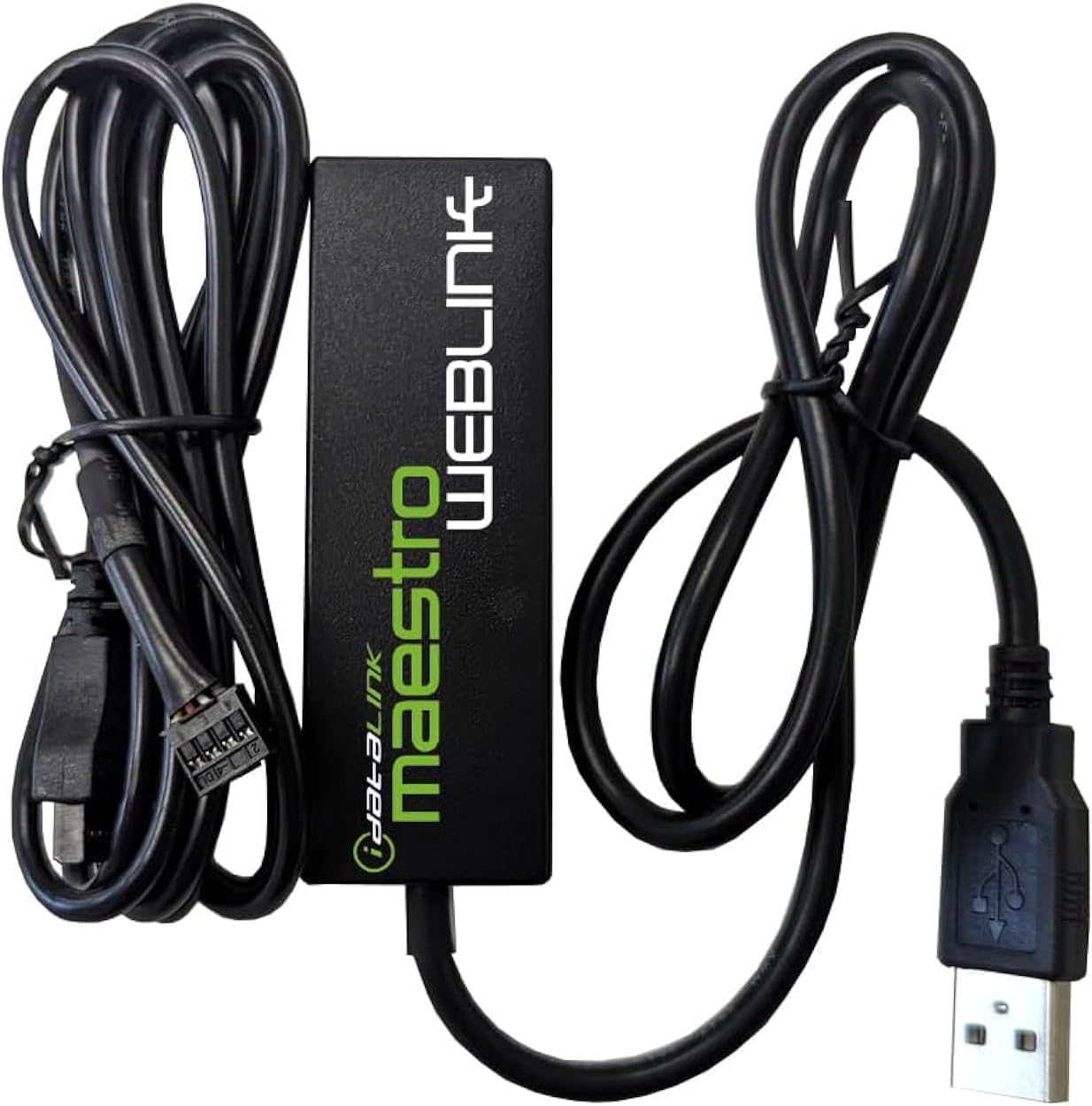
Image 1.1: The Idatalink ADS-USB Weblink Updater Interface, showing the main module and connected USB cables.
2. Setup Instructions
2.1 Package Contents
- Idatalink ADS-USB Weblink Updater Hardware
- Integrated USB Cable with Module Connector
2.2 Software Installation
- Ensure your computer has an active internet connection.
- Navigate to the official Idatalink website.
- Locate and download the Weblink Desktop application for your operating system (PC or Mac).
- Install the Weblink Desktop application by following the on-screen prompts.
2.3 Hardware Connection
- Connect the standard USB-A end of the ADS-USB cable to an available USB port on your computer.
- Connect the specialized module connector end of the ADS-USB cable to the designated port on your iDatalink module (e.g., bypass module, remote start system). Ensure a secure connection.
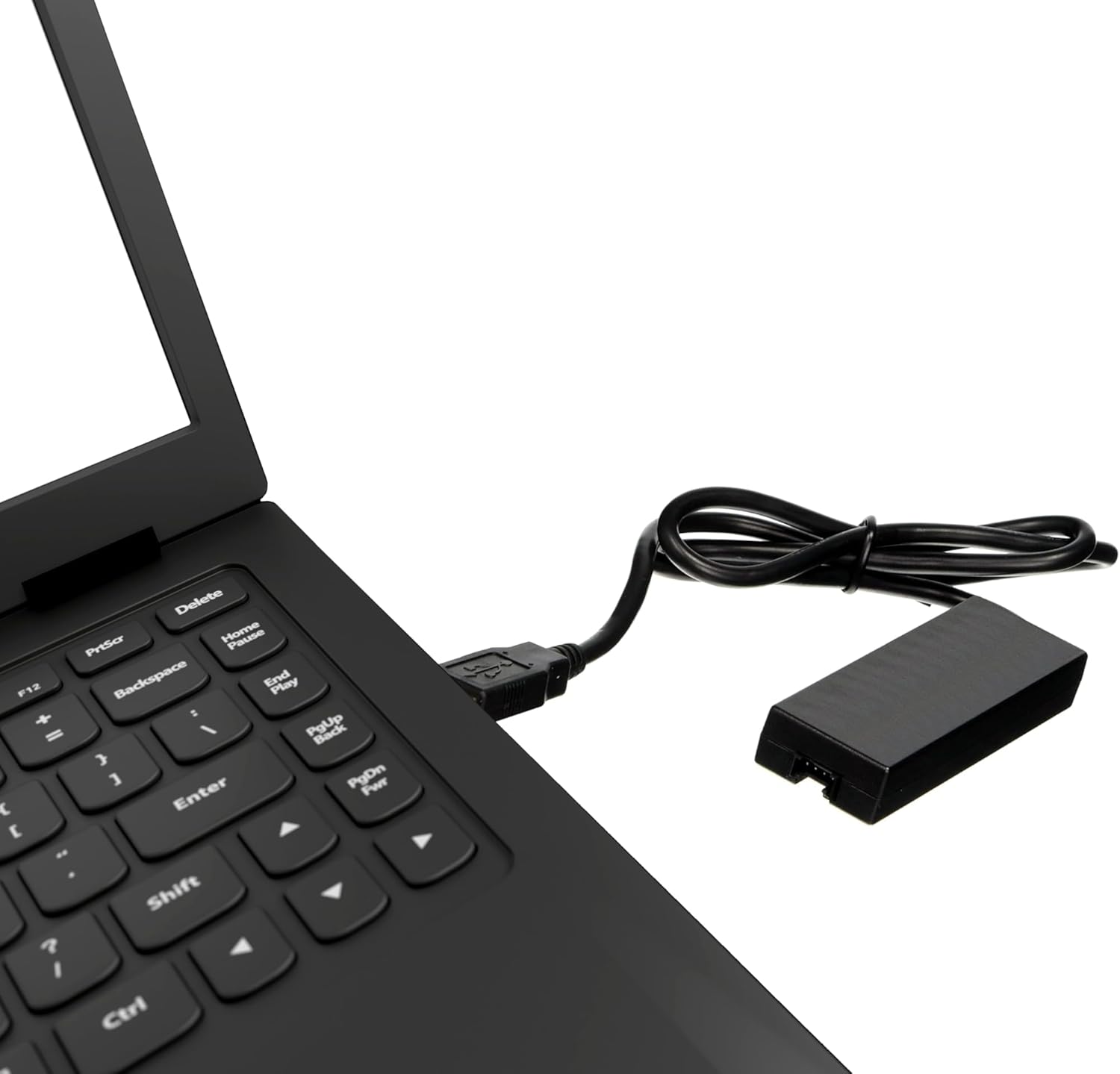
Image 2.1: The Idatalink ADS-USB connected to a laptop via its USB-A connector, ready for use.
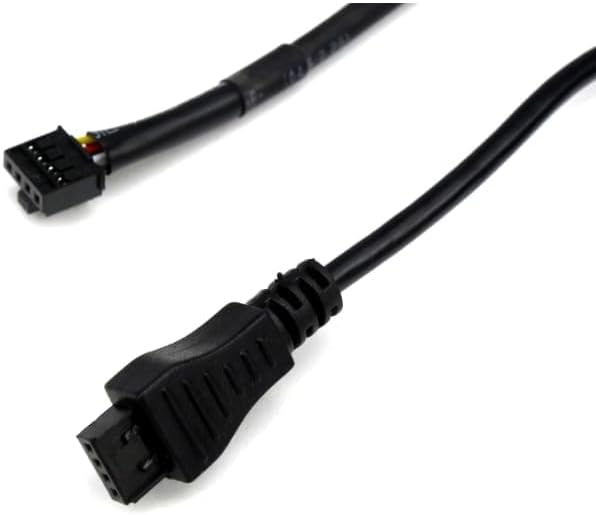
Image 2.2: A close-up view of the specialized connector on the Idatalink ADS-USB, which interfaces with the iDatalink modules.
3. Operating Instructions
3.1 Using Weblink Desktop for Firmware Programming
- Ensure the ADS-USB interface is connected to both your computer and the iDatalink module as described in Section 2.3.
- Launch the Weblink Desktop application on your computer.
- Log in to your Weblink account using your credentials. If you do not have an account, you will need to register on the Idatalink website.
- The application should detect the connected iDatalink module. Follow the on-screen instructions within the Weblink Desktop application to select the appropriate firmware for your specific vehicle and module.
- Initiate the programming process. Do not disconnect the ADS-USB interface or the iDatalink module from the computer until the programming is complete and confirmed by the software.
- Once programming is finished, safely disconnect the ADS-USB interface and the iDatalink module.
4. Maintenance
The Idatalink ADS-USB Weblink Updater Interface requires minimal maintenance. To ensure optimal performance and longevity:
- Keep the device and cables clean and free from dust and debris. Use a soft, dry cloth for cleaning.
- Store the interface in a cool, dry place away from direct sunlight and extreme temperatures when not in use.
- Avoid bending or crimping the cables excessively, as this can damage internal wiring.
- Do not attempt to open the device casing, as this may void any applicable warranty and could damage the internal components.
5. Troubleshooting
If you encounter issues while using the ADS-USB Weblink Updater Interface, consider the following troubleshooting steps:
- Device Not Recognized:
- Ensure the USB cable is securely connected to both the computer and the ADS-USB interface.
- Try connecting the ADS-USB to a different USB port on your computer.
- Restart your computer and try again.
- Verify that the Weblink Desktop application is installed correctly and is the latest version.
- Module Not Detected by Weblink Desktop:
- Confirm that the specialized connector from the ADS-USB is properly seated into the iDatalink module.
- Ensure the iDatalink module itself is powered, if required by its design.
- Close and reopen the Weblink Desktop application.
- Firmware Programming Failure:
- Check your internet connection stability.
- Ensure you have selected the correct firmware for your specific module and vehicle.
- Temporarily disable any antivirus or firewall software that might interfere with the connection or download process.
- Weblink Account Login Issues:
- Verify your username and password.
- If you forgot your password, use the password recovery option on the Idatalink website.
If these steps do not resolve the issue, please refer to the official Idatalink support resources or contact their customer service.
6. Specifications
| Model Number | ADS-USB |
| Manufacturer | Idatalink |
| Product Dimensions (L x W x H) | 4.8 x 3.5 x 0.9 inches |
| Item Weight | 3.36 ounces |
| Connector Type | USB |
| Color | Black |
| Compatible Devices | PC or MAC, Personal Computer |
| Specific Uses | PC or MAC, Vehicle Electronics |
7. Warranty and Support
For information regarding product warranty, technical support, or service, please refer to the official Idatalink website or contact their authorized customer service channels. Warranty terms and conditions may vary and are subject to the manufacturer's policies.
Idatalink Official Website: www.idatalink.com
Related documentsADS-USB


Ask a question about this manual
Ask about setup, troubleshooting, compatibility, parts, safety, or missing instructions. Manuals+ will review the question and use this page’s manual context to help answer it.