1. Bubuka
This manual provides essential information for setting up, operating, maintaining, and troubleshooting your Apple MacBook Air 11.6-inch laptop. The MacBook Air is designed for portability and performance, featuring a thin and lightweight design. This particular unit is a renewed product, which means it has been inspected and tested by Amazon-qualified suppliers to ensure it functions like new. Packaging and accessories may be generic.
Key features include a 4th Generation Haswell Intel Core i5 processor, Intel HD Graphics 5000, 802.11ac Wi-Fi, Bluetooth 4.0, and a 720p FaceTime HD camera. The 11.6-inch LED-backlit display offers a native resolution of 1366 by 768 pixels.
2. Naon dina Box
Upon unboxing your Apple MacBook Air, ensure all components are present:
- Apple MacBook Air 11.6-Inch Laptop
- Adaptor kakuatan
Note: As a renewed product, accessories may be generic.
3. Setélan
3.1 Daya Awal Hurung sareng Ngecas
Before first use, it is recommended to fully charge your MacBook Air. Connect the power adapter to the MagSafe 2 power port on the side of the laptop and then plug it into a power outlet.
Gambar: Sisi view of the MacBook Air, illustrating the MagSafe 2 power port for charging.
3.2 Asisten Setelan Mimiti
Once powered on, the macOS Setup Assistant will guide you through the initial configuration steps, including:
- Selecting your country or region.
- Nyambungkeun ka jaringan Wi-Fi.
- Transferring information to this Mac (optional).
- Signing in with your Apple ID or creating a new one.
- Nyetél akun pangguna sareng kecap akses.

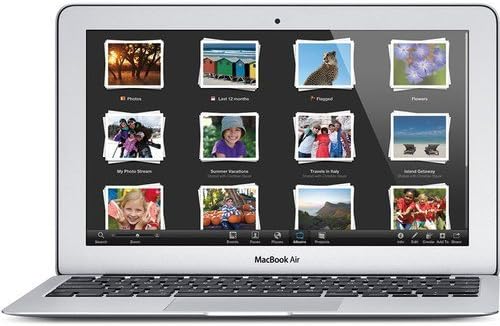
Gambar: Hareupeun view of the MacBook Air, open and ready for use, displaying the screen and keyboard.
4. Operating Your MacBook Air
4.1 Hurung/Pareum sareng Sare
- Daya Hurung: Open the display or press the power button located on the top right of the keyboard.
- Saré: Close the display or select 'Sleep' from the Apple menu.
- Pareuman: Select 'Shut Down' from the Apple menu.
4.2 Tampilan sareng Grafik
The 11.6-inch LED-backlit display provides a resolution of 1366x768 pixels. Graphics are handled by the integrated Intel HD Graphics 5000, suitable for everyday tasks and moderate graphics-intensive applications.
4.3 Konéktipitas
- Wifi: Supports 802.11ac for fast wireless connectivity. Connect to available networks via the Wi-Fi icon in the menu bar.
- Bluetooth: Bluetooth 4.0 allows connection to various wireless peripherals such as speakers, headphones, and keyboards.
- Port USB: The laptop includes USB ports for connecting external devices.

Gambar: Sisi view of the MacBook Air, highlighting the USB ports and other connectivity options.
4.4 FaceTime HD Camera
The integrated 720p FaceTime HD camera allows for video calls and conferencing. Access it through applications like FaceTime or Photo Booth.
5. Pangropéa
Proper maintenance ensures the longevity and optimal performance of your MacBook Air.
- beberesih: Anggo lawon anu lemes sareng henteu lint pikeun ngabersihan layar sareng luar. Hindarkeun bahan abrasive atanapi bahan kimia kasar.
- Apdet parangkat lunak: Regularly update macOS and applications to ensure security and performance improvements.
- Perawatan batré: For optimal battery life, avoid extreme temperatures and allow the battery to discharge and recharge periodically. The laptop offers up to 9 hours of battery life under normal usage.
- Manajemén Panyimpenan: Périodik ulangview and manage your 128GB flash storage to free up space and maintain performance.

Gambar: Top view of the closed MacBook Air, illustrating its sleek design for easy cleaning and handling.
6. Cara ngungkulan
If you encounter issues with your MacBook Air, try the following common troubleshooting steps:
- Teu Aya Listrik/Moal Hurung: Ensure the power adapter is securely connected and the power outlet is functional. Try a different outlet. If the battery is completely drained, it may take a few minutes for the laptop to respond after connecting the charger.
- Performance Lambat: Close unnecessary applications, check for available storage space, and ensure macOS is up to date. Restarting the laptop can often resolve temporary slowdowns.
- Masalah Konektipitas Wi-Fi: Restart your Wi-Fi router and your MacBook Air. Ensure you are within range of the Wi-Fi network and that the password is correct.
- Aplikasi Teu Ngarespon: Force quit the application by pressing Command + Option + Esc, then select the unresponsive application and click 'Force Quit'.
- Masalah layar: If the screen is black or frozen, try restarting the laptop. If external display issues occur, check cable connections.
7. Spésifikasi
| Fitur | Spésifikasi |
|---|---|
| Nomer modél | MD711LLA-PB-2RC |
| Ukuran tampilan | 11.6 inci |
| Resolusi layar | 1366 x 768 piksel |
| Prosesor | 1.3 GHz Intel Core i5 (Dual-Core) |
| Ram | 4 GB LPDDR3 |
| Hard Drive | 128 GB SSD (Flash Storage) |
| Grafik Coprocessor | Intel HD Grafik 5000 |
| Tipe Wireless | Wi-Fi 802.11ac, Bluetooth 4.0 |
| Sistem operasi | Mac OS |
| Rata Kahirupan Batré | Nepi ka 9 Jam |
| Item Beurat | 0.088 ons (kira-kira 2.38 pon) |
| Dimensi produk | 11.8 x 0.7 x 7.6 inci |
8. Garansi jeung Rojongan
This renewed product comes with a minimum 90-day supplier-backed warranty. For warranty claims or technical support, please refer to the documentation provided by the Amazon-qualified supplier or contact Amazon Renewed customer service.
For general information and support regarding macOS and Apple products, visit the official Apple Support websitus: support.apple.com.
9. Video Produk Resmi
Henteu aya pidéo produk resmi ti anu ngajual anu sayogi pikeun barang ieu.


