Bubuka
This manual provides essential information for setting up, operating, maintaining, and troubleshooting your Apple iPad Air 2. Please read this guide thoroughly to ensure optimal use of your device.
1. Setup jeung Konfigurasi Awal
1.1 Unboxing Your iPad Air 2
Carefully remove your iPad Air 2 and its accessories from the packaging. The box typically contains the iPad Air 2 device, a Lightning to USB cable, and a USB power adapter.
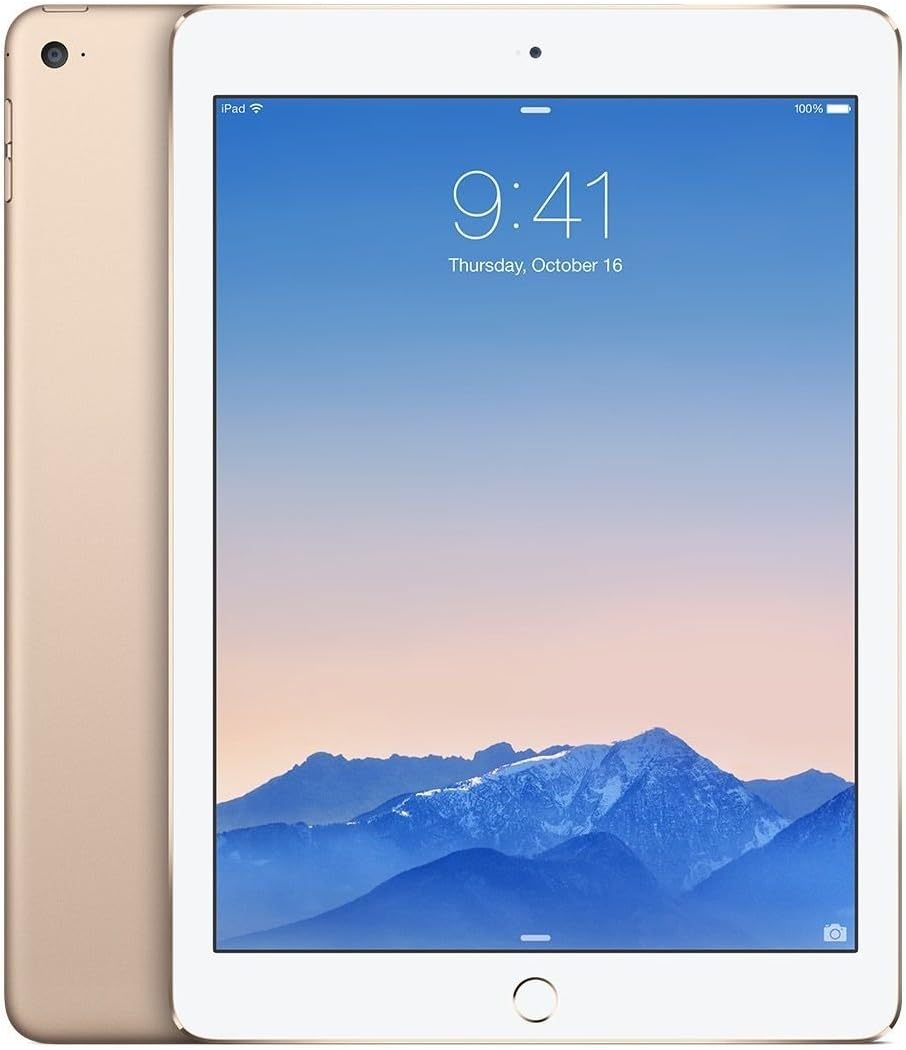
Gambar: Hareup jeung tukang view of the gold Apple iPad Air 2, showcasing pro ipis nafile and gold finish.
1.2 Ngecas Alat
Before first use, it is recommended to fully charge your iPad Air 2. Connect the Lightning to USB cable to the iPad's charging port and the USB power adapter. Plug the adapter into a power outlet. The battery icon on the screen will indicate charging status.
1.3 Initial Setup Process
Upon powering on your iPad Air 2 for the first time, you will be guided through the initial setup steps:
- Pilih Basa sareng Daérah: Choose your preferred language and country/region.
- Nyambung ka Wi-Fi: Select a Wi-Fi network and enter the password if required.
- Enable Location Services: Decide whether to enable or disable location services.
- Nyetél ID Toél: Follow the on-screen instructions to register your fingerprint for secure unlocking and purchases.
- Jieun Kodeu Sandi: Set a 4-digit or custom alphanumeric passcode.
- Restore or Set Up as New iPad: You can restore from an iCloud or iTunes backup, or set up the device as new.
- Lebet nganggo ID Apple: Enter your Apple ID and password. If you don't have one, you can create one.
- Agree to Terms and Conditions: Read and accept Apple's terms and conditions.
- Set Up Siri: Configure Siri, Apple's voice assistant.
- Send Diagnostics: Choose whether to send diagnostic and usage data to Apple.
2. Operating Your iPad Air 2
2.1 Napigasi Dasar
- Tombol imah: Press once to return to the Home screen. Double-press to open the multitasking switcher. Press and hold to activate Siri.
- Toel ID: Use your registered fingerprint on the Home button to unlock the device or authorize purchases.
- Sapuan: Swipe from the bottom for Control Center, swipe from the top for Notification Center, pinch to zoom, and swipe between apps.

Gambar: Sisi view of the gold Apple iPad Air 2, emphasizing its remarkably thin design.
2.2 Pamakéan kaméra
Your iPad Air 2 features an 8MP iSight camera on the rear and a 1.2MP FaceTime HD camera on the front.
- Nyandak Poto: Open the Camera app, select Photo mode, and tap the shutter button.
- Ngarekam Pidéo: Select Video mode and tap the record button to start/stop.
- FaceTime Calls: Use the FaceTime app with the front camera for video calls over Wi-Fi.
2.3 Konektipitas Wi-Fi
Pikeun nyambung ka jaringan Wi-Fi:
- Pindah ka Setelan > Wi-Fi.
- Hurungkeun Wi-Fi.
- Pilih jaringan anu dipikahoyong tina daptar.
- Lebetkeun kecap akses upami dipenta.
3. Pangropéa sarta perawatan
3.1 Cleaning Your iPad Air 2
To clean your iPad Air 2, use a soft, lint-free cloth. Avoid using abrasive materials, aerosols, solvents, or ammonia-based cleaners. For the screen, a slightly damp cloth is sufficient. Do not spray cleaners directly onto the device.
3.2 Apdet parangkat lunak
Keep your iPad's software up to date for the best performance and security. Go to Setélan > Umum > Apdet Parangkat Lunak pikeun mariksa tur masang apdet sadia.
3.3 Perawatan Batré
Pikeun maksimalkeun umur batre:
- Hindarkeun suhu anu ekstrim.
- Terus apdetkeun perangkat lunakna.
- Saluyukeun kacaangan layar.
- Pareuman Wi-Fi atanapi Bluetooth nalika teu dianggo.
4. Ngungkulan Masalah Umum
4.1 Alat Teu Ngabales
If your iPad Air 2 is unresponsive, try a force restart: Press and hold both the Home button and the Top (Sleep/Wake) button for at least ten seconds, until you see the Apple logo.
4.2 Masalah Sambungan Wi-Fi
If you're experiencing Wi-Fi issues:
- Pastikeun Wi-Fi diaktipkeun dina Setélan.
- Balikan deui router Wi-Fi anjeun.
- Pindah ka Setélan > Umum > Reset > Reset Setélan Jaringan.
4.3 Aplikasi ngadat atanapi katirisan
If an app is misbehaving, try closing it: Double-press the Home button, then swipe the app's preview upward to close it. If the issue persists, delete and reinstall the app.
5. Spésifikasi produk
| Fitur | Spésifikasi |
|---|---|
| Ngaran modél | iPad Air 2 |
| Nomer Modél Item | MH182LL/A |
| tampilan | 9.7-inch Retina Display, 2048x1536 resolution at 264 ppi |
| Prosesor | A8X chip with 64-bit architecture, M8 motion coprocessor |
| Ram | 2 GB DDR2 |
| Panyimpenan | 64 GB |
| Sistem operasi | iOS 8 (tiasa di-upgrade) |
| Kaméra tukang | 8 MP iSight Camera |
| Kaméra hareup | 1.2 MP FaceTime HD Camera |
| Konéktipitas Wireless | Wi-Fi (802.11a/b/g/n/ac), Bluetooth 4.0 |
| Kahirupan batré | Nepi ka 10 jam |
| Dimensi produk | 30 x 30 x 6 inci (ukuran bungkusan) |
| Item Beurat | 15.4 ons |
| Warna | emas |

Gambar: Angled view of the gold Apple iPad Air 2, highlighting its sleek design and display.
6. Video produk
Henteu aya pidéo produk resmi ti anu ngajual anu sayogi pikeun disematkeun ayeuna.
7. Émbaran jaminan
Your Apple iPad Air 2 comes with a one-year limited warranty from Apple, covering manufacturing defects. For detailed warranty terms and conditions, please refer to the documentation included with your device or visit the official Apple websitus.
8. Rojongan Palanggan
For further assistance, technical support, or service, please visit the official Apple Support website or contact Apple Customer Service directly. You can find contact information and extensive support resources at support.apple.com.


