1. Bubuka
This manual provides detailed instructions for the installation, operation, and maintenance of your Samsung SyncMaster 740N 17-inch LCD Monitor. Please read this manual thoroughly before using your monitor to ensure proper functionality and to prevent damage. Keep this manual for future reference.
2. Émbaran Kasalametan
Observe the following safety precautions to ensure the safe and efficient operation of your monitor:
- Ulah nempatkeun monitor dina lokasi nu teu stabil.
- Avoid exposing the monitor to direct sunlight, heat sources, or extreme temperatures.
- Jauhkeun monitor tina cai atanapi kalembaban anu kaleuleuwihan.
- Mastikeun ventilasi ditangtoskeun; ulah ngahalangan bukaan ventilasi.
- Paké ngan kabel kakuatan jeung adaptor disadiakeun kalawan monitor.
- Ulah nyobian ngalayanan monitor sorangan. Rujuk sadayana jasa ka tanaga anu mumpuni.
- Cabut colokan monitor tina stop kontak listrik nalika badai kilat atanapi nalika henteu dianggo kanggo waktos anu lami.
3. Eusi Paket
Pastikeun yén sadaya item aya dina pakét produk anjeun:
- Samsung SyncMaster 740N LCD Monitor
- Kabel listrik
- VGA Cable (D-Sub)
- Manual pangguna (dokumén ieu)
- Installation CD (may include drivers and software like MagicTune)
4. Setélan
4.1 Ngabongkar sareng Nempatkeun
Carefully remove the monitor and all accessories from the packaging. Place the monitor on a stable, flat surface, ensuring adequate space for ventilation around the unit.
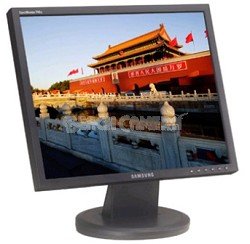
Gambar 1: The Samsung SyncMaster 740N 17-inch LCD Monitor. This image shows the front view of the monitor with its stand, illustrating its compact design suitable for various desktop environments.
4.2 Nyambungkeun Monitor
- Sambungan Daya: Sambungkeun kabel daya kana port input daya monitor, teras colokkeun tungtung anu sanésna kana stop kontak anu dihubungkeun ka ground.
- Video Connection (VGA): Connect the VGA cable (D-Sub) to the VGA port on the back of the monitor and to the VGA output port on your computer's graphics card. Tighten the screws on the VGA connector to secure the connection.
- Daya Hurung: Press the power button on the front of the monitor. Then, power on your computer. The monitor should automatically detect the input signal.
5. Ngoperasikeun Monitor
5.1 Kadali Dasar
The control buttons are typically located on the front or bottom bezel of the monitor. These buttons allow you to access the On-Screen Display (OSD) menu to adjust various settings.
- Tombol Daya: Ngahurungkeun atanapi mareuman monitor.
- Tombol Menu: Muka menu OSD.
- Tombol Luhur/Katuhu atawa Kénca/Katuhu: Navigasi dina pilihan menu OSD sareng saluyukeun nilaina.
- Enter/Source Button: Confirms selections or switches input sources.
5.2 Napigasi Menu OSD
Pencét éta ménu button to open the OSD. Use the navigation buttons to select categories like Gambar, Warna, OSD, jeung Disetél. Pencét Lebetkeun to access sub-menus or confirm changes. Press ménu deui pikeun kaluar ti OSD.
5.3 Fitur husus
- MagicBright II™: This feature provides various preset brightness modes (e.g., Text, Internet, Game, Sport, Movie, Custom) to optimize the display for different content types. Access it via the OSD menu.
- MagicColor™: Enhances color saturation and brightness, making images appear more vivid. This can be toggled on/off in the OSD.
- MagicTune™: A software utility that allows you to control monitor settings directly from your computer using a mouse and keyboard, providing a more convenient way to adjust brightness, contrast, and other parameters. Install from the provided CD or Samsung's websitus.
5.4 Optimal Resolution
For the best display quality, set your computer's display resolution to the monitor's native resolution of 1280 x 1024. This can be adjusted through your operating system's display settings.
6. Pangropéa
6.1 Ngabersihan Monitor
- Salawasna cabut monitor saméméh beberesih.
- Make kaen nu lemes, teu aya lint rada dampdilengkepan ku cai atanapi pembersih layar khusus.
- Do not use abrasive cleaners, waxes, or solvents as they can damage the screen or casing.
- Spray cleaner onto the cloth, not directly onto the screen.
6.2 Perawatan Umum
- Hindarkeun noel layar ku obyék seukeut.
- Ulah neundeun barang beurat dina monitor atawa kabelna.
- If moving the monitor, ensure it is powered off and disconnected from all cables.
7. Cara ngungkulan
Upami anjeun mendakan masalah sareng monitor anjeun, tingal masalah sareng solusi umum ieu:
| Masalah | Solusi anu mungkin |
|---|---|
| Taya Daya |
|
| No Signal / "Check Signal Cable" Message |
|
| Gambar buram atanapi menyimpang |
|
| Warnana salah atanapi luntur |
|
| Piksel maot | A small number of defective pixels is inherent in LCD technology. If the number of dead pixels exceeds manufacturer specifications, contact Samsung support. |
8. Spésifikasi
Key technical specifications for the Samsung SyncMaster 740N monitor:
| Fitur | Rincian |
|---|---|
| Ngaran modél | SyncMaster 740N |
| Ukuran layar | 17 inci |
| Tipe tampilan | TFT-LCD |
| Resolusi pribumi | 1280 x 1024 |
| Rasio Aspék | 5:4 |
| Caang (Typical) | 300 cd/m² |
| Babandingan Kontras (Khas) | 600:1 |
| ViewSudut (H/V) | 160°/160° |
| Waktu Tanggapan | 8 ms |
| Input | Analog (VGA D-Sub) |
| Konsumsi Daya | (Specific value not provided, typical for 17" LCDs of this era) |
| Ukuran (L x W x H) | 17.4 x 17.1 x 5 inci |
| Beurat | 9.8 pon |
9. Garansi jeung Rojongan
Kanggo inpormasi jaminan, dukungan téknis, atanapi patarosan jasa, mangga tingal kartu garansi anu kalebet dina produk anjeun atanapi kunjungan dukungan resmi Samsung. website. You may also find updated drivers and software, including MagicTune, on their support pages.
Dukungan Resmi Samsung: https://www.samsung.com/us/support/