
Formovie X5
Formovie X5 4K Laser TV Projector User Manual
Model: X5 | Brand: Formovie
Introduction
The Formovie X5 4K Laser TV Projector is a portable mini smart projector designed to deliver a cinematic experience in your home. Featuring ALDP Laser Display Technology, 2450 lumens brightness, and built-in Denon speakers, it offers stunning 4K resolution and immersive audio. This manual provides essential information for setting up, operating, and maintaining your projector.
Product Overview
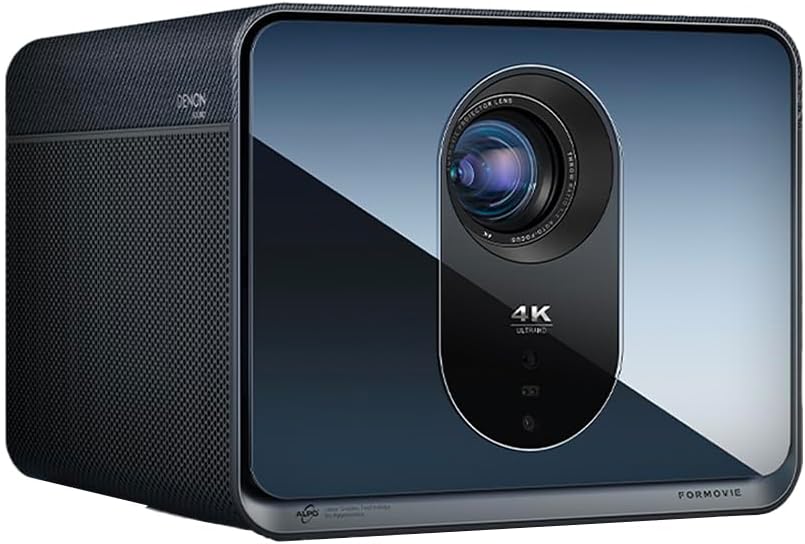
Front view of the Formovie X5 projector, showcasing its sleek design and prominent lens.
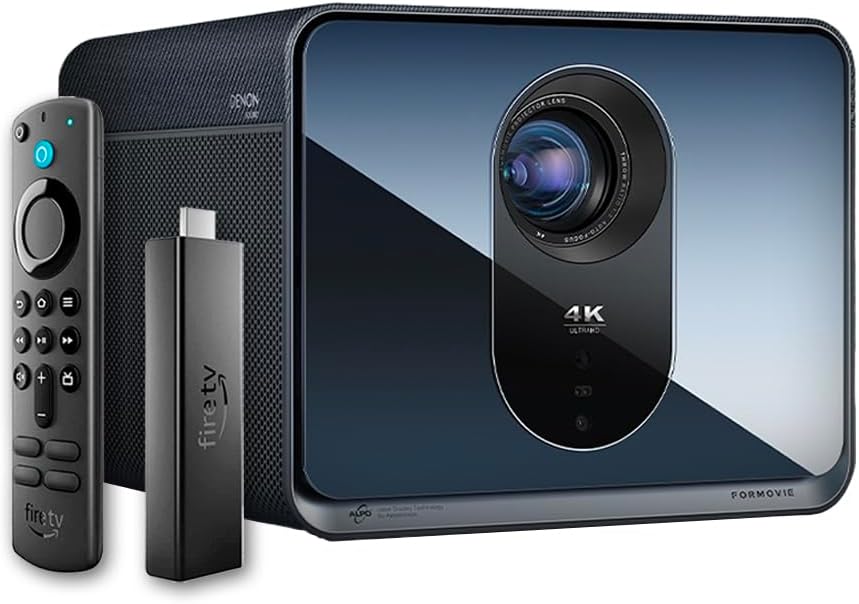
The Formovie X5 projector shown alongside its included Amazon Fire TV Stick 4K Max and remote control.

Rear view of the Formovie X5 projector, displaying various connectivity ports including LAN, USB, HDMI, and S/PDIF.
Setup Guide
1. Unboxing and Placement
- Carefully remove the projector and all accessories from the packaging.
- Place the projector on a stable, flat surface. Ensure adequate ventilation around the unit.
- Position the projector directly in front of your desired projection surface (wall or screen) for optimal image geometry. While the projector has auto-correction, a direct alignment is recommended for the best experience.
2. Power Connection
- Connect the power adapter to the projector's power input port.
- Plug the power adapter into a suitable electrical outlet.
3. Initial Power On and Auto-Focus
- Press the power button on the projector or the remote control to turn on the device.
- The projector will automatically initiate its auto-focus and omnidirectional auto-correction features. Allow a few moments for the image to stabilize and sharpen.
4. Connecting the Fire TV Stick 4K Max
- Insert the Amazon Fire TV Stick 4K Max into an available HDMI port on the projector.
- Connect the Fire TV Stick to its power source.
- Select the corresponding HDMI input on the projector's menu.
Operating Instructions
Remote Control Functions
The included remote control allows full navigation and control of the projector and the connected Fire TV Stick.
- Power Button: Turns the projector on/off.
- Navigation Pad: Used to navigate menus and select options.
- Back Button: Returns to the previous screen.
- Home Button: Returns to the main menu.
- Volume Buttons: Adjusts the audio volume.
- Voice Control Button: Activates voice commands for the Fire TV Stick.
Adjusting Image Settings
The Formovie X5 features advanced automatic adjustment tools. For manual adjustments:
- Manual Focus: If auto-focus is not satisfactory, access the projector settings to manually adjust focus.
- Keystone Correction: While omnidirectional auto-correction is standard, manual keystone adjustment is available in the settings for fine-tuning image shape.
- Ambient Light Adaptive: The projector automatically adjusts brightness based on ambient light conditions. This can be toggled or fine-tuned in the display settings.
Key Features
- 4K ALDP Laser Display Technology: Experience breathtaking visuals with true 4K resolution and a wide color gamut, ensuring crystal-clear and vibrant images.
- Cinema-Like Projection Size: Project images from 60 inches up to a massive 1,000 inches, providing an immersive viewing experience for movies, sports, and gaming.
- Powerful Adjustment Tools: Equipped with omnidirectional auto-correction, ambient light adaptive technology, laser autofocus, and automatic curtain alignment for hassle-free setup and optimal picture quality.
- Built-In Three-Way Denon Speakers: The X5 is the first projector to feature integrated three-way speakers powered by Denon, delivering rich, immersive audio without the need for external sound systems.
- Integrated Amazon Fire TV: Stream directly from your favorite apps like Netflix, Prime Video, Disney+, and more, with the convenience of the included Fire TV Stick 4K Max.
Maintenance
- Lens Cleaning: Gently wipe the projector lens with a soft, lint-free cloth specifically designed for optical surfaces. Do not use abrasive cleaners or excessive force.
- Ventilation: Ensure the projector's ventilation ports are clear of dust and obstructions to prevent overheating. Regularly clean the vents with a soft brush or compressed air.
- Storage: When not in use for extended periods, store the projector in a cool, dry place, away from direct sunlight and extreme temperatures.
Troubleshooting
| Problem | Possible Cause | Solution |
|---|---|---|
| No image projected | Power cable disconnected, incorrect input source, projector in standby mode. | Check power connection, select correct HDMI input, press power button to wake. |
| Image is blurry | Out of focus, lens dirty. | Allow auto-focus to complete or manually adjust focus. Clean the lens. |
| Image is distorted (trapezoid shape) | Projector not perpendicular to screen, auto-correction issue. | Reposition projector directly in front of the screen. Use manual keystone correction if needed. |
| No sound | Volume too low, mute activated, external audio device not connected properly. | Increase volume, check mute status, ensure external audio (if used) is correctly connected. |
| Overheating warning | Blocked ventilation, prolonged use in hot environment. | Ensure vents are clear. Turn off projector and allow it to cool down. Operate in a well-ventilated area. |
Specifications
| Feature | Detail |
|---|---|
| Brand | Formovie |
| Model Number | X5 |
| Display Resolution | 3840 x 2160 (4K) |
| Light Source Technology | ALDP Laser |
| Brightness (ANSI Lumens) | 2450 Lumens |
| Connectivity Technology | HDMI, USB, LAN |
| Special Features | Portable, Omnidirectional Auto-Correction, Ambient Light Adaptive, Laser Autofocus, Automatic Curtain Alignment, Built-In Denon Three-Way Speakers, Integrated Amazon Fire TV |
| Item Weight | 15.14 pounds |
| Product Dimensions | 8.27 x 8.54 x 6.57 inches |
Warranty and Support
For warranty information, please refer to the documentation included with your product or visit the official Formovie website. For technical support, troubleshooting assistance, or to access additional resources, please contact Formovie customer service.
- User Manual (PDF): Download
- User Guide (PDF): Download
- Visit the Formovie Store: Formovie Store
Related documentsX5


Ask a question about this manual
Ask about setup, troubleshooting, compatibility, parts, safety, or missing instructions. Manuals+ will review the question and use this page’s manual context to help answer it.