
1. Product Overview
The CITLLA L360 Wireless Bluetooth Mouse is designed for multi-device connectivity and ergonomic comfort. It features tri-mode connectivity (2.4G USB, Bluetooth 1, Bluetooth 2), a 4-way metal scroll wheel, 5 programmable buttons, adjustable DPI settings, and silent clicks. This manual provides detailed instructions for setup, operation, and maintenance.
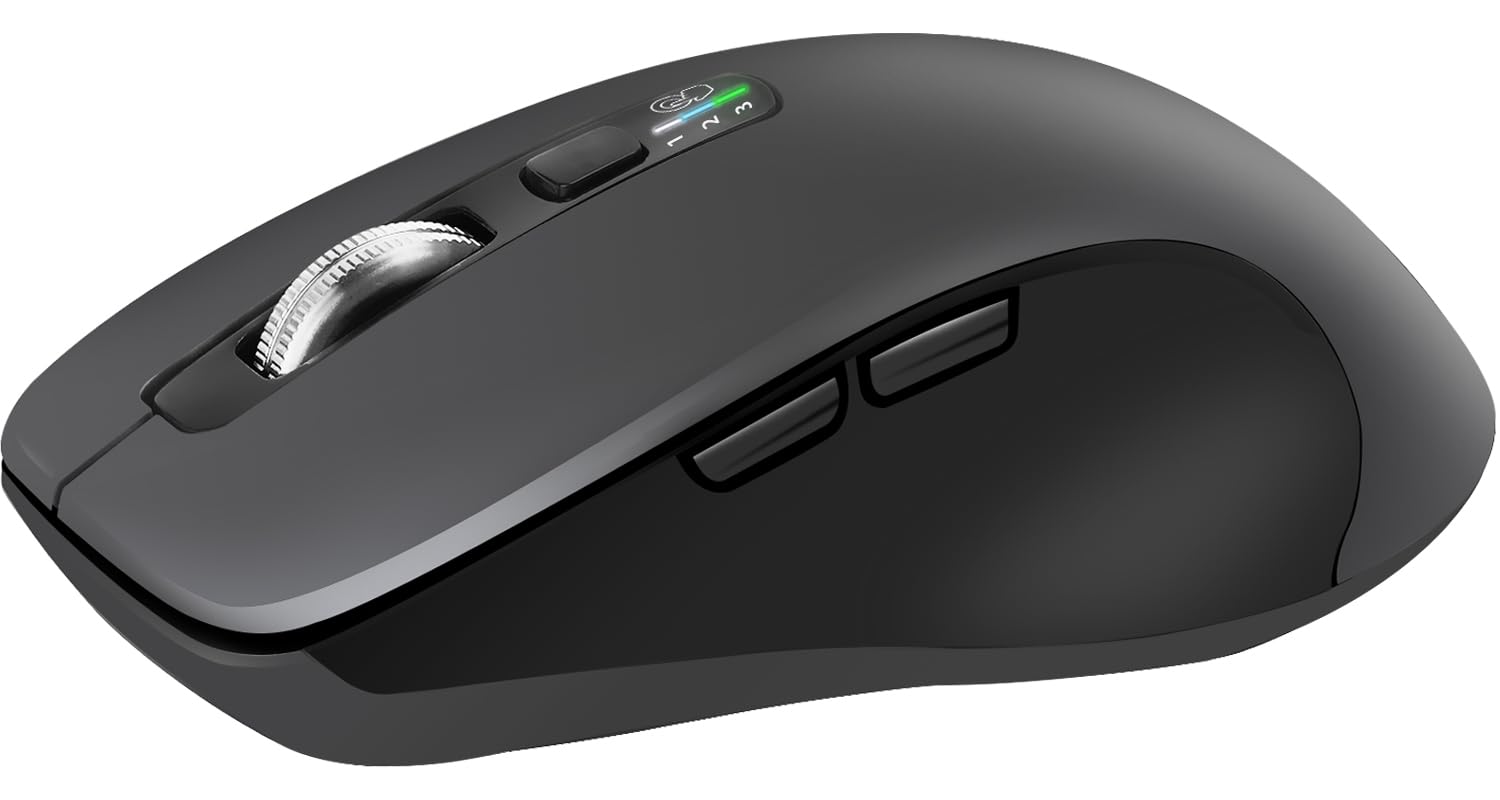
Figure 1: Top view of the CITLLA L360 Wireless Bluetooth Mouse.
2. Package Contents
- 1 x CITLLA L360 Wireless Bluetooth Mouse
- 2 x AA Batteries
- 1 x User Manual (this document)
- 1 x 2.4G USB Receiver (located inside the mouse battery compartment)
3. Setup Instructions
3.1. Battery Installation
- Gently remove the top cover of the mouse. The cover is designed to be removable for battery access.
- Insert one or two AA batteries into the battery compartment, ensuring correct polarity (+/-). Using one AA battery will make the mouse lighter, while two AA batteries provide up to 40 months of battery life.
- Replace the top cover securely.

Figure 2: Battery compartment showing options for one or two AA batteries.
3.2. Connecting to Devices (Tri-Mode Connectivity)
The CITLLA L360 mouse supports connection to up to three devices using three different modes: 2.4G USB, Bluetooth 1 (BT1), and Bluetooth 2 (BT2).

Figure 3: Multi-device connectivity options.
3.2.1. 2.4G USB Connection
- Locate the 2.4G USB receiver inside the mouse's battery compartment.
- Plug the USB receiver into an available USB port on your computer.
- Slide the mode switch on the bottom of the mouse to the "2.4G" position (indicated by a USB icon).
- The mouse should connect automatically.
3.2.2. Bluetooth Connection (BT1 / BT2)
- Slide the mode switch on the bottom of the mouse to either "BT1" or "BT2" position.
- Press and hold the mode switch button (usually located near the scroll wheel or on the bottom) for 3-5 seconds until the indicator light for BT1 or BT2 starts flashing, indicating pairing mode.
- On your device (laptop, tablet, smartphone), go to Bluetooth settings and search for new devices.
- Select "CITLLA L360" or a similar name from the list of available devices to pair.
- Once paired, the indicator light will stop flashing and remain solid for a few seconds.
- Repeat these steps for the second Bluetooth channel (BT2) to connect another device.
Video 1: Demonstrates the multi-device switching and Bluetooth pairing process for the CITLLA L360 mouse.
4. Operating Instructions
4.1. Switching Between Devices
To switch between connected devices, simply press the mode switch button on the bottom of the mouse. The indicator light will show which channel (2.4G, BT1, or BT2) is currently active.
4.2. Adjusting DPI (Sensitivity)
The mouse features adjustable DPI settings (1000, 1600, 2400, 3000 DPI) for precise cursor control. Press the DPI button, usually located below the scroll wheel, to cycle through the sensitivity levels. The indicator light will change to reflect the current DPI setting.

Figure 4: DPI adjustment levels.
4.3. 4-Way Metal Scroll Wheel
The metal scroll wheel allows for both vertical and horizontal scrolling. Tilt the scroll wheel left or right to navigate horizontally, which is particularly useful for spreadsheets and wide documents.

Figure 5: 4-Way Scroll Wheel functionality.
4.4. Programmable Buttons
The mouse features 5 programmable buttons. These can be customized using driver software (if provided by CITLLA, check their official website for downloads) to assign shortcuts, macros, or frequently used commands, enhancing productivity.

Figure 6: Location of programmable buttons.
4.5. Silent Click Design
The mouse is designed with silent click buttons to minimize noise, creating a quieter working environment suitable for offices, libraries, or shared spaces.

Figure 7: Silent click feature.
5. Maintenance
5.1. Cleaning
To clean the mouse, use a soft, dry cloth. For stubborn dirt, a slightly damp cloth with mild soap can be used, ensuring no liquid enters the device. Avoid abrasive cleaners or solvents.
5.2. Battery Replacement
When the mouse's performance degrades or the indicator light suggests low battery, replace the AA batteries as described in Section 3.1. Dispose of used batteries responsibly.
6. Troubleshooting
- Mouse not responding:
- Ensure batteries are correctly installed and have sufficient charge.
- Check if the mouse is powered on and the correct connection mode (2.4G, BT1, BT2) is selected.
- For 2.4G connection, ensure the USB receiver is securely plugged into a working USB port.
- For Bluetooth connection, ensure Bluetooth is enabled on your device and the mouse is properly paired. Try re-pairing if necessary.
- If experiencing intermittent connectivity issues, especially with 2.4G, try removing and reinserting the batteries for about 10 seconds to reset the connection.
- Cursor movement is erratic or imprecise:
- Clean the optical sensor on the bottom of the mouse.
- Ensure you are using the mouse on a suitable surface.
- Adjust the DPI setting to a level that suits your preference (refer to Section 4.2).
- Buttons not working:
- Check for any physical obstructions.
- If using programmable buttons, ensure the driver software is correctly installed and configured (if applicable).
Video 2: An overview of the Citlla L360 mouse features and functionality, which may assist in troubleshooting.
7. Specifications
| Feature | Description |
|---|---|
| Brand | CITLLA |
| Model Number | L360 |
| Color | All Gray |
| Connectivity Technology | Bluetooth, USB (2.4G) |
| Movement Detection Technology | Optical |
| DPI Settings | 1000, 1600, 2400, 3000 dots_per_inch |
| Button Quantity | 10 (including 5 programmable) |
| Hand Orientation | Ergonomic, Ambidextrous |
| Compatible Devices | Laptop, Personal Computer, Smartphone, Tablet |
| Battery Type | 2 AA batteries (included) |
| Battery Average Life | Up to 40 months (with 2 AA batteries) |
| Special Features | 2.4G USB + Two Bluetooth, 4 Way Scrolling, Programmable Buttons, Soundless, Wireless |

Figure 8: Ergonomic design for comfortable use.
8. Warranty Information
The CITLLA L360 Wireless Bluetooth Mouse comes with a 2-Year Warranty from the date of purchase. This warranty covers manufacturing defects and malfunctions under normal use. It does not cover damage caused by misuse, accidents, unauthorized modifications, or normal wear and tear. Please retain your proof of purchase for warranty claims.
9. Customer Support
For further assistance, technical support, or warranty inquiries, please contact CITLLA customer service through the retailer's platform or visit the official CITLLA website. Please have your product model number (L360) and proof of purchase ready when contacting support.
Online Resources:
- CITLLA Store on Amazon: Visit CITLLA Store

