
1. Introduction
Thank you for purchasing the BOIFUN MT05 Motorcycle Drive Recorder. This device is designed to enhance your riding safety and convenience by providing comprehensive recording, navigation, and communication features. Please read this manual thoroughly before use to ensure proper installation and operation.
2. Product Overview
The BOIFUN MT05 features a 6.25-inch IPS touch screen, three SONY cameras for all-around recording, and support for Apple CarPlay and Android Auto. It is built with high durability and anti-theft measures for reliable performance in various riding conditions.
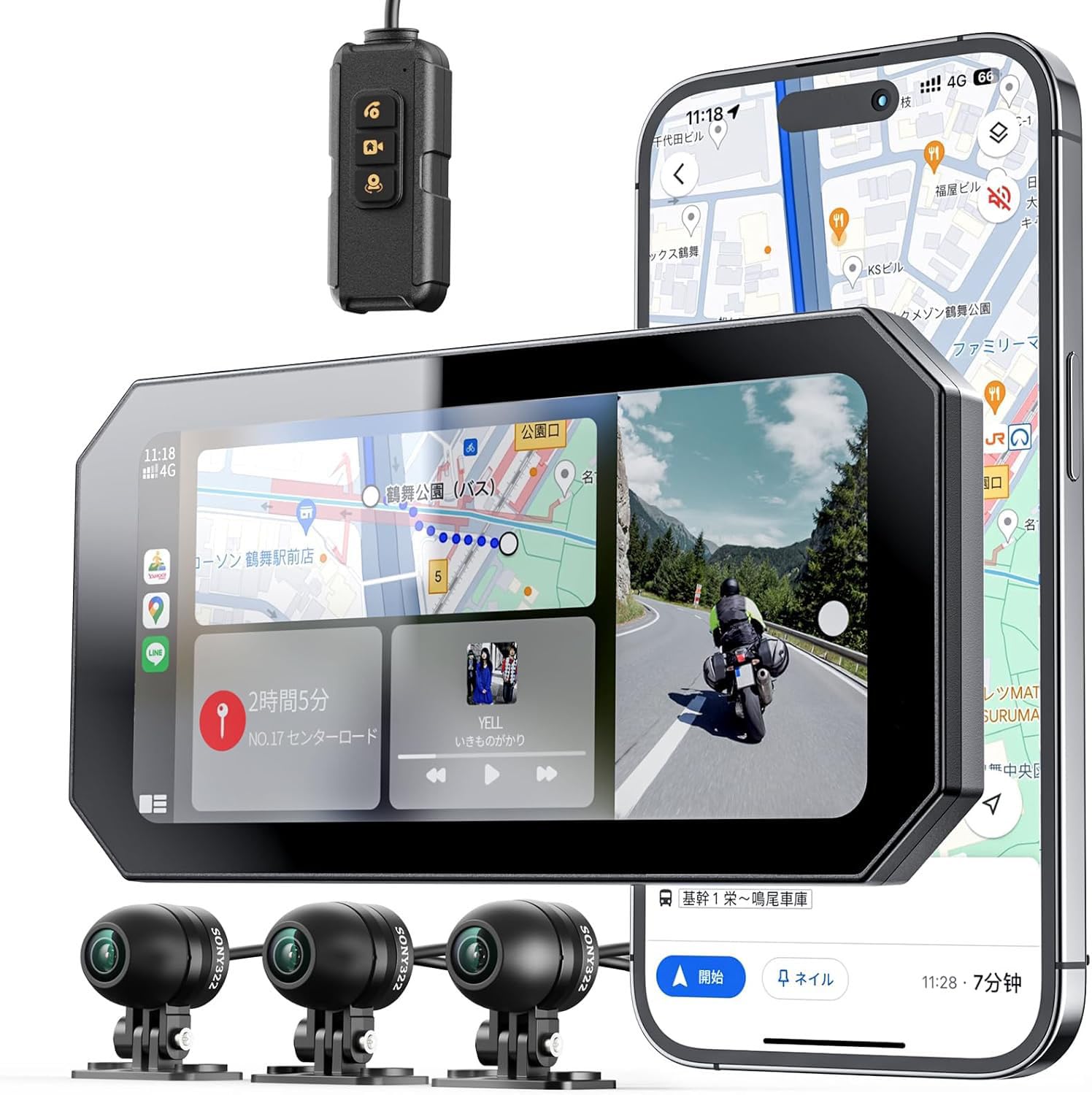
Figure 2.1: Main unit and camera components of the BOIFUN MT05.

Figure 2.2: Package contents including the main unit, cameras, mounting hardware, and cables.
Key Features:
- 6.25-inch IPS Full Touch Screen: Large display with 1400nit high brightness and automatic brightness adjustment for clear visibility in all lighting conditions. Includes a sun visor plate.
- Triple SONY Camera System: Records simultaneously with front (1080p), rear (1080p), and rider-facing (720p) cameras. Features 140° wide-angle lenses for comprehensive coverage.
- CarPlay/Android Auto Support: Seamless integration with your smartphone for navigation, voice control, calls, and music playback.
- Loop Recording & G-Sensor: Automatic recording with file overwrite protection and impact detection to secure critical footage.
- Durable & Anti-Theft Design: Robust metal mount with specialized anti-theft screws, resistant to high/low temperatures, aging, drops, and scratches.
- Waterproof & Dustproof (IP65): Designed to withstand harsh motorcycle environments.
3. Setup & Installation
Proper installation is crucial for the performance and longevity of your drive recorder. It is recommended to have this installed by a professional if you are unsure.
3.1 Mounting the Main Unit
The device comes with a durable metal mount designed for various motorcycle types. Choose the appropriate mounting location (handlebar, mirror, or brake reservoir) and secure the main unit using the provided anti-theft screws.

Figure 3.1: Illustration of the anti-theft metal bracket and its components.

Figure 3.2: Various mounting positions for the main unit, including handlebar and mirror.
3.2 Camera Installation
Install the front, rear, and rider-facing cameras in their respective positions. Ensure the lenses are clear and unobstructed. The 140° wide-angle lenses provide extensive coverage.

Figure 3.3: SONY camera placement and their wide-angle coverage.
3.3 Power Connection
Connect the device to your motorcycle's power supply using the provided USB or ACC power cables. Ensure all connections are secure and waterproof.

Figure 3.4: Diagram illustrating the power connection points for the drive recorder.

Figure 3.5: The included USB and ACC power cables for flexible power options.
3.4 MicroSD Card Installation
Insert a Class 10 or U3 microSD card (8GB-256GB, not included) into the designated slot. Format the card through the device settings before first use.
4. Operating Instructions
4.1 Power On/Off
The device will automatically power on when the motorcycle ignition is turned on and power off when the ignition is turned off.
4.2 Screen Operation
The 6.25-inch IPS touch screen allows for intuitive control. Swipe and tap to navigate menus and settings.

Figure 4.1: The main interface of the BOIFUN MT05 monitor.
4.3 Automatic Brightness Adjustment
The device features an automatic brightness sensor. To enable or disable this feature:
- Go to the Home screen.
- Tap 'Settings'.
- Select 'Automatic Brightness Adjustment' and toggle it On/Off.

Figure 4.2: Screen showing the automatic brightness adjustment in action, adapting to ambient light.
4.4 Wired Remote Control
Use the wired remote control for quick access to functions like answering calls, ending calls, and switching screen views without touching the main unit.

Figure 4.3: The wired remote control mounted on a handlebar, showing call and screen switch buttons.
5. CarPlay/Android Auto Connection
The BOIFUN MT05 supports wireless Apple CarPlay (iOS 9.0+) and Android Auto (Android 11+ with 5G support) for enhanced connectivity.
5.1 Connecting Your Smartphone
- Ensure Bluetooth is enabled on your smartphone.
- On the MT05, tap the Apple CarPlay or Android Auto icon to enter wireless mode.
- Follow the on-screen prompts to pair your smartphone via Bluetooth.
Note: The MT05 connects to your smartphone, and your smartphone then connects to your intercom/earphones. The MT05 does not directly connect to intercoms/earphones.

Figure 5.1: Display of Apple CarPlay and Android Auto interfaces on the MT05 screen.

Figure 5.2: Steps for connecting earphones or motorcycle intercoms via smartphone.
5.2 Using Navigation and Media
Once connected, you can use navigation apps, play music, make calls, and send messages directly from the MT05 screen or via voice commands (Siri/Google Assistant).

Figure 5.3: Navigation display in full screen and split screen modes.

Figure 5.4: Music playback display in full screen and split screen modes.

Figure 5.5: Examples of call handling and message notifications on the display.
6. Recording Functions
6.1 Loop Recording
The device continuously records video in segments (2, 3, or 5 minutes). When the microSD card is full, the oldest unlocked files are automatically overwritten. This ensures continuous recording without manual intervention.

Figure 6.1: Visual representation of loop recording, where older footage is overwritten by new recordings.
6.2 G-Sensor (Impact Detection)
In the event of an impact, the built-in G-sensor automatically detects the collision and locks the current video segment (several seconds before and after the impact) into a separate folder. These locked files will not be overwritten by loop recording, preserving crucial evidence.

Figure 6.2: Comparison of normal recording and G-sensor activated recording during an incident.
6.3 Manual Recording & Photo Capture
You can manually start/stop recording or take photos of memorable scenery during your ride. These files can also be locked to prevent overwriting.
7. Maintenance
Regular maintenance ensures optimal performance and extends the lifespan of your BOIFUN MT05.
- Clean the Lenses: Regularly wipe the camera lenses with a soft, clean cloth to ensure clear video quality.
- Check Connections: Periodically inspect all cables and connections for wear or damage, especially after riding in harsh weather.
- Format MicroSD Card: To prevent data corruption and ensure smooth recording, format the microSD card once a month through the device settings.
- Software Updates: Check the official BOIFUN website for any available firmware updates to improve performance and add new features.
8. Troubleshooting
If you encounter any issues, please refer to the following common solutions:
| Problem | Possible Cause | Solution |
|---|---|---|
| Device does not power on. | No power supply; loose connection. | Check power cable connections. Ensure motorcycle ignition is on. |
| Recording stops or freezes. | MicroSD card full or corrupted; incompatible card. | Format the microSD card. Use a Class 10 or U3 card. Replace card if necessary. |
| Poor video quality. | Dirty camera lens; low light conditions. | Clean camera lenses. Ensure sufficient lighting. |
| CarPlay/Android Auto not connecting. | Bluetooth off; incompatible phone OS; incorrect pairing. | Ensure Bluetooth is on. Check phone OS version. Re-pair the device. |
| Touch screen unresponsive. | Water on screen; temporary software glitch. | Wipe screen dry. Restart the device. |
If the problem persists, please contact BOIFUN customer support.
9. Specifications
| Feature | Specification |
|---|---|
| Brand | BOIFUN |
| Model | MT05 |
| Screen Size | 6.25-inch IPS Full Touch Screen |
| Screen Brightness | 1400nit |
| Front Camera Resolution | 1080p |
| Rear Camera Resolution | 1080p |
| Rider Camera Resolution | 720p |
| Camera Angle | 140° Wide Angle |
| CarPlay Support | Wireless (iOS 9.0+) |
| Android Auto Support | Wireless (Android 11+ with 5G) |
| MicroSD Card Support | 8GB - 256GB (Class 10 or U3 required) |
| Waterproof Rating | IP65 |
| Battery Included | No |
| UPC | 791953955416 |
| ASIN | B0H1LSB7B6 |
10. Warranty & Support
The BOIFUN MT05 Motorcycle Drive Recorder comes with a 1-year manufacturer's warranty.
For any questions, technical assistance, or warranty claims, please contact our dedicated Japanese customer support center via email:
Email: admin@boifun.net
If you experience initial product defects, we offer a replacement product shipment. BOIFUN is committed to continuous quality improvement and providing the best possible support.