
1. Introduction
Thank you for choosing the FLEXISPOT CylineX Pro Electric Standing Desk Frame. This manual provides essential information for the safe and efficient assembly, operation, and maintenance of your new adjustable height desk. Please read these instructions carefully before use and retain them for future reference.
The CylineX Pro features a robust dual-motor system, a user-friendly piano-style control panel, and a wide height adjustment range to support a healthy and productive workspace.
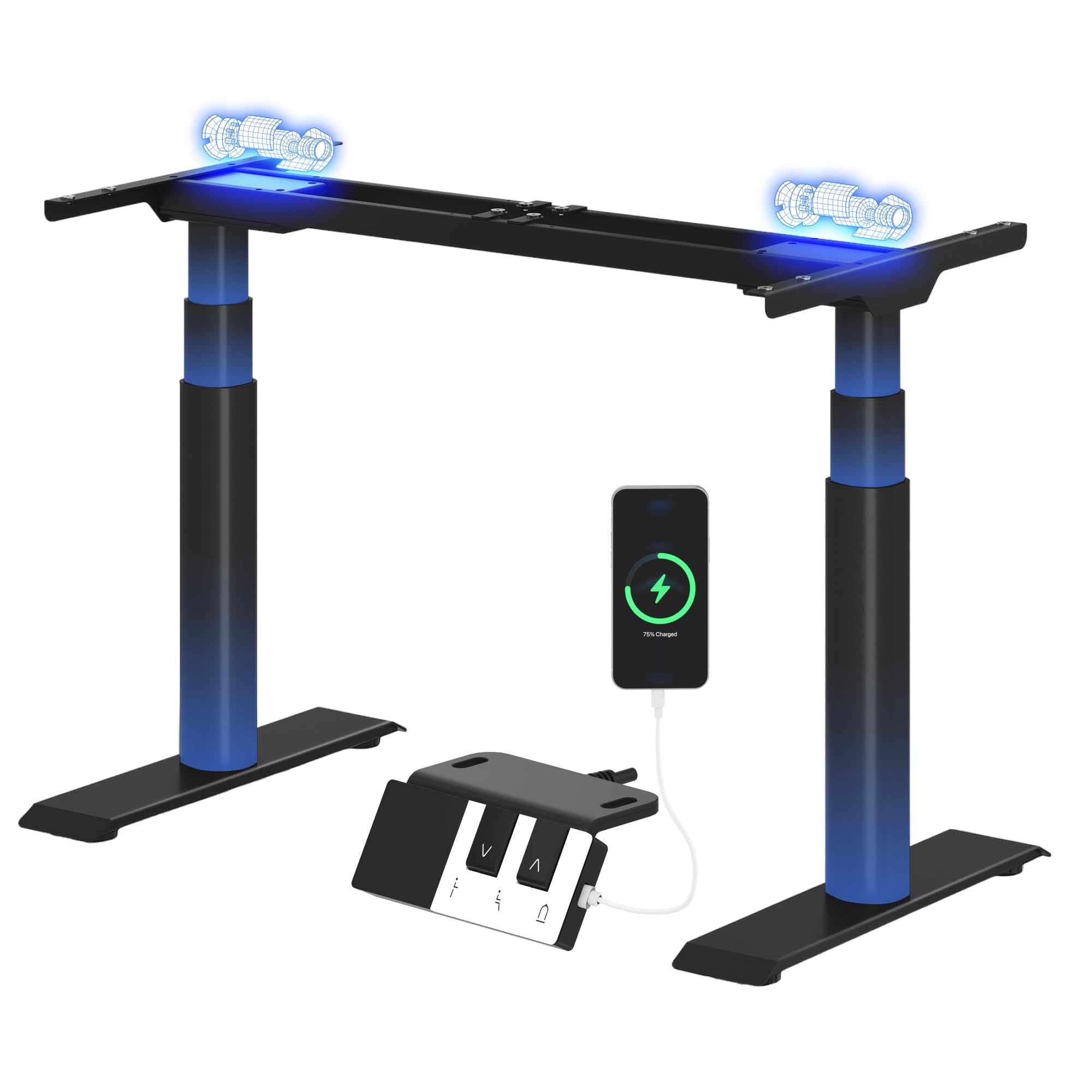
Image: The FLEXISPOT CylineX Pro Electric Standing Desk Frame with a black tabletop in a home office environment.
2. Safety Information
To ensure safe operation and prevent injury or damage, please observe the following safety precautions:
- Ensure all components are securely fastened before use.
- Keep children and pets away from the desk during operation.
- Do not place hands or other objects near moving parts.
- Avoid overloading the desk beyond its specified weight capacity.
- Do not sit or stand on the desk frame.
- Disconnect power before cleaning or maintenance.
- Use only the provided power adapter and accessories.
- If any unusual noise, smell, or malfunction occurs, immediately unplug the desk and contact customer support.
- The anti-collision system is designed to prevent damage, but users should still exercise caution during height adjustments.

Image: The integrated anti-collision system provides safer movement by automatically reversing if an obstacle is detected.
3. Assembly Instructions
The FLEXISPOT CylineX Pro desk frame is designed for straightforward assembly. It typically takes about 20 minutes to assemble. Please ensure you have received all packages, as the desk frame may be shipped in multiple boxes.
3.1 Package Contents
Verify that all parts listed in the included user manual are present before beginning assembly. Contact customer support if any parts are missing or damaged.
3.2 Step-by-Step Assembly
- Unpack Components: Carefully remove all parts from the packaging and lay them out on a soft, clean surface to prevent scratches.
- Assemble the Crossbar: Connect the two halves of the crossbar (if applicable) and secure them according to the detailed instructions in your physical manual.
- Attach Lifting Columns: Securely attach the lifting columns (legs) to the assembled crossbar.
- Install Feet: Attach the foot supports to the bottom of each lifting column.
- Connect Control Box: Mount the control box to the designated area on the frame and connect the motor cables and power cable.
- Attach Control Panel: Mount the piano-style control panel to the desired location on the desk frame or tabletop.
- Mount Tabletop: Carefully place your chosen tabletop onto the assembled frame. Ensure it is centered and aligned, then secure it using the provided screws.
- Cable Management: Organize and secure all cables using the included cable ties or management accessories.

Image: Components of the desk frame laid out, illustrating the ease of assembly.
4. Operating Instructions
The CylineX Pro features an intuitive piano-style control panel for easy height adjustment and personalized settings.

Image: The piano-style control panel offers simple and intuitive control with memory functions, sit/stand reminder, child lock, and a USB port.
4.1 Basic Height Adjustment
- Press the Up (^) button to raise the desk.
- Press the Down (v) button to lower the desk.
- Release the button to stop the desk at the desired height.
4.2 Setting Memory Presets
The control panel allows you to save up to three preferred height settings:
- Adjust the desk to your desired height using the Up/Down buttons.
- Press the "M" button (Memory) followed by one of the numbered preset buttons (1, 2, or 3). The display will show "S-" followed by the number to confirm the setting is saved.
- To recall a saved height, simply press the corresponding numbered preset button.
4.3 Sit/Stand Reminder
Activate the sit/stand reminder to prompt you to change positions at regular intervals:
- Press the Timer button (often depicted as a clock icon) to cycle through reminder intervals (e.g., 30, 45, 60 minutes).
- The desk will beep or vibrate when it's time to change position.
4.4 Child Lock Function
To prevent accidental adjustments, activate the child lock:
- Press and hold the Lock button (often depicted as a padlock icon) for a few seconds until "LOC" appears on the display.
- To unlock, press and hold the Lock button again until "LOC" disappears.
4.5 USB Charging Port
The control panel includes a USB port for convenient charging of your mobile devices.
5. Maintenance
Regular maintenance ensures the longevity and optimal performance of your FLEXISPOT CylineX Pro desk frame.
- Cleaning: Wipe the desk frame with a soft, damp cloth. Avoid abrasive cleaners or solvents that could damage the finish. Ensure no liquid enters the electrical components.
- Cable Management: Periodically check and tidy up cables to prevent tangling or damage, which could interfere with desk movement.
- Fastener Check: Every few months, check all screws and bolts to ensure they are tight. Re-tighten if necessary.
- Lubrication: The lifting columns are pre-lubricated and generally do not require additional lubrication. If you notice any unusual friction, contact customer support.
6. Troubleshooting
If you encounter any issues with your desk, please refer to the following common troubleshooting steps:
| Problem | Possible Cause | Solution |
|---|---|---|
| Desk does not move / No power | Power cable disconnected, power outlet issue, control box malfunction. | Check power connections. Ensure the outlet is working. Try a different outlet. If still no power, contact support. |
| Desk moves unevenly or stops | Overload, obstruction, uneven weight distribution, synchronization issue. | Reduce weight on the desk. Check for obstructions. Ensure weight is evenly distributed. Perform a reset (see below). |
| Error code displayed (e.g., E01, E02) | Motor fault, sensor issue, overheating. | Refer to your physical manual for specific error code meanings. Often, a reset or power cycle can resolve temporary errors. If persistent, contact support. |
| Anti-collision system triggers too easily/not at all | Sensitivity setting, obstruction. | Check for obstructions. Consult your physical manual for instructions on adjusting anti-collision sensitivity. |
| Unusual noise or smell | Internal component issue, motor strain. | Immediately unplug the desk. Do not use. Contact FLEXISPOT customer support. |
6.1 Reset Procedure
A reset can often resolve minor operational issues. The exact procedure may vary slightly, but a common method is:
- Press and hold the Down (v) button until the desk reaches its lowest position and then slightly rises and lowers again.
- Alternatively, some models require holding the "M" button and Down (v) button simultaneously, or a specific combination of buttons. Refer to your physical manual for the precise reset sequence for your CylineX Pro model.
7. Specifications
Key technical specifications for the FLEXISPOT CylineX Pro Electric Standing Desk Frame:

Image: Detailed dimensions and performance specifications of the CylineX Pro desk frame.
| Feature | Specification |
|---|---|
| Model | CylineX Pro |
| Height Adjustment Range | 60 cm - 125 cm (23.6" - 49.2") |
| Lifting Speed | 35 mm/s |
| Static Load Capacity | Up to 200 kg (440 lbs) |
| Dynamic Load Capacity | Up to 160 kg (352 lbs) |
| Motor Type | Dual Motor System |
| Noise Level | Less than 50 dB |
| Standby Power Consumption | Less than 0.5 W |
| Compatible Tabletop Width | 120 cm - 200 cm (47.2" - 78.7") |
| Compatible Tabletop Depth | 60 cm - 80 cm (23.6" - 31.5") |
| Control Panel | Piano-style with Memory Presets, Sit/Stand Reminder, Child Lock, USB Charging Port |
| Safety Features | Anti-collision system |

Image: The desk's robust construction supports a maximum static load of 200 kg and a dynamic load of 160 kg.
8. Warranty and Support
FLEXISPOT is committed to providing high-quality products and excellent customer service.
8.1 Warranty Information
The FLEXISPOT CylineX Pro desk frame comes with a 10-year warranty. This warranty covers defects in materials and workmanship under normal use. Please retain your proof of purchase for warranty claims. For full warranty terms and conditions, please refer to the official FLEXISPOT website or contact customer service.
8.2 Customer Support
If you have any questions, require assistance with assembly, or encounter any issues not covered in this manual, please do not hesitate to contact FLEXISPOT customer support. Our team is available to help you.
- Online Support: Visit the official FLEXISPOT website for FAQs, support articles, and contact forms.
- Email Support: Refer to your purchase documentation for the appropriate email address.
- Phone Support: Check the FLEXISPOT website for regional contact numbers.