
Introduction
This manual provides detailed instructions for the installation, operation, maintenance, and troubleshooting of your Leadfan Linux Car Radio, specifically designed for Toyota Camry models from 2006 to 2011. Please read this manual thoroughly before installation and use to ensure proper functionality and safety.
Important Compatibility Note: This car stereo is not compatible with vehicles equipped with a premium sound system (J.B.L or B.O.S.E) or a large factory navigation screen. Please verify your vehicle's specifications before proceeding with installation.

Image: Visual guide showing compatible and incompatible dashboard configurations for Toyota Camry 2006-2011 models. It highlights that units with JBL sound systems or large factory screens are not supported.
Package Contents
Verify that all items listed below are present in your package:
- Leadfan Linux Car Radio Unit (9-inch touchscreen)
- Power Cable
- USB Cable
- Back-up Camera
- Back-up Camera Cable
- Microphone (MIC)
- Accessories (specific items may vary)
- Instruction Manual

Image: An illustration detailing the contents of the product package, including the main unit, various cables, backup camera, microphone, and other accessories.
Setup and Installation
This section outlines the general steps for installing the Leadfan Linux Car Radio. Professional installation is recommended if you are unfamiliar with car audio systems.
1. Pre-Installation Checks
- Ensure the vehicle's ignition is off and the battery is disconnected to prevent electrical shorts.
- Confirm compatibility with your Toyota Camry model (2006-2011) and ensure it does not have a premium sound system (JBL/BOSE) or large factory navigation screen.
- Gather all necessary tools (e.g., screwdrivers, trim removal tools, wire strippers).
2. Removing the Factory Radio
- Carefully remove the trim panels surrounding the factory radio using a trim removal tool.
- Unscrew the mounting bolts or screws securing the factory radio.
- Gently pull out the factory radio and disconnect all wiring harnesses and antenna cables.
3. Wiring Connections
Connect the provided wiring harnesses to the new Leadfan car radio and the vehicle's existing wiring. This unit is designed for plug-and-play installation for compatible models.
- Connect the main power harness.
- Connect the USB cable(s).
- Connect the antenna adapter (if required).
- Connect the backup camera cable as per the diagram below.
- Connect the external microphone for enhanced call quality.

Image: A detailed diagram illustrating how to connect the reversing camera to the car stereo system, showing connections for power, ground, and video signal.
4. Installing the New Radio
- Carefully slide the Leadfan car radio into the dashboard opening.
- Secure the radio with the mounting bolts or screws.
- Reattach the trim panels, ensuring they snap securely into place.
5. Post-Installation Checks
- Reconnect the vehicle battery.
- Turn on the ignition and power on the car radio.
- Test all functions: radio, Bluetooth, CarPlay/Android Auto, steering wheel controls, and backup camera.
Operating Instructions
This section covers the primary functions and how to operate your Leadfan Linux Car Radio.
Basic Navigation
The unit features a 9-inch 2.5D capacitive touchscreen for intuitive control. Tap icons to access different applications and settings.
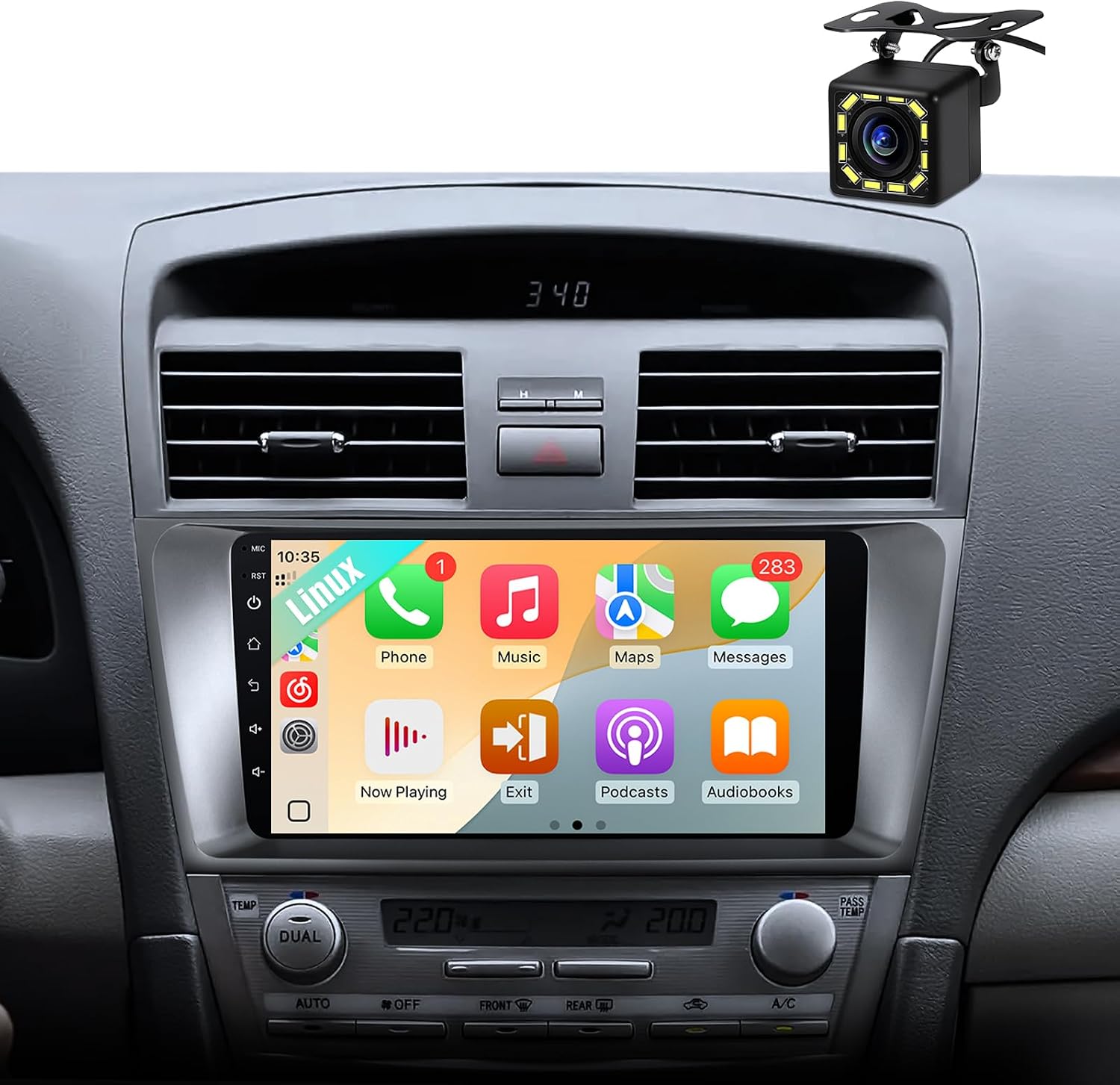
Image: The main interface of the Leadfan Linux Car Radio, displaying various application icons on its 9-inch touchscreen.
Wireless CarPlay & Android Auto
Connect your smartphone wirelessly for seamless integration of CarPlay or Android Auto. This allows access to navigation, music, calls, and messages via the car radio's display.
- Connection: Enable Bluetooth on your smartphone and pair it with the car radio. Follow the on-screen prompts to activate CarPlay or Android Auto.
- Voice Control: Use voice commands (e.g., "Hey Siri" or "OK Google") to control functions without touching the screen.

Image: A visual representation of the CarPlay and Android Auto interfaces displayed on the car radio screen, showing various app icons and connectivity options.
Wired MirrorLink
For devices not supporting wireless CarPlay/Android Auto, use the wired MirrorLink function. Connect your phone via a USB cable and follow the prompts to mirror your phone's screen onto the car radio.

Image: An illustration demonstrating the screen mirroring feature, where a smartphone's display is replicated on the car radio's larger screen via a USB connection.
Bluetooth Functions (5.1)
- Hands-free Calling: Pair your phone via Bluetooth to make and receive calls directly from the car radio. The included external microphone enhances call clarity.
- Bluetooth Music: Stream audio from your paired smartphone to the car radio.
- Call Recording: Supports synchronous call recording.

Image: A composite image showcasing the Bluetooth 5.1 capabilities, including a phone dialer on the screen, hands-free calling interface, music playback, and icons for EQ adjustment and FM radio.
Steering Wheel Control (SWC)
The unit is compatible with your vehicle's existing steering wheel controls. This allows you to manage volume, calls, and tracks without diverting attention from the road.
- Configuration: Access the SWC settings in the unit's menu to map your steering wheel buttons to specific functions.

Image: Displays a steering wheel with control buttons alongside a car radio screen showing a backup camera view, illustrating the integration of steering wheel controls and the backup camera feature.
AHD Backup Camera
When the vehicle is shifted into reverse, the display automatically switches to the rear-view camera feed, providing a clear view for safe parking and maneuvering.
- Features: Waterproof, wide-angle view, high definition, and night vision capabilities.
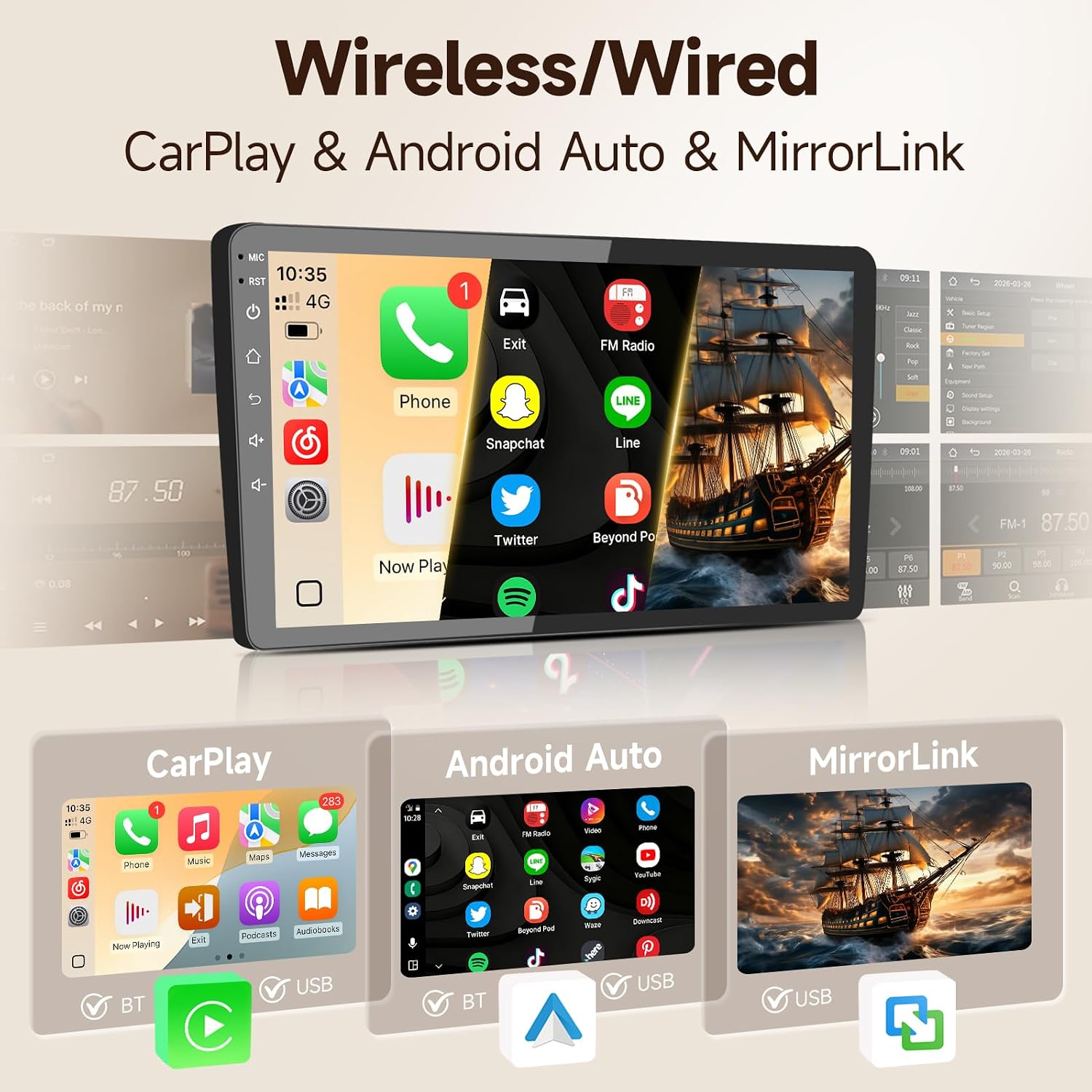
Image: A detailed view of the AHD backup camera and its display on the car radio screen, highlighting features like waterproof design, wide-angle lens, high definition, and night vision.
Audio Settings (EQ & FM)
- 10-Band EQ: Customize your audio experience with the 10-band equalizer to match your preferred music style.
- FM Radio: Access FM radio stations to listen to news, traffic updates, and music.
Maintenance
Proper maintenance ensures the longevity and optimal performance of your car radio.
- Screen Cleaning: Use a soft, lint-free cloth to gently wipe the touchscreen. Avoid abrasive cleaners or solvents that could damage the display.
- Software Updates: Periodically check the manufacturer's website or contact support for available software updates to improve performance and add new features.
- General Care: Keep the unit free from dust and moisture. Avoid exposing it to extreme temperatures.
Troubleshooting
Refer to this section for common issues and their solutions.
| Problem | Possible Cause | Solution |
|---|---|---|
| Unit does not power on. | Loose power connection, blown fuse, vehicle battery disconnected. | Check power cable connections. Inspect vehicle fuses. Ensure battery is connected. |
| No sound. | Volume too low, mute activated, speaker wiring issue. | Increase volume. Check if mute is active. Verify speaker connections. |
| CarPlay/Android Auto not connecting. | Bluetooth not paired, phone settings, incompatible phone. | Ensure Bluetooth is on and paired. Restart phone and car radio. Check phone compatibility. |
| Backup camera not displaying. | Camera cable loose, camera faulty, reverse trigger wire not connected. | Check camera cable connections. Verify reverse trigger wire connection. |
| Steering wheel controls not working. | Incorrect wiring, SWC settings not configured. | Verify SWC wiring. Configure SWC settings in the unit's menu. |
If the issue persists after attempting these solutions, please contact Leadfan customer support.
Specifications
| Feature | Detail |
|---|---|
| Model Name | Car Radio for Toyota Camry 2006-2011 |
| Operating System | Linux |
| Screen Size | 9 inches |
| Display Type | LED, Capacitive Touch Screen |
| Connectivity | Bluetooth 5.1, USB |
| Special Features | Wireless CarPlay, Wireless Android Auto, Wired MirrorLink, Steering Wheel Control (SWC), AHD Backup Camera support, 10-band EQ, FM Radio, Quick startup (within one second), Smooth operation. |
| Audio Output Mode | Stereo |
| Human-Interface Input | Microphone, Touchscreen |
| Mounting Type | Dashboard Mount |
| Compatible Vehicle Type | Toyota Camry 2006-2011 (Note: Not compatible with JBL/BOSE premium sound systems or large factory navigation screens) |
Warranty Information
The Leadfan Linux Car Radio comes with a 1-Year Warranty from the date of purchase. This warranty covers manufacturing defects and malfunctions under normal use.
Please retain your proof of purchase for warranty claims. The warranty does not cover damage caused by improper installation, misuse, accidents, or unauthorized modifications.
Customer Support
For technical assistance, troubleshooting beyond this manual, or warranty inquiries, please contact Leadfan customer support.
You can visit the official Leadfan store for more information and support resources: Leadfan Store on Amazon