
Introduction
This manual provides essential information for the setup, operation, maintenance, and troubleshooting of your VIZIO Onn 55S4V1 55-inch 4K UHD Smart TV. This television offers breathtaking 4K UHD visuals with HDR10 support, an integrated Roku platform for smart entertainment, and compatibility with smart home systems like Apple AirPlay, Google Assistant, and Amazon Alexa. It also features versatile connectivity options and a mobile app companion for enhanced control.
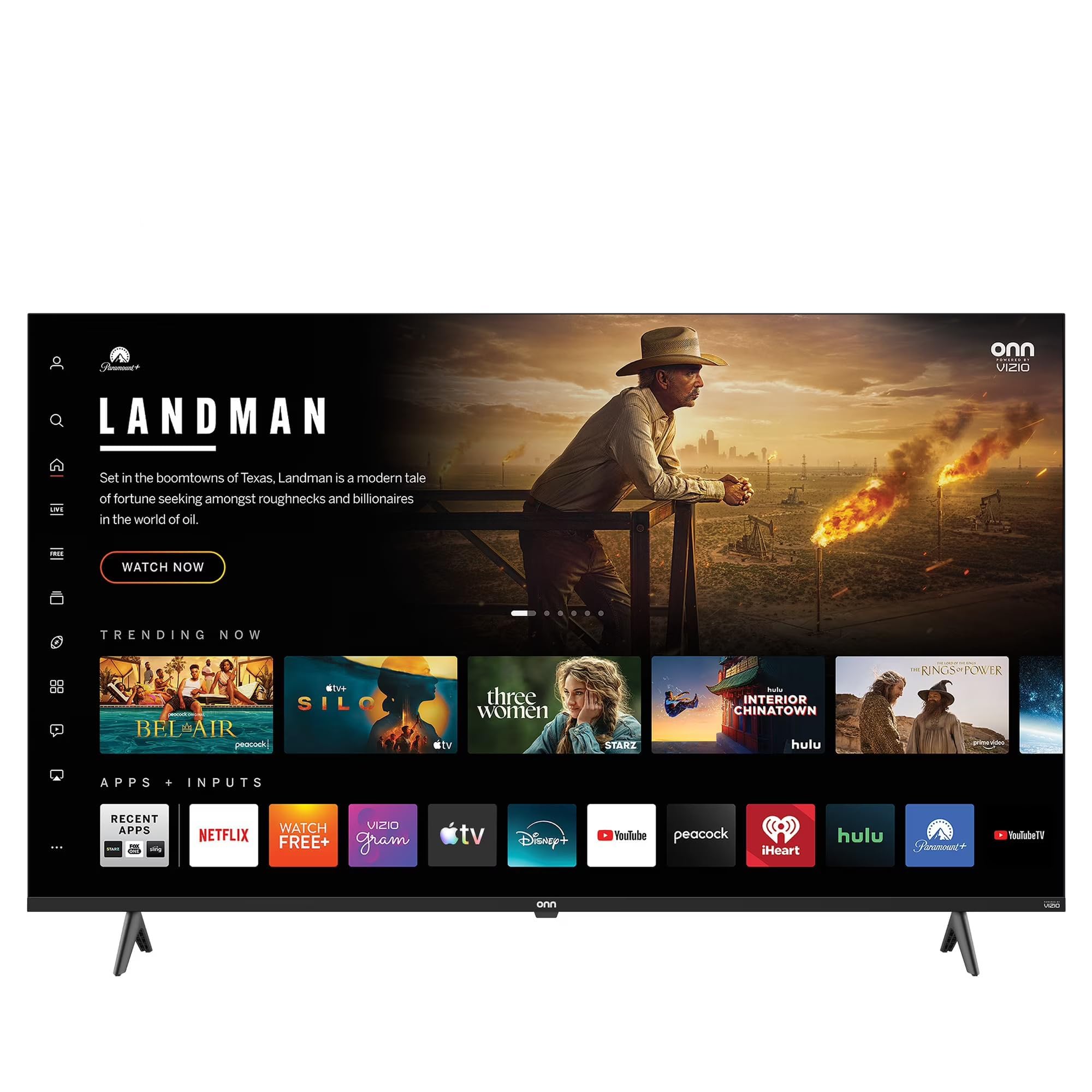
This image shows the VIZIO Onn 55S4V1 55-inch 4K UHD Smart TV powered on, displaying a web browser interface with various featured websites like Wikipedia and YouTube. The TV is mounted on a stand in a room setting.
Setup
What's in the Box
- VIZIO Onn 55S4V1 55-inch 4K UHD Smart TV
- Remote Control
- Power Cable
- TV Stand (if included)
Physical Installation
Carefully unpack the television. If using the included stand, attach it securely according to the separate stand assembly instructions. Alternatively, if wall-mounting, ensure you use a compatible VESA mount (sold separately) and follow the mount manufacturer's instructions.
Connecting Devices
Connect your external devices to the TV's ports:
- HDMI Ports (3 total, including 1 ARC): For gaming consoles (PS5/Xbox), soundbars, Blu-ray players, and other HDMI-enabled devices.
- USB Port (1 total): For connecting USB storage devices.
- Composite Input: For older devices requiring composite video and audio connections.
- Power Cable: Connect the power cable to the TV and then to a power outlet.
Initial Power On and Network Setup
After connecting all devices and power, press the power button on the remote control or TV. Follow the on-screen instructions to complete the initial setup, including selecting your language, connecting to your Wi-Fi network, and activating the Roku platform.
Smart Home Integration
Your TV is compatible with various smart home ecosystems:
- Apple AirPlay & HomeKit: Stream content from Apple devices and integrate with your Apple Home ecosystem.
- Amazon Alexa: Control your TV using voice commands through an Alexa-enabled device.
- Google Assistant: Control your TV using voice commands through a Google Assistant-enabled device.
Refer to the respective app instructions for pairing your TV with these smart home systems.
Operating Instructions
Roku Platform Navigation
The integrated Roku platform provides a user-friendly interface. Use the directional pad on your remote to navigate through menus and select channels (apps). The Home screen displays your installed channels, input selections, and featured content.
Accessing Streaming Services
The TV supports popular internet services such as Netflix, Disney+, and Hulu. Access these by selecting their respective icons on the Roku Home screen. You may need to log in with your existing account credentials.
Voice Control
If you have paired your TV with Amazon Alexa or Google Assistant, you can use voice commands to perform actions such as:
- "Alexa, turn on the TV."
- "Hey Google, open Netflix."
- "Alexa, change the volume to 20."
Roku Mobile App
Download the free Roku mobile app on your smartphone for additional features:
- Remote Control: Use your phone as a full-function remote.
- Private Listening: Listen to TV audio through headphones connected to your phone.
- Casting: Cast photos, videos, and music directly from your phone to the TV.
- Voice Search & Keyboard: Use your phone's keyboard for faster text entry and voice commands.
Maintenance
Cleaning the Screen
To clean the screen, first power off the TV and unplug it from the power outlet. Use a soft, dry, lint-free cloth to gently wipe the screen. For stubborn marks, lightly dampen the cloth with water or a specialized screen cleaner (avoid harsh chemicals or abrasive materials).
General Care
- Keep the TV in a well-ventilated area to prevent overheating.
- Avoid exposing the TV to direct sunlight, extreme temperatures, or high humidity.
- Do not place heavy objects on top of the TV.
- Regularly check for and install software updates to ensure optimal performance and security.
Troubleshooting
If you encounter issues with your TV, try the following steps before contacting support:
- No Power: Ensure the power cable is securely connected to both the TV and the power outlet. Try a different outlet.
- No Picture/Sound: Verify that the correct input source is selected. Check all cable connections (HDMI, etc.). Restart connected devices.
- Remote Not Working: Replace the batteries in the remote control. Ensure there are no obstructions between the remote and the TV's IR sensor.
- Network Connection Issues: Restart your Wi-Fi router. Go to the TV's network settings to reconnect to your Wi-Fi network.
- Picture/Sound Quality Issues: Check the resolution settings of your connected devices. Ensure cables are not damaged.
- General Glitches: Power cycle the TV by unplugging it from the wall for 60 seconds, then plugging it back in.
If problems persist, consult the VIZIO support website or contact customer service.
Specifications
| Feature | Specification |
|---|---|
| Model Name | 55S4V1 |
| Screen Size | 55 inches |
| Resolution | 4K (2160p) |
| Display Technology | LED |
| Refresh Rate | 60 Hz |
| HDR Format Supported | HDR10 |
| HDMI Ports | 3 (including 1 ARC) |
| USB Ports | 1 |
| Connectivity Technology | Bluetooth, Wi-Fi |
| Supported Internet Services | Netflix, Disney+, Hulu, Roku |
| Special Features | Bezel-Less Design, Built-In Speaker, Flat, Game Mode, Multiple Voice Assistance |
| Control Method | App, Remote, Voice |
| Color | Black |
| Manufacturer | VIZIO |
| Model Year | 2021 |
Warranty Information
This VIZIO Onn 55S4V1 Smart TV comes with a 90 days limited warranty. Please retain your proof of purchase for warranty claims. For detailed terms and conditions, refer to the warranty documentation provided with your product or visit the official VIZIO support website.
Support
For further assistance, technical support, or to access additional resources, please visit the official VIZIO support website. You can typically find FAQs, troubleshooting guides, and contact information for customer service there.
Manufacturer: VIZIO
Website: www.vizio.com/support (Example link, please verify official VIZIO support URL)


