
1. Product Overview
The JONSBO D33 is a Micro ATX desktop case designed for high compatibility and efficient cooling. It features a magnetic suction grille front panel with an elegant U-shaped bent arc and rounded corners, combining aesthetics with functionality. The case supports a wide range of components, including MATX BTF motherboards, high-end GPUs, and extensive cooling solutions.

Image: JONSBO D33 Micro ATX PC Case Product Overview.
Key features include:
- High-Efficiency Heat Dissipation: Air duct design with 9 fan positions, supporting up to a 360mm AIO liquid cooler on the top.
- Quality Craftsmanship: Front I/O Panel with aluminum alloy anodized brushed finish.
- Broad Compatibility: Supports MATX BTF motherboards, GPUs up to 435mm in length, and various PSU types (ATX PS2 / SFX).
- Compact Design: External dimensions of 455mm (D) x 238.2mm (W) x 368.4mm (H) for desktop placement.
- Tempered Glass Panel: Ultra-wide tempered glass side panel for showcasing internal components.
Video: Official JONSBO D33 Micro ATX PC Case overview, demonstrating features and design. This video provides a visual guide to the case's capabilities and aesthetics.
2. Specifications
Detailed specifications for the JONSBO D33 Micro ATX PC Case:

Image: Detailed specifications table for the JONSBO D33 case.
| Feature | Detail |
|---|---|
| Model Number | D33 BLACK STANDARD VERSION |
| Chassis Dimensions (D x W x H) | 455mm x 238.2mm x 368.4mm (Foot included) |
| Motherboard Support | Mini-ITX / Micro-ATX / MATX BTF (Compatible with back-connect mainboards) |
| Expansion Slots | 4 |
| Net Weight | 6.7kg |
| CPU Air Cooler Height | Max 172mm |
| CPU AIO Support | Top: 240mm / 360mm AIO |
| GPU Compatibility Length | Max 435mm (without front fan) |
| PSU Compatibility | ATX PS2 / SFX ≤160mm |
| Drive Bays | 2 x 3.5" HDD / 2 x 2.5" SSD (shared mounting positions) |
| Front I/O | 1 x USB3.2 Gen2 Type-C, 2 x USB3.0, 1 x Audio + Mic (2 in 1) |
| Fan Support | Top: 3 x 120mm Front: 2 x 120mm (with ATX PSU) / 2 x 140mm (with SFX PSU) Rear: 1 x 120mm Bottom: 3 x 120mm |
| Materials | Acrylonitrile Butadiene Styrene (ABS), Metal, Tempered Glass |
3. Setup and Installation
This section outlines the general steps for assembling your PC components within the JONSBO D33 case. Always refer to the specific manuals for your motherboard, power supply, and other components for detailed installation instructions.
3.1 Preparing the Case
- Unpack the Case: Carefully remove the D33 case from its packaging.
- Remove Side Panels: Locate and remove the tempered glass side panel and the solid side panel to access the interior. These are typically secured with thumbscrews or a latch mechanism.
- Identify Components: Familiarize yourself with the internal layout, including motherboard tray, PSU mounting area, drive bays, and fan mounting points.
3.2 Motherboard Installation
The D33 supports Mini-ITX, Micro-ATX, and MATX BTF motherboards.
- Install Standoffs: Ensure the correct standoffs are installed on the motherboard tray for your specific motherboard size.
- Mount Motherboard: Carefully place your motherboard onto the standoffs, aligning the screw holes. Secure it with the provided screws.
- Install CPU Cooler: If using an air cooler, install it now, ensuring it does not exceed the maximum height of 172mm. For AIO liquid coolers, install the radiator and fans in the designated top or front positions.
3.3 Power Supply Unit (PSU) Installation
The case supports ATX PS2 or SFX PSUs up to 160mm in length.
- Mount PSU: Secure your PSU in its designated bay.
- Cable Management: Route PSU cables through the case's cable management cutouts to keep the interior tidy and improve airflow.
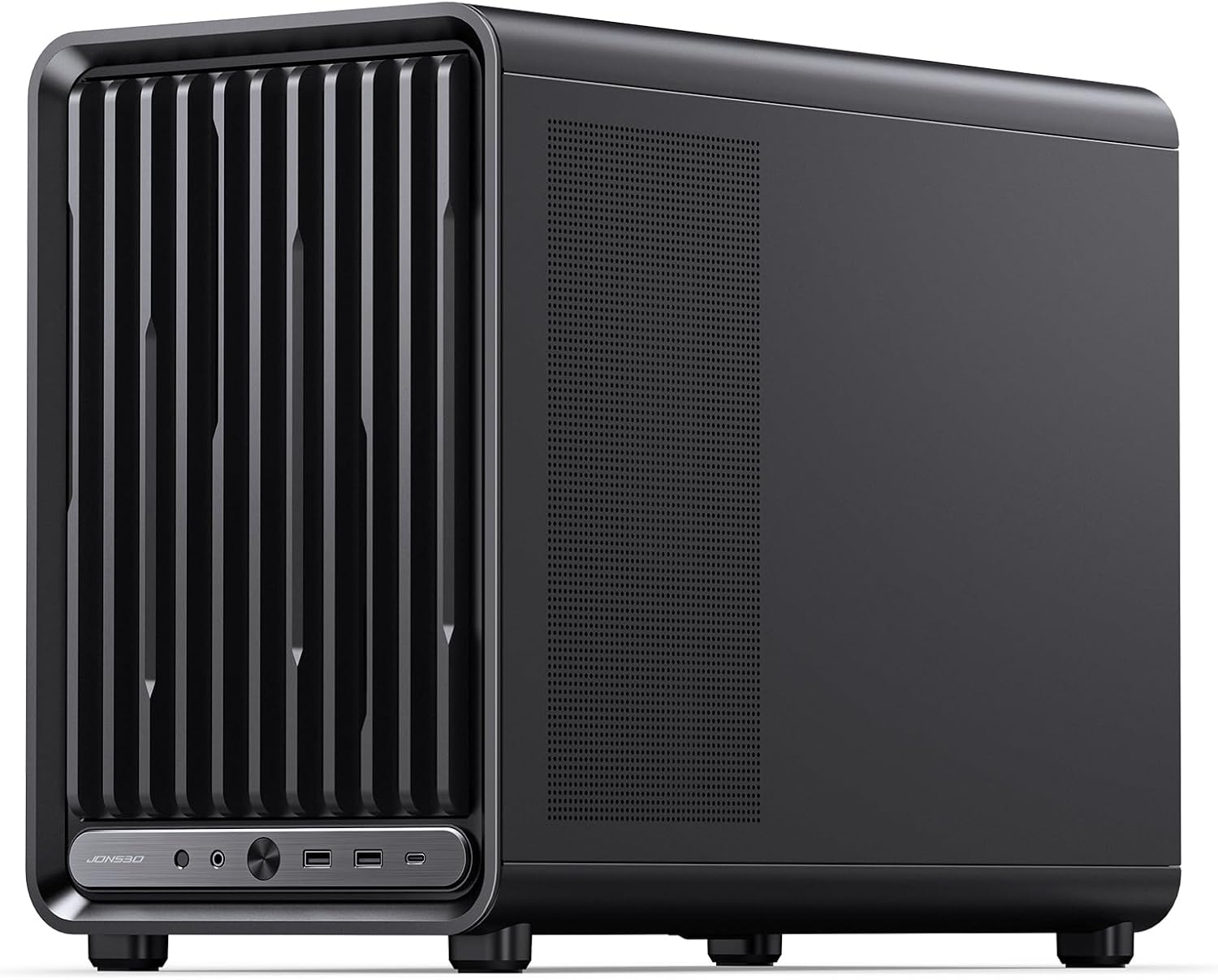
Image: Diagram illustrating fan and PSU installation options within the JONSBO D33 case, showing different configurations for ATX and SFX power supplies.
3.4 Graphics Card (GPU) Installation
The D33 supports GPUs up to 435mm in length (without front fans).
- Remove Slot Covers: Remove the necessary expansion slot covers from the rear of the case.
- Insert GPU: Carefully insert your GPU into the PCIe slot on the motherboard.
- Secure GPU: Fasten the GPU with screws. The case includes a standard GPU bracket to prevent sagging.

Image: Illustration of the standard GPU bracket and various fan/AIO cooling configurations for the JONSBO D33.
3.5 Storage Drive Installation
The case provides bays for 2 x 3.5" HDDs and 2 x 2.5" SSDs (shared mounting positions).
- Mount Drives: Secure your storage drives in the designated bays using the provided screws.

Image: Internal view of the JONSBO D33 case, highlighting the storage drive bays and mounting locations.
3.6 Fan Installation
Install additional case fans as desired for optimal airflow. Refer to the specifications for supported fan sizes and locations.
- Top: 3 x 120mm
- Front: 2 x 120mm (with ATX PSU) / 2 x 140mm (with SFX PSU)
- Rear: 1 x 120mm
- Bottom: 3 x 120mm
3.7 Connecting Front I/O Cables
Connect the front I/O panel cables (USB 3.2 Gen2 Type-C, USB 3.0, Audio/Mic) to the corresponding headers on your motherboard.

Image: Close-up of the JONSBO D33's front I/O panel and an internal view showcasing multi-fan side lighting effects.
3.8 Final Assembly
- Cable Management: Organize all internal cables to ensure optimal airflow and a clean aesthetic.
- Reattach Panels: Once all components are installed and cables managed, reattach the side panels.
4. Operating Instructions
Once your PC is fully assembled within the JONSBO D33 case, operating it is straightforward:
- Connect Peripherals: Connect your monitor, keyboard, mouse, and other peripherals to the appropriate ports on your motherboard's rear I/O panel or the case's front I/O panel.
- Power On: Connect the power cable to your PSU and a wall outlet. Press the power button on the front of the case to start your computer.
- Front I/O Usage: Utilize the front USB 3.0 and USB 3.2 Gen2 Type-C ports for convenient access to external devices. The audio and microphone jack allows for easy connection of headsets.
5. Maintenance
Regular maintenance helps ensure optimal performance and longevity of your PC components and case.
- Dust Cleaning: Periodically clean dust filters and internal components using compressed air. Dust accumulation can impede airflow and lead to overheating.
- Exterior Cleaning: Wipe the exterior surfaces with a soft, damp cloth. Avoid harsh chemicals that may damage the finish.
- Cable Management Check: Occasionally check internal cable routing to ensure no cables are obstructing fan blades or airflow paths.
- Fan Inspection: Ensure all fans are spinning freely and quietly. Replace any noisy or malfunctioning fans.
6. Troubleshooting
This section addresses common issues you might encounter with your PC case setup.
6.1 No Power
- Check Power Connections: Ensure the PSU is properly connected to the wall outlet and the motherboard (24-pin and CPU power).
- Front Panel Connectors: Verify that the power button cable from the case is correctly connected to the motherboard's front panel header.
- PSU Switch: Confirm the power switch on the back of the PSU is in the 'ON' position.
6.2 Overheating Issues
- Airflow: Ensure fans are installed correctly, pushing air in and out of the case in an efficient manner.
- Dust Buildup: Clean dust filters and internal components regularly.
- Fan Speed: Check fan speeds in your motherboard's BIOS/UEFI or operating system software.
6.3 Front I/O Ports Not Working
- Cable Connections: Verify that the USB and audio cables from the front I/O panel are securely connected to the correct headers on your motherboard.
- Driver Installation: Ensure all necessary motherboard drivers, especially for USB and audio, are installed.
7. Warranty and Support
For warranty information and technical support regarding your JONSBO D33 Micro ATX PC Case, please refer to the official JONSBO website or contact their customer service directly. Keep your proof of purchase for any warranty claims.
You can visit the Jonsbo Store for more information: Jonsbo Official Store


