
1. Introduction and Overview
The STRONG LEAP-NOVA-X TV Stick is a compact streaming device designed to transform any television with an HDMI port into a 4K Ultra HD smart TV. It operates on Android 14, offering access to over 5000 streaming applications. Key features include Dolby Vision, HDR10+ for superior picture quality, Dolby Audio for immersive sound, Wi-Fi 6 for stable connectivity, and integrated Chromecast for easy content sharing. The device also supports voice control via its included remote.
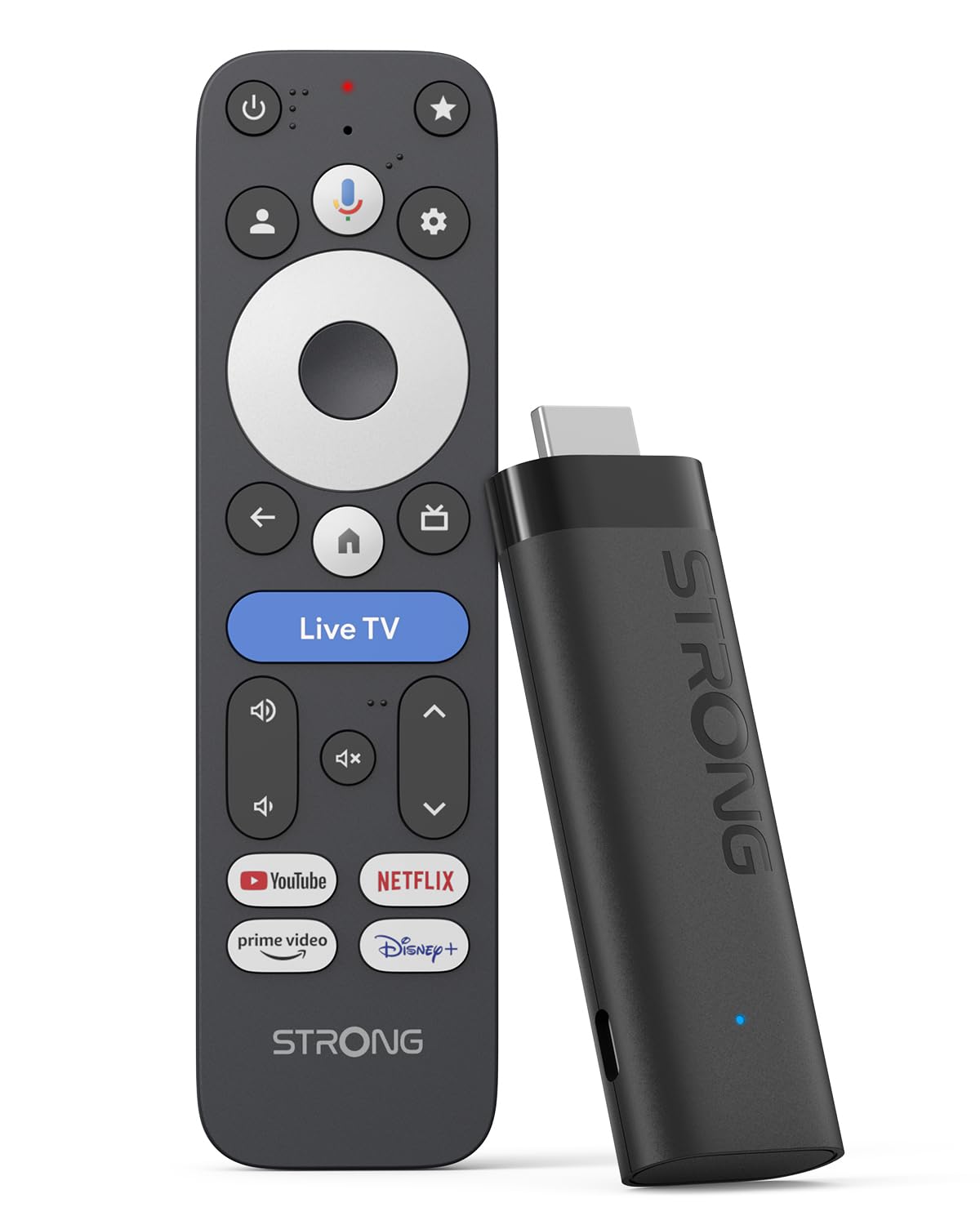
Image: The STRONG LEAP-NOVA-X TV Stick, a compact black streaming device.
2. What's in the Box
Carefully unpack the box and ensure all items are present:
- 1x TV Stick LEAP-NOVA-X
- 1x 10W 5V/2A Power Adapter
- 1x 1m USB-C Power Cable
- 1x HDMI Extension Cable
- 1x Quick Guide
- 1x Remote Control
- 2x AAA Batteries

Image: The contents of the STRONG LEAP-NOVA-X TV Stick package, including the TV stick, power adapter, USB-C cable, HDMI extension cable, quick guide, remote control, and AAA batteries.
3. Setup Instructions
Follow these steps to set up your STRONG LEAP-NOVA-X TV Stick:
- Connect to TV: Insert the LEAP-NOVA-X TV Stick directly into an available HDMI port on your television. If space is limited, use the provided HDMI extension cable.
- Power On: Connect the USB-C power cable to the TV Stick and the other end to the power adapter. Plug the power adapter into a wall outlet.
- Select HDMI Input: Turn on your TV and use your TV remote to select the correct HDMI input source to which the TV Stick is connected.
- Pair Remote Control: Insert the two AAA batteries into the provided remote control. Follow the on-screen instructions to pair the remote with your TV Stick.
- Connect to Wi-Fi: Once the initial setup screen appears, follow the prompts to connect your TV Stick to your home Wi-Fi network. Enter your Wi-Fi password when requested.
- Google Account Setup: Sign in with your Google account to access Google TV features, download apps, and personalize your experience.
- Start Streaming: After completing the setup, you can begin exploring apps and streaming content.

Image: A three-step visual guide demonstrating how to set up the TV Stick: 1. Connect to TV's HDMI port, 2. Connect to Wi-Fi, 3. Start streaming.
4. Operating Instructions
4.1 Navigating Google TV
The LEAP-NOVA-X TV Stick uses the Google TV interface, which organizes content from all your streaming services into one personalized home screen. Use the directional pad on your remote to navigate through menus, select apps, and browse content.

Image: A television displaying the Google TV interface with various streaming app icons, including Netflix, Disney+, and YouTube.
4.2 Voice Control with Google Assistant
The included remote control features a dedicated button for Google Assistant. Press and hold this button, then speak your command or question. You can ask to find movies, launch apps, control playback, or get information.

Image: A woman using the voice control feature of the remote to interact with Google Assistant on the TV, displaying voice commands like 'Play my favorite playlist on YouTube' and 'Show me trending movies'.
4.3 Chromecast Built-in
The LEAP-NOVA-X TV Stick has Chromecast built-in, allowing you to cast content directly from your compatible smartphone, tablet, or computer to your TV screen. Look for the Cast icon (cast) within supported apps on your mobile device.

Image: Multiple screens (TV, tablet, smartphone) displaying a basketball game, illustrating the Google Cast (Chromecast) feature for sharing content across devices.
4.4 App Installation
Access the Google Play Store directly from your TV Stick to download and install additional streaming apps, games, and utilities. With 32GB of internal storage, you have ample space for numerous applications.
5. Key Features
5.1 Android 14 Operating System
Experience a smarter and faster interface with the integrated Android 14 operating system. This provides ultra-fluid entertainment and optimized background performance for a responsive user experience.

Image: A side-by-side comparison showing the faster performance of Android 14 on the LEAP-NOVA-X TV Stick versus an older Android version, illustrated by a racing game.
5.2 4K UHD with Dolby Vision and HDR10+
Enjoy stunning 4K Ultra HD resolution (3840 x 2160 pixels) with exceptional clarity and detail. Support for Dolby Vision and HDR10+ delivers extraordinary contrast, vibrant colors, and enhanced brightness for a cinematic viewing experience.

Image: A man watching an action movie with fighter jets on a television, illustrating the immersive visual experience with Dolby Vision.
5.3 Dolby Audio
Immerse yourself in rich, clear, and powerful sound with Dolby Audio support. This technology enhances your audio experience, making movies, music, and games more engaging.

Image: A couple enjoying a concert on television, with sound waves emanating from the screen, highlighting the Dolby Audio experience.
5.4 Wi-Fi 6 and Bluetooth 5.2
The device features Wi-Fi 6 for ultra-stable and low-latency 4K streaming, even in congested network environments. Bluetooth 5.2 ensures reliable connectivity with accessories like headphones, game controllers, and speakers.

Image: A split screen showing a smooth streaming experience with Wi-Fi 6 and Bluetooth 5.2 (right) versus a buffering experience with older Wi-Fi 5 and Bluetooth 5.0 (left), using an animated movie scene.
5.5 32GB Storage and 2GB RAM
With 32GB of internal storage, you can install dozens of apps and games without worrying about running out of space. The 2GB of RAM ensures smooth operation and quick transitions between applications.

Image: A visual comparison between a standard 2+8GB TV stick and the STRONG LEAP-NOVA-X with 2GB RAM + 32GB Storage, highlighting the increased memory capacity.
6. Specifications
| Model Name | LEAP-NOVA X |
| Brand | Strong |
| Connectivity Technology | HDMI |
| Resolution | 4K UHD (3840 x 2160 pixels) |
| Operating System | Android 14 (Google TV) |
| RAM | 2 GB |
| Storage Capacity | 32 GB |
| Special Features | Google TV, Chromecast, Dolby Vision & Audio, HDR10+, Wi-Fi 6, Bluetooth 5.2, HDMI 2.1, Voice Control |
| Controller Type | Voice Control, Remote Control |
| Dimensions (L x W x H) | 9L x 3W x 1.5H cm |
| Color | Black |
7. Troubleshooting
If you encounter issues with your STRONG LEAP-NOVA-X TV Stick, refer to the following common troubleshooting steps:
- No Power/No Display:
- Ensure the power adapter is securely connected to the TV Stick and a working power outlet.
- Verify that your TV is on the correct HDMI input source.
- Try a different HDMI port on your TV.
- Remote Control Not Responding:
- Check if the AAA batteries are correctly inserted and have sufficient charge. Replace if necessary.
- Re-pair the remote control by following the initial setup instructions or consulting the Quick Guide.
- Wi-Fi Connectivity Issues:
- Ensure your Wi-Fi router is on and functioning correctly.
- Restart your Wi-Fi router and the TV Stick.
- Go to the TV Stick's network settings and re-enter your Wi-Fi password.
- Move the TV Stick closer to your Wi-Fi router if possible, or ensure no major obstructions are blocking the signal.
- App Crashing or Freezing:
- Close and restart the problematic application.
- Clear the cache for the app in the TV Stick's settings (Settings > Apps > [App Name] > Clear Cache).
- Ensure the app and the TV Stick's operating system are updated to the latest versions.
- If the issue persists, try uninstalling and reinstalling the app.
- Poor Picture/Sound Quality:
- Check your internet connection speed; 4K streaming requires a stable and fast connection.
- Ensure your TV supports 4K UHD, HDR10+, and Dolby Vision for optimal visual quality.
- Verify that your TV's audio settings are correctly configured for Dolby Audio.
8. Maintenance
To ensure the longevity and optimal performance of your STRONG LEAP-NOVA-X TV Stick:
- Keep the device in a well-ventilated area to prevent overheating.
- Regularly check for and install system and app updates to benefit from new features and security patches.
- Clean the device with a soft, dry cloth. Avoid using liquid cleaners or abrasive materials.
- Do not expose the device to extreme temperatures, humidity, or direct sunlight.
9. Warranty and Support
The STRONG LEAP-NOVA-X TV Stick comes with a 2-year manufacturer's warranty. Please retain your proof of purchase for warranty claims.
For technical support, product information, or warranty inquiries, please refer to the contact information provided in your Quick Guide or visit the official Strong website.


