
1. Setup Guide
1.1 Unboxing and Package Contents
Carefully unpack your LG OLED77C6HUP TV. Ensure all components listed below are present. Retain the packaging materials for future transport or service needs.
- LG 77-Inch Class OLED evo AI 4K C6 Series Smart TV
- Magic Remote
- Remote Control Batteries (2 AAA)
- Power Cable
- Stand Components
- User Manual (this document)
- Quick Start Guide

Image: LG OLED evo AI TV showing overall dimensions and included accessories.
1.2 Stand Installation
If you are not wall-mounting the TV, attach the included stand. Follow the instructions provided in the Quick Start Guide for secure assembly. The stand footprint is 20.5 inches wide.

Image: Detailed view of the TV stand base.
1.3 Wall Mounting
For wall mounting, use a VESA compatible mount with a standard of 300 x 200 mm. Consult a professional for installation to ensure safety and proper mounting.

Image: Side profile of the LG OLED TV, illustrating its thin design suitable for wall mounting.
1.4 Connecting Peripherals
Connect your external devices to the TV's ports. The TV features 4 HDMI ports, 2 USB 2.0 ports, 1 USB 3.0 port, an Ethernet port, and an antenna input.
- HDMI: For Blu-ray players, gaming consoles, and set-top boxes.
- USB: For external storage devices or compatible accessories.
- Ethernet (LAN): For a wired internet connection.
- Antenna/Cable: For over-the-air broadcasts or cable TV.

Image: Rear view of the LG OLED TV highlighting the connectivity ports.
1.5 Remote Control Battery Installation
Open the battery compartment on the back of the Magic Remote. Insert two AAA batteries, ensuring correct polarity (+/-). Close the compartment securely.
1.6 Initial Power On and webOS Setup
Connect the power cable to the TV and a wall outlet. Press the power button on the remote or TV. Follow the on-screen instructions to complete the initial setup of webOS, including network connection, channel scanning, and basic settings.
2. Operating Your TV
2.1 Basic Functions
- Power: Press the power button on the remote to turn the TV on or off.
- Volume: Use the volume up/down buttons to adjust the sound level.
- Channel: Use the channel up/down buttons to change channels or navigate lists.
- Input: Press the input button to select connected devices (HDMI, USB, etc.).
2.2 Smart TV Features (webOS)
Your TV runs on the webOS operating system, providing access to various streaming services and smart features. Use the Magic Remote to navigate the intuitive interface.

Image: The webOS smart TV platform interface, showcasing available applications and content.
AI Hub for Personalization
The AI Hub, accessible via the AI button on your remote, offers personalized AI experiences including Multi AI Search, AI Concierge, AI Picture Wizard, AI Sound Wizard, AI Voice ID, and AI Chatbot.
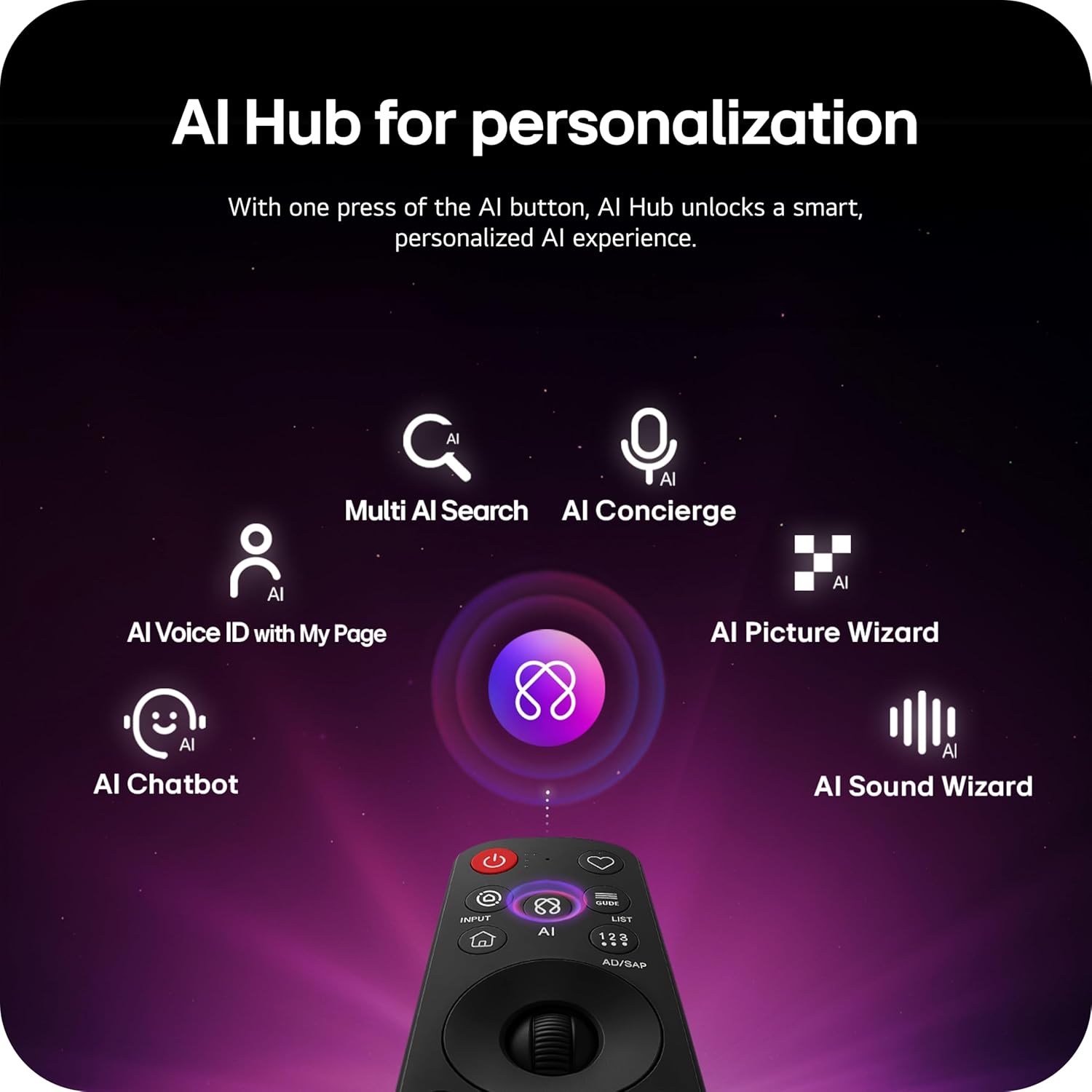
Image: Magic Remote highlighting the AI button and various AI Hub features.
Multi AI Search with Google Gemini and Microsoft Copilot
Utilize the Multi AI search function to find content and information across multiple AI models, including Google Gemini and Microsoft Copilot, for broader and more relevant results.
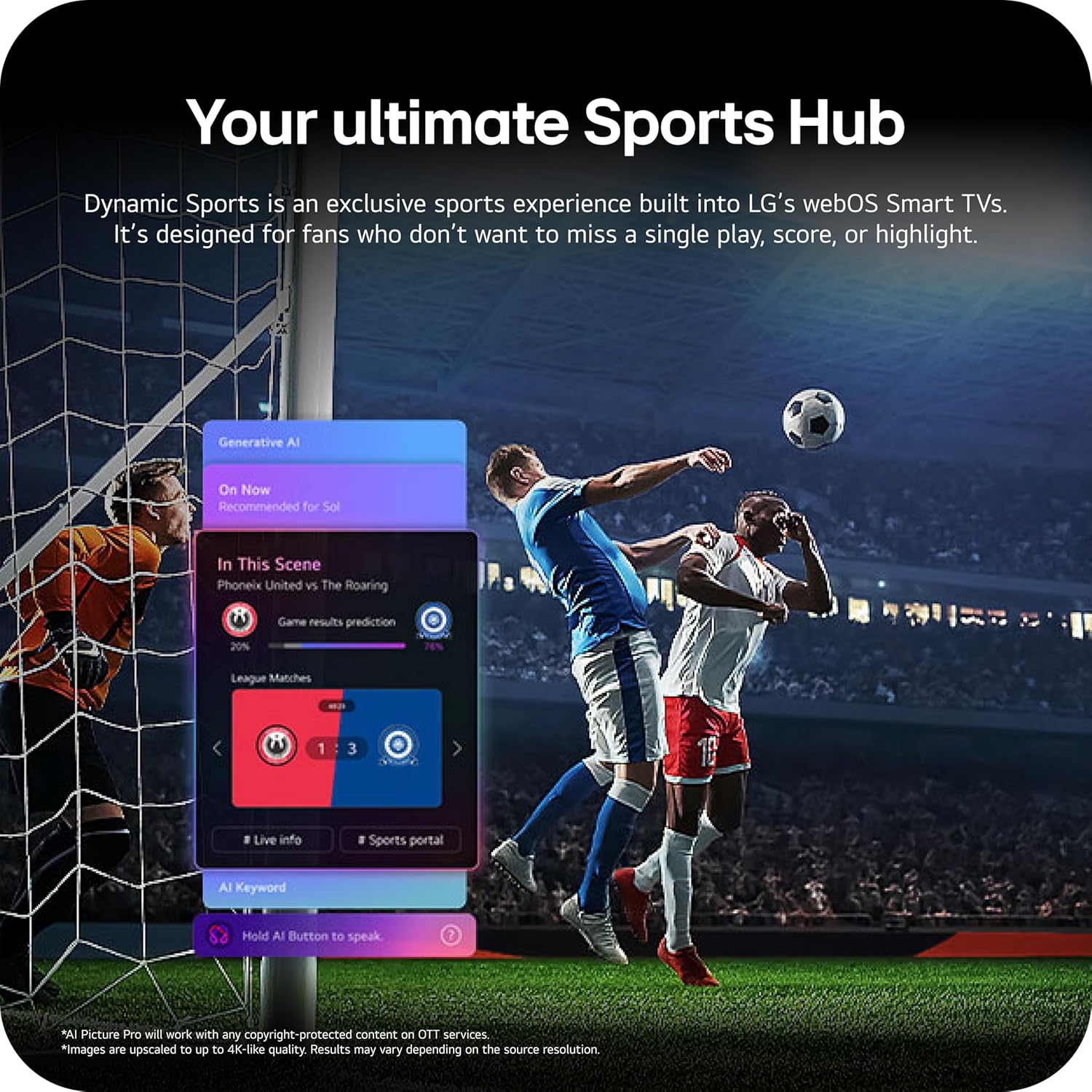
Image: Multi AI search interface displaying integration with Google Gemini and Microsoft Copilot.
2.3 Picture Settings
Your LG OLED TV offers advanced picture technologies for optimal viewing.
- Brightness Booster Pro: Magnifies each pixel to shine up to 3.2 times brighter for enhanced luminosity.
- Perfect Black and Perfect Color: Over 8.3 million self-lit pixels deliver perfect black levels and accurate colors in any lighting condition.
- Dolby Vision, HDR10, HLG: Supports multiple HDR formats for extraordinary color, contrast, and brightness.
- Filmmaker Mode: Preserves the director's original vision by disabling post-processing effects.
- AI Picture: The a11 AI Processor Gen3 optimizes picture quality in real-time.
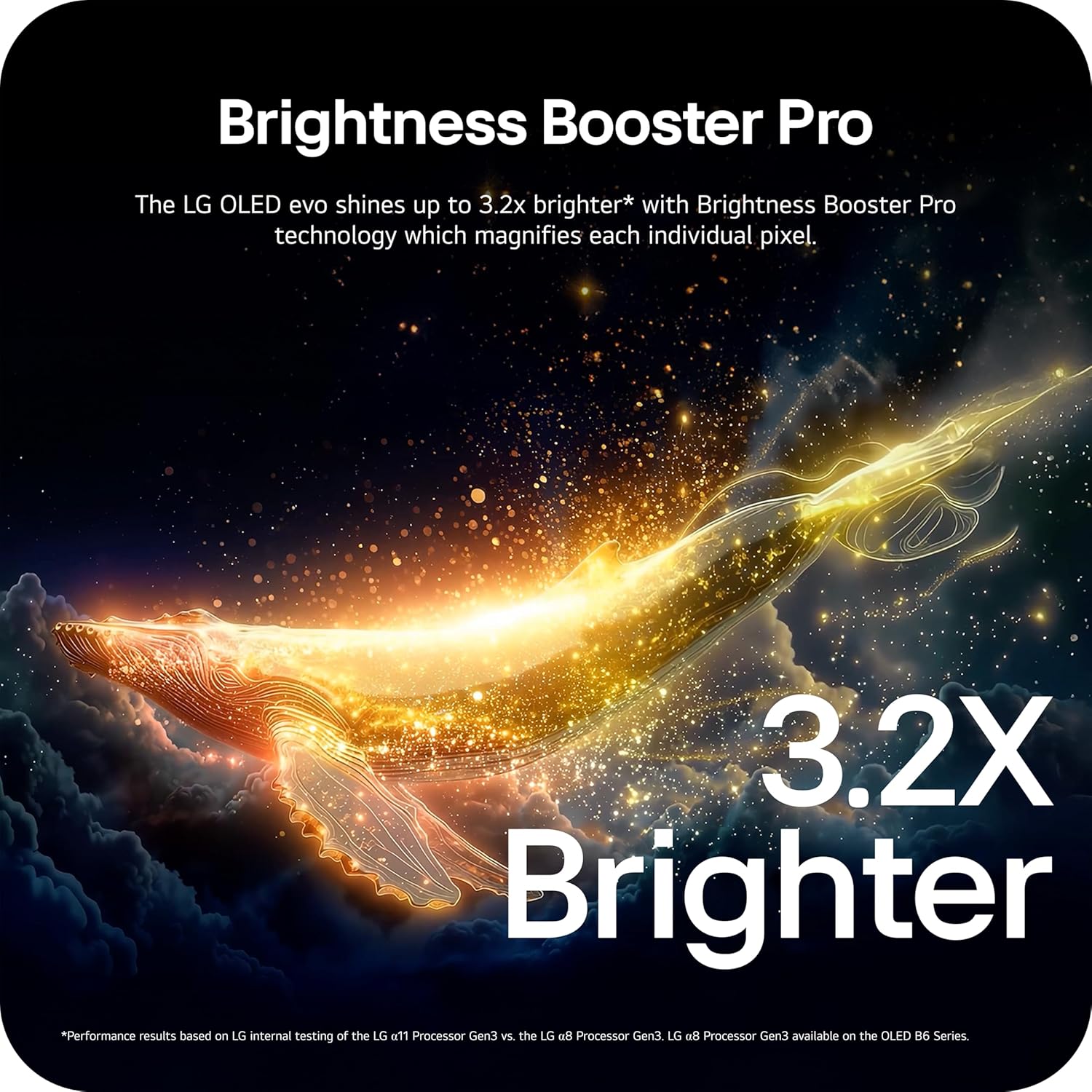
Image: Visual representation of Brightness Booster Pro technology, illustrating increased brightness.

Image: Display demonstrating Perfect Black and Perfect Color capabilities in various light conditions.
2.4 Sound Settings
Experience immersive audio with your TV's sound features.
- Dolby Atmos: Provides multi-dimensional sound that moves around you.
- Wow Orchestra: Integrates the TV's speakers with a compatible LG soundbar for an enhanced audio experience.
2.5 Gaming Features
The TV is equipped with features for an optimal gaming experience.
- 165Hz Refresh Rate: Supports high frame rates for smooth gameplay.
- 0.1ms Response Time: Minimizes input lag for quick reactions.
- NVIDIA G-Sync & AMD FreeSync Premium: Reduces screen tearing and stuttering for fluid visuals.

Image: Dynamic gaming visual highlighting the 165Hz refresh rate and G-Sync/FreeSync compatibility.
2.6 Sports Hub
The Dynamic Sports Hub provides an exclusive sports experience, ensuring you don't miss any key moments, scores, or highlights.

Image: Screenshot of the Dynamic Sports Hub interface during a live soccer game.
3. Maintenance and Care
3.1 OLED Care
To maintain the best picture quality and longevity of your OLED display, utilize the built-in OLED Care features. These features help protect the display from potential issues over time.
3.2 Cleaning Instructions
- Screen: Gently wipe the screen with a soft, dry, microfiber cloth. For stubborn marks, lightly dampen the cloth with distilled water. Avoid harsh chemicals or abrasive materials.
- TV Body: Use a soft, dry cloth to clean the frame and stand.
- Remote Control: Wipe with a soft, dry cloth.
3.3 Software Updates
Ensure your TV's software is up-to-date for optimal performance and new features. webOS 26 automatically downloads updates for up to 5 years. If auto-update is disabled, you will receive a notification to accept or deny updates. An LG account is required to access network-based smart services.
3.4 LG Shield Security
LG Shield provides digital protection against malware, viruses, and other cyber threats through real-time scanning and automatic updates. An LG account is required to access network-based smart services.

Image: LG Shield security feature, represented by shield and lock icons, indicating digital protection.
4. Troubleshooting Common Issues
This section addresses common problems you might encounter with your TV. If the issue persists, contact customer support.
| Problem | Possible Solution |
|---|---|
| No Power | Ensure the power cable is securely connected to both the TV and a working electrical outlet. Test the outlet with another device. |
| No Picture / Black Screen | Check if the TV is turned on. Verify the correct input source is selected. Ensure all HDMI cables are securely connected. Try restarting the TV by unplugging it for 30 seconds and plugging it back in. |
| No Sound | Check the volume level and ensure the TV is not muted. Verify external audio devices (soundbar, receiver) are properly connected and powered on. Check audio output settings in the TV menu. |
| Remote Control Not Responding | Replace the batteries in the Magic Remote. Ensure there are no obstructions between the remote and the TV. Re-pair the remote if necessary (refer to the Quick Start Guide). |
| Network Connectivity Issues (Wi-Fi/Ethernet) | Check your router and modem to ensure they are working correctly. Restart your network equipment. Re-enter Wi-Fi password or check Ethernet cable connection. |
| Picture Quality Issues (e.g., motion blur, color smearing) | Adjust picture settings (e.g., sharpness, color, motion interpolation). Ensure Filmmaker Mode is off if you prefer motion smoothing. Check the source content quality. |
5. Technical Specifications
Below are the key technical specifications for the LG OLED77C6HUP TV.
| Feature | Specification |
|---|---|
| Model Number | OLED77C6HUP |
| Screen Size | 77 Inches |
| Display Technology | OLED (Self-Luminous Pixels) |
| Resolution | 4K (3840 x 2160) |
| Refresh Rate | 120 Hz (Native), up to 165 Hz (PC Gaming) |
| Processor | a11 AI Processor 4K Gen3 |
| HDR Support | Dolby Vision, HDR10, HLG |
| Response Time | 0.1 Milliseconds |
| Operating System | webOS |
| Audio Output | 2.2 Channel, Dolby Atmos |
| HDMI Ports | 4 |
| USB Ports | 2 (USB 2.0), 1 (USB 3.0) |
| Connectivity | Wi-Fi, Bluetooth 5.3, Ethernet |
| Screen Mirroring | AirPlay, Google Cast |
| VESA Mount Standard | 300 x 200 mm |
| Product Dimensions (with stand) | 67.4"W x 40.7"H x 10.5"D |
| Product Dimensions (without stand) | 67.4"W x 38.7"H x 1.9"D |
| Item Weight (with stand) | 59.5 Pounds |
| Item Weight (without stand) | 51.8 Pounds |
6. Warranty Information
Your LG OLED77C6HUP TV comes with a 1 Year Parts and Labor limited warranty. Please retain your proof of purchase for warranty claims. For detailed terms and conditions, refer to the warranty card included with your product or visit the official LG website.
7. Customer Support
For further assistance, technical support, or service inquiries, please visit the official LG support website or contact their customer service. You can also refer to the comprehensive User Manual (PDF) available for download on the LG support page.
LG Support Website: https://www.lg.com/us/support
User Manual (PDF): Download PDF