
Introduction
This manual provides essential information for the setup, operation, maintenance, and troubleshooting of your Hisense 50S7SG CanvasTV Series 4K UHD Google Smart Art TV. The CanvasTV is designed to seamlessly integrate art and entertainment into your living space, featuring a Hi-Matte Display to reduce glare, an Art Mode for displaying digital artwork, and an UltraSlim Wall Mount for a flush installation. Please read this manual thoroughly before using your television to ensure proper and safe operation.
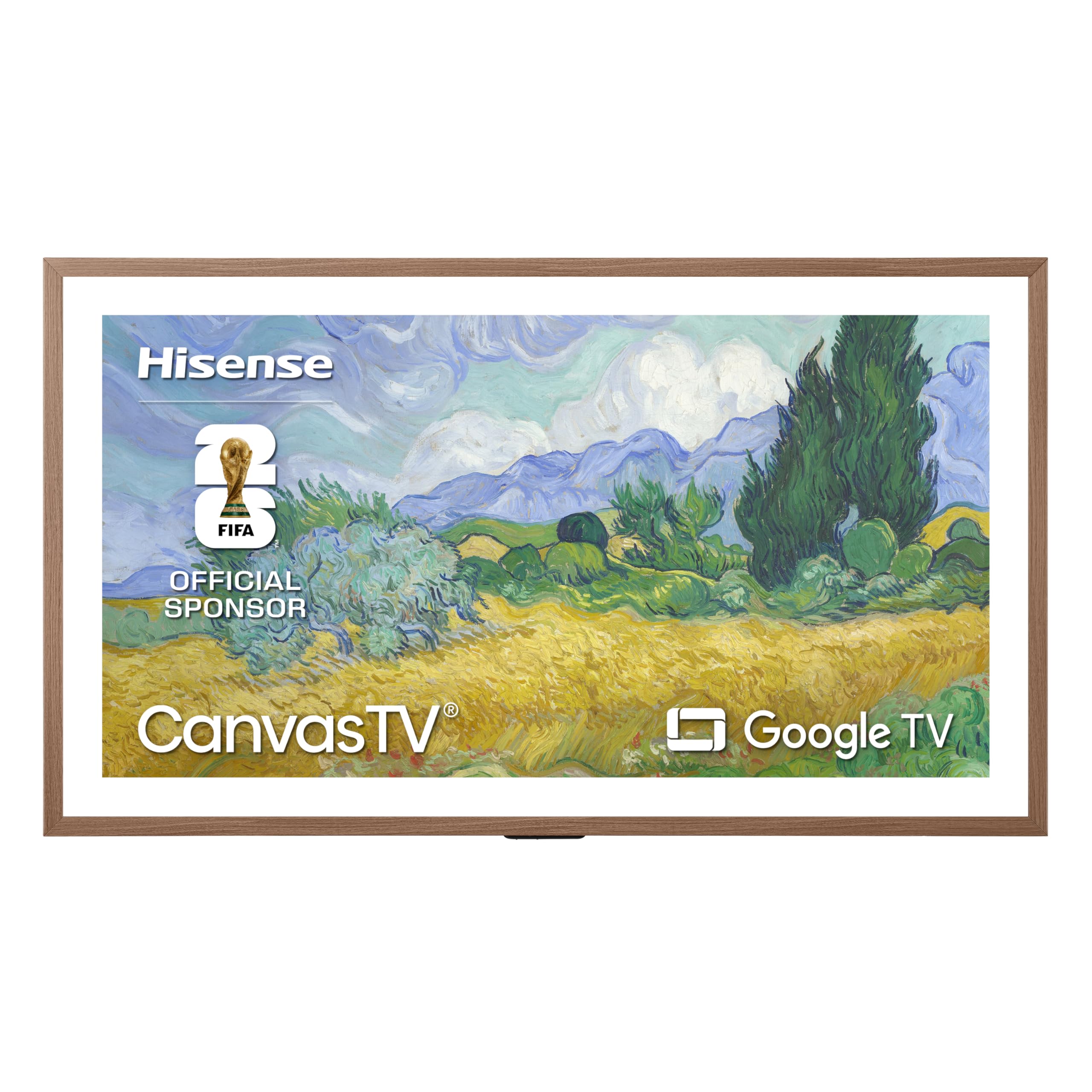
Figure 1: Hisense 50S7SG CanvasTV showcasing digital art in a living room setting.
What's in the Box
Carefully unpack your Hisense CanvasTV and ensure all components are present. The package should contain the following items:
- Hisense 50S7SG CanvasTV Unit
- Power Cable
- Remote Control
- TV Stand (if not wall-mounting)
- Quick Start Guide (QSG)
- UltraSlim Wall Mount Kit
- Teak Frame (for aesthetic enhancement)
Setup
1. Unpacking and Placement
Remove the TV from its packaging. It is recommended to have two people for safe handling. Choose a suitable location for your TV, considering viewing angles, power access, and ventilation. Ensure the surface is stable if using the stand, or the wall is structurally sound if wall-mounting.
2. Stand Installation (Optional)
If you choose not to wall-mount, attach the included TV stand according to the instructions in the Quick Start Guide. Ensure all screws are securely fastened.
3. UltraSlim Wall Mount and Teak Frame Installation
The CanvasTV comes with an UltraSlim Wall Mount designed for a flush, art-like appearance. Follow the detailed instructions provided with the wall mount kit for secure installation. Once mounted, the magnetic Teak Frame can be easily attached to the TV's edges to complete the aesthetic.
Video 1: This video demonstrates the installation process of the Hisense CanvasTV, including mounting it on the wall and initial setup steps.
4. Initial Power On and Network Connection
Connect the power cable to the TV and a power outlet. Press the power button on the remote control. Follow the on-screen prompts to select your language, connect to your Wi-Fi network, and complete the initial Google TV setup.
Video 2: This video shows the initial power-on sequence and the process of customizing remote control buttons for quick access to applications.
Operating
1. Basic Controls
Use the included remote control to navigate the TV's interface. The remote features dedicated buttons for power, volume, channel selection, input source, and direct access to streaming services and Art Mode.
2. Google TV Interface
Your CanvasTV runs on Google TV, providing a centralized platform for streaming content from various apps and services. The interface offers personalized recommendations and voice control via Google Assistant.
Video 3: This video provides an overview of the Google TV interface, demonstrating navigation through apps and content.
3. Art Mode
Transform your TV into a digital art display when not in use. Access Art Mode to browse over 1,000 free artworks across various styles or upload your own photos via USB or the Art Gallery app. You can set up slideshows or select individual pieces to display.

Figure 2: The Art Gallery feature allows selection from a wide range of digital artworks.
Video 4: This video showcases the Art Mode functionality, demonstrating how to browse and select different art pieces for display.
4. Hi-Matte Display
The Hi-Matte Display features an anti-glare panel that significantly reduces reflections and glare from ambient light sources, ensuring a clear and immersive viewing experience for both TV content and digital art.

Figure 3: The Hi-Matte Display minimizes reflections, enhancing the visual quality of displayed content.
5. AI Ambient Light Sensor
The built-in AI Ambient Light Sensor automatically detects the room's lighting conditions and adjusts the TV's brightness and color temperature accordingly. This ensures optimal picture quality and a natural viewing experience throughout the day.

Figure 4: The AI Ambient Light Sensor dynamically adjusts display settings for optimal viewing.
6. Motion Detector
The Motion Detector feature activates the display when movement is detected in the room and turns it off when no one is present. This conserves energy and ensures the Art Mode is only active when appreciated.

Figure 5: The Motion Detector intelligently manages display activity to save energy.
7. Sound Features
Experience immersive audio with 2.0.2 Multi-Dimensional Sound and DTS Virtual:X technology. This system delivers room-filling sound with virtual height effects, enhancing your movie, gaming, and music experiences.

Figure 6: The 2.0.2 Multi-Dimensional Sound system provides an immersive audio experience.
Maintenance
1. Cleaning the Screen and Frame
To clean the screen, gently wipe it with a soft, lint-free cloth. For stubborn marks, slightly dampen the cloth with water or a screen-specific cleaning solution. Avoid harsh chemicals. For the frame, use a dry, soft cloth to remove dust.
2. Software Updates
Ensure your TV's software is up-to-date for optimal performance and security. The TV will typically prompt you for available updates. You can also manually check for updates in the settings menu.
Troubleshooting
If you encounter issues with your Hisense CanvasTV, refer to the following common problems and solutions:
| Problem | Possible Solution |
|---|---|
| No Power | Check if the power cable is securely connected to both the TV and the power outlet. Ensure the outlet is functional. |
| No Picture, but Sound is Present | Verify the input source is correctly selected. Check external device connections (HDMI, etc.). |
| No Sound, but Picture is Present | Check the volume level and mute status. Ensure external audio devices are properly connected and configured. |
| Remote Control Not Working | Replace the batteries. Ensure there are no obstructions between the remote and the TV. Re-pair the remote if necessary. |
| Wi-Fi Connection Issues | Restart your router and modem. Check Wi-Fi settings on the TV and ensure the password is correct. |
Specifications
Below are the technical specifications for the Hisense 50S7SG CanvasTV:
| Feature | Detail |
|---|---|
| Screen Size | 50 inches |
| Brand | Hisense |
| Display Technology | LED, QLED |
| Resolution | 4K UHD |
| Refresh Rate | 60 Hz |
| Special Features | Art Mode, Game Mode, Hi-Matte Display, AI Ambient Light Sensor, Motion Detector |
| Included Components | TV, Power Cable, QSG, Remote Control, Stand, UltraSlim Wall Mount |
| Connectivity | Bluetooth 5.4, Ethernet, HDMI (4 ports), USB (2 ports), Wi-Fi |
| Product Dimensions (DxWxH) | 1.1"D x 43.8"W x 25.7"H |
| Item Weight | 31.7 pounds (with stand), 29.1 pounds (without stand) |
| HDR Format Supported | Dolby Vision, Dolby Vision IQ, HDR10+, HDR10, HLG |
| Audio Output Mode | Surround (2.0.2 channel with DTS Virtual:X) |
| Operating System | Google TV |
| VESA Mount Standard | 300 x 200 mm |
Warranty and Support
Warranty Information
Your Hisense 50S7SG CanvasTV is covered by a 2-year manufacturer's warranty. This warranty covers defects in materials and workmanship under normal use. Please retain your proof of purchase for warranty claims.
Customer Support
For technical assistance, troubleshooting, or warranty service, please contact Hisense customer support. Refer to the Quick Start Guide or the official Hisense website for the most current contact information.


