
1. Introduction
This manual provides essential information for the safe and efficient use of your Blackview Wave7C SIM-Free Smartphone. Please read it carefully before using your device and keep it for future reference.
The Blackview Wave7C is a feature-rich smartphone designed for daily use, offering a large display, efficient performance, and a long-lasting battery.
2. Setup
2.1. SIM Card and TF Card Installation
The Blackview Wave7C supports dual SIM cards and a TF (microSD) card for expandable storage. Use the provided SIM ejector tool to open the SIM tray.

Image: SIM tray showing slots for two SIM cards and one TF card.
- Locate the SIM tray on the side of the device.
- Insert the SIM ejector tool into the small hole next to the tray and push gently until the tray pops out.
- Place your Nano-SIM cards and TF card into the designated slots on the tray, ensuring the gold contacts face downwards.
- Carefully reinsert the tray into the device.
Important: Before purchasing, verify your SIM card's frequency bands are compatible with the device (2G: B2/B3/B5/B8; 3G: B1/B8; 4G: B1/B3/B7/B8/B19/B20). After inserting the SIM card, APN settings may need to be configured for internet access. Refer to your mobile carrier for specific APN settings.
2.2. Initial Power On and Basic Settings
- Press and hold the power button until the Blackview logo appears.
- Follow the on-screen prompts to select your language, connect to Wi-Fi, and set up your Google account.
- The device comes with a pre-applied screen protector and a dedicated protective case.
3. Operation
3.1. Display and User Interface
The Wave7C features a 6.56-inch HD+ display with a resolution of 720x1612 pixels, providing clear visuals. The 180Hz touch sampling rate ensures responsive interaction.

Image: The 6.56-inch HD+ display with specifications like 720*1612 resolution, 430 nits brightness, 178° wide viewing angle, and 269 PPI.
The device includes three eye-friendly modes to reduce strain during prolonged use:
- Reading Mode: Optimizes the screen for reading.
- Night Light: Reduces blue light emission for comfortable viewing in low light.
- Dark Mode: Inverts colors for a darker interface, reducing eye fatigue.

Image: A user viewing the Blackview Wave7C in a dark environment, illustrating the eye-friendly display modes.
3.2. Performance and Storage
The Wave7C runs on the latest Android 16 with Blackview's Doke OS 5.0, offering an enhanced user experience. It is equipped with 16GB RAM (4GB physical RAM + 12GB virtual RAM expansion) and 64GB internal storage, expandable up to 2TB via a TF card.

Image: Visual representation of 16GB RAM (4GB physical + 12GB expansion) and 64GB ROM with support for up to 2TB TF card.
The Unisoc Tiger T310 processor ensures smooth operation for daily tasks and multitasking. Doke OS 5.0 optimizes RAM usage, improving app launch speeds by approximately 10% and overall response speed by about 18%.

Image: Diagram illustrating the Unisoc Tiger T310 processor and its core specifications.
4. Camera
The Wave7C is equipped with a 13MP front camera and a 32MP dual rear camera system. It supports various photography modes including Night Mode, Panorama, and Portrait.
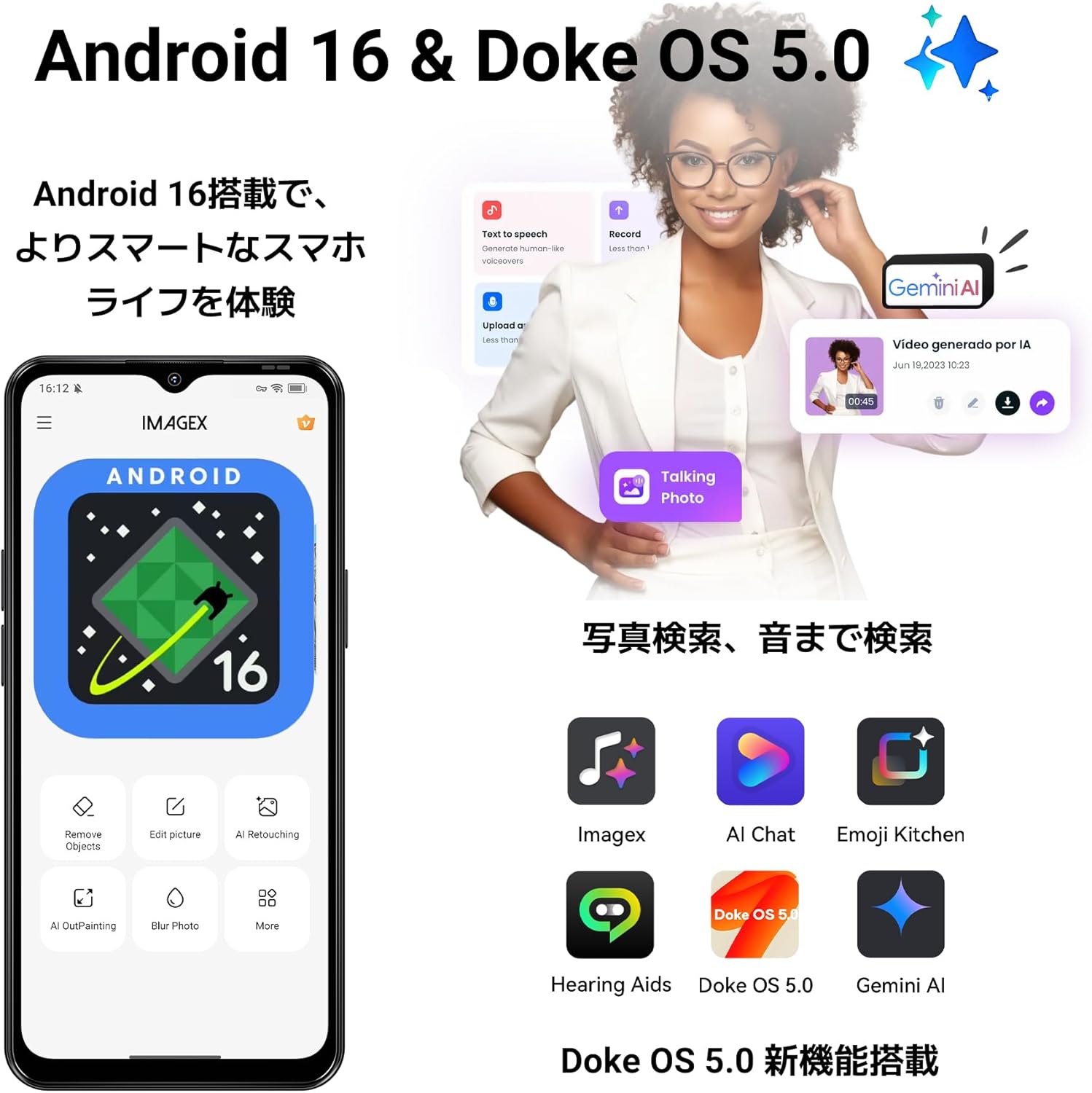
Image: Close-up of the Blackview Wave7C camera module with details on front and rear camera megapixels and sensor specifications.
AI camera features enhance your photos:
- AI Inpaint: Intelligently removes unwanted objects from your photos.
- AI Beauty: Enhances facial features for improved portraits.

Image: Examples of AI Inpaint removing objects from a scene and AI Beauty enhancing a portrait.
Video recording is supported at 1080p resolution at 30 frames per second.

Image: Illustrations of Live Photo, 1080p video recording, and AI Camera capabilities.
5. Battery
The Blackview Wave7C is powered by a 5000mAh large-capacity battery, providing extended usage times. It supports 10W fast charging via a Type-C port.

Image: Visual of the 5000mAh battery and estimated usage times for talk, music, video, and standby.
Doke OS 5.0 includes a deep power-saving mode that reduces standby power consumption by approximately 72%, ensuring the battery lasts longer, even overnight.

Image: Illustration of power-saving mode benefits, including extended usage and standby times.
6. Additional Features
6.1. Operating System Enhancements
Doke OS 5.0 introduces several enhancements for a smoother and more intuitive experience:
- Smart App Drawer: Organizes applications for easy access.
- Large Capacity Folder: Allows for better organization of apps.
- Lock Screen Shortcuts: Quick access to frequently used functions.
- Home Screen Widgets: Customizable widgets for information at a glance.

Image: Screenshots demonstrating the Smart App Drawer, Large Capacity Folder, Lock Screen Shortcuts, and Home Screen Widgets.
6.2. Gaming Mode
Game Mode 2.0 in Doke OS 5.0 enhances your gaming experience by blocking notifications, preventing accidental touches, and boosting frame rates for more immersive gameplay.

Image: Screenshots showing Game Mode settings for blocking notifications, preventing mistouches, and performance optimization.
6.3. Durability and Navigation
The Wave7C is IP54 rated for dust and water resistance, making it suitable for various environments. It also features wet touch technology, allowing for comfortable operation even with wet hands.

Image: The Blackview Wave7C with water droplets, highlighting its IP54 dust and water resistance.
For navigation, the device supports four major positioning systems: GPS, GLONASS, Galileo, and BeiDou.
Other features include face recognition for secure unlocking and OTG (On-The-Go) support for connecting external USB devices.
7. Maintenance
7.1. Cleaning Your Device
To clean your Blackview Wave7C, use a soft, lint-free cloth. Avoid using abrasive cleaners or solvents that may damage the screen or casing. The IP54 rating provides protection against dust and splashes, but the device is not designed for submersion in water.
7.2. Software Updates
Ensure your device's software is up to date to benefit from the latest features, security patches, and performance improvements. You can check for updates in the device settings under "System" or "About phone."
8. Troubleshooting
8.1. Common Issues and Solutions
- No Network/Internet after SIM Insertion: Verify your SIM card's frequency band compatibility. Configure APN settings manually if necessary. Contact your mobile carrier for correct APN details.
- Slow Performance/App Lags: While the device features 16GB virtual RAM, the physical RAM is 4GB. For demanding applications or heavy multitasking, performance may be limited. Close unnecessary background apps. Consider clearing cache or performing a factory reset if issues persist.
- Wi-Fi Disconnections: Some users have reported Wi-Fi connectivity issues. Try restarting your router and the phone. Ensure the phone is within range of the Wi-Fi signal. If the problem persists, try resetting network settings on the phone.
- Battery Draining Quickly: Check for background apps consuming excessive power. Adjust screen brightness and use power-saving modes. If the issue is severe, a factory reset might be needed.
8.2. Factory Reset
If you encounter persistent software issues, a factory reset can often resolve them. Warning: A factory reset will erase all data on your phone. Back up important data before proceeding. To perform a factory reset, go to Settings > System > Reset options > Erase all data (factory reset).
9. Specifications
| Brand | Blackview |
| Model | Wave7C |
| Operating System | Android 16, Doke OS 5.0 |
| RAM | 16 GB (4GB physical + 12GB expansion) |
| Internal Storage | 64 GB |
| Expandable Storage | Up to 2 TB (TF card) |
| Processor | Unisoc Tiger T310 |
| Display Size | 6.56 inches |
| Display Resolution | 720 x 1612 pixels (HD+) |
| Refresh Rate | 60 Hz |
| Touch Sampling Rate | 180 Hz |
| Rear Camera | 32 MP (Dual Camera) |
| Front Camera | 13 MP |
| Video Recording | 1080p at 30fps |
| Battery Capacity | 5000 mAh |
| Charging | 10W Fast Charging (USB Type-C) |
| SIM Card Slots | Dual SIM |
| Connectivity | 4G LTE, Wi-Fi, Bluetooth, USB Type-C, 3.5mm Headphone Jack |
| Navigation | GPS, GLONASS, Galileo, BeiDou |
| Durability | IP54 Dust and Water Resistant |
| Biometric Security | Face Recognition |
| Included Accessories | USB Cable, Protective Case, Japanese Manual, Power Adapter |
10. Warranty & Support
Your Blackview Wave7C smartphone comes with a 2-year manufacturer's warranty. Additionally, a 30-day free return policy is available.
10.1. Customer Support
For any inquiries or issues, Blackview offers comprehensive customer support:
- 24/7 Online Call Center: Support is available anytime.
- Response Time: Inquiries are typically responded to within 24 hours on weekdays, and within 48-72 hours on weekends/holidays.
- Repair Centers: Access to nationwide repair centers with skilled technicians and genuine parts.
- OTA Updates: Regular over-the-air updates ensure your device is always up-to-date with the latest features and security.
To contact support, navigate to the product page, click on the seller name "Blackview Japan Official Store" below the "Add to Cart" button, and then click "Ask a question" in the top right corner to send an email.

Image: Illustration of Blackview's customer support services, including online support and repair centers.
11. Package Contents
The Blackview Wave7C package includes the following items:
- Blackview Wave7C Smartphone
- USB Cable
- SIM Ejector Tool
- User Manual (Japanese)
- Power Adapter
- Dedicated Protective Case

Image: All items included in the Blackview Wave7C retail package.
