
1. Important Safety Information
Please read all safety instructions carefully before using your TV and keep this manual for future reference. Improper use can result in electric shock, fire, or damage to the appliance.
- Power Supply: Connect the TV only to an AC power source as indicated on the rating label.
- Ventilation: Ensure adequate ventilation. Do not block ventilation openings. Maintain a minimum distance of 10 cm (4 inches) around the TV for proper airflow.
- Placement: Place the TV on a stable, level surface. Avoid placing it in direct sunlight, near heat sources, or in environments with high humidity or dust.
- Cleaning: Unplug the TV before cleaning. Use a soft, dry cloth. Do not use liquid or aerosol cleaners.
- Water and Moisture: Do not expose the TV to rain or moisture. Do not place objects filled with liquids, such as vases, on the TV.
- Children: Supervise children to ensure they do not play with the TV.
2. What's in the Box
Carefully unpack your Hisense 43E7S PRO TV and check that all items are present and undamaged.
- Hisense 43-inch 4K QLED Smart TV
- Remote Control
- Power Cable
- User Manual (this document)
- TV Stand Components (if applicable)
- Screws for Stand Installation
3. Setup
3.1 Physical Installation
You can install your TV on a stand or mount it on a wall. Ensure the TV is placed in a location with proper ventilation and away from direct heat sources.

Image: Hisense 43E7S PRO TV with detailed dimensions and stand specifications. The TV measures 963mm (W) x 560mm (H) without stand, and 963mm (W) x 611mm (H) with stand. Depth is 74mm without stand and 223mm with stand. VESA mounting standard is 200x300 mm.
3.1.1 Installing the TV Stand
- Place the TV face down on a soft, clean surface to prevent screen damage.
- Attach the stand components to the designated slots on the bottom of the TV.
- Secure the stand with the provided screws. Ensure all screws are tightened firmly.

Image: Front and side view of the Hisense 43E7S PRO TV securely placed on its stand.
3.1.2 Wall Mounting (Optional)
If you choose to wall mount your TV, use a VESA-compatible wall mount kit (200 x 300 mm) and follow the instructions provided with the wall mount. Remove the TV stand before mounting.
3.2 Connecting External Devices
Connect your external devices to the appropriate ports on the back or side of your TV.

Image: Diagram illustrating the various connection ports on the back of the Hisense 43E7S PRO TV, including USB, HDMI, CI Slot, Composite (AV), Optical Audio, Antenna, and Ethernet (LAN).
- HDMI (1, 2, 3): Connect Blu-ray players, game consoles, and other HDMI-enabled devices. HDMI 2 supports eARC and 4K@144Hz. HDMI 3 supports 4K@144Hz.
- USB (x2): Connect USB storage devices for media playback.
- ANT 1 / 2: Connect your terrestrial or satellite antenna cable.
- OPTICAL AUDIO: Connect to an external audio system for digital audio output.
- ETHERNET (LAN): Connect an Ethernet cable for a stable wired internet connection.
- CI Slot: Insert a Common Interface module for encrypted TV channels.
- COMPOSITE (AV): Connect older analog video devices.

Image: Visual representation of the TV's connectivity features, highlighting USB 3.0, Full HDMI 2.1 (eARC, ALLM, VRR 144Hz), and Bluetooth 5.0.
3.3 Initial Power On and Setup
- Connect the power cable to the TV and then to a wall outlet.
- Press the power button on the remote control or on the TV itself.
- Follow the on-screen instructions to complete the initial setup, including language selection, network connection, and channel scanning.
4. Operating Your TV
4.1 Remote Control Overview
The remote control allows you to navigate the TV's features and settings.

Image: Hisense Smart TV remote control, showing dedicated buttons for popular streaming apps like Disney+, YouTube, Prime Video, Netflix, and a microphone icon indicating voice control functionality.
- Power Button: Turns the TV on or off.
- Navigation Buttons (Up/Down/Left/Right/OK): Navigate menus and select options.
- Volume Up/Down: Adjust the volume level.
- Channel Up/Down: Change TV channels.
- Home Button: Access the Smart TV home screen (VIDAA OS).
- App Shortcut Buttons: Direct access to popular streaming services.
- Voice Control Button: Activate voice commands.
4.2 VIDAA Smart TV Operating System
Your Hisense TV features the VIDAA Smart TV operating system, providing access to a wide range of applications and content.

Image: The Hisense VIDAA Smart TV home screen displaying various streaming applications and content recommendations.
- Home Screen: Press the Home button on the remote to access the main interface with recommended content and installed apps.
- App Store: Download and install additional applications from the VIDAA App Store.
- Content Search: Use the search function to find movies, TV shows, or apps.

Image: The VIDAA operating system interface, emphasizing global and local entertainment options, with various streaming service logos visible.
4.3 Picture Settings
Optimize your viewing experience by adjusting picture settings.

Image: Overview of key Hisense TV features: Native 144Hz Game Mode, Hi-QLED Colors, Dolby Vision Atmos, AI Picture, AI Smooth Motion, and AMD FreeSync Premium.
- Picture Modes: Select from predefined modes like Standard, Dynamic, Movie, Game, or customize your own.
- QLED Display: Experience vivid and authentic colors with the QLED technology.
- HDR Support: The TV supports Dolby Vision, HDR10+, and HLG for enhanced contrast and color in compatible content.
- AI Picture: The AI Picture engine intelligently optimizes depth, color, and motion frame by frame, adjusting brightness, contrast, saturation, and noise based on content and environment.
- AI Smooth Motion: Reduces blur and judder in fast-moving scenes for a smoother picture.
- AI 4K Upscaler: Enhances all content to near 4K quality by analyzing and refining textures and details.
- AI Light Sensor: Automatically adjusts backlight in real-time based on ambient light for optimal viewing and energy efficiency.
- Filmmaker Mode: Preserves the original aspect ratio, color, frame rate, and sound as intended by the filmmaker.

Image: A close-up of the Hisense TV screen showcasing vibrant and authentic Hi-QLED colors, with a detailed floral image.

Image: Diagram illustrating the Hisense AI Picture technology, showing how the Hi-View AI Engine processes AI Object Detection, AI Motion Enhancement, AI Contrast Enhancement, AI Clarity Upscaling, and AI Color Booster.

Image: Visual representation of AI Smooth Motion, showing multiple instances of a soccer player to demonstrate fluid, blur-free movement in fast-paced scenes.
4.4 Audio Settings
Adjust sound settings for an immersive audio experience.
- Sound Modes: Choose from modes like Standard, Music, Speech, Night, or customize.
- Dolby Atmos: Enjoy immersive, multi-dimensional audio with Dolby Atmos support.
- EzPlay: Control compatible Hisense soundbars directly from your TV screen.
- Hi-Concerto: Unifies audio from the TV and a compatible soundbar for a seamless home theater experience.

Image: A scene depicting two people playing a video game, with visual cues indicating Dolby Vision Atmos audio surrounding them, enhancing the viewing and listening experience.
4.5 Gaming Features
The 43E7S PRO is designed for an enhanced gaming experience.
- Native 144Hz Game Mode: Provides ultra-smooth motion and reduced input lag for gaming.
- AMD FreeSync Premium: Synchronizes the display's refresh rate with the graphics processor for fluid, tear-free gameplay.
- Game Bar: A dedicated menu to quickly access and adjust gaming settings such as frame rate, HDR format, VRR, and picture modes during gameplay.

Image: A dynamic image of a blue sports car in a racing game, highlighting the 'Game Mode a 144Hz nativi' feature, along with logos for AMD FreeSync Premium, Dolby Vision IQ, HDR10+ Gaming, HDMI 2.1, Game Bar, and 144Hz VRR.
4.6 Voice Control
Use the voice control feature on your remote to interact with your TV.

Image: A person using the Hisense voice remote control to interact with the TV, which displays sports highlights, demonstrating instant entertainment access through voice commands.
- Press the dedicated voice control button on your remote.
- Speak clearly into the microphone on the remote.
- You can search for content, change channels, adjust volume, and control other TV functions using voice commands.
5. Maintenance
5.1 Cleaning Your TV
- Screen: Gently wipe the screen with a soft, lint-free cloth. For stubborn marks, use a screen-specific cleaning solution applied to the cloth, not directly to the screen.
- TV Body: Wipe the frame and back panel with a soft, dry cloth. Do not use abrasive cleaners or solvents.
- Always unplug the TV from the power outlet before cleaning.
5.2 Software Updates
Regularly check for software updates to ensure optimal performance and access to the latest features.
- Navigate to the TV's settings menu.
- Look for 'System' or 'About TV' and then 'Software Update'.
- Follow the on-screen prompts to check for and install any available updates. Ensure your TV is connected to the internet.
6. Troubleshooting
If you encounter issues with your TV, refer to the following common solutions.
| Problem | Possible Solution |
|---|---|
| No Power | Check if the power cable is securely connected to the TV and the wall outlet. Ensure the outlet is working. Try a different power outlet. |
| No Picture / Poor Picture | Check input source (HDMI, Antenna). Ensure cables are connected correctly. Adjust picture settings (brightness, contrast). If using an antenna, check signal strength. |
| No Sound / Poor Sound | Check volume level. Ensure Mute is not active. Check audio output settings if using external speakers. Ensure audio cables are connected correctly. |
| Remote Control Not Working | Replace batteries. Ensure there are no obstructions between the remote and the TV's IR sensor. |
| Network Connection Issues | Restart your router/modem. Check Wi-Fi password. Try a wired Ethernet connection if Wi-Fi fails. |
| Apps Not Loading / Slow Performance | Check internet connection. Close and reopen the app. Restart the TV. Clear app cache (if option available in settings). |
7. Specifications
Key technical specifications for the Hisense 43E7S PRO 43-inch 4K QLED Smart TV.

Image: A visual guide showing different Hisense TV sizes (43", 50", 55", 65", 75", 85", 100") and their recommended viewing distances. For a 43" TV, the recommended viewing distance is 1.0 m - 2.1 m.
| Feature | Specification |
|---|---|
| Screen Size | 43 Inches |
| Display Technology | QLED |
| Resolution | 4K (3840 x 2160) |
| Refresh Rate | 144 Hz |
| HDR Support | Dolby Vision, HDR10+, HLG |
| Operating System | VIDAA U |
| Audio Technology | Dolby Atmos |
| Speaker Output Power | 20 Watts |
| HDMI Ports | 3 (HDMI 2 & 3 support 4K@144Hz, HDMI 2 supports eARC) |
| USB Ports | 2 (USB 2.0) |
| Connectivity | Wi-Fi, Bluetooth, Ethernet |
| Dimensions (W x D x H) without stand | 96.3 x 7.4 x 56 cm |
| Weight (without stand) | 7.4 kg |
| VESA Mounting Standard | 200 x 300 mm |
| Energy Efficiency Class | F (SDR), G (HDR) |
| Power Consumption (SDR) | 50 kWh/1000h |
| Power Consumption (HDR) | 87 kWh/1000h |

Image: The EU Energy Label for the Hisense 43E7S PRO, showing energy efficiency class F for SDR (50 kWh/1000h) and G for HDR (87 kWh/1000h).
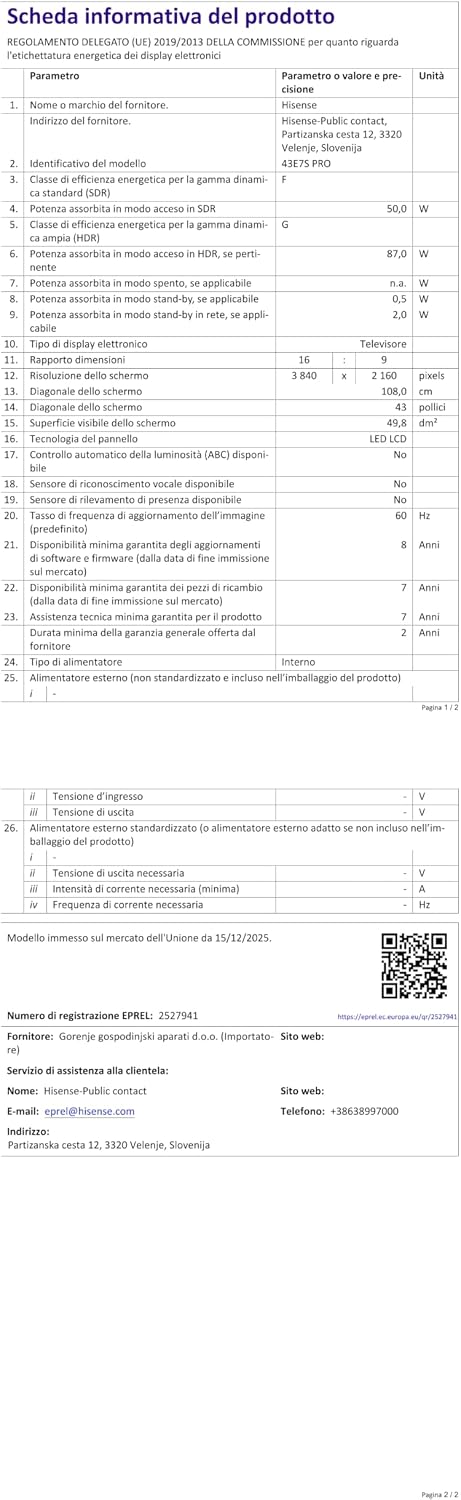
Image: The EPREL information sheet for the Hisense 43E7S PRO, detailing various technical parameters and energy consumption data. For more details, refer to the official EPREL database: https://eprel.ec.europa.eu/qr/2527941
8. Warranty and Support
8.1 Manufacturer's Warranty
Your Hisense 43E7S PRO TV comes with a 2-year manufacturer's warranty. This warranty covers defects in materials and workmanship under normal use. Please retain your proof of purchase for warranty claims.
8.2 Customer Support
For technical assistance, troubleshooting beyond this manual, or warranty inquiries, please contact Hisense customer support. You can typically find contact information on the Hisense official website or within the TV's 'About' section in the settings menu.
For general information about Hisense products, you can visit the Hisense brand store: Hisense Brand Store


