
Introduction
This manual provides comprehensive instructions for the Apple Studio Display XDR with Standard Glass and VESA Mount Adapter. It covers essential information for setup, operation, maintenance, and troubleshooting to ensure optimal performance and longevity of your display. The Studio Display XDR features a 27-inch 5K Retina XDR display, advanced camera, three-mic array, six-speaker sound system, and powerful Thunderbolt 5 capabilities, designed for professional use.
What's in the Box
Verify that all items are present in the packaging:
- Apple Studio Display XDR (with VESA Mount Adapter pre-installed)
- Thunderbolt 5 Pro cable (1 m)

Image: The Apple Studio Display XDR with VESA mount adapter and the included Thunderbolt 5 Pro cable.
Setup Instructions
1. Mounting the Display
Your Apple Studio Display XDR comes with a VESA Mount Adapter pre-installed. This allows you to attach the display to a compatible VESA-compliant wall mount, desk mount, or stand (sold separately). Ensure your VESA mount supports the weight and dimensions of the Studio Display XDR.
- Carefully remove the display from its packaging.
- Align the VESA mount adapter on the back of the display with your VESA-compliant mounting solution.
- Secure the display to your VESA mount using the screws provided with your mounting solution. Refer to your VESA mount's instructions for specific attachment details.
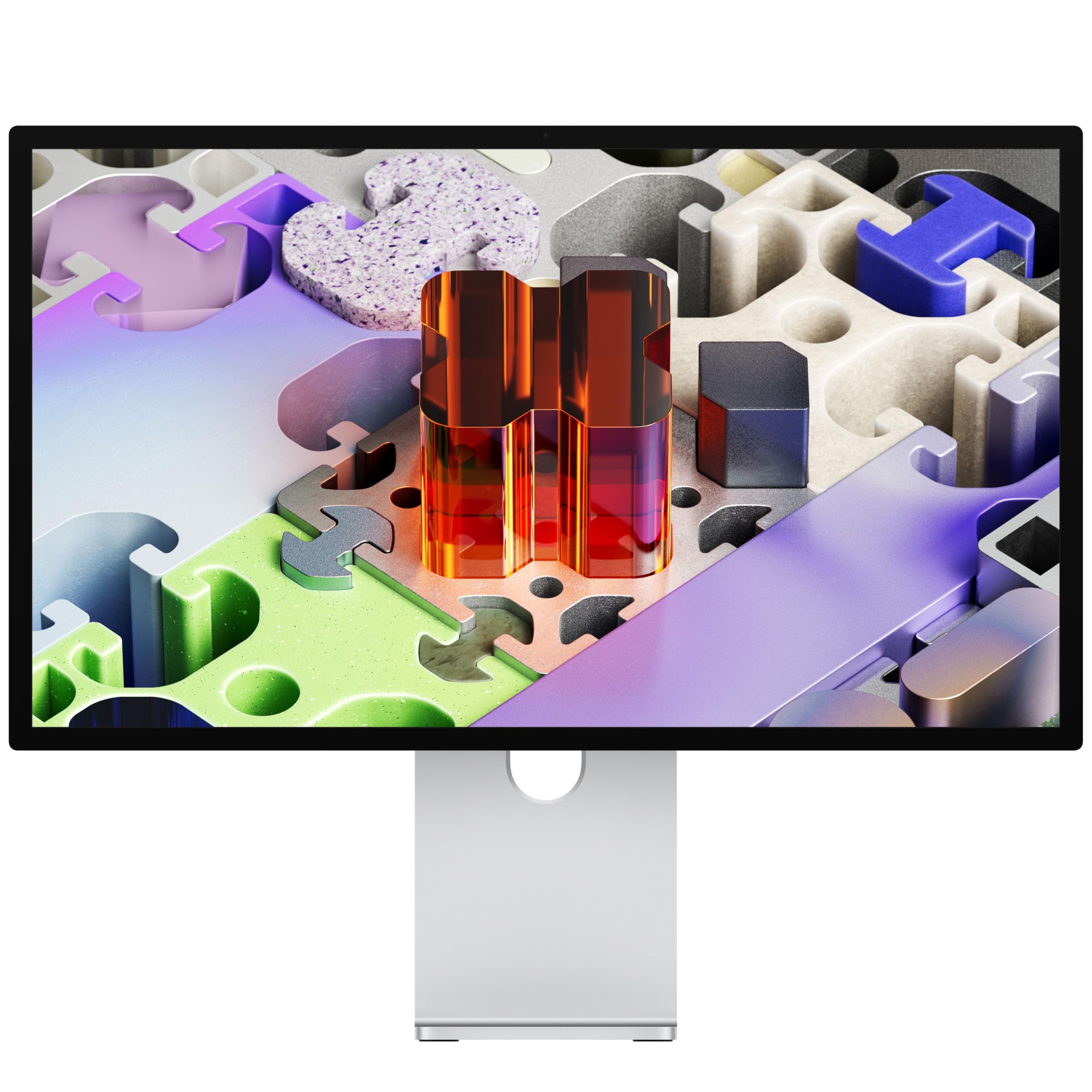
Image: Rear view of the Studio Display XDR, highlighting the VESA mount adapter and connection ports.
2. Connecting the Display
Connect the display to your Mac using the included Thunderbolt 5 Pro cable.
- Connect one end of the Thunderbolt 5 Pro cable to the upstream Thunderbolt 5 port on the back of the Studio Display XDR.
- Connect the other end of the cable to a compatible Thunderbolt 5 port on your Mac.
- The display will automatically power on and detect the signal from your Mac.

Image: Thunderbolt 5 cable connected to the Studio Display XDR.
3. Connecting Peripherals
The Studio Display XDR features additional ports for connecting accessories:
- Downstream Thunderbolt 5 Port: Use this port for connecting high-speed accessories or daisy-chaining additional compatible displays.
- USB-C Ports: Two USB-C ports (up to 10Gb/s) are available for connecting peripherals, external storage, or networking devices. These ports can also charge your iPhone or other USB-C devices.
Operating Instructions and Features
Display Features
- 5K Retina XDR Display: Experience a 27-inch 5K Retina XDR display with 5120-by-2880 resolution at 218 pixels per inch.
- Mini-LED Backlighting: Features 2304 dimming zones for reduced halo and blooming, offering up to 1000 nits SDR brightness and 2000 nits peak HDR brightness for enhanced contrast.
- Wide Color Gamut: Supports P3 and Adobe RGB color spaces for precise color reproduction, suitable for professional creative workflows.
- 120Hz Refresh Rate with Adaptive Sync: Provides ultra-smooth motion and responsive performance by adapting to varying frame rates.
- True Tone Technology: Automatically adjusts the display's color and intensity to match the ambient light, ensuring a natural viewing experience.

Image: The Studio Display XDR showcasing its 5K Retina XDR display with mini-LED backlighting.

Image: The Studio Display XDR highlighting its peak HDR brightness and wide color gamut support.
Integrated Camera and Audio
- 12MP Center Stage Camera: The integrated camera supports Center Stage, keeping you centered during video calls, and Desk View for sharing your workspace.
- Studio-Quality Microphones: A three-mic array with high signal-to-noise ratio and directional beamforming ensures clear audio capture.
- Six-Speaker Sound System: Features four force-cancelling woofers and two high-performance tweeters for rich, clear audio. Supports Spatial Audio for an immersive experience with compatible content.
Connectivity
- Two Thunderbolt 5 Ports: One upstream port for host connection (with 140W host charging) and one downstream port for high-speed accessories or daisy-chaining another display.
- Two USB-C Ports: For connecting peripherals, storage, and networking devices, with data transfer speeds up to 10Gb/s.

Image: Overview of connectivity and display features, including Thunderbolt 5 ports and daisy-chaining capability.
Maintenance
Cleaning the Display
To maintain the clarity and appearance of your Studio Display XDR, follow these cleaning guidelines:
- Always disconnect the display from power before cleaning.
- Use a soft, lint-free cloth, slightly dampened with water, to wipe the screen and exterior surfaces.
- Avoid using aerosol sprays, solvents, abrasives, or cleaners containing hydrogen peroxide, as these can damage the display's finish.
- For the Standard Glass model, a mild, non-abrasive screen cleaner designed for electronics can be used if necessary, applied to the cloth, not directly to the screen.
General Care
- Keep the display in a well-ventilated area to prevent overheating.
- Avoid exposing the display to direct sunlight or extreme temperatures.
- Protect the display from dust and moisture.
Troubleshooting
If you encounter issues with your Studio Display XDR, try the following solutions:
| Problem | Possible Solution |
|---|---|
| No image on screen |
|
| Display flickering or distorted image |
|
| Camera or microphone not working |
|
| No sound from display speakers |
|
If these steps do not resolve the issue, contact Apple Support for further assistance.
Specifications
| Feature | Detail |
|---|---|
| Model Number | MFEN4LL/A |
| Screen Size | 27 Inches (diagonal) |
| Resolution | 5120-by-2880 at 218 pixels per inch (5K Retina XDR) |
| Display Technology | Mini-LED backlight with 2304 dimming zones |
| Brightness | Up to 1000 nits (SDR), 2000 nits peak (HDR) |
| Refresh Rate | 120Hz with Adaptive Sync |
| Color Gamut | P3 + Adobe RGB wide color gamuts, 1 billion colors |
| Screen Surface | Standard Glass |
| Camera | 12MP Center Stage camera with Desk View |
| Audio | High-fidelity six-speaker system (4 woofers, 2 tweeters), Spatial Audio support, Studio-quality three-mic array |
| Connections | 2x Thunderbolt 5 ports (1 upstream with 140W host charging, 1 downstream), 2x USB-C ports (up to 10Gb/s) |
| Product Dimensions | 1.3 x 14.25 x 24.53 inches |
| Item Weight | 22.2 pounds |
Warranty and Support
Limited Warranty
Your Apple Studio Display XDR is covered by a limited warranty. For details on the terms and conditions of your warranty, please refer to the documentation included with your purchase or visit the official Apple support website.
AppleCare+
AppleCare+ for Studio Display XDR is available for purchase separately, offering extended technical support and hardware coverage, including unlimited incidents of accidental damage protection. Visit the Apple website or an authorized reseller for more information on AppleCare+ plans.
Technical Support
For technical assistance, troubleshooting, or service inquiries, please visit the official Apple Support website or contact Apple Support directly. You can find contact information and resources at support.apple.com.


