
Introduction
This manual provides comprehensive instructions for setting up, operating, maintaining, and troubleshooting your Apple iPad Air (M4) 13-inch. Please read this manual thoroughly to ensure proper use and to maximize the device's capabilities. The iPad Air features a Liquid Retina display, the powerful M4 chip, advanced cameras, Wi-Fi 7, and 5G Cellular connectivity.
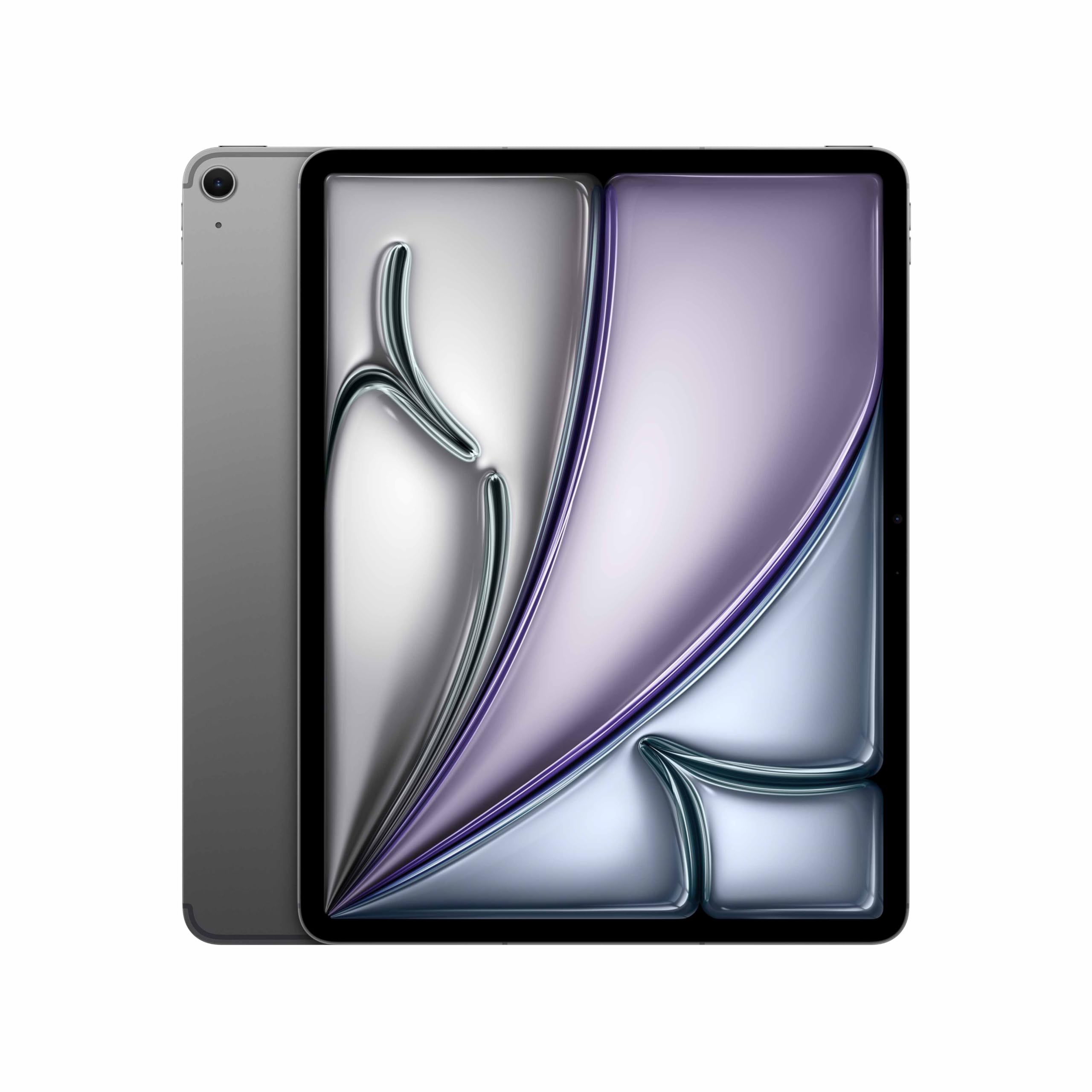
Image: The Apple iPad Air (M4) 13-inch in Space Gray, showcasing its sleek design.
1. Setup
1.1 Unboxing and Included Components
Carefully remove all items from the packaging. Ensure the following components are present:
- iPad Air (M4) 13-inch
- USB-C Charge Cable
- 20W USB-C Power Adapter

Image: The iPad Air, USB-C charge cable, and 20W USB-C power adapter, illustrating the contents of the box.
1.2 Initial Power On and Basic Configuration
- Power On: Press and hold the top button until the Apple logo appears.
- Follow On-Screen Instructions: Select your language and region.
- Connect to Wi-Fi: Choose your Wi-Fi network and enter the password.
- Data & Privacy: Review Apple's Data & Privacy information.
- Touch ID Setup: Follow the prompts to set up Touch ID for secure authentication.
- Create a Passcode: Set a six-digit passcode for additional security.
- Transfer Apps & Data: Choose to restore from a backup (iCloud or computer) or set up as a new iPad.
- Apple ID: Sign in with your Apple ID or create a new one. This is essential for App Store, iCloud, and other Apple services.
- Location Services & Siri: Configure these settings as desired.
- Screen Time: Set up parental controls or monitor your usage.
- App Analytics: Choose whether to share analytics with Apple.
- True Tone Display: Enable or disable True Tone for automatic white balance adjustment.
1.3 Charging the iPad Air
Connect the USB-C Charge Cable to the iPad Air's USB-C port and the 20W USB-C Power Adapter. Plug the power adapter into a wall outlet. The battery icon in the status bar will indicate charging status.
2. Operating Instructions
2.1 Basic Navigation and Gestures
- Home Screen: Swipe up from the bottom edge of the screen to go to the Home Screen.
- App Switcher: Swipe up from the bottom edge and pause in the middle of the screen to view open apps.
- Control Center: Swipe down from the top-right corner to access quick settings.
- Notifications: Swipe down from the top-left corner or center to view notifications.
- Search: Swipe down from the middle of the Home Screen to open Search.
2.2 Using Touch ID
Touch ID is integrated into the top button. Place your registered finger on the top button to unlock your iPad, make purchases, or authenticate within apps.
2.3 Wi-Fi and 5G Cellular Connectivity
- Wi-Fi: Go to Settings > Wi-Fi to connect to available networks. The iPad Air supports Wi-Fi 7 for faster wireless speeds.
- 5G Cellular: Insert a nano-SIM card or set up an eSIM. Go to Settings > Cellular Data to manage your cellular plan and data usage.
2.4 Cameras
The iPad Air features 12MP front and back cameras. Open the Camera app to take photos, record videos, or use features like Center Stage for video calls.
2.5 iPadOS and Apple Intelligence
iPadOS provides a powerful and intuitive operating system. The M4 chip enhances performance for demanding tasks and enables advanced Apple Intelligence features, offering personalized assistance and improved productivity.

Image: The iPad Air screen showing a presentation outline and a trend search report, highlighting the M4 chip and iPadOS for speed, power, and flexibility.

Image: The iPad Air screen showing detailed notes on whale vocalizations, illustrating how Apple Intelligence provides effortlessly helpful features.

Image: The iPad Air attached to a Magic Keyboard, showcasing an enhanced typing and trackpad experience.
3. Maintenance
3.1 Cleaning Your iPad Air
To clean your iPad Air, use a soft, lint-free cloth. Avoid abrasive materials, aerosols, solvents, or ammonia-based cleaners. For stubborn marks, slightly dampen the cloth with water. Do not spray cleaners directly onto the device.
3.2 Battery Care
For optimal battery life, avoid exposing your iPad to extreme temperatures. Charge your device regularly, but it is not necessary to fully discharge it before recharging. If storing the iPad for an extended period, charge it to about 50% to prevent deep discharge.
3.3 Software Updates
Keep your iPad Air's software up to date to ensure the latest features, security enhancements, and performance improvements. Go to Settings > General > Software Update to check for and install available updates.
4. Troubleshooting
4.1 Common Issues and Solutions
- Device Not Responding: If your iPad is unresponsive, force restart it. Press and quickly release the Volume Up button, press and quickly release the Volume Down button, then press and hold the Top button until the Apple logo appears.
- Wi-Fi Connectivity Issues: Try turning Wi-Fi off and on in Control Center or Settings. Restart your Wi-Fi router. If issues persist, reset network settings (Settings > General > Transfer or Reset iPad > Reset > Reset Network Settings).
- Apps Crashing or Freezing: Close the app from the App Switcher and reopen it. If the problem continues, restart your iPad. Ensure the app and iPadOS are updated to the latest versions.
- Battery Draining Quickly: Check battery usage in Settings > Battery to identify apps consuming significant power. Reduce screen brightness, disable unnecessary background app refresh, and ensure software is up to date.
4.2 Factory Reset
As a last resort for persistent issues, you can factory reset your iPad. This will erase all data and settings. Before proceeding, ensure you have backed up your data to iCloud or a computer. Go to Settings > General > Transfer or Reset iPad > Erase All Content and Settings.
5. Specifications
| Brand | Apple |
| Model Name | 13-inch iPad Air (M4, 2026) |
| Model Number | MH9H4HN/A |
| Screen Size | 13 Inches (32.78 cm) |
| Display Resolution Maximum | 2732 x 2048 Pixels |
| Operating System | iPadOS |
| Processor | Apple M4 |
| RAM Memory Installed | 12 GB |
| Hard-Drive Size | 256 GB |
| Wireless Technology Type | Wi-Fi 7, 5G Cellular |
| Battery Cell Type | Lithium Ion (36.59 Watt Hours) |
| Item Weight | 0.62 Kilograms |
| Item Dimensions (L x W x Thickness) | 21.5L x 28.1W x 0.6Th Centimeters |
| Included Components | iPad Air, USB-C Charge Cable, 20W USB-C Power Adapter |
6. Warranty Information
Your Apple iPad Air (M4) 13-inch is covered by an Apple One (1) Year Limited Warranty from the date of original retail purchase. This warranty covers manufacturing defects and workmanship under normal use. For full terms and conditions, please refer to the warranty documentation included with your product or visit the official Apple support website.
The warranty does not cover damage caused by accidents, unauthorized modifications, or misuse. Proof of purchase may be required for warranty service.
7. Support
For further assistance, technical support, or service inquiries, please contact Apple Support:
- Online Support: Visit the official Apple Support website for articles, troubleshooting guides, and contact options. support.apple.com
- Manufacturer Contact: Apple Inc, One Apple Park Way, Cupertino, CA 95014, USA.
- India Specific Contact: Apple India Private Limited, 13th Floor, Prestige Minsk Square, Municipal No. 6, Cubbon Road, Bengaluru, Karnataka - 560001, India.
Before contacting support, it is recommended to have your device's serial number available. This can be found in Settings > General > About.


