
Introduction
This manual provides detailed instructions for the installation, operation, and maintenance of your ZERTRAN ZT-V6288D Android Car Stereo. Please read this manual thoroughly before using the product to ensure proper function and to prevent damage. Keep this manual for future reference.
Safety Information
- Ensure professional installation to avoid electrical damage or malfunction.
- Do not attempt to disassemble or modify the unit. This may cause damage or void the warranty.
- Avoid exposing the unit to extreme temperatures, direct sunlight for prolonged periods, or excessive moisture.
- Always operate the vehicle safely. Do not operate the stereo in a way that distracts you from driving.
- Disconnect the vehicle's battery before installation to prevent short circuits.
Package Contents
Verify that all items are present in the package:
- 1x ZERTRAN Android Head Unit (including plastic frame)
- 1x GPS Antenna
- 1x Power Cable
- 2x USB Port Cables
- 1x RCA Expand Cable
- 1x RCA Connector for Backup Camera
- 1x Universal Backup Camera Set
Note: CANBUS is not included. If your car requires a CANBUS for amplifier integration, please acquire it separately.
Setup & Installation
Installation of this car stereo requires technical knowledge. It is highly recommended to have the unit installed by a qualified professional to ensure correct wiring and functionality, especially for vehicles like the Ax3 A30 2014 model.
General Installation Steps:
- Disconnect Battery: Before starting, disconnect the negative terminal of your vehicle's battery.
- Remove Old Head Unit: Carefully remove the existing car stereo from the dashboard.
- Connect Wiring Harness: Connect the provided power cable and other necessary cables (USB, RCA, GPS antenna) to the new head unit. Ensure all connections are secure.
- Install GPS Antenna: Mount the GPS antenna in a location with a clear view of the sky, typically on the dashboard or under the windshield.
- Test Connections: Before fully reassembling, reconnect the battery and briefly test the unit's basic functions (power on, radio, display).
- Secure Head Unit: Mount the ZERTRAN head unit into the dashboard opening and secure it.
- Reassemble Dashboard: Reinstall any removed dashboard panels.
Backup Camera Installation:
The unit supports a car rear view camera. A universal backup camera is included as a gift.
- Mount the backup camera at the rear of your vehicle, typically near the license plate light.
- Route the camera's video cable to the head unit and connect it to the RCA connector for the backup camera.
- Connect the camera's power wire to your vehicle's reverse light circuit so it activates when the vehicle is in reverse.

Figure 1: Illustration of car reverser camera installation and its display on the head unit screen, showing parking guidelines.
Operating Instructions
The ZERTRAN ZT-V6288D operates on an Android system with a sensitive IPS full HD multi-touch screen.
1. CarPlay & Android Auto
This unit features built-in CarPlay and Android Auto for seamless integration with iOS and Android devices. Connect your smartphone via USB to access navigation, music, calls, and messages directly from the head unit's display. Voice assistants can be used for hands-free operation.

Figure 2: Display showing the CarPlay interface for iOS and Android Auto interface for Android devices, with various app icons.
2. GPS Navigation
The unit supports GPS navigation. With a Wi-Fi connection, you can use online navigation applications in real-time. The included GPS antenna ensures accurate satellite positioning.
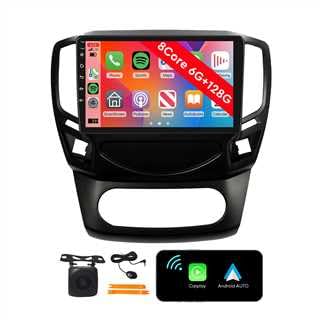
Figure 3: GPS Navigation screen showing a map, vehicle status, and common navigation app icons.
3. FM Radio
Access FM radio stations. You can transfer music to the car stereo via FM. Long press to save your favorite radio stations. The unit is designed for better radio reception with small radiation interference.

Figure 4: FM Radio interface displaying current frequency, station presets, and tuning controls.
4. Bluetooth Function (BT)
The built-in Bluetooth allows for wireless streaming of music from your mobile phone and hands-free calling. Pair your device through the Bluetooth settings menu.

Figure 5: Bluetooth interface showing a dial pad for calls and music playback controls.
5. Wi-Fi Connectivity
Utilize the internal Wi-Fi to browse websites, access online navigation, watch videos, and download applications. The unit supports Wi-Fi and hot-spot sharing from your mobile device.

Figure 6: Car stereo home screen displaying various application icons, indicating Wi-Fi connectivity.
6. Steering Wheel Control (SWC)
The unit supports steering wheel controls, allowing you to quickly switch functions without taking your hands off the wheel. Configuration may be required in the system settings.

Figure 7: Steering Wheel Control learning interface, showing various button assignments for functions like volume, track skip, and call handling.
7. Dual Screen Display
The unit supports dual screen display, allowing different functions to be operated simultaneously. For example, you can view navigation on one part of the screen while playing music or videos on the other.

Figure 8: Dual screen display example, showing navigation on one side and music playback on the other, or web browsing and video playback.
8. Other Functions
- Video & Music Playback: Supports 1080P hardware decoding and all formats of audio playback.
- USB Input: Supports 2 USB inputs for media playback and device charging.
- USB Interface Camera/DVR: Supports connection of USB interface cameras and DVRs.
- Mirror Link: Supports Mirror Link functionality for both Android phones and iPhones.
- DSP: Digital Sound Processor for enhanced audio quality.
- OSD Language: Supports over 20 languages including English, French, German, Spanish, and Italian.
Specifications
| Feature | Detail |
|---|---|
| Brand | ZERTRAN |
| Model Number | ZT-V6288D |
| Screen Size | 10 Inches |
| Operating System | Android System |
| CPU | Octa Core |
| RAM | 6GB |
| ROM | 128GB |
| CarPlay/Android Auto | Built-in |
| USB Input | 2 ports |
| Video Decoding | 1080P Hardware Decoding |
| Connectivity | Bluetooth, Wi-Fi |
| Rear View Camera Support | Yes (Universal camera included) |
| Steering Wheel Control | Supported |
| OSD Language | 20+ languages (e.g., English, French, German, Spanish, Italian) |
Maintenance
- Cleaning: Use a soft, dry cloth to clean the screen and exterior. Do not use abrasive cleaners or solvents.
- Software Updates: Periodically check for software updates to ensure optimal performance and access to new features. Updates can typically be found through the system settings or the manufacturer's website.
- Avoid Liquids: Prevent liquids from entering the unit, as this can cause severe damage.
Troubleshooting
| Problem | Possible Cause | Solution |
|---|---|---|
| Unit does not power on. | Loose power connection, blown fuse, vehicle battery issue. | Check power cable connections. Inspect vehicle fuses. Ensure vehicle battery is charged. |
| No sound. | Volume too low, speaker wires disconnected, amplifier issue (if applicable). | Increase volume. Check speaker wiring. Verify external amplifier (if used) is powered and connected. |
| GPS signal lost or inaccurate. | GPS antenna obstructed or disconnected. | Ensure GPS antenna has a clear view of the sky and is securely connected. |
| Bluetooth not connecting. | Device not in pairing mode, incorrect pairing code, Bluetooth disabled. | Ensure Bluetooth is enabled on both devices. Put phone in pairing mode. Re-attempt pairing. |
| Backup camera not displaying. | Camera power issue, video cable disconnected, incorrect camera settings. | Check camera power and video cable connections. Verify camera settings in the head unit. |
| CarPlay/Android Auto not starting. | USB cable issue, phone software issue, incorrect settings. | Use a high-quality USB cable. Ensure phone software is updated. Check settings on both phone and head unit. |
If problems persist, please contact customer support.
Warranty & Support
The ZERTRAN ZT-V6288D Android Car Stereo comes with a one-year warranty from the date of purchase.
For technical assistance, warranty claims, or any questions regarding your product, please contact ZERTRAN customer support. When contacting support, please have your model number (ZT-V6288D) and purchase information ready.
Contact Support: support@zertran.com (Placeholder email, please refer to your purchase documentation for actual contact details.)