
1. Introduction and Overview
This manual provides essential information for the proper setup, operation, maintenance, and troubleshooting of your HP OmniDesk M02 Business Tower Desktop. Please read this guide thoroughly before using your new computer to ensure optimal performance and longevity.
The HP OmniDesk M02 is a powerful business desktop featuring an Intel Core i7-14700 processor, 16GB DDR5 RAM, and a 1TB SSD, designed for efficient multitasking and demanding applications. It comes pre-installed with Windows 11 Pro and includes Wi-Fi 6 and Bluetooth connectivity.

Image 1.1: Front view of the HP OmniDesk M02 Business Tower Desktop. This image displays the sleek, compact design of the desktop tower, highlighting its modern aesthetic suitable for any office environment.
2. Setup Guide
2.1 Unpacking and Contents Verification
Carefully remove all components from the packaging. Verify that the following items are included:
- HP OmniDesk M02 Business Tower Desktop
- Wired Keyboard
- Wired Mouse
- Power Cable
- Documentation (including this manual)
- ADATA 64GB USB Flash Drive
2.2 Connecting Peripherals
- Power Connection: Connect the power cable to the desktop's power input and then to a grounded electrical outlet.
- Monitor Connection: Connect your monitor to the desktop using either an HDMI or DisplayPort cable. The desktop supports both.
- Keyboard and Mouse: Plug the wired keyboard and mouse into any available USB Type-A ports on the desktop.
- Network Connection (Optional): For a wired internet connection, connect an Ethernet cable from your router or modem to the RJ-45 port on the desktop. For wireless, ensure your Wi-Fi network is available during initial setup.
- Other Peripherals: Connect any other USB devices (e.g., printer, external hard drive) to the available USB ports.
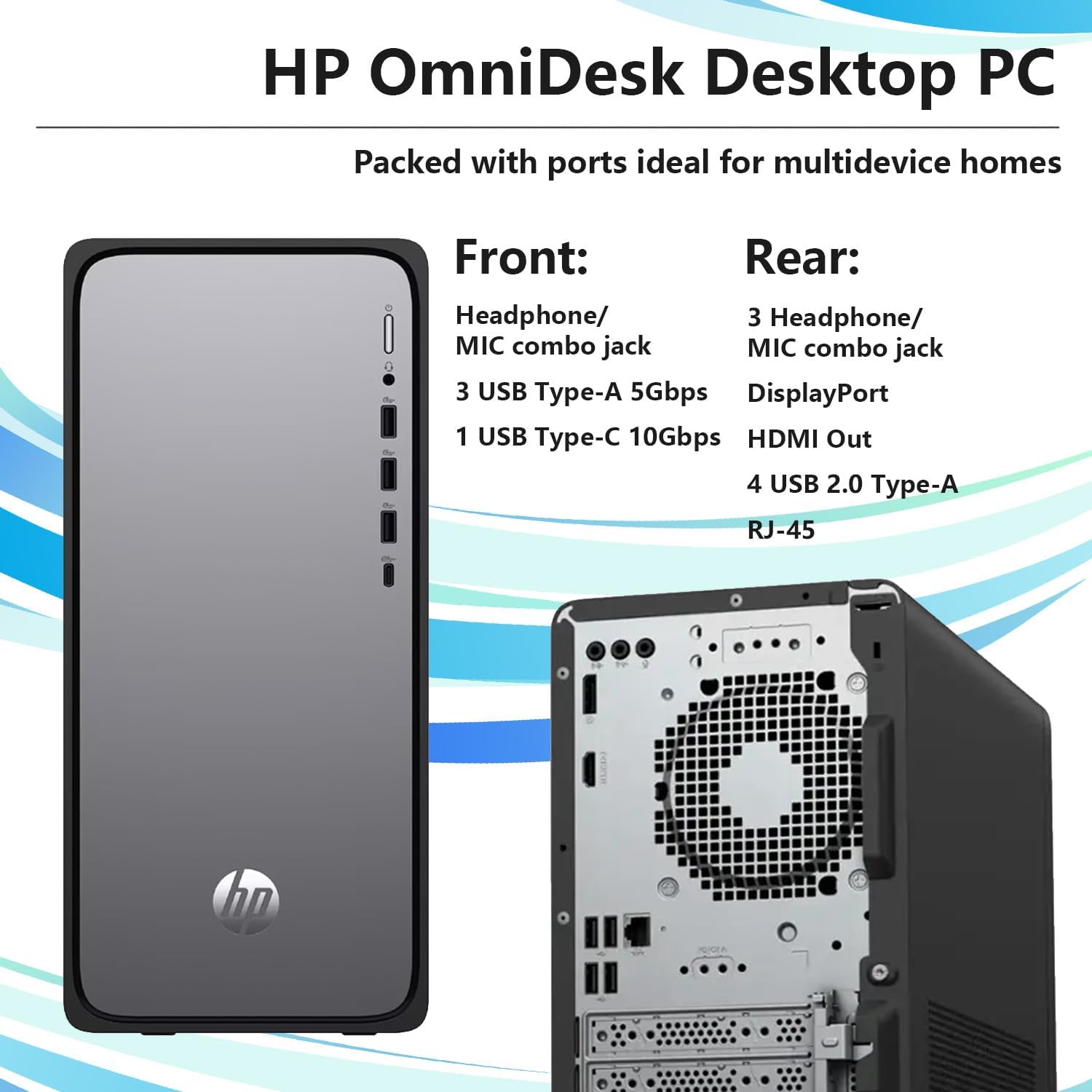
Image 2.1: Front and rear ports of the HP OmniDesk M02 Business Tower Desktop. This image illustrates the various connectivity options, including USB Type-C, USB Type-A, HDMI, DisplayPort, and RJ-45 Ethernet ports, facilitating easy connection of peripherals and network devices.
2.3 Initial Power On and Windows Setup
After connecting all necessary peripherals, press the power button on the front of the desktop. The system will boot up, and you will be guided through the Windows 11 Pro initial setup process. Follow the on-screen instructions to configure your language, region, network, and user account.
3. Operating Instructions
3.1 Powering On and Off
- To Power On: Press the power button located on the front of the desktop.
- To Shut Down: Click the Start button in Windows 11, then select the Power icon, and choose "Shut down." Avoid directly unplugging the power cable while the system is running to prevent data loss.
- To Restart: From the Power menu, select "Restart."
- To Sleep: From the Power menu, select "Sleep."
3.2 Using Windows 11 Pro
Your HP OmniDesk M02 comes with Windows 11 Pro, offering advanced security features, system management tools, and a redesigned user interface. Familiarize yourself with the Start menu, taskbar, and settings to customize your experience.
3.3 Network Connectivity
- Wi-Fi 6: To connect to a wireless network, click the network icon in the taskbar, select your desired Wi-Fi network, enter the password, and click Connect.
- Bluetooth: To pair Bluetooth devices, go to Settings > Bluetooth & devices, turn on Bluetooth, and select "Add device."
- Ethernet: If an Ethernet cable is connected, the system will automatically establish a wired network connection.
3.4 Utilizing Copilot
The desktop is optimized for Copilot, an AI assistant integrated into Windows 11. You can access Copilot to assist with tasks, answer questions, and enhance productivity. Look for the Copilot icon on your taskbar.

Image 3.1: A user operating the HP OmniDesk M02 Business Tower Desktop. This image demonstrates the desktop in a typical work environment, showcasing its integration with a monitor, keyboard, and mouse for daily tasks.
4. Maintenance
4.1 Cleaning the Desktop
Regular cleaning helps maintain performance and extends the life of your computer.
- Exterior: Use a soft, lint-free cloth slightly dampened with water or a mild cleaning solution to wipe the exterior surfaces. Avoid harsh chemicals.
- Vents: Periodically use compressed air to clear dust from the ventilation grilles to ensure proper airflow and prevent overheating. Ensure the desktop is powered off before cleaning vents.
4.2 Software Updates
Keep your operating system and drivers updated to ensure security, stability, and optimal performance. Windows 11 Pro automatically checks for updates, but you can manually check by going to Settings > Windows Update.
4.3 Data Backup
Regularly back up your important data to an external drive or cloud storage to prevent data loss in case of system failure. The included ADATA 64GB USB Flash Drive can be used for small backups or transferring files.
5. Troubleshooting
This section addresses common issues you might encounter.
- No Power:
- Ensure the power cable is securely connected to both the desktop and the electrical outlet.
- Verify the power outlet is functional by plugging in another device.
- No Display:
- Check that the monitor is powered on and the video cable (HDMI or DisplayPort) is securely connected to both the desktop and the monitor.
- Ensure the correct input source is selected on your monitor.
- No Internet Connection:
- For wired connections, check the Ethernet cable and ensure your router/modem is working.
- For Wi-Fi, verify that Wi-Fi is enabled in Windows settings and you are connected to the correct network with the correct password.
- Restart your router/modem and the desktop.
- System Slowdown:
- Close unnecessary applications.
- Check for and install any pending Windows updates.
- Run a disk cleanup and defragmentation (for HDD, though SSDs manage this differently).
- Scan for malware or viruses.
If you encounter issues not covered here, refer to the HP support website or contact customer service.
6. Specifications
Detailed technical specifications for the HP OmniDesk M02 Business Tower Desktop.
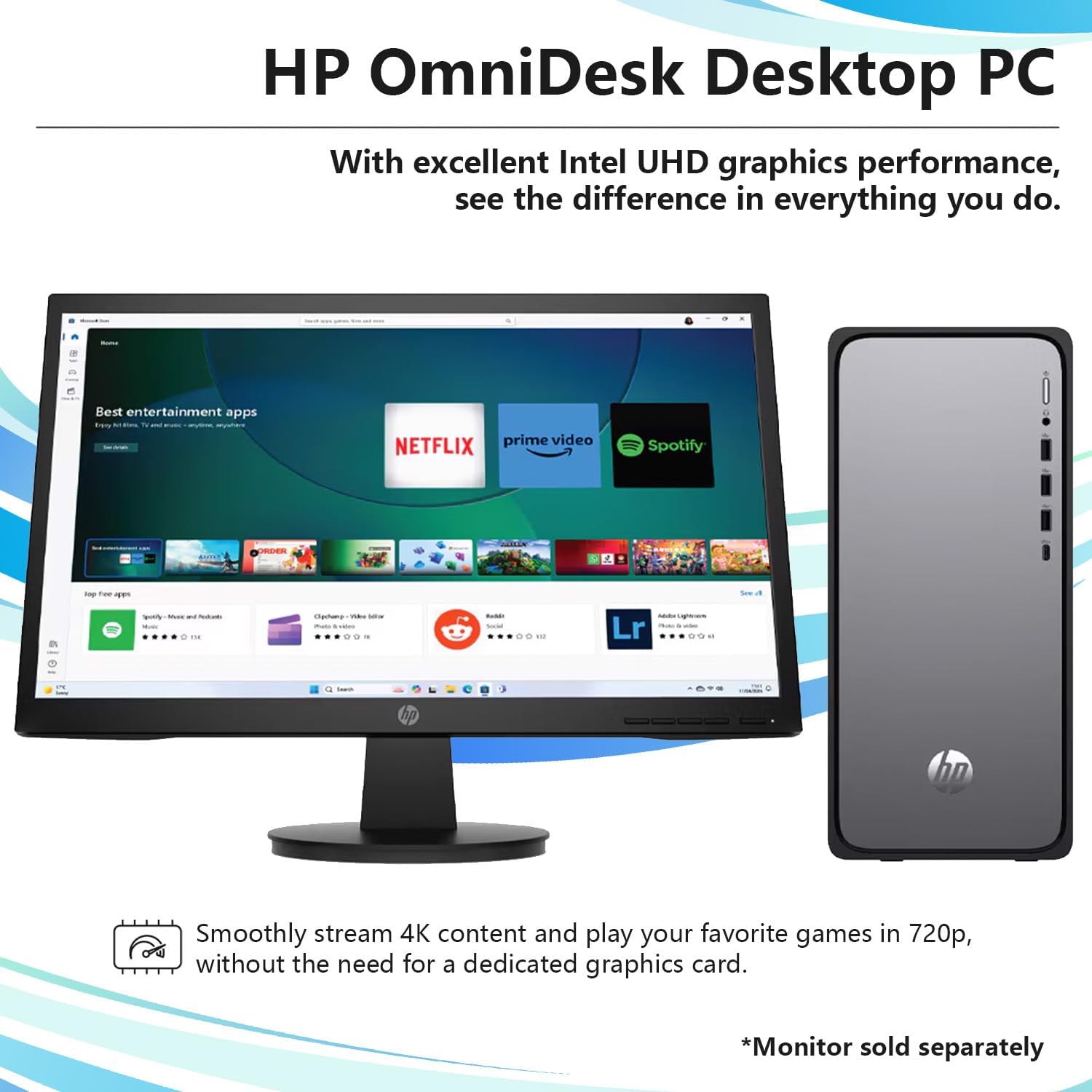
Image 6.1: Overview of key features for the HP OmniDesk M02 Business Tower Desktop. This graphic highlights the Intel Core i7-14700 processor, DDR5 RAM, PCIe M.2 SSD storage, Wi-Fi 6, Bluetooth, and Copilot integration.
| Component | Specification |
|---|---|
| Model Name | OmniDesk M02 (TPC-F134-MT) |
| Processor | Intel Core i7-14700 (20 Cores, 28 Threads, up to 5.4 GHz) |
| Memory (RAM) | 16GB DDR5-4800MHz (Upgradeable to 64GB) |
| Storage | 1TB PCIe NVMe M.2 SSD (Upgradeable to 8TB) |
| Operating System | Windows 11 Pro |
| Graphics | Intel UHD Graphics (Integrated) |
| Front Ports | 1x USB Type-C (10Gbps), 3x USB Type-A (5Gbps), 1x Headphone/Microphone Combo Jack |
| Rear Ports | 4x USB Type-A 2.0, 1x HDMI, 1x RJ-45 (Ethernet), 1x Audio Out, 1x DisplayPort |
| Wireless Connectivity | Wi-Fi 6 (802.11ax), Bluetooth |
| Dimensions (H x W x D) | 13.27 x 6.10 x 12.40 inches |
| Weight | 12.72 lbs |
| Included Peripherals | Wired Keyboard, Wired Mouse, ADATA 64GB USB Flash Drive |
| Color | Blue (Chassis color may vary by variant) |
| UPC | 199251618550 |
7. Warranty Information
Your HP OmniDesk M02 Business Tower Desktop comes with a 1-year limited manufacturer's warranty covering defects in materials and workmanship for the original components. Additionally, any upgraded RAM/SSD components are covered by a separate 1-year warranty provided by PCOnline US. Please retain your proof of purchase for warranty claims.
For detailed warranty terms and conditions, please refer to the documentation included with your product or visit the official HP support website.
8. Support
For technical assistance, product inquiries, or warranty support, please use the following resources:
- HP Official Support: Visit the official HP support website for drivers, manuals, and troubleshooting guides. You can also find contact information for HP customer service.
- PCOnline US Support: For issues specifically related to the upgraded RAM or SSD components, please contact PCOnline US directly, as they provide the warranty for these parts.
When contacting support, please have your product model name (HP OmniDesk M02) and serial number ready. The serial number is typically located on a label on the back or side of the desktop tower.


