
1. Introduction
This manual provides essential instructions for the installation, operation, and maintenance of your aosu WirelessCam Lite 4-Cam Kit security camera system. Please read this guide thoroughly before using the product to ensure proper functionality and safety.
The aosu WirelessCam Lite system offers comprehensive indoor and outdoor surveillance with 2K resolution, 6X digital zoom, AI human detection, and local storage via the aosuBase. Its wire-free design allows for flexible placement and easy setup.
2. What's in the Box
Verify that all components are present in your package:
- aosu WirelessCam Lite Cameras (4 units)
- aosuBase Station
- Mounting Screws and Anchors
- Charging Cable
- Ethernet Cable
- Power Adapter for aosuBase
- Instruction Manual (this document)
3. Product Overview
3.1 aosu WirelessCam Lite Camera
The aosu WirelessCam Lite is a compact, battery-powered camera designed for versatile indoor and outdoor use. It features 2K QHD resolution, a wide-angle lens, PIR motion sensor, AI human detection, and color night vision capabilities.
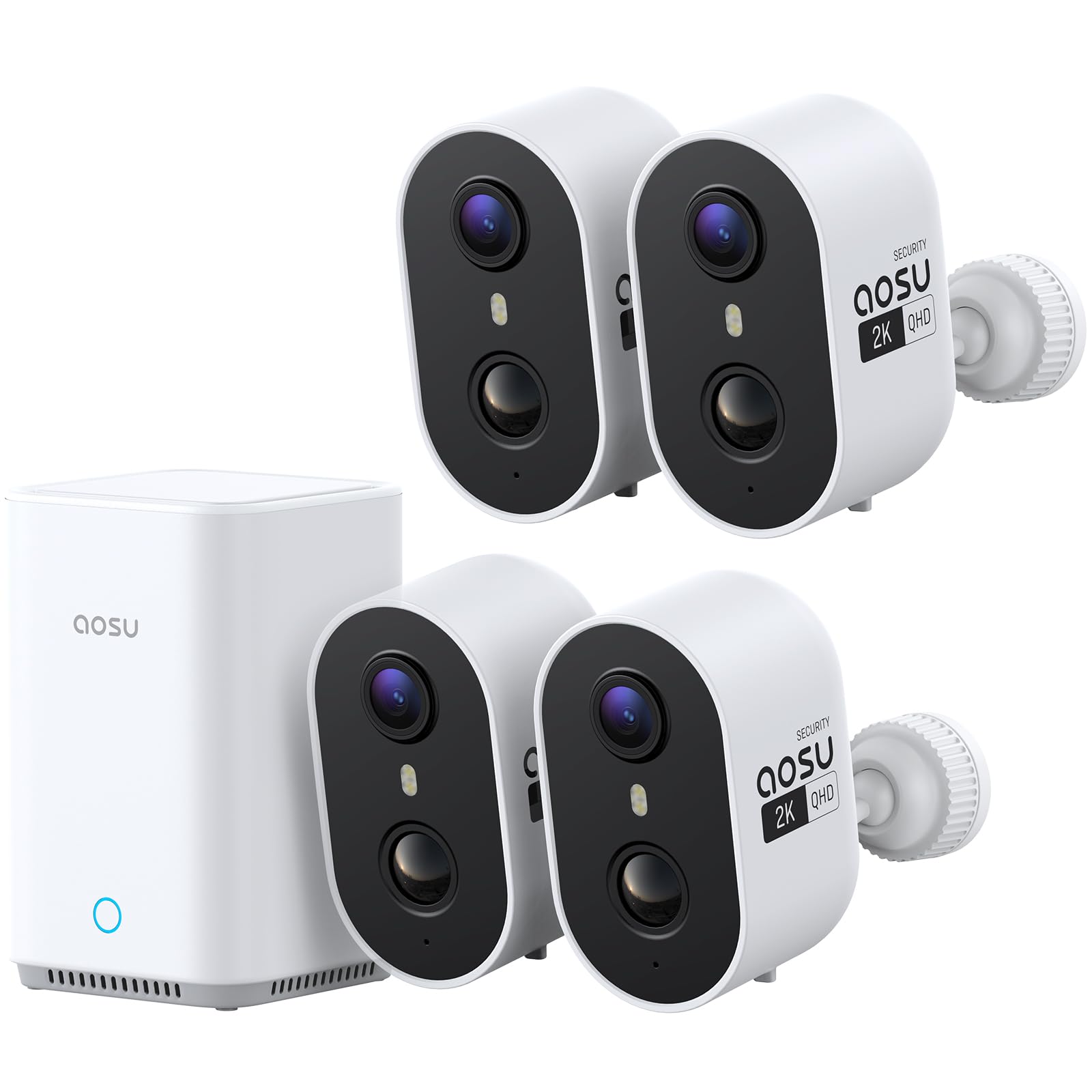
Image: The aosu WirelessCam Lite camera, a compact white unit with two lenses on the front.
3.2 aosuBase Station
The aosuBase serves as the central hub for your security system. It provides local storage for recordings (expandable up to 1TB via microSD card, sold separately), enhances camera connectivity, and manages system settings. It also helps optimize camera battery life.

Image: An aosu WirelessCam Lite camera next to the aosuBase station, illustrating the complete system.
3.3 Key Features
- 2K QHD Resolution: Capture clear and detailed video footage.
- 6X Digital Zoom: Zoom in on important details within the video feed.
- 100% Wire-Free: Battery-powered cameras for flexible placement without power cables.
- Indoor/Outdoor Use: IP65 weatherproof rating ensures durability in various conditions.
- PIR + AI Human Detection: Reduces false alerts by focusing on human movement.
- Color Night Vision: Provides vivid, full-color video even in low-light conditions.
- aosuBase Local Storage: Built-in 32GB storage, expandable up to 1TB via microSD card (not included), with no subscription fees.
- Two-Way Audio: Communicate directly through the camera.
- Multi-Cam Live-View: Monitor up to 4 cameras simultaneously via the aosu app.
- Camera-to-Camera Tracking: Groups events from the same person across multiple cameras into a single timeline.
4. Setup Guide
4.1 Charging the Cameras
Before initial use, fully charge all aosu WirelessCam Lite cameras using the provided charging cable and a standard USB power adapter (not included). A full charge can provide up to 120 days of battery life, depending on usage and settings.
4.2 aosu App Installation
- Download the 'aosu' app from the Apple App Store or Google Play Store.
- Create an account or log in if you already have one.
4.3 aosuBase Setup
- Connect the aosuBase to a power outlet using the provided power adapter.
- Connect the aosuBase to your home router using the provided Ethernet cable.
- Open the aosu app, tap the '+' icon, and follow the on-screen instructions to add the aosuBase.
4.4 Camera Pairing and Installation
- In the aosu app, after setting up the aosuBase, select to add a new camera.
- Follow the app's instructions to pair each camera with the aosuBase.
- Choose a Mounting Location: Select a location that provides optimal coverage and a clear view of the area you wish to monitor. Consider areas like front doors, garages, or backyards. The cameras are suitable for both indoor and outdoor environments.
- Mount the Camera: Use the provided mounting screws and anchors to securely attach the camera to a wall or ceiling. The magnetic base allows for easy adjustment of the camera angle.

Image: A smartphone screen displaying a successful one-step connection, indicating the ease of setup.

Image: Two images showing the aosu camera, one placed on an indoor shelf and another mounted on an outdoor wall, demonstrating flexible placement.
5. Operating Instructions
5.1 Live View
Open the aosu app to access the live feed from your cameras. You can view up to four cameras simultaneously for comprehensive monitoring.

Image: A smartphone held in hands, showing a split screen with live feeds from four different aosu cameras, providing a multi-camera view.
5.2 Recording and Playback
The system automatically records events triggered by motion detection. Recordings are stored locally on the aosuBase. You can review recorded footage through the app, which features a timeline for easy navigation and a camera-to-camera tracking function to follow individuals across different camera views.

Image: An aerial view of a house and yard with arrows indicating a person being tracked across multiple camera zones, demonstrating the camera-to-camera tracking feature.
5.3 Alerts and Notifications
The PIR sensor and AI human detection work together to provide accurate alerts, minimizing false alarms. You will receive notifications on your smartphone when significant activity is detected. The system can also trigger a siren and spotlight to deter intruders.

Image: A delivery person walking towards a house, with a white bracket highlighting them, indicating the camera's AI human detection feature.

Image: A security camera mounted above a garage, emitting light and a warning message on a phone, showing its ability to deter intruders with an alarm and spotlight.
5.4 Two-Way Audio
Utilize the two-way audio feature through the aosu app to speak with visitors or deter unwanted guests directly from your smartphone.

Image: A person inside a house talking through a voice changer to a child playing in the yard, demonstrating the two-way audio feature.
5.5 Night Vision
The cameras are equipped with full color night vision, providing clear and detailed images even in very low light conditions. This allows for better identification of objects and individuals compared to traditional infrared night vision.

Image: A split image comparing advanced 2K full color night vision on the left with traditional infrared night vision on the right, showing the superior detail and color in the advanced mode.
5.6 Smart Home Integration
The aosu WirelessCam Lite system is compatible with smart home platforms like Alexa, allowing for voice control and integration into your existing smart home ecosystem.

Image: A woman in a kitchen interacting with a smart display, which shows a camera feed, illustrating smart home integration with Alexa.
6. Maintenance
6.1 Cleaning
Regularly clean the camera lens with a soft, dry cloth to ensure optimal image clarity. Avoid using harsh chemicals or abrasive materials.
6.2 Battery Management
Monitor the battery levels of your cameras via the aosu app. Recharge cameras promptly when battery levels are low to ensure continuous protection. The aosuBase helps extend camera battery life.

Image: A graphic showing an aosu camera and the aosuBase, with a large '30% Longer Battery Life' text, indicating the energy-saving benefits of connecting to the aosuBase.
6.3 Firmware Updates
Keep your camera and aosuBase firmware updated through the aosu app to benefit from the latest features and security enhancements.
7. Troubleshooting
| Problem | Possible Cause | Solution |
|---|---|---|
| Camera not connecting to aosuBase | Out of range, low battery, network issue | Move camera closer to aosuBase, recharge battery, check aosuBase network connection. |
| Frequent false alerts | Sensitivity too high, environmental factors | Adjust motion detection sensitivity in the app, ensure camera is not pointed at moving foliage or busy streets. |
| Poor video quality | Dirty lens, weak Wi-Fi signal | Clean the camera lens, ensure strong Wi-Fi signal between camera and aosuBase. |
| No recording | SD card full/missing, motion detection off | Insert/replace microSD card in aosuBase, enable motion detection in app settings. |
8. Specifications
| Feature | Detail |
|---|---|
| Brand | aosu |
| Model Name | aosu WirelessCam Lite |
| Connectivity Technology | Wireless (Bluetooth, Ethernet, Wi-Fi) |
| Indoor/Outdoor Usage | Indoor, Outdoor |
| Video Capture Resolution | 2K (3 MP Effective Still Resolution) |
| Optical Zoom | 6x (Digital Zoom) |
| Special Features | Built-in 32GB Local Recording, Camera-to-Camera Track & Sync, Multi-Cam Live-View, Night Vision, True 2K QHD Resolution |
| Night Vision | Color Night Vision (26 Feet Range) |
| Waterproof Rating | IP65 |
| Power Source | Battery Powered (5 Volts) |
| Controller Type | aosu App |
| Compatible Devices | Alexa |
| Flash Memory Installed Size | 32 GB (aosuBase) |
| Frame Rate | 15 frames per second |
9. Warranty and Support
Your aosu WirelessCam Lite 4-Cam Kit is covered by a manufacturer's warranty. For detailed warranty information, please refer to the warranty card included in your product packaging or visit the official aosu website.
For technical support, troubleshooting assistance, or any product-related inquiries, please contact aosu customer service through the contact information provided on the official aosu website or within the aosu app.
Official Product Video:
Video: An official product video showcasing the features and benefits of the aosu WirelessCam Lite security camera system, including its 2K resolution, local storage, and easy installation.