
1. Introduction
The BlueDriver Pro Next-Gen OBD2 Scanner is a professional diagnostic tool designed to connect wirelessly to your smartphone or tablet (iOS and Android). It enables users to read and clear vehicle trouble codes, access enhanced diagnostics for various systems like ABS, SRS, Airbag, and TPMS, monitor live vehicle data, and generate repair reports. This device is compatible with all gas-powered vehicles manufactured in 1996 or newer, and select light-duty trucks.
The BlueDriver Pro Next-Gen offers comprehensive vehicle diagnostics without any subscription fees, providing free app updates and 24/7 support.
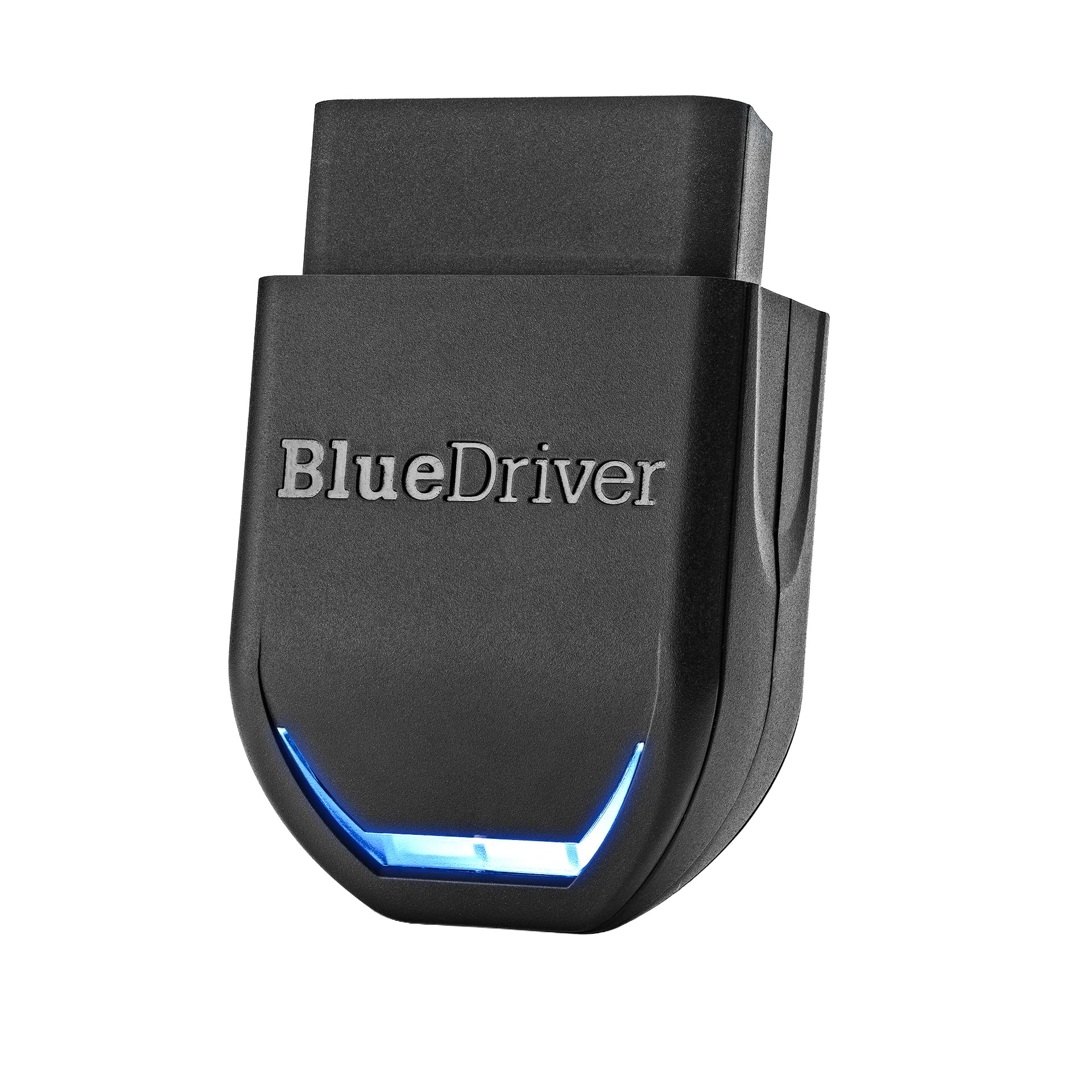
Image: The BlueDriver Pro Next-Gen OBD2 Scanner device.

Image: Visual representation of how OBD2 is essential for vehicle diagnostics.
2. Setup Guide
Follow these steps to set up your BlueDriver Pro Next-Gen OBD2 Scanner and begin diagnosing your vehicle.
2.1. Install the BlueDriver App
Download the official BlueDriver app from the Apple App Store (for iOS devices) or Google Play Store (for Android devices). Search for "BlueDriver OBD2 Scan Tool".
2.2. Locate Your Vehicle's OBD2 Port
The OBD2 port is typically located under the dashboard on the driver's side, usually beneath the steering wheel. Refer to your vehicle's owner's manual if you have difficulty locating it.

Image: The BlueDriver device with its OBD2 connector visible.
2.3. Plug in the BlueDriver Device
Firmly plug the BlueDriver device into your vehicle's OBD2 port. Ensure it is securely seated. The device will power on automatically once connected.

Image: Visual guide for the three-step setup process: Plug In, Pair, Get Results.
2.4. Pair the Device via Bluetooth
Turn on your vehicle's ignition (engine can be off). Open the BlueDriver app on your smartphone or tablet. The app will guide you through the Bluetooth pairing process. Ensure Bluetooth is enabled on your mobile device. You may be prompted to enter a PIN, which is typically "0000" or "1234".
Video: Detailed setup instructions for Android devices.
Video: Detailed setup instructions for iOS devices.
3. Operating Instructions
The BlueDriver app provides a user-friendly interface to access various diagnostic functions.
3.1. Reading and Clearing Diagnostic Trouble Codes (DTCs)
Once connected, navigate to the "Read Codes" section in the app. The scanner will perform a comprehensive scan of your vehicle's systems. It can read and clear standard Check Engine Light codes, as well as enhanced codes for systems such as Anti-lock Braking System (ABS), Supplemental Restraint System (SRS), Airbag, and Tire Pressure Monitoring System (TPMS) on supported vehicles.

Image: The BlueDriver app displaying various diagnostic scan results, including Check Engine, ABS, SRS, and Airbag.
3.2. Accessing Repair Reports
For each diagnostic trouble code identified, the app provides detailed "Repair Reports". These reports include code definitions, potential causes, and technician-verified fixes specific to your vehicle's VIN. This information helps in understanding the issue and planning repairs.
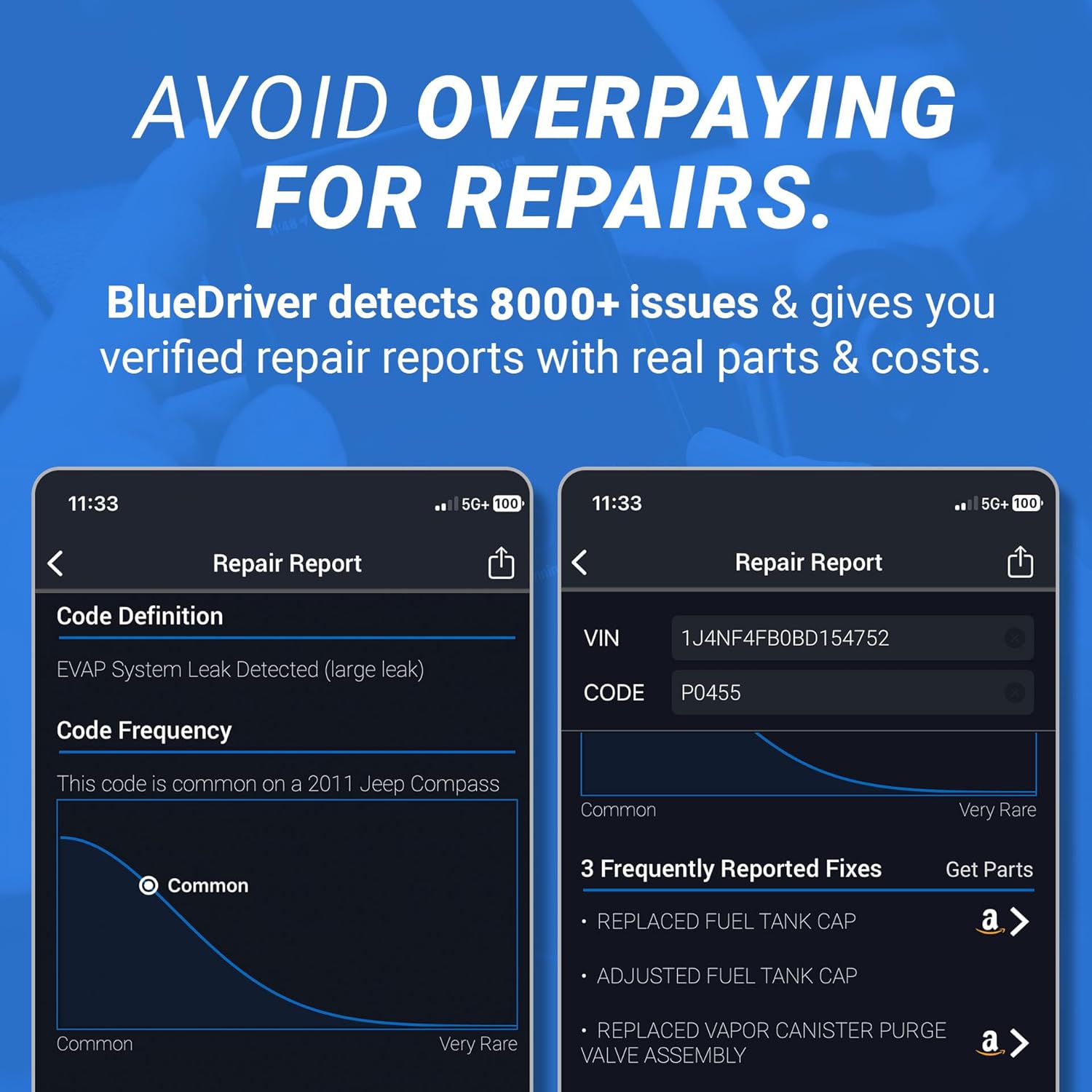
Image: An example of a repair report within the BlueDriver app, detailing a code definition and suggested fixes.

Image: Illustrates the app's ability to provide immediate understanding of vehicle problems.
3.3. Live Data Monitoring
The "Live Data" feature allows you to monitor various vehicle sensors and parameters in real-time. This can be useful for diagnosing intermittent issues, observing engine performance, and confirming repairs. Data can be displayed in numerical or graphical formats.

Image: A smartphone screen showing live vehicle data, such as intake air temperature and engine RPM, mounted in a car.

Image: Highlights the real-time data monitoring capability of the device.
3.4. Smog Check and Mode 6 Data
Utilize the "Smog Check" function to determine if your vehicle is ready for an emissions test. The "Mode 6" feature provides access to test results for non-continuously monitored systems, offering deeper diagnostic insights.
Video: A product overview demonstrating various features of the BlueDriver app, including code reading and live data.
4. Maintenance
The BlueDriver Pro Next-Gen OBD2 Scanner requires minimal maintenance to ensure optimal performance and longevity.
- Cleaning: Wipe the device with a soft, dry cloth to remove dust or debris. Avoid using liquid cleaners or solvents, as these can damage the electronic components.
- Storage: When not in use, store the device in a cool, dry place away from direct sunlight and extreme temperatures.
- Software Updates: The BlueDriver app receives free updates. Ensure your app is always updated to the latest version to benefit from new features, vehicle compatibility enhancements, and bug fixes.
5. Troubleshooting
If you encounter issues with your BlueDriver Pro Next-Gen OBD2 Scanner, refer to the following common troubleshooting steps:
- Device Not Powering On:
- Ensure the device is firmly plugged into the vehicle's OBD2 port.
- Verify that your vehicle's ignition is turned on.
- Check the vehicle's OBD2 port for any obstructions or damage.
- Bluetooth Connection Issues:
- Confirm Bluetooth is enabled on your smartphone or tablet.
- Restart the BlueDriver app and attempt to reconnect.
- Forget the device in your phone's Bluetooth settings and re-pair it.
- Ensure no other Bluetooth devices are interfering with the connection.
- App Not Displaying Data or Codes:
- Verify that the BlueDriver device is properly connected and powered on.
- Ensure your vehicle's ignition is on.
- Check for any available app updates and install them.
- Try restarting your mobile device.
- Inaccurate Readings:
- Ensure the app is updated to the latest version.
- Confirm your vehicle's VIN is correctly entered in the app for accurate repair reports.
- Contact support if issues persist.
6. Specifications
| Feature | Detail |
|---|---|
| Brand | BlueDriver |
| Model Number | Pro Next-Gen (LSB2) |
| Power Source | Vehicle OBD2 Port |
| Operating System Compatibility | iOS and Android |
| Connectivity | Bluetooth |
| Supported Vehicles | All gas-powered vehicles 1996+ and select light-duty trucks. |
| Included Components | BlueDriver OBD2 Scanner, access to BlueDriver App |
| Language | English |
| GTIN / UPC | 822195000258 |

Image: Illustrates the broad compatibility of the BlueDriver scanner with various vehicle types from 1996 onwards.
7. Warranty Information
Lemur Vehicle Monitors provides the following warranty for the BlueDriver Pro Next-Gen OBD2 Scanner:
- 180-Day Money-Back Guarantee: If you are not completely satisfied with your purchase for any reason, you may return it within the first 180 days for a full refund. Return shipping costs will be covered.
- One-Year Defective Product Policy: Defective products will be gladly accepted within one year of the original invoice date. Lemur Vehicle Monitors will cover return postage and ship a replacement product promptly.
8. Customer Support
For any questions, technical assistance, or support regarding your BlueDriver Pro Next-Gen OBD2 Scanner, please contact our North American support team. Support is available 24/7 via phone or in-app chat.

Image: Icons representing available support channels: chat and phone.
