
1. Introduction
This manual provides detailed instructions for the setup, operation, and maintenance of your Eyoyo EY-009L 1D Mini Bluetooth Barcode Scanner. This compact and portable scanner offers versatile 3-in-1 connectivity options: USB wired, 2.4G wireless, and Bluetooth. It is designed for efficient 1D barcode scanning across various platforms including iOS, Windows, Android, tablets, and computers.
2. Package Contents
Before proceeding, please verify that all items are present in your package:
- Eyoyo EY-009L Barcode Scanner
- USB Charging/Data Cable
- 2.4G Wireless Dongle
- Silicone Protective Case
- Wrist Strap
- User Manual (this document)
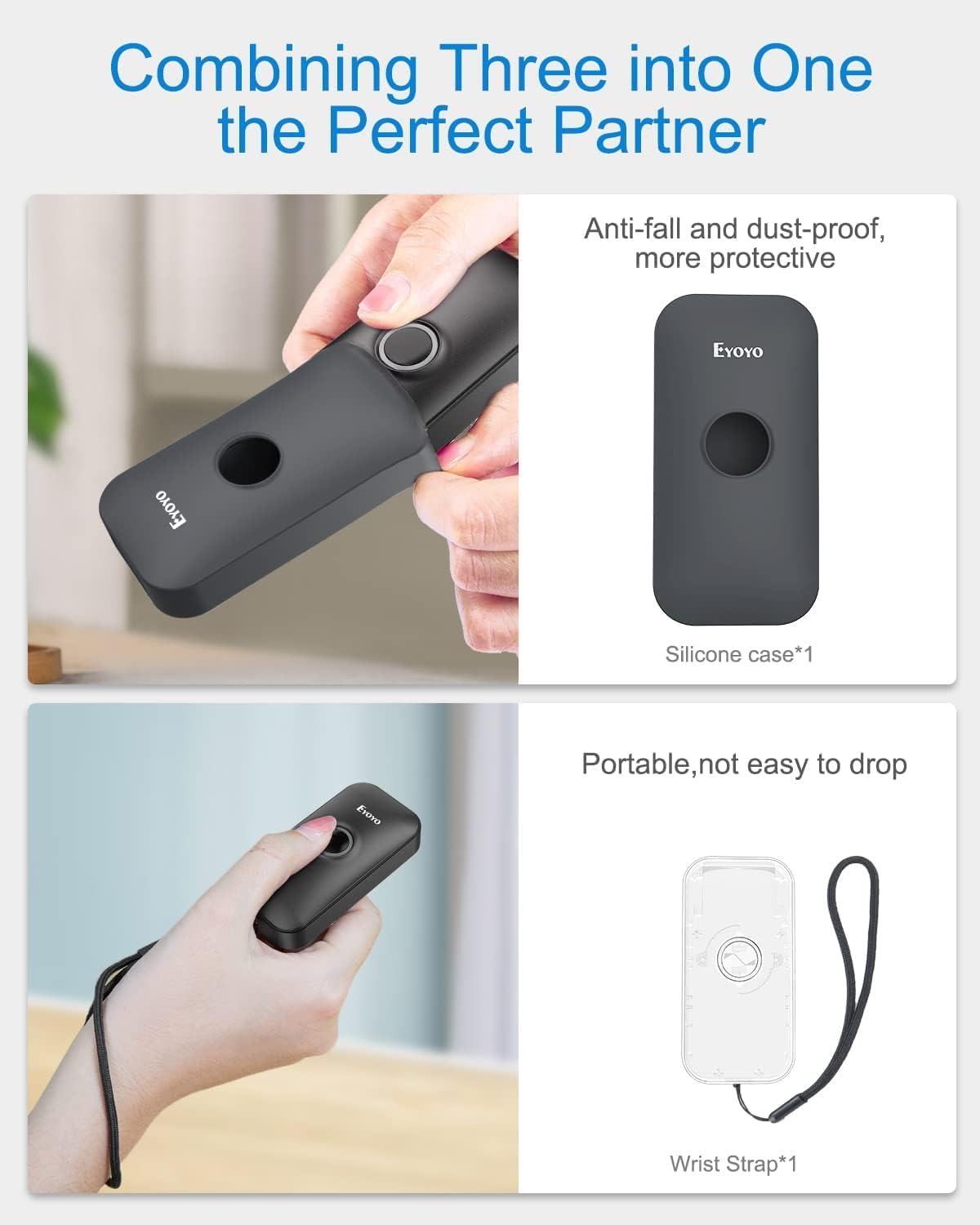
Image: Contents of the Eyoyo EY-009L package, including the scanner, USB cable, 2.4G dongle, silicone case, wrist strap, and user manual.
3. Product Overview
The Eyoyo EY-009L is a compact and lightweight 1D barcode scanner designed for portability and ease of use. It features a durable silicone case for protection and multiple connectivity options.
3.1 Key Features
- Compact Design: Weighs approximately 35g (1.23oz) with dimensions of 3.07" x 1.50" x 0.47".
- 3-in-1 Connectivity: Supports 2.4G Wireless, Bluetooth, and USB Wired modes.
- 1D Barcode Support: Reads UPC/EAN, Code 39, Interleaved 2 of 5, Code 93, Code 128, Codabar, Industrial 2 of 5, and Matrix 2 of 5.
- Long Battery Life: 650mAh rechargeable battery provides up to 5 hours of continuous scanning.
- High Compatibility: Works with Windows, Mac OS, Linux, iOS, and Android devices.

Image: The compact Eyoyo EY-009L barcode scanner held in a hand, illustrating its small size and portability.
4. Setup and Connection
The scanner offers three connection modes. Choose the mode that best suits your device and environment.

Image: Visual representation of the three connection modes: USB Wired, 2.4G Wireless, and Bluetooth, connecting the scanner to various devices.
4.1 USB Wired Mode
- Connect the scanner to your computer using the provided USB cable.
- The scanner will automatically enter wired mode and begin charging.
- No additional drivers are typically required. The scanner will function as a keyboard input device.
4.2 2.4G Wireless Mode
- Insert the 2.4G wireless dongle into a USB port on your computer or device.
- Turn on the scanner. It should automatically connect to the dongle.
- A successful connection is indicated by a specific LED light pattern or sound (refer to the scanner's indicator guide for details).
- The 2.4G wireless mode offers a transmission range of up to 30m (98ft) in a barrier-free environment.
4.3 Bluetooth Mode
- Ensure the scanner is powered on and in Bluetooth pairing mode (usually indicated by a blinking blue LED). If not, scan the "Bluetooth Pairing" barcode from the full user manual.
- On your host device (smartphone, tablet, computer), enable Bluetooth and search for available devices.
- Select "Eyoyo Barcode Scanner" or a similar name from the list of devices to pair.
- Once paired, the scanner's LED will change to a solid blue, and a confirmation sound may be heard.
- Bluetooth mode provides a transmission range of up to 50m (164ft) in a barrier-free environment.

Image: Diagram showing the effective transmission distances for 2.4G wireless mode (up to 30m/98ft) and Bluetooth mode (up to 50m/164ft) in different environments.

Image: Illustration of the scanner's compatibility with Windows, Android, iOS/macOS, and Linux operating systems, connecting to PCs, laptops, tablets, and smartphones.
5. Operating Instructions
5.1 Basic Scanning
- Ensure the scanner is connected to your device in the desired mode.
- Open an application or text field where you want the scanned data to appear (e.g., Notepad, Word document, POS software).
- Point the scanner's light beam at the 1D barcode you wish to scan.
- Press the scan button. A successful scan will be indicated by a beep and/or a green LED flash, and the barcode data will appear in your application.
5.2 Operating Modes
The scanner supports two primary operating modes:
- Instant Upload Mode: Scanned data is immediately transmitted to the connected device. This is the default mode.
- Storage Mode: Scanned data is stored in the scanner's internal memory. Data can be uploaded later by scanning a specific "Upload Data" barcode (refer to the full user manual for this barcode). This mode is useful when out of range of the host device.
To switch between modes, scan the corresponding configuration barcodes found in the comprehensive user manual.
5.3 Customization Options
The scanner offers various customizable settings by scanning specific configuration barcodes:
- Sound and Vibration: Enable or disable audible beeps and vibration feedback.
- Prefix/Suffix: Add custom characters before or after scanned data.
- Character Deletion: Remove specific characters from scanned data.
- Keyboard Keys: Insert special keys like TAB or CR&LF (Carriage Return & Line Feed) after each scan for automatic cursor movement.
Refer to the complete user manual for a full list of configuration barcodes and detailed instructions.
6. Battery and Charging
The scanner is equipped with a 650mAh rechargeable battery.
- Charging: Connect the scanner to a USB power source (computer USB port or USB wall adapter) using the provided USB cable. The charging indicator light will show charging status. A full charge takes approximately 2 hours.
- Battery Life: A fully charged battery provides up to 5 hours of continuous scanning or 720 hours of standby time.

Image: Infographic detailing the 650mAh rechargeable battery, 5 hours scanning time, 720 hours standby time, and 4 hours charging time for the Eyoyo barcode scanner.
7. Maintenance
- Cleaning: Use a soft, dry cloth to clean the scanner's exterior. Do not use abrasive cleaners or solvents.
- Storage: Store the scanner in a cool, dry place away from direct sunlight and extreme temperatures.
- Protection: Always use the provided silicone protective case to guard against drops and scratches.

Image: The Eyoyo barcode scanner being inserted into its anti-fall and dust-proof silicone case, and an image showing the scanner with an attached wrist strap for portability.
8. Troubleshooting
| Problem | Possible Cause | Solution |
|---|---|---|
| Scanner not turning on. | Low battery. | Charge the scanner for at least 2 hours. |
| No data transmitted after scanning. | Not connected to host device; incorrect operating mode; application not in focus. | Ensure proper connection (USB, 2.4G, or Bluetooth). Check if the scanner is in "Instant Upload Mode". Make sure the cursor is in the desired text field of your application. |
| Cannot pair via Bluetooth. | Scanner not in pairing mode; device Bluetooth off; interference. | Scan the "Bluetooth Pairing" barcode. Ensure Bluetooth is enabled on your device. Move closer to the device and away from potential interference sources. |
| Scanner reads barcodes incorrectly or not at all. | Damaged barcode; scanner lens dirty; incorrect barcode type enabled. | Try scanning a different, known-good barcode. Clean the scanner lens. Refer to the full manual to enable/disable specific barcode symbologies. |
9. Specifications
| Feature | Detail |
|---|---|
| Model Number | EY-009L |
| Connectivity Technology | 2.4G Wireless, Bluetooth, USB Cable |
| Compatible Devices | Desktop, Laptop, Smartphone, Tablet (iOS, Windows, Android, Mac OS, Linux) |
| Barcode Types Supported | 1D codes: UPC/EAN, Code 39, Interleaved 2 of 5, Code 93, Code 128, Codabar, Industrial 2 of 5, Matrix 2 of 5 |
| Battery Capacity | 650mAh |
| Continuous Scanning Time | Up to 5 hours |
| Charging Time | Approximately 2 hours |
| Dimensions (D x W x H) | 0.48" x 1.56" x 3" |
| Weight | 35g (1.23oz) |
| Operating Voltage | 5 Volts |
| Maximum Storage Temperature | 50 Degrees Celsius |
| Certifications | CE, FCC, RoHS |
10. Warranty and Support
The Eyoyo EY-009L Barcode Scanner comes with a 1-Year Manufacturer Warranty.
For technical support, warranty claims, or further assistance, please contact Eyoyo customer service through their official website or the contact information provided with your purchase documentation.
Please retain your proof of purchase for warranty purposes.