
Introduction
Thank you for choosing the OneOdio Studio Max 1 Wireless DJ Headphone and USB-C to 3.5 mm Adapter. This manual provides essential information for the proper setup, operation, and maintenance of your device. Please read it thoroughly before use and retain it for future reference.
Package Contents
Verify that all items listed below are present in your package:
- OneOdio Studio Max 1 Wireless DJ Headphone
- USB-C to 3.5 mm Audio Adapter
- USB-C Charging Cable
- 3.5 mm Audio Cable
- User Manual (this document)
- Carrying Pouch (if included)
Product Overview
Familiarize yourself with the components of your OneOdio Studio Max 1 headphones and the USB-C adapter.
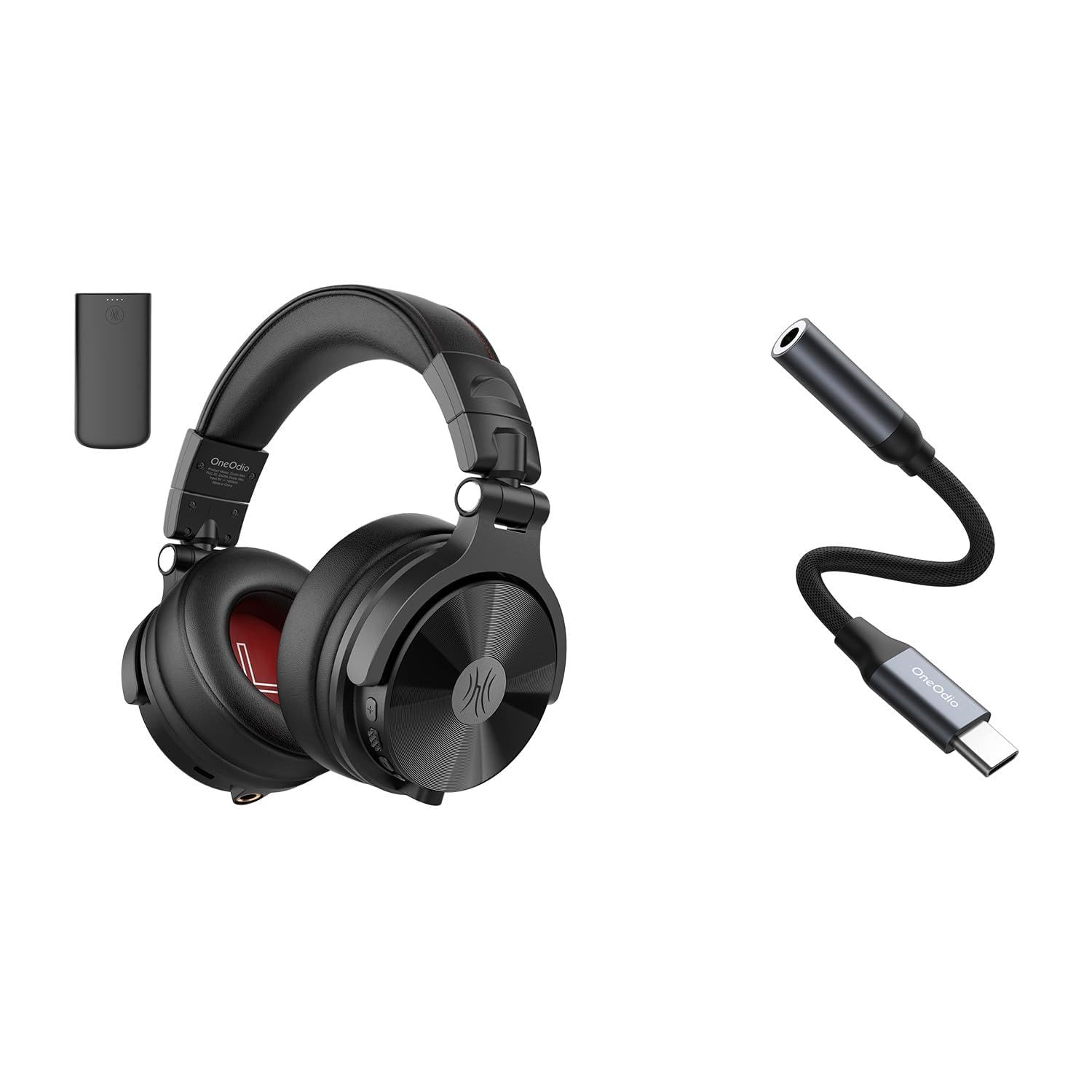
Figure 1: OneOdio Studio Max 1 Wireless DJ Headphone and USB-C to 3.5 mm Adapter. This image displays the headphones in their folded state alongside the USB-C to 3.5 mm adapter and included cables, providing a general view of the product and its accessories.
Headphone Components
- Power Button: On/Off, Play/Pause, Call Answer/End
- Volume Up Button: Increase volume, Next track (long press)
- Volume Down Button: Decrease volume, Previous track (long press)
- USB-C Charging Port: For charging the headphones
- 3.5 mm Audio Input: For wired connection
- Microphone: For hands-free calls
- LED Indicator: Displays power, pairing, and charging status
USB-C to 3.5 mm Adapter Components
- USB-C Connector: Connects to your device
- 3.5 mm Audio Jack: Connects to headphones or other audio devices
- DAC Chip: Provides high-resolution audio conversion
Setup
Charging the Headphones
Before initial use, fully charge the headphones.
- Connect the USB-C charging cable to the USB-C charging port on the headphones.
- Connect the other end of the cable to a USB power source (e.g., computer USB port, wall adapter).
- The LED indicator will glow red during charging and turn off when fully charged.
Figure 2: Illustrates the USB-C charging port on the headphones. For charging, locate this port, typically on one of the earcups, and connect the provided USB-C cable.
Bluetooth Pairing (Wireless Mode)
- Ensure the headphones are turned off.
- Press and hold the Power Button for approximately 5-7 seconds until the LED indicator flashes blue and red alternately. This indicates pairing mode.
- On your audio device (smartphone, tablet, computer), enable Bluetooth and search for available devices.
- Select "OneOdio Studio Max 1" from the list of found devices.
- Once paired, the LED indicator will flash blue slowly.
Wired Connection (3.5 mm Audio Cable)
For a wired connection, you can use the included 3.5 mm audio cable.
- Connect one end of the 3.5 mm audio cable to the 3.5 mm audio input on the headphones.
- Connect the other end of the 3.5 mm audio cable to the 3.5 mm audio output on your device.
- The headphones will automatically switch to wired mode.
Using the USB-C to 3.5 mm Adapter
This adapter allows you to connect 3.5 mm audio devices to USB-C ports that lack a dedicated audio jack.
- Connect the USB-C end of the adapter to the USB-C port on your audio source device (e.g., smartphone, laptop).
- Connect your 3.5 mm headphones or other audio device to the 3.5 mm audio jack on the adapter.
- Ensure your device's audio output is set to the USB-C audio accessory if prompted.
Figure 3: Depicts the USB-C to 3.5 mm adapter. To use, insert the USB-C connector into your device and plug your 3.5 mm audio cable into the adapter's audio jack.
Operating Instructions
Power On/Off
- Power On: Press and hold the Power Button for 2-3 seconds until the LED indicator flashes blue.
- Power Off: Press and hold the Power Button for 3-4 seconds until the LED indicator flashes red and then turns off.
Music Playback (Wireless Mode)
- Play/Pause: Short press the Power Button.
- Volume Up: Short press the Volume Up (+) button.
- Volume Down: Short press the Volume Down (-) button.
- Next Track: Long press the Volume Up (+) button.
- Previous Track: Long press the Volume Down (-) button.
Call Management (Wireless Mode)
- Answer/End Call: Short press the Power Button.
- Reject Call: Long press the Power Button.
- Redial Last Number: Double-press the Power Button.
LDAC/LC3 Codec Support
The OneOdio Studio Max 1 supports LDAC and LC3 codecs for high-resolution wireless audio transmission. Ensure your source device also supports these codecs and that they are enabled in your device's Bluetooth settings for optimal audio quality.
Maintenance and Care
- Clean the headphones and adapter with a soft, dry cloth. Do not use abrasive cleaners or solvents.
- Avoid exposing the devices to extreme temperatures, humidity, or direct sunlight.
- Store the headphones in the included carrying pouch when not in use to protect them from dust and scratches.
- Do not attempt to disassemble or modify the headphones or adapter, as this will void the warranty.
- Keep away from water and liquids. If exposed, power off immediately and allow to dry completely before use.
Troubleshooting
| Problem | Possible Cause | Solution |
|---|---|---|
| Headphones do not power on. | Low battery. | Charge the headphones fully. |
| Cannot pair via Bluetooth. | Headphones not in pairing mode; Bluetooth disabled on device; too far from device. | Ensure headphones are in pairing mode (flashing red/blue). Enable Bluetooth on your device. Move headphones closer to the device (within 10 meters). |
| No sound in wireless mode. | Volume too low; headphones not connected; incorrect audio output selected. | Increase volume on headphones and device. Re-pair headphones. Check device's audio output settings. |
| No sound in wired mode. | Cable not fully inserted; faulty cable; incorrect audio output selected. | Ensure 3.5 mm cable is fully inserted into both devices. Try a different 3.5 mm cable. Check device's audio output settings. |
| USB-C adapter not working. | Adapter not fully inserted; device incompatible; incorrect audio output selected. | Ensure adapter is fully inserted into the USB-C port. Verify your device supports USB-C audio output. Check device's audio output settings. |
Specifications
- Model: OneOdio Studio Max 1
- Driver Diameter: 50 mm
- Frequency Response: 20 Hz - 40 kHz (Hi-Res Audio certified)
- Impedance: 32 Ohms
- Sensitivity: 110 dB ± 3 dB
- Bluetooth Version: 5.2
- Bluetooth Range: Up to 10 meters (33 feet)
- Supported Codecs: LDAC, LC3, SBC, AAC
- USB-C Adapter Sampling Rate: 24-bit/96kHz HiFi audio
Warranty and Support
OneOdio products come with a standard manufacturer's warranty. For detailed warranty information, please refer to the warranty card included in your package or visit the official OneOdio website. For technical support, troubleshooting assistance, or warranty claims, please contact OneOdio customer service through their official channels.
Official Website: www.oneodio.com
Email Support: support@oneodio.com


